
Contents:
- What is management accounting, and why do businesses often start with Excel?
- Why do business owners choose Excel?
- What can management accounting in Excel handle?
- How can you introduce management accounting in Excel at your company?
- Advantages and limitations of accounting in Excel
- What can replace Excel?
What is management accounting, and why do businesses often start with Excel?
Management accounting is a system for collecting, organizing, and analyzing data about a company’s financial transactions to help the owner make decisions.
Managing a business requires answers to practical questions: how much money each project generates, where spending exceeds the budget, who is holding funds they must account for, how much cash is available today, and whether a cash shortfall is expected.
Consider a hypothetical example: a renovation team is working on two sites, customers pay in installments, and the person responsible records transactions every day. Excel may be sufficient as long as data arrives on time and can be checked. As the number of sites and transactions grows, it is worth reviewing the working procedures and assessing the tool. The number of projects alone does not determine whether a spreadsheet is suitable.

Why do business owners choose Excel?
The first reason is familiarity. If the team already uses Excel, an initial transaction register can be built in an existing workbook. Check that the required version and license are available before starting collaborative work.
The second reason is flexibility. You can tailor the table to your business by adding expense categories, payment methods, projects, counterparties, comments, and links to documents. Excel does not argue or ask you to “set up reference lists” before the first entry.

The third reason is the ability to start with a simple structure. It helps to establish transaction entry and balance reconciliation first. Judge Excel’s suitability by data completeness, accounting complexity, and the time needed for checks, without a universal threshold of one or two projects.
What can management accounting in Excel handle?
Excel lets you collect transactions in a structured table and build reports from it. PivotTables help group and analyze the data by project, category, and period.
For management accounting in Excel to work reliably, it helps to separate two layers from the outset: data entry in a single table of events, and reporting through pivot tables, charts, and project P&L reports. This reduces the risk of breaking a formula and makes analysis faster.
The register needs a transaction ID, date, event type, project, counterparty, category, amount, bank or cash account, comment, and link to a document. For accrual-based reporting, add the period in which income or an expense is recognized and a link to the payment: the payment date and recognition date may differ.
One project: cash and profit come from different events
Training example: the “Apartment A” project, October 2026. The opening cash balance is zero. Assume the customer paid an advance and the materials were paid for first, then used in full for an accepted stage of work. In this example, revenue for that stage is recognized when it is handed over to the customer. Taxes, wages, and other costs are not considered here.
| ID and date | Event type and link | Amount, ₽ | Payment / cash flow | Recognition period in P&L |
|---|---|---|---|---|
| A1, 1 Oct | Customer advance; to be applied to W1 | 100000 | Cash inflow +100000 | Not yet revenue |
| P1, 2 Oct | Payment for materials; linked to M1 | 30000 | Cash outflow −30000 | Not yet an expense |
| M1, 5 Oct | Materials paid for under P1 used for stage W1 | 30000 | No new payment: 0 | October: expense 30000 |
| W1, 10 Oct | Stage handed over and accepted; 80000 of advance A1 applied | 80000 | No new payment: 0 | October: revenue 80000 |
Net cash flow: 100,000 − 30,000 = 70,000 ₽. With a zero opening balance, the same amount of cash remains. P&L for these transactions: 80,000 − 30,000 = 50,000 ₽ before other costs and taxes. A further 20,000 ₽ of the advance has not become revenue for this stage. Do not count payment P1 again in addition to expense M1; applying the advance to W1 does not create a new cash receipt. In your own table, use your actual documents and dates and your established recognition rules.
Separate cash movements from the financial result from the outset. A cash-flow report records receipts and payments. An accrual-based profit and loss statement (P&L) shows the income and expenses for the relevant period. IAS 7 also distinguishes profit from cash flows. It is a useful reference for building two separate reports, without requiring you to apply the standard to your internal spreadsheet.
A customer advance increases cash, but it does not by itself represent earned revenue before the corresponding obligations have been fulfilled. IFRS 15 explains this principle. A prepayment to a supplier should not automatically become an expense for the period in an accrual-based P&L either. Establish recognition rules separately. Do not include a linked payment and accrual twice in the same measure. A transfer between the company’s own accounts creates neither income nor an expense and does not change the total cash balance; identify it as an internal transfer in the consolidated cash-flow report.
- Accrual-based income and expense report: recognized income and expenses for the period, and profit by project and for the company. Use a consistent rule for allocating shared expenses.
- Cash-flow report: inflows, outflows, and cash balances across cash and bank accounts.
- Plan-versus-actual report: compare budget and actual figures for the same projects, categories, periods, and accounting method. Compare the payment plan with payments made, and the accrual-based expense budget with recognized expenses.
- Control of funds advanced for business expenses: who received the money, how much is supported by documents, how much has been returned, and what remaining amount still needs to be accounted for. Issuing an advance does not by itself create a P&L expense.
- Reconciliation of customer payments: who has paid, what is overdue, and what is still expected.
If your focus is on expenses and the discipline of collecting receipts, see the 101 article “Tracking expenses in Excel for a construction business”. It explains where Excel helps and where it starts to fall short.
How can you introduce management accounting in Excel at your company?
The main mistake when introducing accounting in Excel is to start with “reports for the owner” before data entry is reliable. It is better to establish a simple recording process first: who enters transactions, when and in what format, where documents are stored, and how amounts are checked.
A practical arrangement is to assign one person to the methodology—the rules—and another to discipline—checking that entries are completed—while team members enter their own transactions. When roles are not assigned, Excel becomes a file kept “just in case.”
For reliable accounting, establish the following sequence:
- Step 1. Decide which reports you actually need. A common minimum is cash flow, income and expenses by project, and receivables—who owes payment.
- Step 2. Create a transaction table with the fields in the basic list. Distinguish payments from accruals and link them by ID. Keep reference lists and reports separate from manual data entry.
- Step 3. Create reference lists for projects, expense categories, income categories, and counterparties. This reduces naming inconsistencies and helps analysis.
- Step 4. Set up input validation with drop-down lists and permitted amount values. Add checks for empty fields and duplicates; define separately how refunds and corrections should be recorded.
- Step 5. Build reports from the prepared data: project P&L, weekly cash flow, and budget-versus-actual comparisons. Set the correct event types and dates for each report, and check the results manually using a few transactions. The cheat sheet on essential Excel formulas can help with calculations by project and period; select formulas separately for payments and accruals.
- Step 6. Establish rules for recognizing income and expenses, accounting for advances, funds issued for business expenses, and shared costs. Decide when to enter a payment, how to attach documents, and who closes the month.
- Step 7. Introduce a checking schedule: daily transaction entry, weekly reconciliation, and monthly closing and analysis of variances.
To plan ahead for growth, see the 101 article “Management accounting for project-based businesses: how to set it up”. It focuses on project profitability and margins.
Advantages and limitations of accounting in Excel
The advantages become visible with the first reports: you create a table, set up formulas, get totals, and build an expense chart. Excel’s versatility lets you adapt the structure of the analysis to the company’s needs.
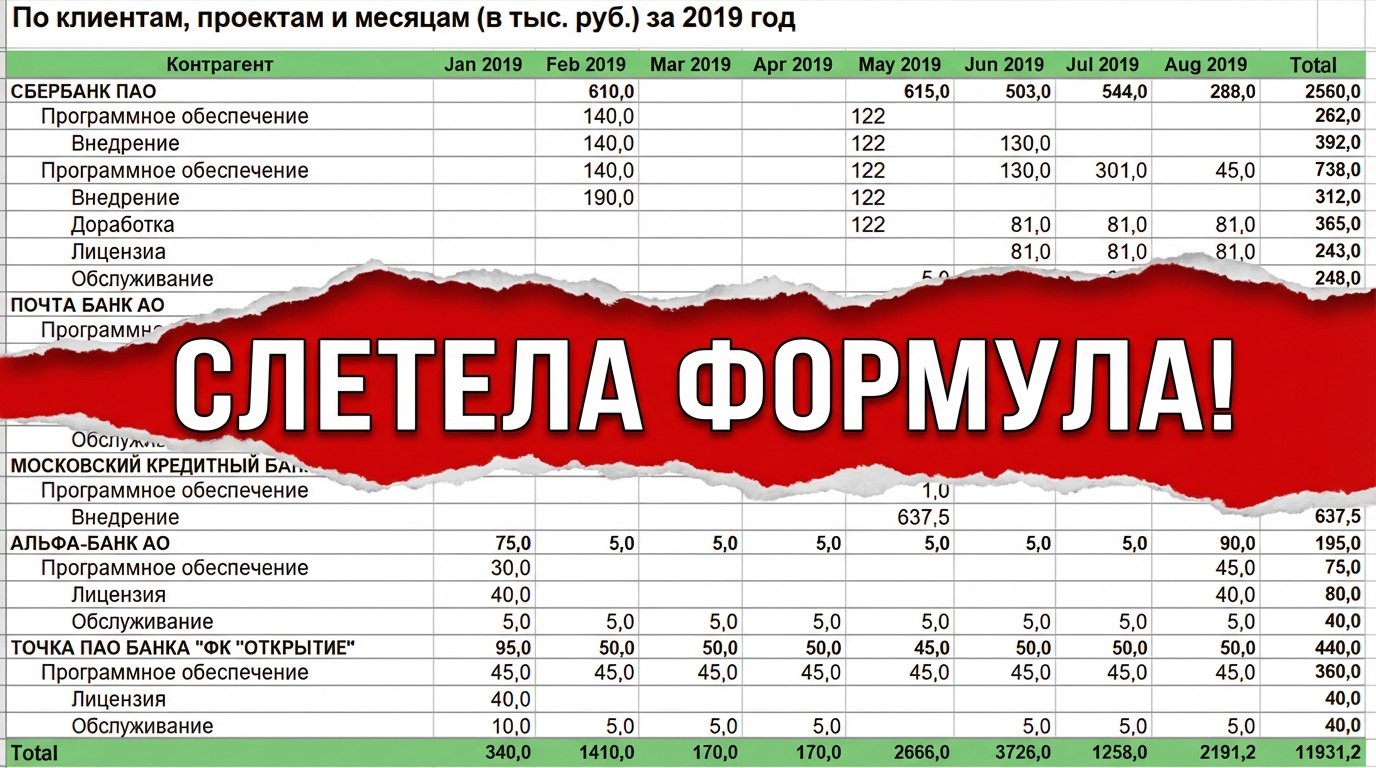
For team-based accounting, input quality, protection of calculations, and a single storage location matter. Errors in the source data carry through to the reports, and distributing several copies of a workbook makes reconciliation harder. These risks also depend on how the work is organized.
Excel supports co-authoring a workbook at the same time: it requires compatible versions and a file stored in OneDrive or SharePoint Online. You can also work through a browser. This helps avoid exchanging copies, but the team still has to define its own rules for data entry, access, and checking calculations.
The advantages are a flexible structure, formulas, summary reports, and the ability to perform nonstandard analysis. The limitations are the need to maintain your own accounting rules, check entries and calculations, and keep the shared file up to date. With a large number of transactions, assess how much time this work takes.
One sign that Excel is entering a risk zone is project profit starting to “jump” from month to month because supporting documents have not been collected and expenses have been recorded late. Another signal is manual reconciliation of cash by site regularly taking more time than the team is prepared to allocate. First check data-entry discipline and recognition rules: changing software alone does not eliminate these errors.
What can replace Excel?
You do not need to replace Excel because spreadsheets are “bad.” The reason is usually scale: more projects, more participants, more transactions, and unclear responsibility. At that point, it helps to choose a system that makes data entry easier for the team and generates reports automatically.
Assess replacement options against the task. For collaboration, first check the capabilities of the Excel version and cloud storage you already use. If integration with bookkeeping matters, check compatibility with your accounting system. For a project-based business, compare specialized solutions for tracking projects, entering data by phone, access rights, reports, and data export.
The 101 app offers project accounting, reports, and access on phones and computers. The 101 materials describe control of funds advanced for business expenses and the company fund. When choosing, check that your plan includes the capabilities you need, and use a demonstration to explore the rules for calculating indicators with your own data.
A combined approach can be useful: the team’s daily work takes place in the system, while Excel remains available for nonstandard analysis and one-off calculations. With this approach, decide in advance where the original record is stored and how exports are updated so that the analysis stays consistent with current accounting records.
To see how this works in the actual interface, you can attend a free 101 presentation and ask questions about implementation for your type of projects.