How to invite someone and join a meeting by link
A recipient can open a 101 video meeting in a browser using a link. Send a regular link to participants who have a 101 account. For anyone without an account, send a guest link.
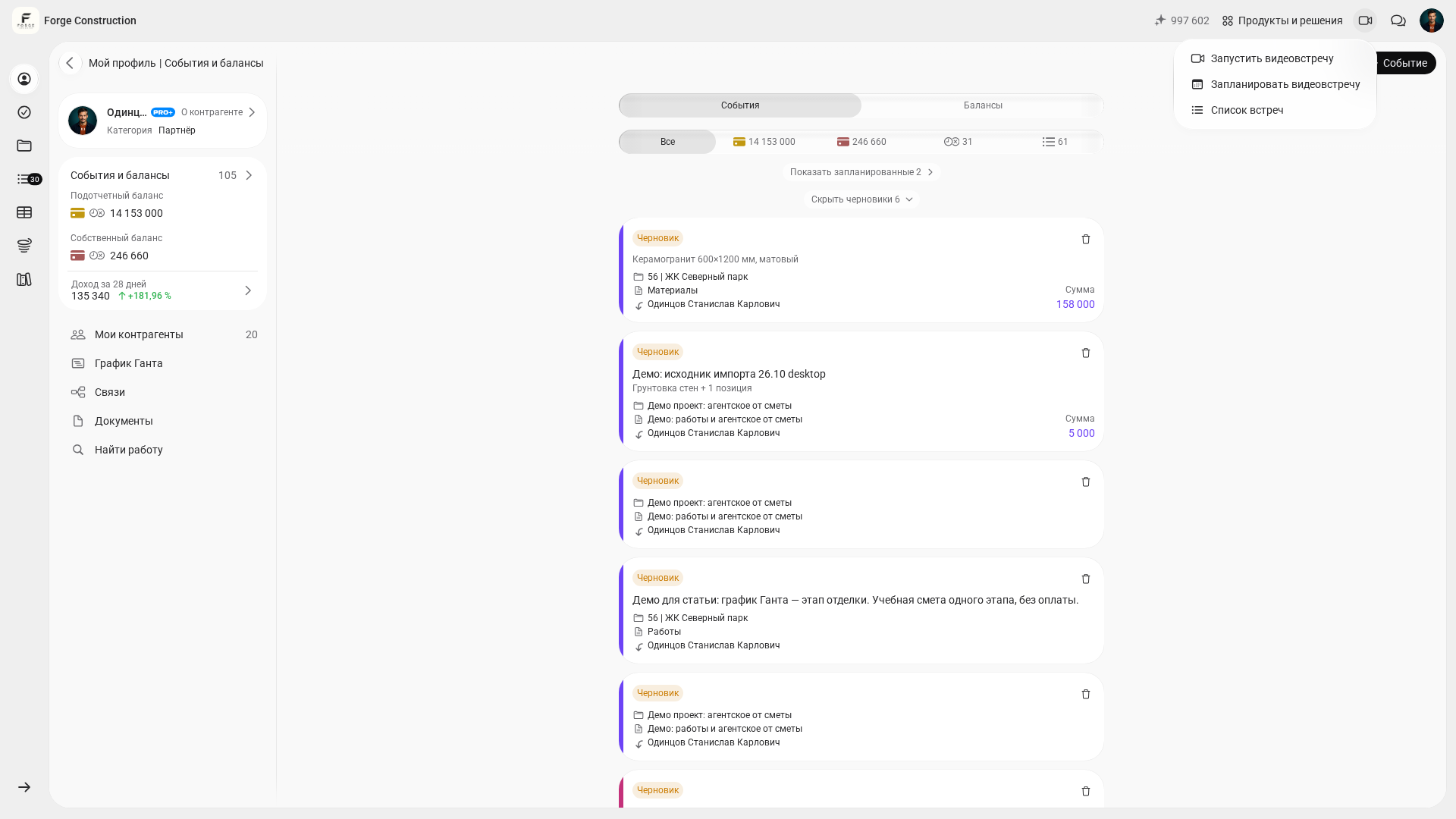
If you are the organizer and the call is not open yet, find the meeting in the list. On a computer, open the video camera menu and choose “Meeting list.” On a phone, open “More” and select the video meetings option. Open the task and select the option to join the call.
Which link to use
- Regular link. The recipient opens it and signs in to their 101 account if prompted.
- Guest link. Someone who can manage the meeting and has a PRO+ subscription can invite a person without an account. The link is for one meeting and is valid for one hour after you create it in the web app.
Send a regular link
- In the open meeting, select “Share.”
- Choose “Copy link” and send it to the intended recipient, or choose to send the link in chat and check the recipients.
- Ask the recipient to open the link in a browser. If 101 prompts them to sign in, they should use their own account. The meeting may start connecting as soon as they sign in.
Create a guest link
- In the open meeting, choose “Share” and then “Guest link.”
- Choose “Copy link” and send it to your guest. The dialog shows how much time is left before the link expires.
- The guest opens the link in a browser. If they are not signed in to 101, they join under the name “Guest.” If the link has expired, create a new one.
Send a regular link
- In the open meeting, open the more actions menu and choose “Share.”
- Choose “Copy link” and send it to the intended recipient, or choose to send the link in chat and check the recipients.
- Ask the recipient to open the link in a browser. If 101 prompts them to sign in, they should use their own account. The meeting may start connecting as soon as they sign in.
Create a guest link
- In the open meeting, open the more actions menu, then choose “Share” and “Guest link.”
- Choose “Copy link” and send it to your guest. The dialog shows how much time is left before the link expires.
- The guest opens the link in a browser. If they are not signed in to 101, they join under the name “Guest.” If the link has expired, create a new one.
On a computer
Send a regular link
- In the open meeting, select “Share.”
- Choose “Copy link” and send it to the intended recipient, or choose to send the link in chat and check the recipients.
- Ask the recipient to open the link in a browser. If 101 prompts them to sign in, they should use their own account. The meeting may start connecting as soon as they sign in.
Create a guest link
- In the open meeting, choose “Share” and then “Guest link.”
- Choose “Copy link” and send it to your guest. The dialog shows how much time is left before the link expires.
- The guest opens the link in a browser. If they are not signed in to 101, they join under the name “Guest.” If the link has expired, create a new one.
On a phone
Send a regular link
- In the open meeting, open the more actions menu and choose “Share.”
- Choose “Copy link” and send it to the intended recipient, or choose to send the link in chat and check the recipients.
- Ask the recipient to open the link in a browser. If 101 prompts them to sign in, they should use their own account. The meeting may start connecting as soon as they sign in.
Create a guest link
- In the open meeting, open the more actions menu, then choose “Share” and “Guest link.”
- Choose “Copy link” and send it to your guest. The dialog shows how much time is left before the link expires.
- The guest opens the link in a browser. If they are not signed in to 101, they join under the name “Guest.” If the link has expired, create a new one.
If you schedule a meeting in advance, add colleagues who have a 101 account to the observers field on the task card. They will then receive an invitation and a reminder. Forwarding a link on its own does not add the recipient to the task’s participant list.
Branded video meetings
If the company associated with the meeting has uploaded a logo, guests who follow the guest link see the company’s branding. 101 shows the logo in the guest window.
Guests can see which company they are meeting with. Familiar branding can also help employees feel part of the team when everyone joins from different places.
If the link does not open
Check that you opened the complete link and that the meeting is still available. If a regular link prompts you to sign in, use your 101 account. If your guest link has expired, ask the organizer to send a new one.