Video meeting history, ending calls, and recording
101 saves meetings in the Tasks section. You can view the history of meetings you have access to and reopen the task card for a call. To start a recording, you need a PRO+ subscription and permission to manage the recording. The presenter and anyone who can edit the meeting task have that permission.
How to view your video meeting history
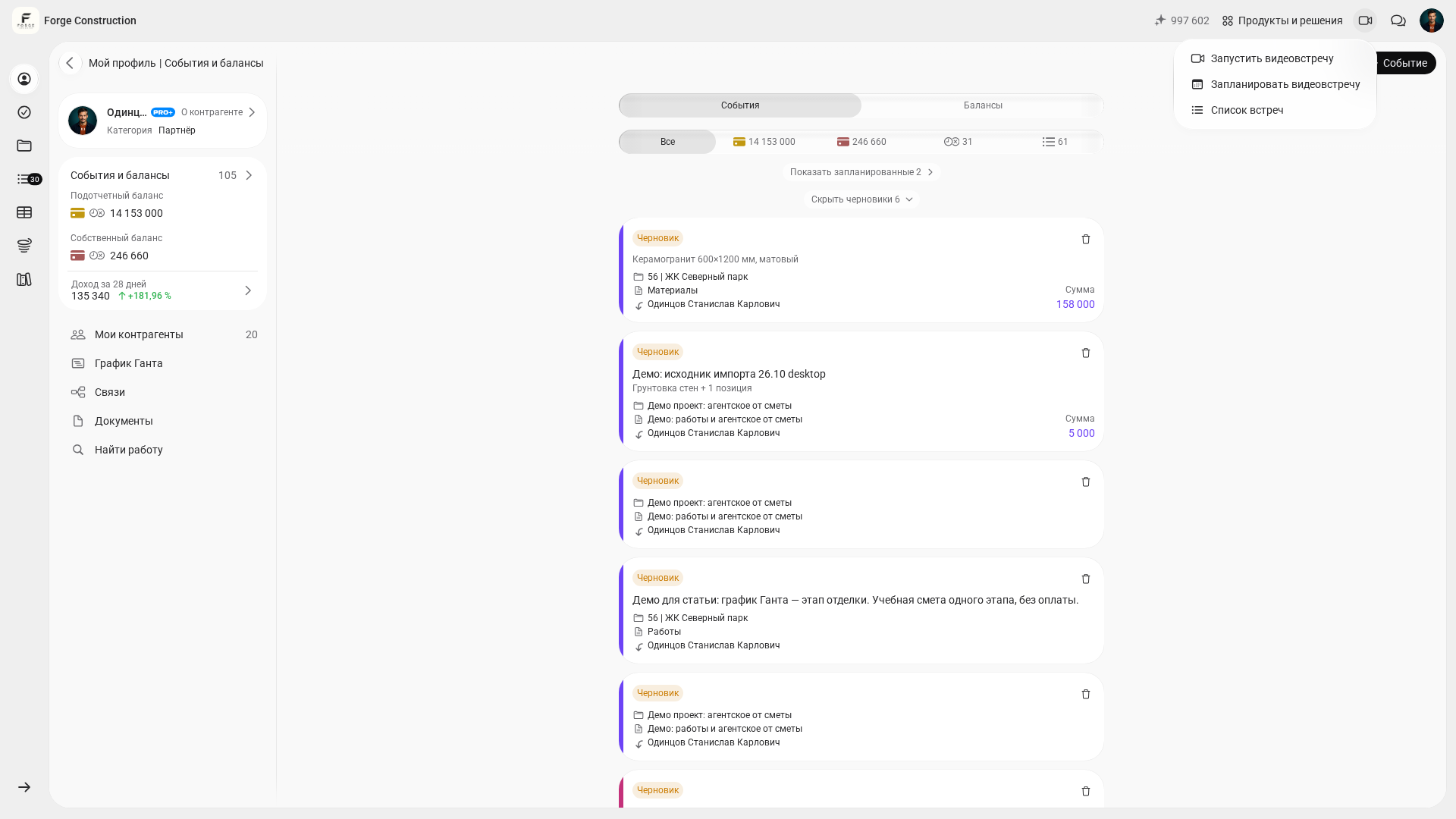
- On a computer, open the video camera menu and choose “Meeting list.” In your phone’s browser, open “More” and select the video meetings option.
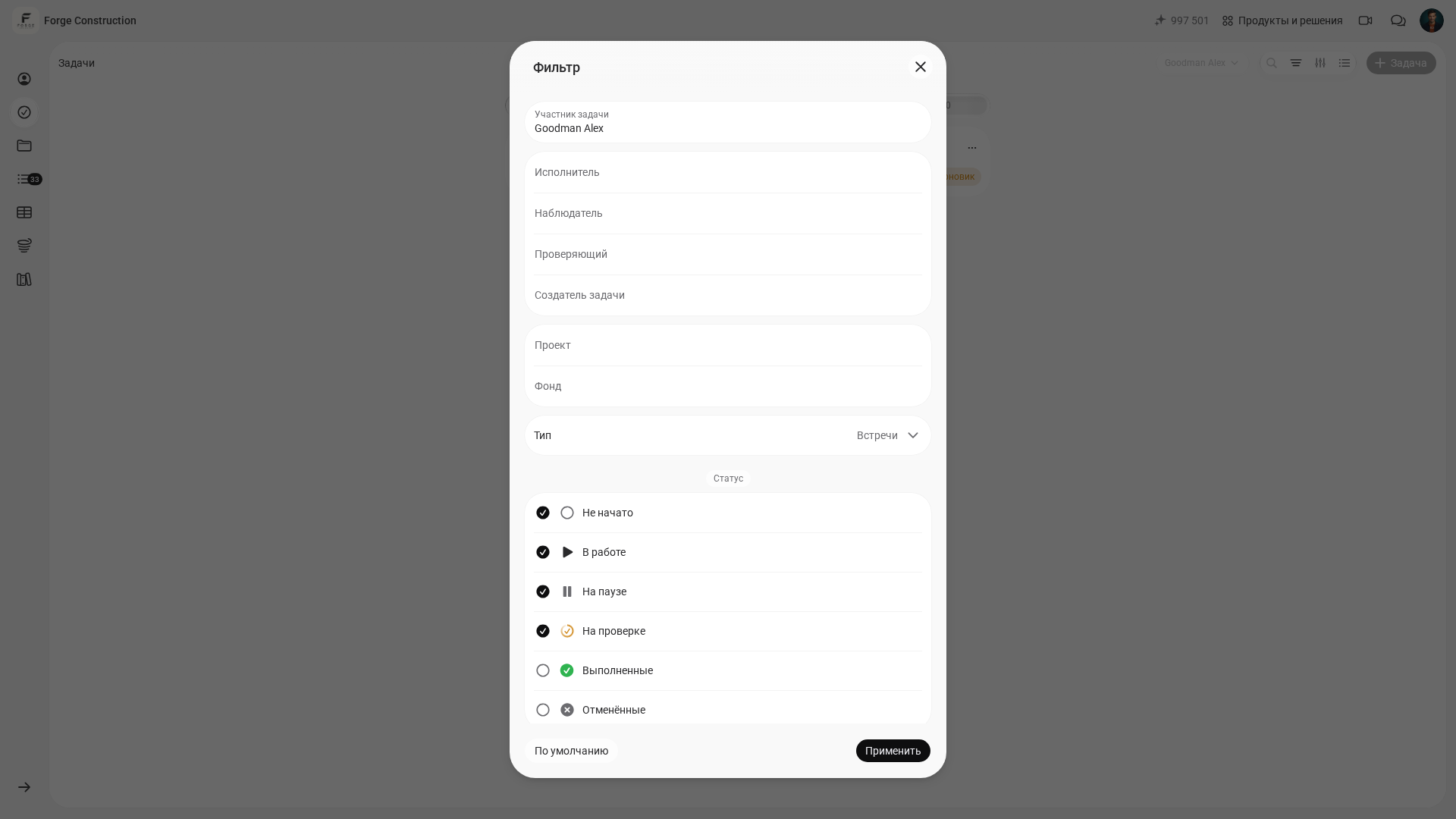
- The Tasks section opens with the task type set to meetings. To include past meetings, open the filter panel, select the completed and canceled statuses, and apply the filters.
- If you cannot find the meeting, check the company and your other filters, such as the date range and role.
- Open the task with the video camera icon. The task card shows the title, participants, dates, status, and a recording badge if the recording was saved.
For example, to review yesterday’s call, find it by title and date and open its task card. The same list contains both upcoming and past meetings.
Record a meeting
- If there is no active source in the meeting yet, turn on a camera or microphone or start sharing your screen. You need at least one active source to start recording.
- Use the recording control on the toolbar to start recording.
- When you no longer need to record, use the control to stop the recording.
End the call and find the task card
- If you are the organizer and need to end the call for everyone, select the control to end the meeting and confirm. Leaving the call ends only your participation.
- In the 101 header, open the video camera menu and choose “Meeting list.” The Tasks section opens and shows your meetings.
- Open the task with the video camera icon. Check the date, status, and recording badge if it is present.
Record a meeting
- If there is no active source in the meeting yet, turn on a camera or microphone or start sharing your screen. You need at least one active source to start recording.
- Open the more actions menu and select the option to start recording.
- When you no longer need to record, open the same menu and select the option to stop the recording.
End the call and find the task card
- If you are the organizer and need to end the call for everyone, open the option to leave the meeting and choose to end it for everyone.
- Open “More” and choose the video meetings option. The Tasks section shows your meetings.
- Open the task with the video camera icon. Check the date, status, and recording badge if it is present.
On a computer
Record a meeting
- If there is no active source in the meeting yet, turn on a camera or microphone or start sharing your screen. You need at least one active source to start recording.
- Use the recording control on the toolbar to start recording.
- When you no longer need to record, use the control to stop the recording.
End the call and find the task card
- If you are the organizer and need to end the call for everyone, select the control to end the meeting and confirm. Leaving the call ends only your participation.
- In the 101 header, open the video camera menu and choose “Meeting list.” The Tasks section opens and shows your meetings.
- Open the task with the video camera icon. Check the date, status, and recording badge if it is present.
On a phone
Record a meeting
- If there is no active source in the meeting yet, turn on a camera or microphone or start sharing your screen. You need at least one active source to start recording.
- Open the more actions menu and select the option to start recording.
- When you no longer need to record, open the same menu and select the option to stop the recording.
End the call and find the task card
- If you are the organizer and need to end the call for everyone, open the option to leave the meeting and choose to end it for everyone.
- Open “More” and choose the video meetings option. The Tasks section shows your meetings.
- Open the task with the video camera icon. Check the date, status, and recording badge if it is present.
Reschedule an upcoming meeting
You can reschedule a meeting if you have permission to edit its task.
- If the general task list is open, set the task type filter to meetings.
- Open the meeting task card and change the date or the start and end times.
- Select the “Done” check mark. Reopen the task card to check the updated time.
If there is no recording badge
Check that someone started the recording. After the recording stops or the meeting ends, the file may take some time to process. A meeting that only the organizer attended and that no one recorded may remain in the list with a canceled status.
See also how to schedule a video meeting and how to set up devices in a call.