
Contents:
What is management accounting?
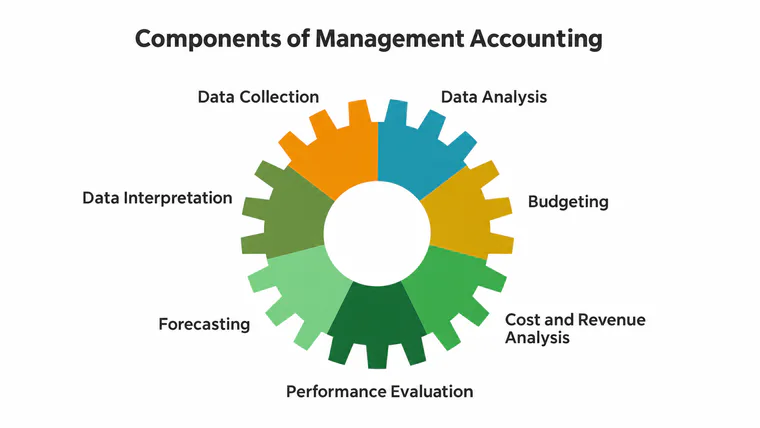
Management accounting collects and analyzes financial and operational data to help managers make decisions. Alongside receipts and expenses, it may track project costs, budgets, completed work, outstanding payments and performance measures. The measures you need depend on the questions you want to answer.
For example, a construction company needs to know which projects cover their costs, when payments are expected and whether it has enough cash for upcoming expenses. You can build an accounting process from your first months in business: start with a few essential events and reconcile them regularly against documents and bank records.
When is management accounting automation useful?
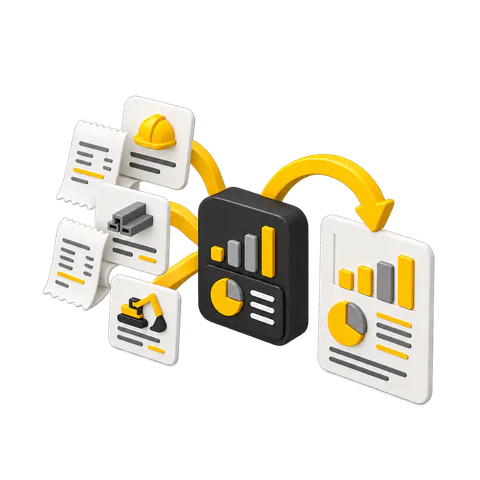
A manual process often works like this: project participants send receipts and reports, someone transfers the amounts to a spreadsheet, consolidates the figures by project and prepares a report. Late submissions and inconsistent formats make reconciliation slower and increase the risk of missing entries.
Automation helps your team record events consistently, assign responsibility and repeat calculations. It cannot correct inaccurate source data on its own. Decide who enters information, who approves it and how balances will be reconciled. The aim is to spend less time preparing data for decisions, without assuming that every automatically calculated figure is correct.
Which tools can you use?
Your choice depends on the number of projects, reporting requirements, available data, budget and your team’s skills. Compare the tools against the same tasks: recording events, checking source documents, comparing plans with actuals, managing access rights and exporting data.
Excel and Google Sheets
Basic spreadsheet skills are enough to record simple transactions. Formulas, macros and data connections can automate calculations, although the model still needs to be configured and checked. Excel offers Power Query for working with external data; what Google Sheets can do depends on the particular integration.
Spreadsheets offer a flexible structure, many functions and a way to start small. Their limitations depend on your data and processes: with scattered files, it becomes harder to keep versions, access rights and actual entries consistent. Formula errors are possible too. Once calculations are configured, the work is not necessarily all manual.
1C and other accounting systems
1C offers different products and configurations, including cloud-based options. Depending on the product, they can support collaboration, transaction records and reporting. You may be able to start with a simple cloud configuration without running your own infrastructure; complex setup and integrations may require a specialist.
Compare pricing, implementation requirements, support and the reports available in the configuration you are considering. Do not assume that every 1C system is necessarily slow to implement or expensive for every business.
101 for project-based businesses
101 is available on mobile and the web. You can use it to record project events and documents, assign participant permissions, and review recorded receipts and expenses. How well the team process works depends on whether participants enter events promptly and who has permission to approve them. See the guides to approving events (in Russian) and access permissions (in Russian).
In 101, a project balance is the difference between recorded receipts and expenses. It is a separate measure: it is neither the cash held by an employee nor the project’s profit. Reconcile employees’ accountable advances and actual cash separately. See the project balance guide (in Russian).
You cannot modify 101’s source code as though it were your own software. Configuration extends beyond tags, however: event fields (in Russian) are available, as is a documented public API on the PRO+ plan (in Russian). Check the availability of other features and permissions in your own account.
How do you introduce automation in a construction company?
1. Identify your data sources
List the receipts, payments, completed work, purchases and documents you need for decisions. Check how complete the records are and how often they arrive. To monitor cash flows, reconcile bank accounts and cash holdings separately.
2. Examine your current process
Establish who creates events, who attaches supporting documents and who checks amounts. Find where delays or duplicate entry occur, and agree on a consistent way to correct errors.
3. Choose a tool and run a pilot
Test your chosen system on one project: enter real events, assign roles, produce the report you need and compare it with the source documents. In 101, users with the appropriate permissions can check events and create available project documents; the scope and status of the data matter. See the project report guide (in Russian).
4. Assign responsibilities
Specify who records receipts, purchases and work, and who approves those entries. Check money advanced to an employee separately from the project balance: that balance does not show how much cash the person holds. Reconcile events regularly against source documents and actual balances.
5. Analyze the results
Select one company and one period for comparison. In the web version of Company Fund, Analytics shows expenses, while Profit and Loss shows profit from projects. Before exporting events, check which records, formats and dates the export includes. These figures do not automatically amount to a complete report of company net profit, revenue and all cash receipts. What you can see depends on your data, permissions and current plan. See the Company Fund analytics guide (in Russian) and plan descriptions (in Russian).
If you build your own charts in DataLens or another service, first check which fields are available in the export and whether you have permission to export them. Do not assume that one document contains all the company’s data.