To calculate a renovation estimate, define the scope of work, measure the quantities, and find current rates. In 101, you can group line items in a separate estimate for each stage, check the estimated cost and the price for the customer, and save the estimate for approval.
Contents:
How an estimate differs from actual costs
An estimate shows planned quantities and the cost of labor and materials. Multiply the quantity of each line item by its rate per unit of measure, then add the amounts. Use the total to discuss the budget with the customer.
Actual costs become known as work is completed and purchases are made. The contractor tracks them separately to compare spending with the plan. The contractor’s actual costs can differ from what the customer pays under the contract.
How to use figures from past projects
Choose a completed project with a similar scope of work and level of finish. Its costs can help you give a preliminary budget range while you are still gathering measurements. Before agreeing on the new estimate or carrying over amounts from the earlier budget, check the new project’s quantities and current rates.
If you already have an estimate in 101 for a similar project, see the guide to reusing a project setup for similar jobs (in Russian). Check the line items and update them for the new project.
How to calculate and save an estimate in 101
The time you need depends on the number of line items and whether you have measurements and a current price list. Follow these steps in the web version.
- Create an estimate event in the relevant project and select the expense category and participants. Name the stage in the description so it is easy to find in the event feed.
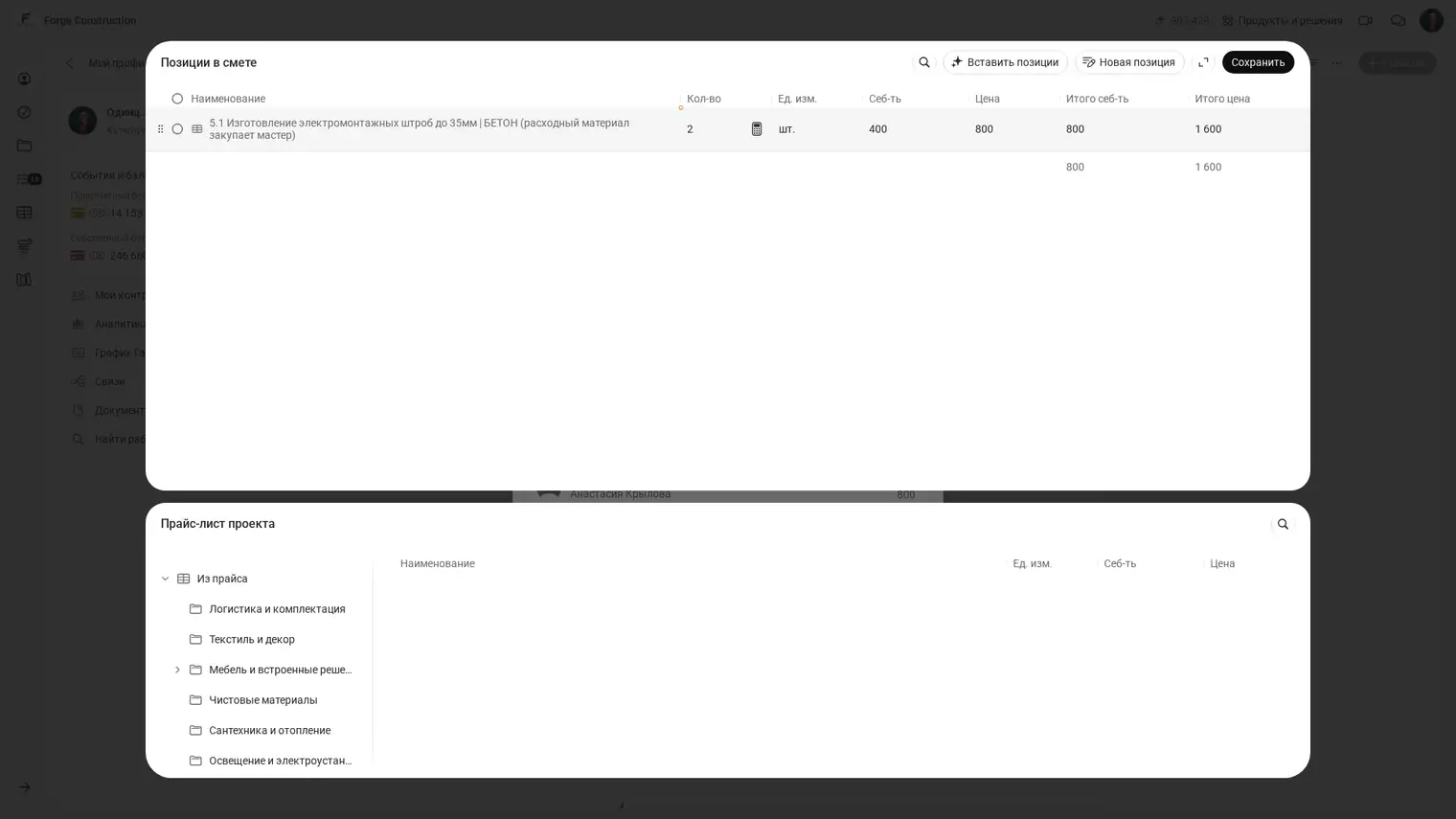
- Add the line items. Depending on the expense category and your permissions, you can select items from a price list, use line items from another estimate, or enter your own. Enter the measured quantities and check the units of measure.
- Check the costs, customer prices, and totals you can access. If any prices are hidden, ask a project member with the required permissions to check them. After checking the figures, click Save in the line item window.
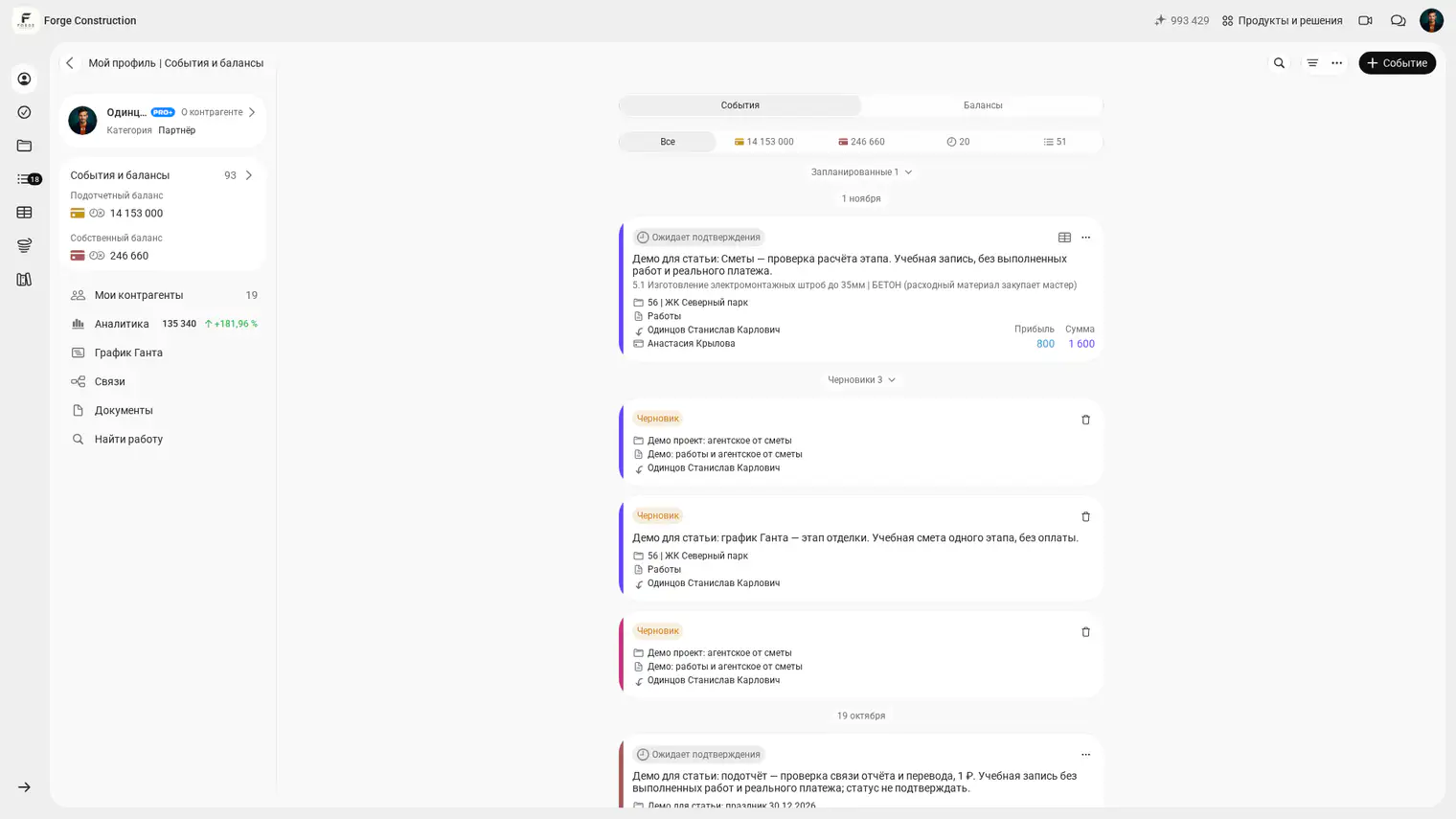
- In the estimate form, check the project, expense category, stage description, date, participants, and the amounts you can access. Click Save, open the saved estimate from the event feed, and check the amounts you can access and the status.
- If the estimate is awaiting confirmation, a project member with the required permissions confirms it separately. Then prepare and check the document you need to send to the customer.
The layout may differ on a phone and a computer. For details on the actions and line item sources available to you, see the Help guides on creating an estimate (in Russian) and choosing a source for line items (in Russian).