
Contents:
- Which Telegram features are useful for work communication?
- Organize your chats
- Think about how you send messages
- Protect your phone's storage space
- Use bots
- Set up your profile: first impressions matter
- Consider Premium
- Keep up with updates
- Move to Telegram correctly
- What else can improve your Telegram experience?
Which Telegram features are useful for work communication?
Phone calls, email and SMS remain useful ways to communicate. Messengers such as Telegram, WhatsApp and Viber complement them with quick work and personal conversations.
In the original article, our team explained that it chose Telegram for work chats, blogs and communication with customers. Below are features that may also help your team.
For most users, Telegram has become more than a messenger. Some use it for work conversations, important documents and bots that simplify communication, such as booking a restaurant table or a training session. Others keep files in Saved Messages to save space on their phones. Still others use it as a social network, with news and entertainment across thousands of channels offering music, memes and discussion groups.

Telegram's range of features helps you communicate with colleagues and loved ones, share materials and follow the news. Its capabilities include:
- two-step verification: an additional login password reduces the risk of unauthorized access, although it cannot guarantee protection against every account compromise;
- operation on slow connections, including 2G: the availability and speed of individual features depend on the network;
- switching between accounts and devices; ordinary cloud chats synchronize, while secret chats belong to a particular device and are not part of the cloud;
- showing your name, rather than just your phone number, to people who have not added you to their contacts;
- running channels, posting stories and adding links to other resources in your profile.
This guide offers tips for people who read a few channels and those who use Telegram at work. The archived Russian-language screenshots illustrate the interface from the period of the original 2023 article: menu names and feature availability may differ in your version, on another platform or for your account.
Follow the 101 Telegram channel (in Russian) for materials on work, construction and management.
Organize your chats
If all your important conversations are still in “All Chats”, you are missing a useful organizational feature. Start by sorting chats into folders (level 1), then organize those folders more effectively (the advanced level).

Creating folders is the first step. They are useful when you have many projects to discuss with customers or groups distributing updates. Folders help separate channels, bots, group chats and personal conversations.
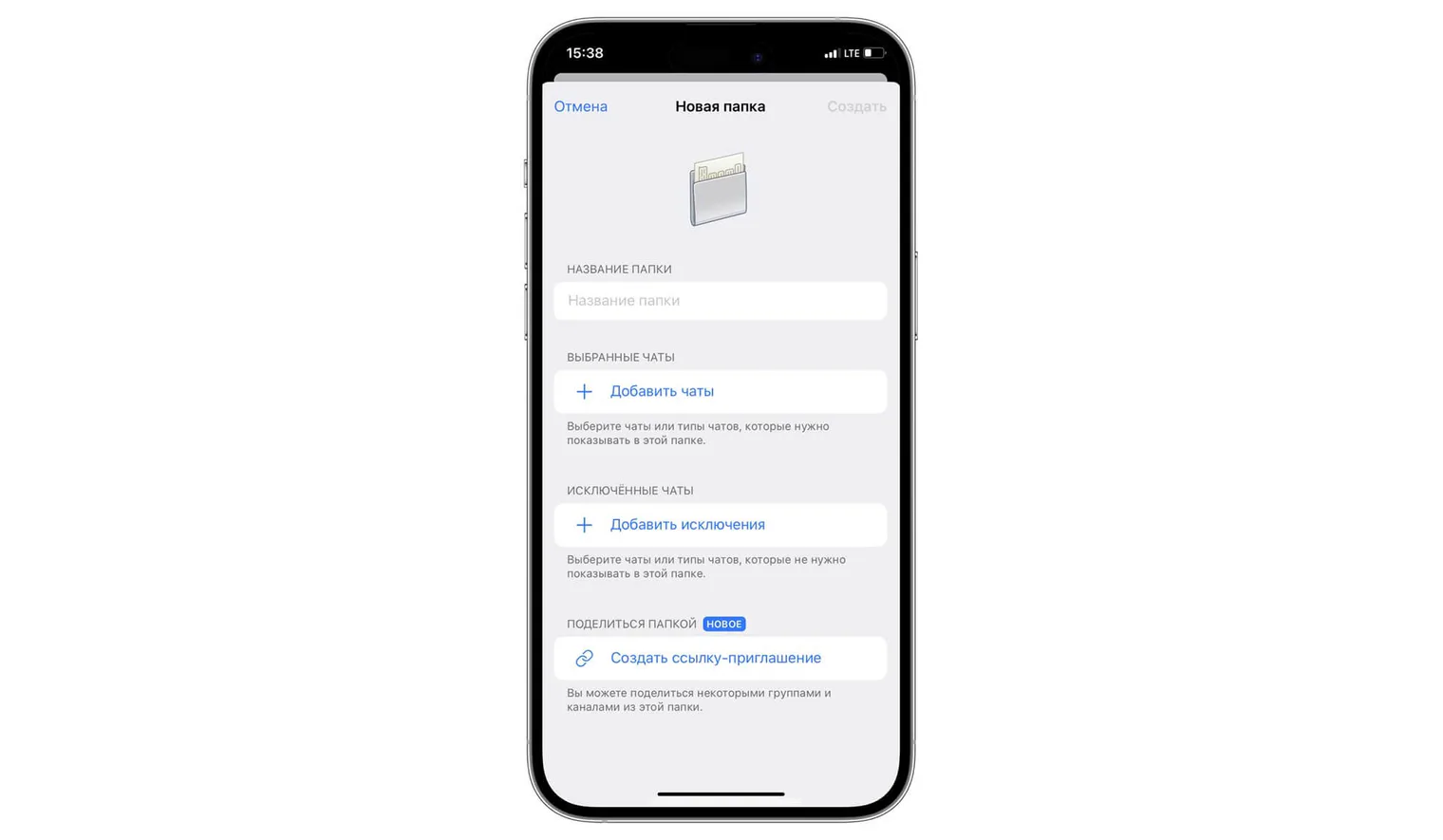
To create a folder:
- Open “Settings”.
- Select “Chat Folders”.
- Tap “Create a Folder”.
- Enter a folder name and add the relevant chats; notification settings are configured separately for chats.
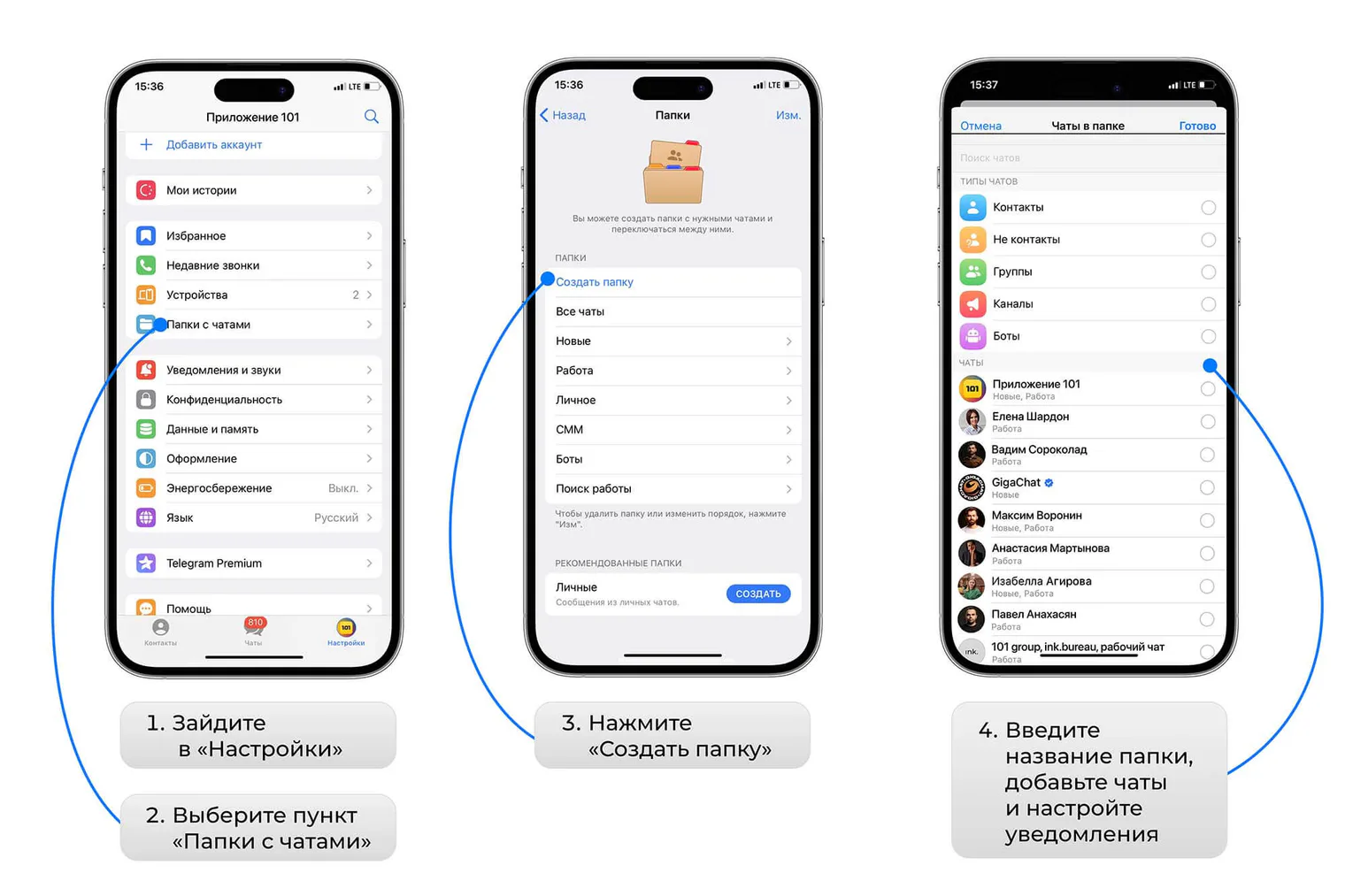
When creating a folder, you can select which types of chats appear in it:
- people outside your contacts;
- your contacts;
- channels;
- groups;
- bots.
You can choose several types for one folder and add individual chats, such as a conversation with a particular person. This lets you quickly put all the bots you have used into a separate folder.
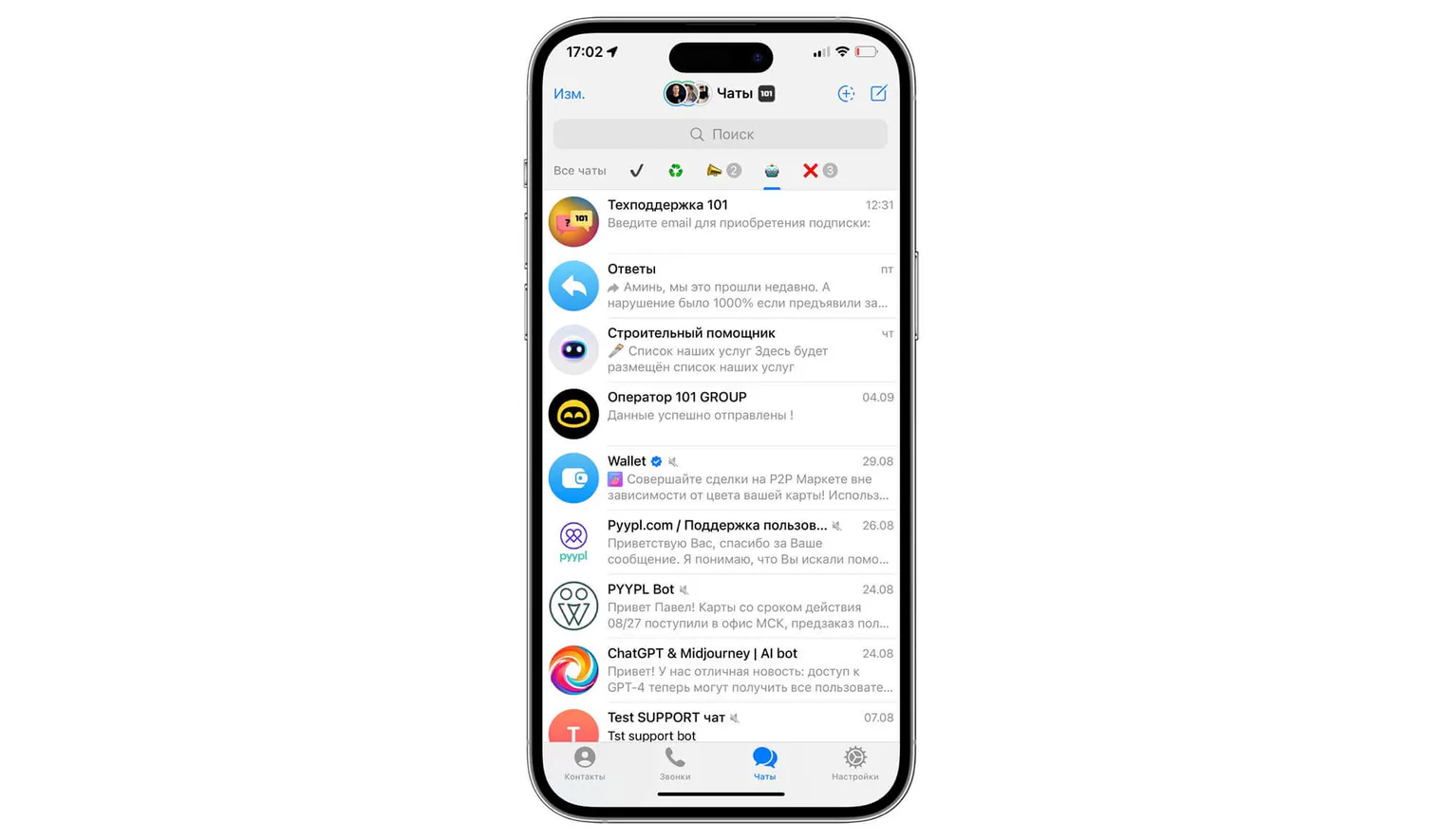
The settings also let you exclude specific chats, muted chats, read chats and archived chats.
To switch folders, tap the relevant tab above the chat list. You can change their order or delete folders through the folder menu or the folder section in Settings; the exact path depends on the platform and version.
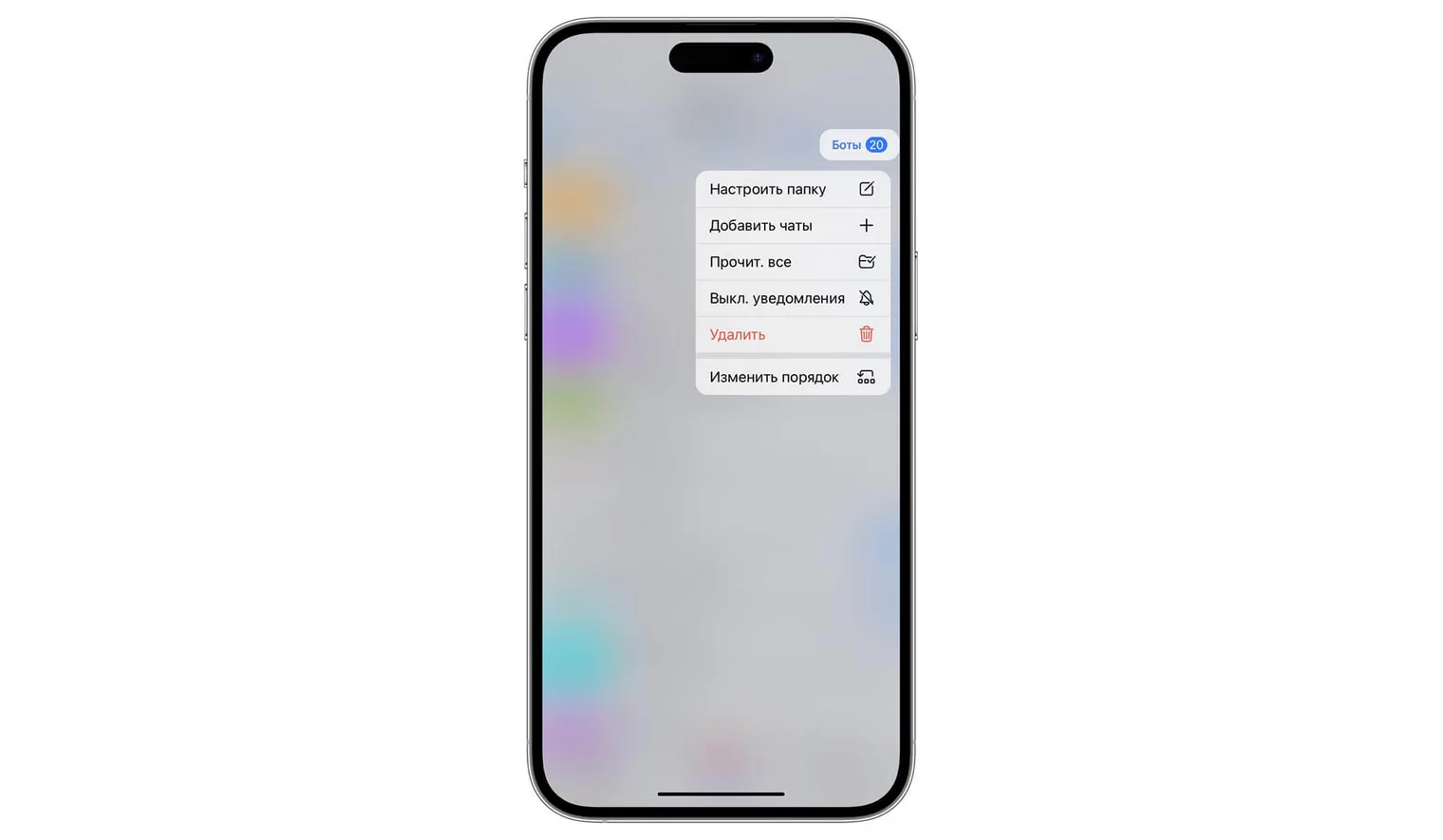
If you have already done this, try a few additional advanced tips.
First, use exclusions to include a category of chats while leaving out a few you do not need. For example, put channels into one folder and exclude “Archived” or “Read” chats. This can help you review subscriptions and remove channels you have not read in years.
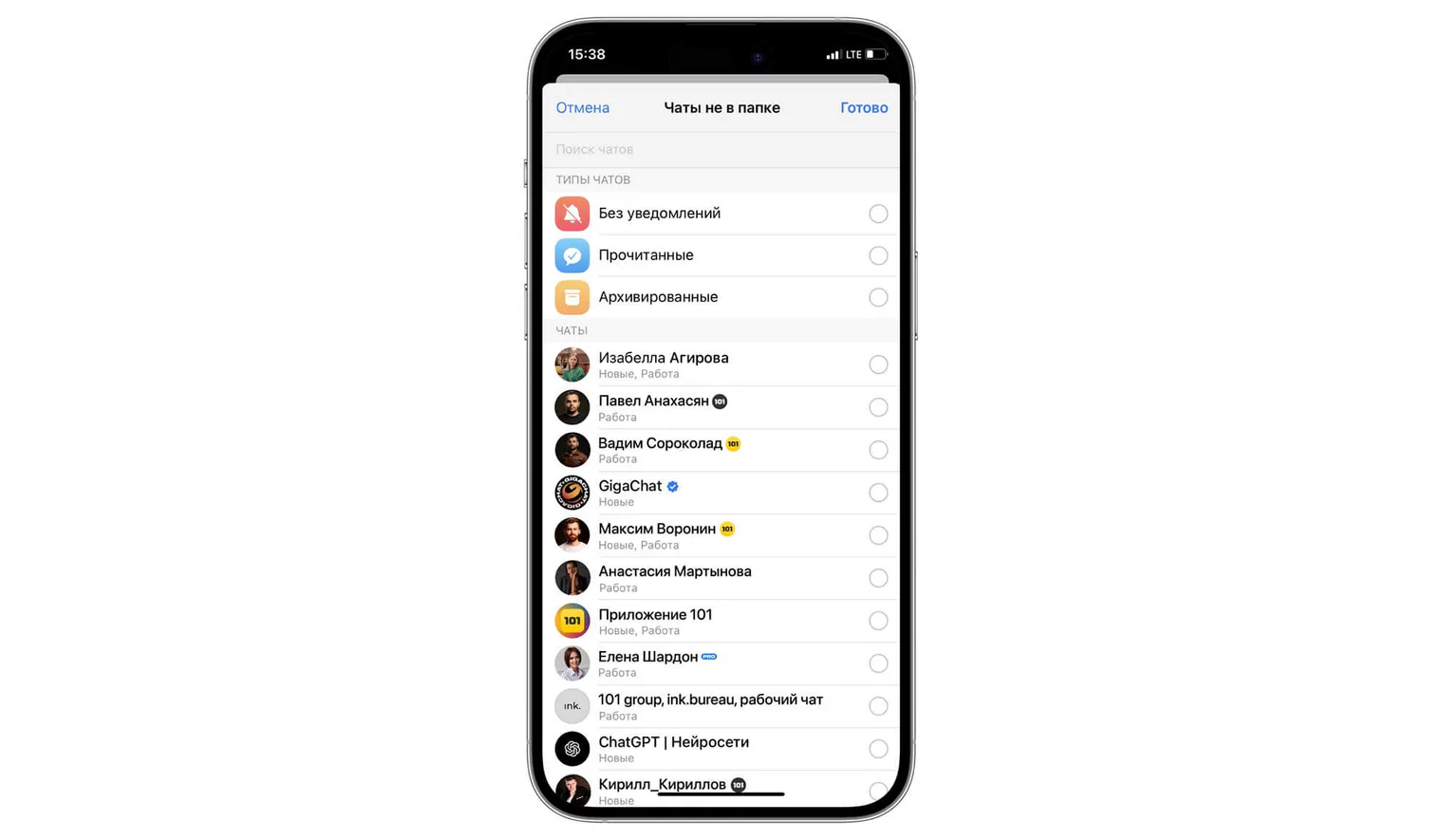
You can share a folder by link, for example to share useful channels or help a new employee get started. Shared folders can include public chats and chats where you have administrator permission to add participants; this does not share arbitrary private conversations.
Third, use Saved Messages to keep important information handy, such as sales scripts or information you frequently share with customers and colleagues.

Saved Messages is a personal chat for useful information: photos, articles, messages and documents. According to Telegram's current FAQ, each uploaded file can be up to 2 GB without Premium or 4 GB with Premium. Cloud storage still involves a local cache; its cleanup settings are explained below.
You can open Saved Messages from the chat list or Telegram's menu and pin it for convenient access. On the archived iPhone shown here, pinning uses a swipe right and “Pin”; the steps may differ in other versions.
To save content, send files, images, videos or text to Saved Messages. Cloud materials are also available in the desktop version when you can access your account and connect to the internet.
If you use Saved Messages as temporary storage, you can remove messages you no longer need. Press and hold a message, then select “Delete”.
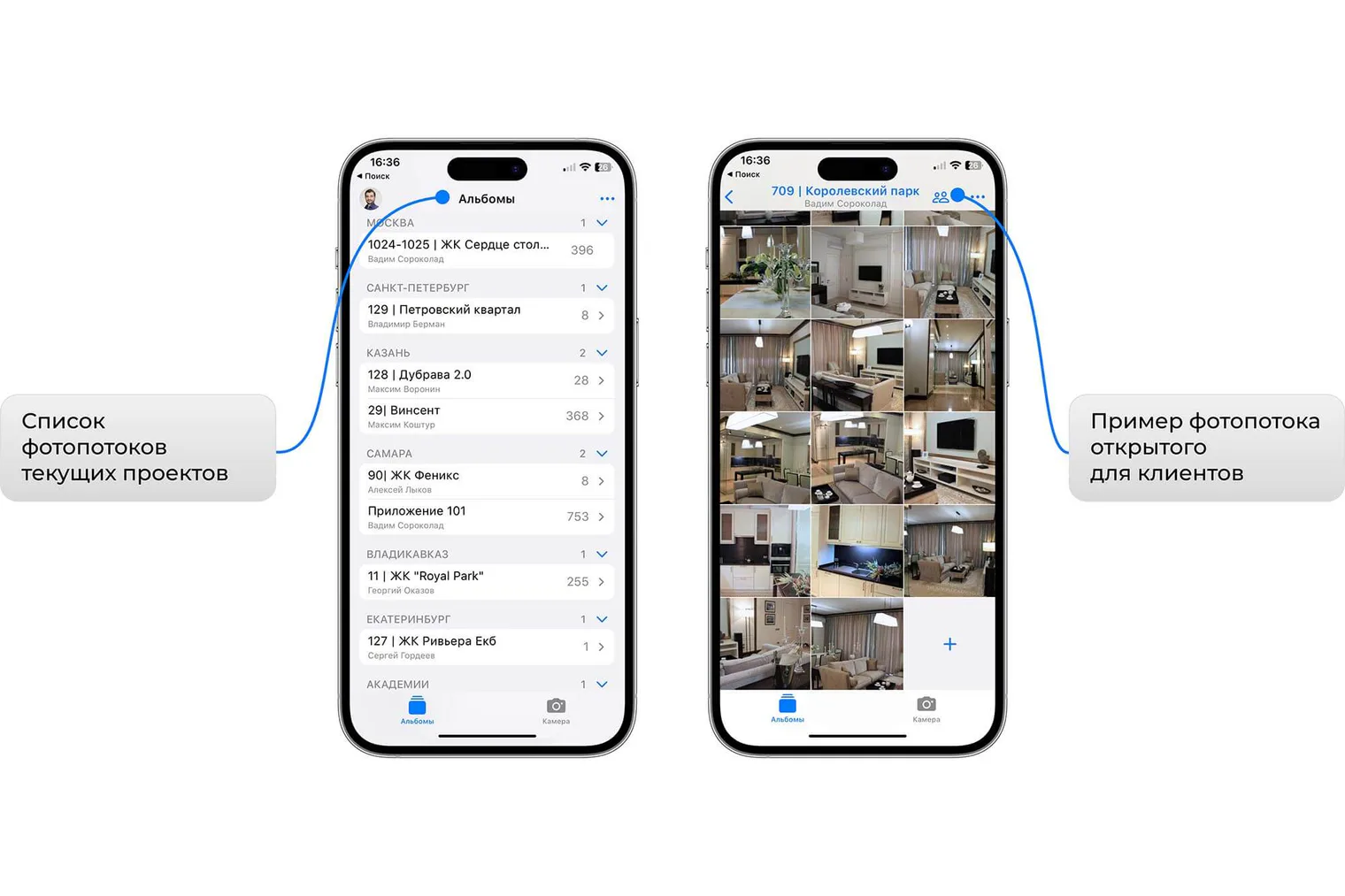
Saved Messages is useful for personal storage; newer versions offer search, and Premium adds tags. It does not become a shared project album for customers. For a stream of photos from construction sites, consider 101 Photo (English listing in the Russian App Store): the app organizes photos into albums and lets you share them. The archived 101 Photo screen below illustrates the older app, rather than providing instructions for its current interface.
Think about how you send messages
Digital etiquette is more than a dull list of rules. It is part of using Telegram professionally. The messenger provides useful features for people who work at night and send many messages to work chats; many teams have a colleague who does this.
To make late-night bursts of productivity less disruptive to others, use these features:
1. Send without sound
You can send a message silently: hold the Send button and select “Send Without Sound”. A notification may still appear, but without an audible alert.
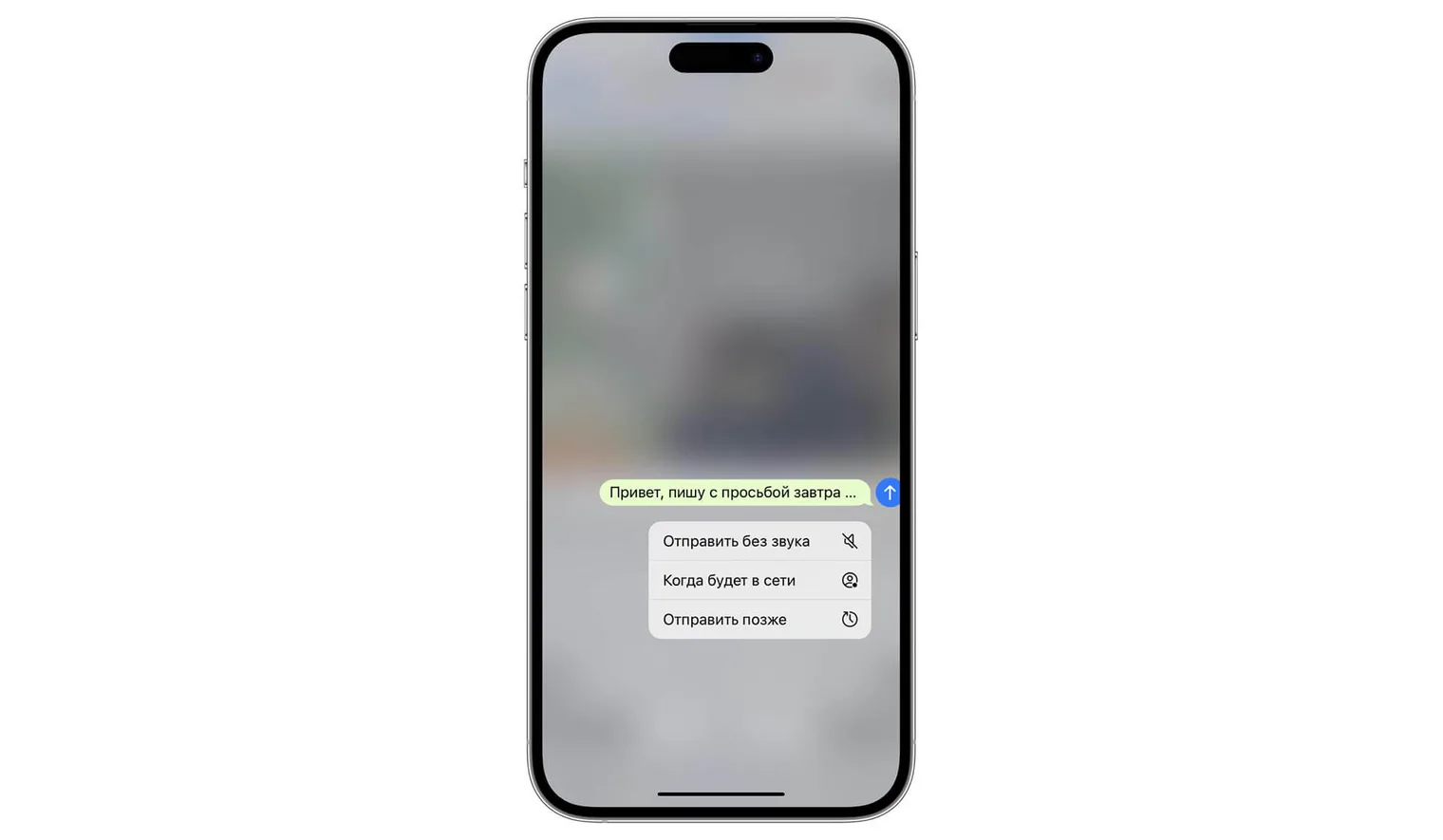
2. Schedule a message
This is useful when a good idea arrives in the evening and you want to write it out for colleagues immediately. Draft your thoughts in Telegram and schedule delivery. You can set a time a couple of hours or several days ahead, for example to avoid a flood of messages on Friday evening.
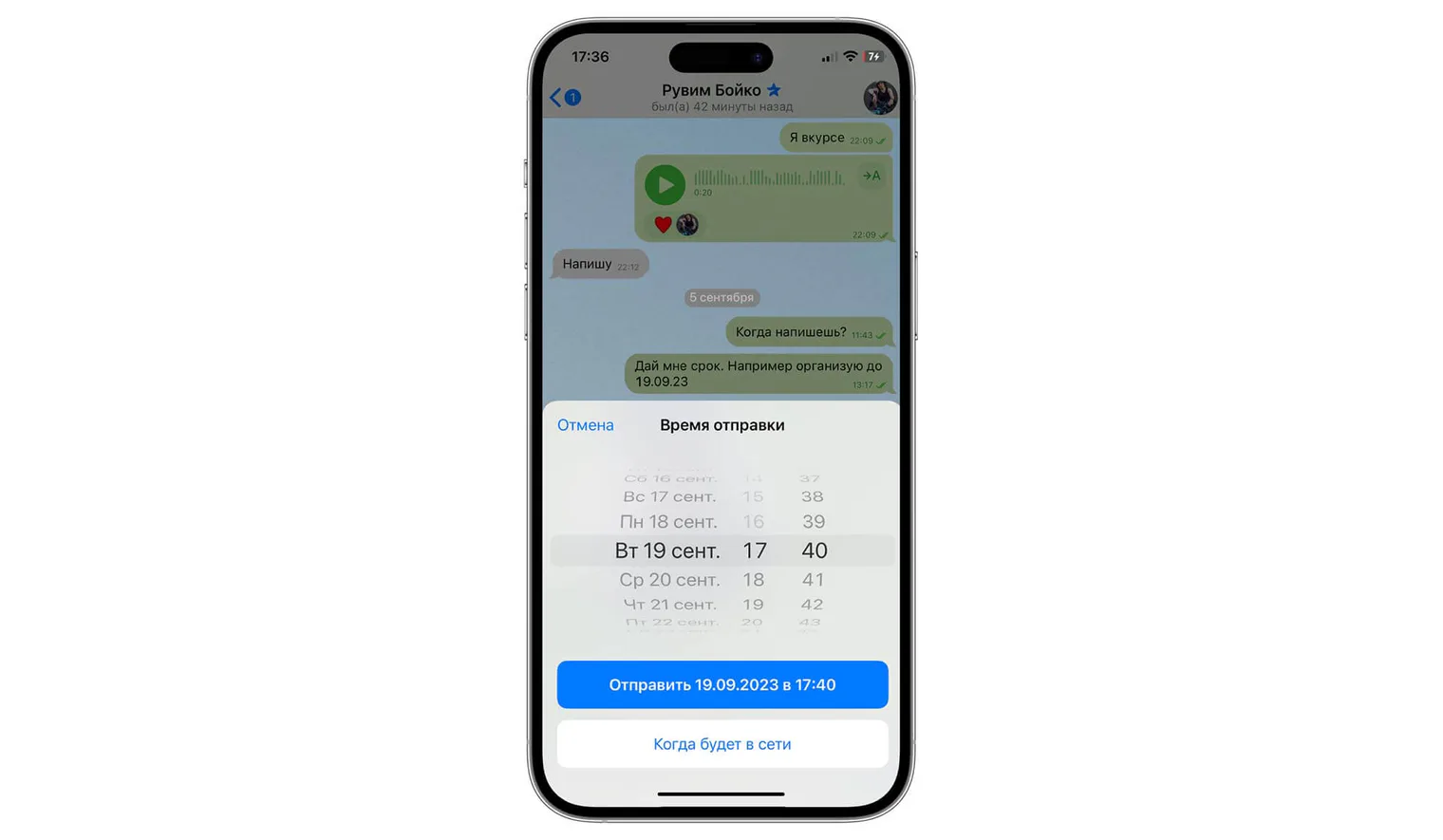
Channel administrators also use scheduling to plan a week or even a month of content in a couple of hours.
3. Send when the recipient is online
If you are unsure whether it is a convenient time to write, you can choose “Send When Online”. This option is available when the recipient shares their last-seen status with you. The message is sent when they appear online; being online does not guarantee that answering is convenient for them.

Here are a few more tips for using the app:
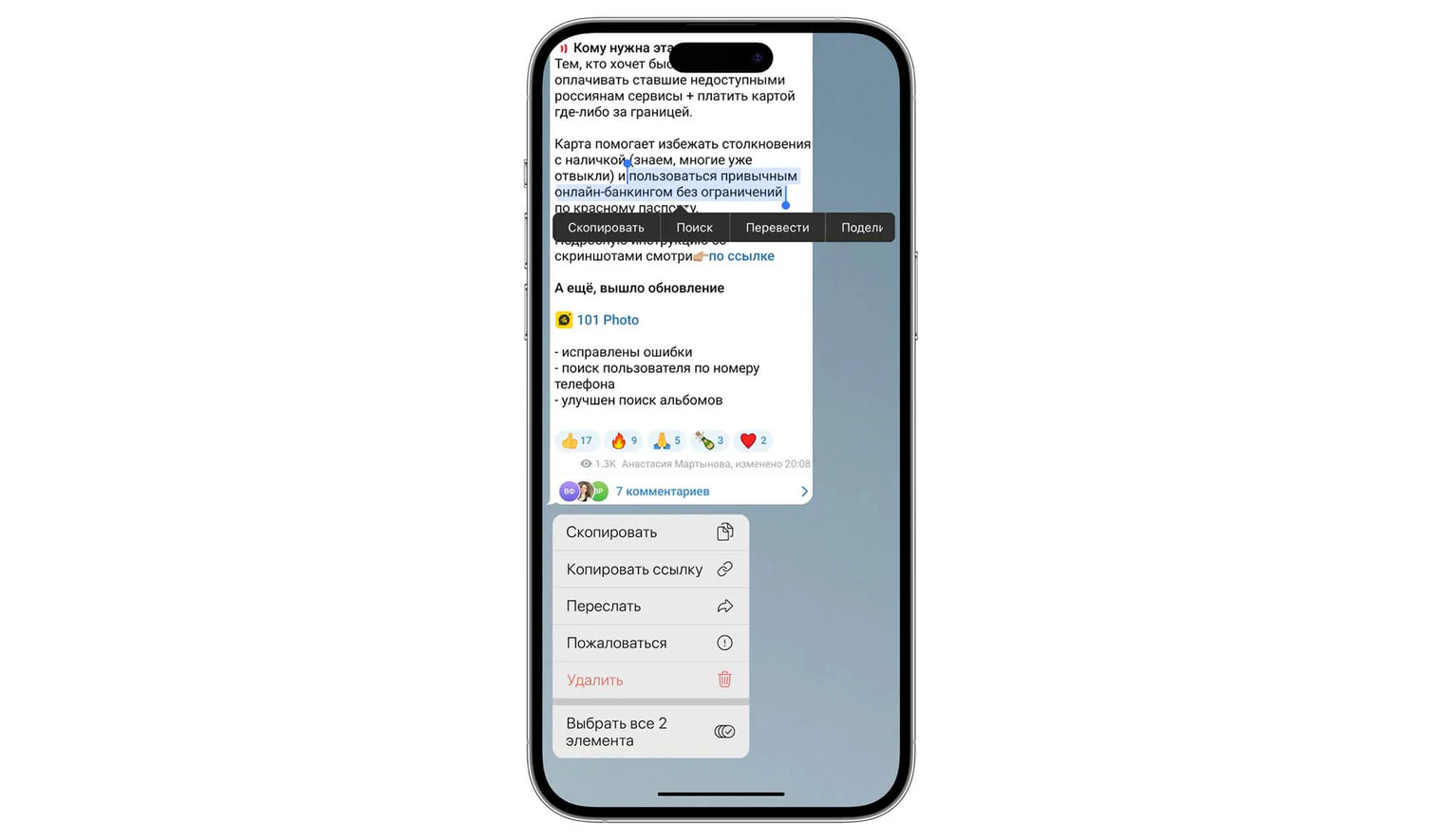
1. Copy part of a message
Often you only need to copy the part of a message containing important information. Press and hold the message text, then select the relevant passage.
2. Preview a chat or mark it unread
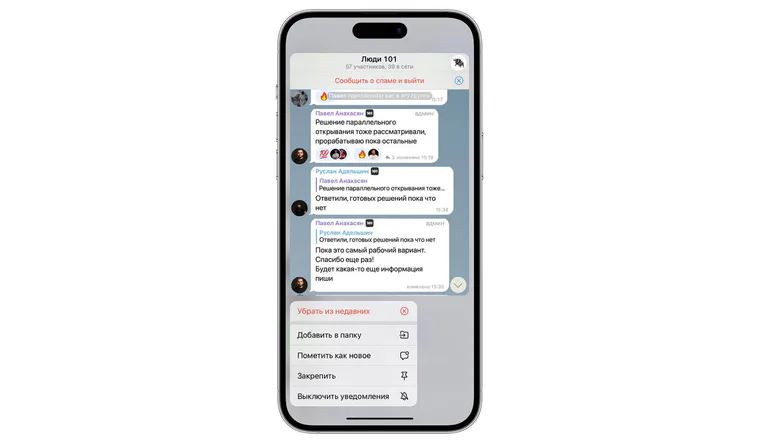
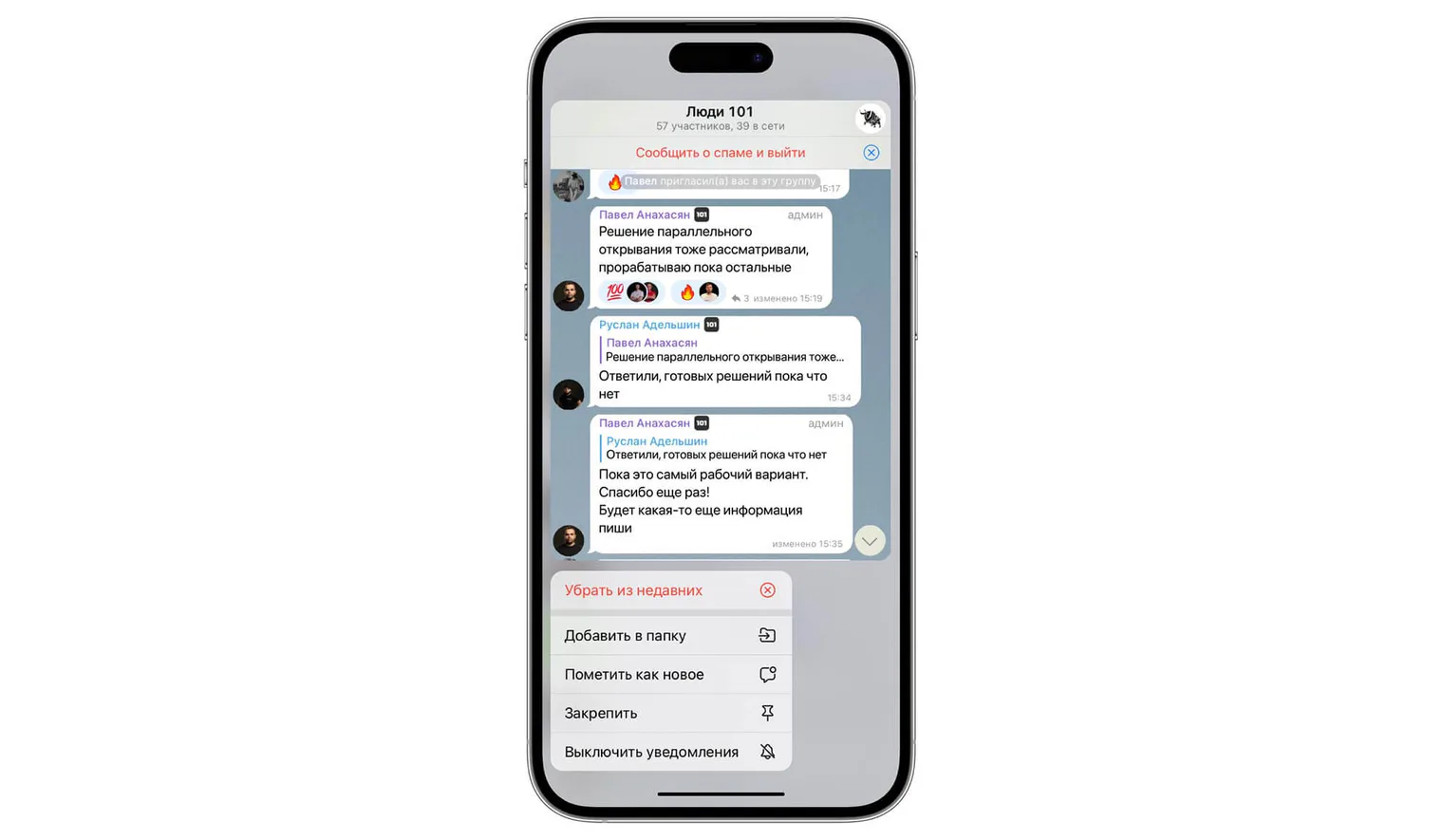
A preview helps you assess urgency, while an “unread” marker reminds you to return to a chat. These are different actions: marking a chat unread after reading it does not reverse a read receipt already sent to the other person.
-
Peek into a chat without opening it
Press and hold the chat to open a preview window showing its messages.
-
Mark a conversation unread
If you have read a message but want to return to it later, press and hold the chat and select “Mark as Unread”.
3. Restrict who can add you to groups and channels
You can change privacy settings to suit your preferences.
4. Put links behind descriptive text
A link with a clear label looks tidier and helps readers understand where it leads. The label does not prove that the address is safe: check the destination before opening it.
Protect your phone's storage space
When your chats and subscriptions become too numerous, move conversations you do not need in the main list to the Archive. Archiving organizes the list, but does not itself free storage space on your device.

You can manually return a chat from the archive. According to Telegram's official description, a notification may return a chat to the main list, while muted chats remain archived; behavior also depends on your version's settings.
To archive a chat in the illustrated interface, swipe it left and choose “Archive”. The archive appears above the chats. Swipe it to hide it, then pull the screen down to access it again.
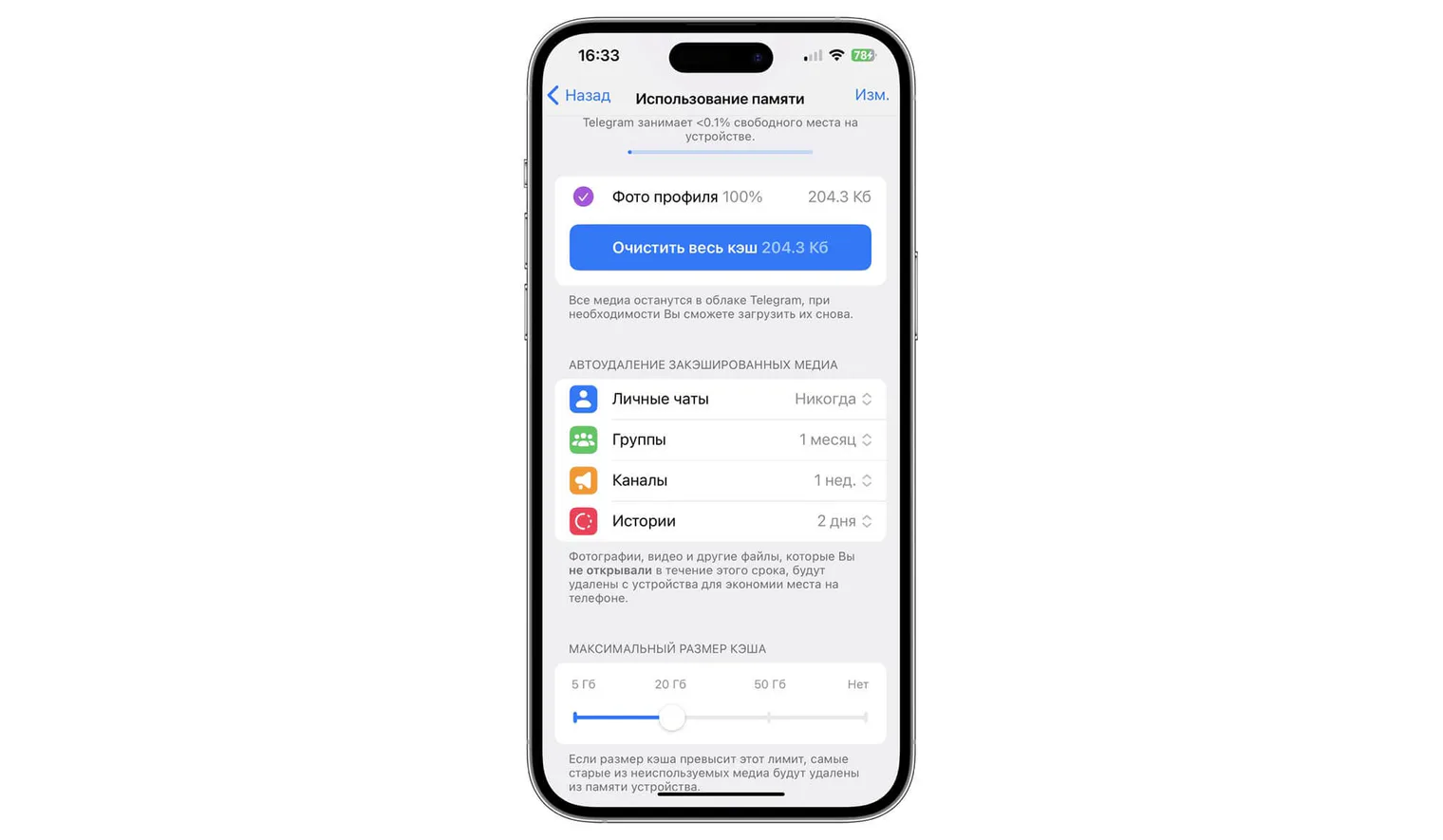
Downloaded photos, videos and documents can occupy considerable space in Telegram's local cache. To free storage, check storage usage and cache cleanup settings as well as organizing archived chats.
To set limits, open “Settings” — “Data and Storage” — “Storage Usage”. Here you can set size and retention-time limits for the cache. When the limits are reached, the cache is cleared automatically.
After clearing the local cache, you can download a cloud file again while it remains available in the relevant chat. This does not guarantee recovery of deleted messages or media from secret chats.
Use bots
Telegram offers many possibilities for programming bots for your needs:
- planning bots;
- analysis bots;
- teamwork bots;
- bots that streamline routine tasks.
For example, the 101 support bot (public description in Russian) is publicly presented as a helper for questions about the 101 app. It is a specific support service: its current page does not substantiate promises of artificial intelligence, filtering notifications from every chat or answers within a couple of seconds.
Set up your profile: first impressions matter
Your account's appearance matters when you plan to use Telegram for work conversations. Here are a few guidelines to help:
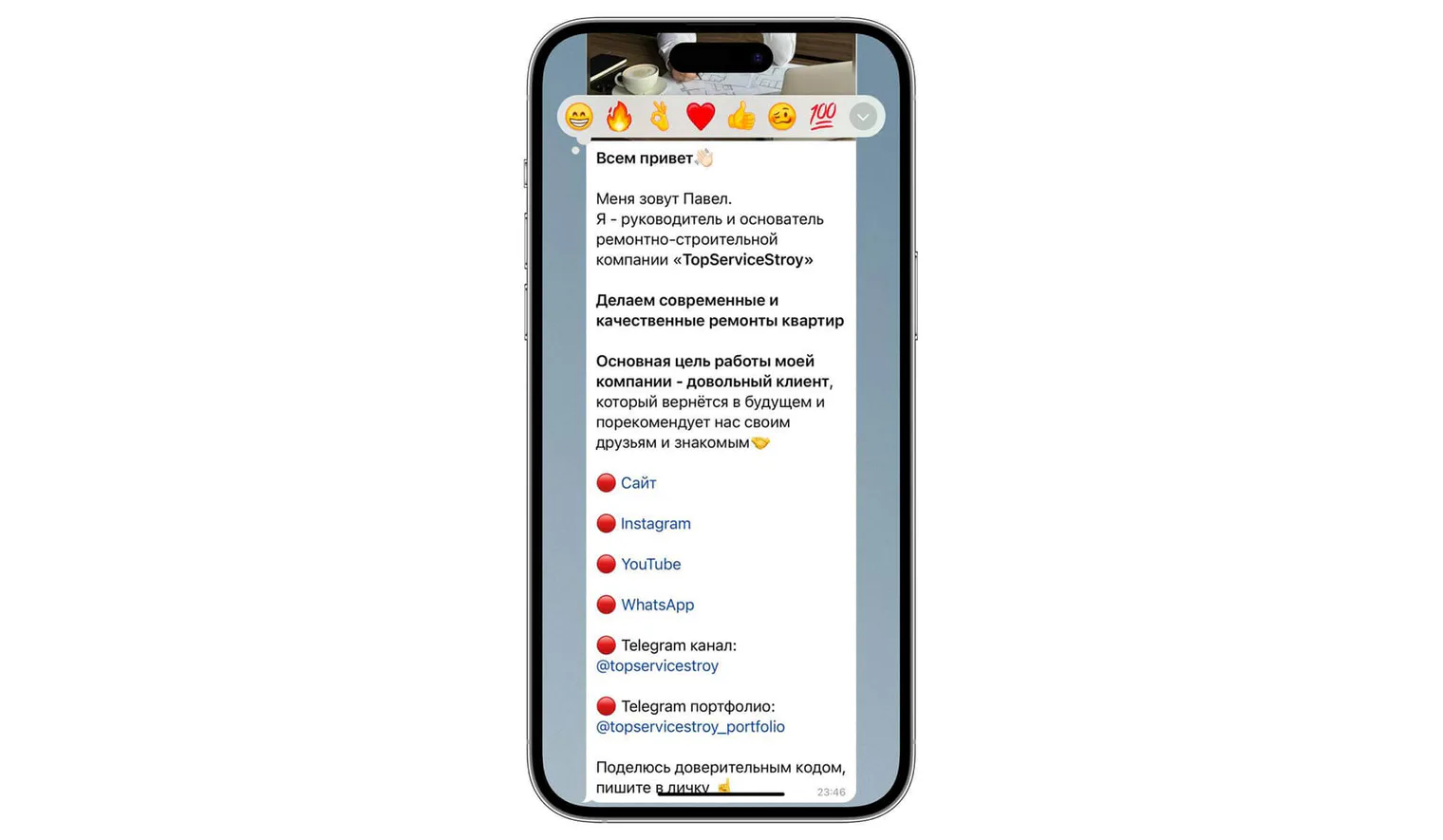
A shoulder-up photo
The profile picture circle is small, so a full-length photo is usually less effective. Choose a high-quality portrait associated with you; ideally, use it across your social profiles.
A clear username
Usernames such as @hhhhhhh123 or @12344679 make a person harder to recognize. Choose a concise username related to your name or role.
Your phone number and public username
You do not have to reveal your phone number to communicate with customers: they can find you through a public username or profile link. Configure number visibility under “Privacy — Phone Number”, considering both work and privacy. People who already know and have saved your number may see it; choose your settings consciously.
First and last name
Use your real first and last name instead of a label such as “Apartment Renovation ⚒️”: this is what customers will see.
A Premium subscription
The Premium badge indicates a subscription. It does not confirm the user's professionalism, competence or reliability.

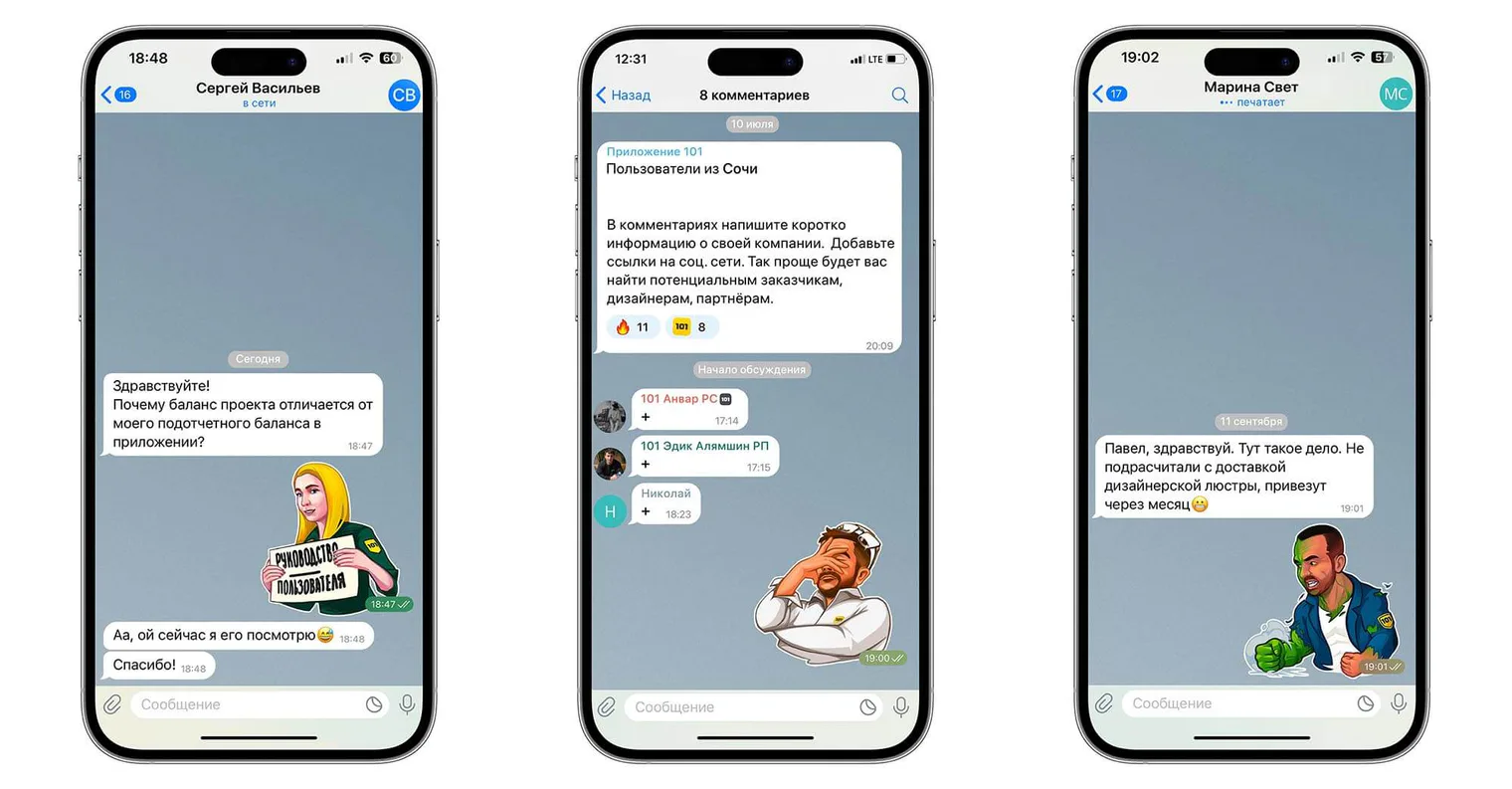
Your team's stickers can also help make you recognizable. Good stickers are convenient to save and use in conversations.
Consider Premium
Assess whether Premium features are useful in your daily work. The subscription expands Telegram's capabilities, although it does not by itself guarantee time savings or customer trust.
How can Premium save you time?
1. Turn voice messages into text
During a planning meeting or a discussion with colleagues, transcription helps you learn what a voice message in a work chat says. Free transcription is also available with limits, while Premium expands access. Accuracy depends on the recording and speech; check important names, amounts and conditions against the audio.
2. Download files without Telegram's speed limits
Premium removes Telegram's download speed restrictions, but actual speed depends on the connection, device and service availability.
3. Higher limits
Premium raises several limits: for example, it doubles the character allowance for a profile description and lets you pin more chats in the main list. This helps you present information about your work and keep important conversations handy.
4. Translate messages and chats
Telegram's translation helps you correspond with foreign customers, suppliers, designers and factories. It does not eliminate all language risks: check important technical requirements, numbers and agreements separately.
5. Automatically archive and hide new chats from non-contacts
This tool helps manage spam from people you do not know personally.
Premium also provides additional custom-emoji and reaction features. Use them appropriately: message styling complements communication and does not replace the quality of your work.
An archived example of paying for Premium in Russia
The following steps and screenshots are an archived Russian example from the original 2023 article, rather than current instructions for every country. Subscription availability, payment methods and prices depend on the country, app and payment provider. The official @PremiumBot is available in direct versions of Telegram for Android, Desktop and macOS, but is not supported in apps installed from the App Store or Google Play.
1. If your client and region support this method, open the official @PremiumBot and check the offered terms.
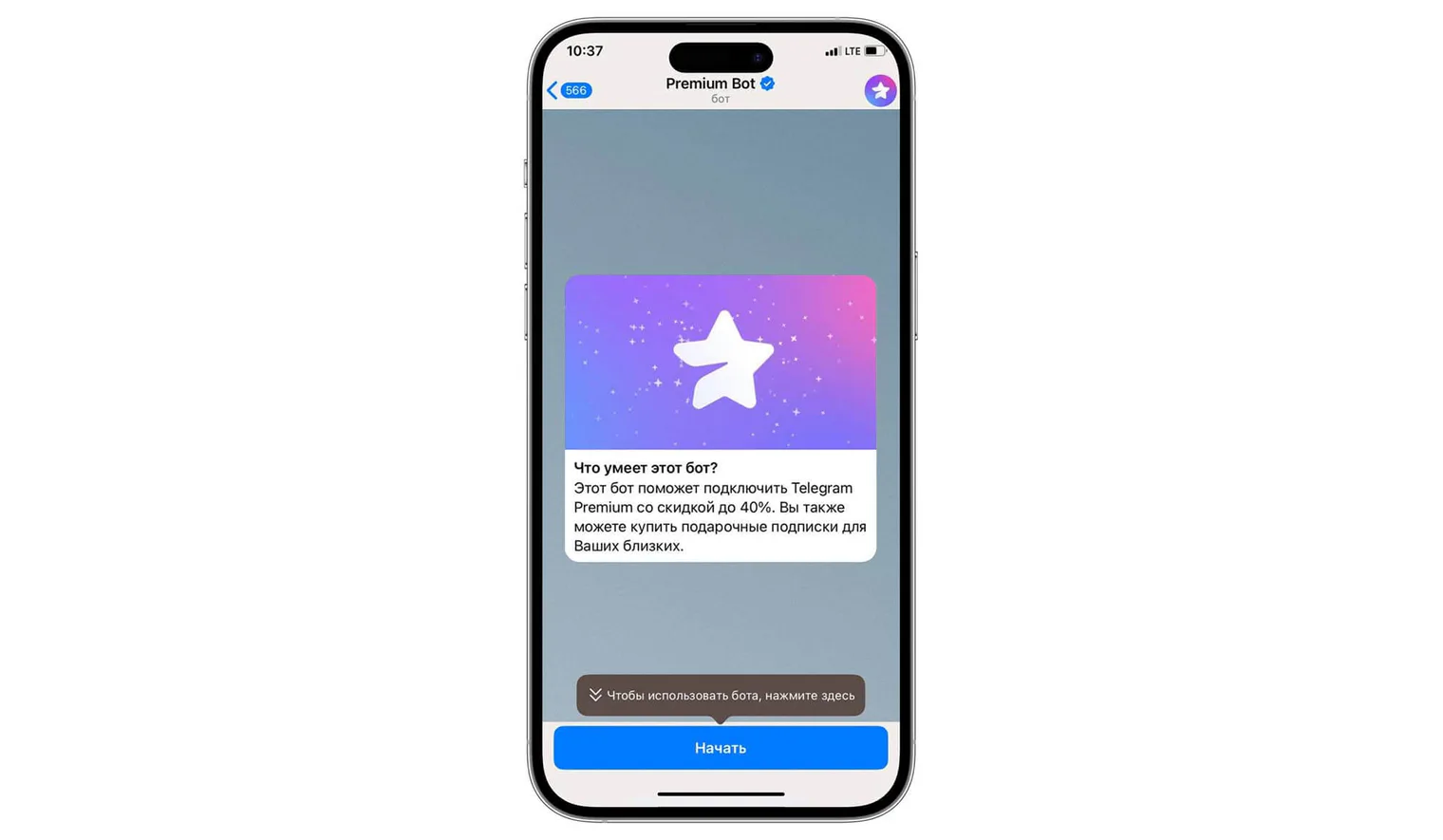
2. Compare the subscription periods offered. The original Russian text from 2023 quoted 299 RUB per month and 1990 RUB per year; the archived screen below shows a monthly invoice for 299 RUB. These amounts are not current prices or an offer for other countries.
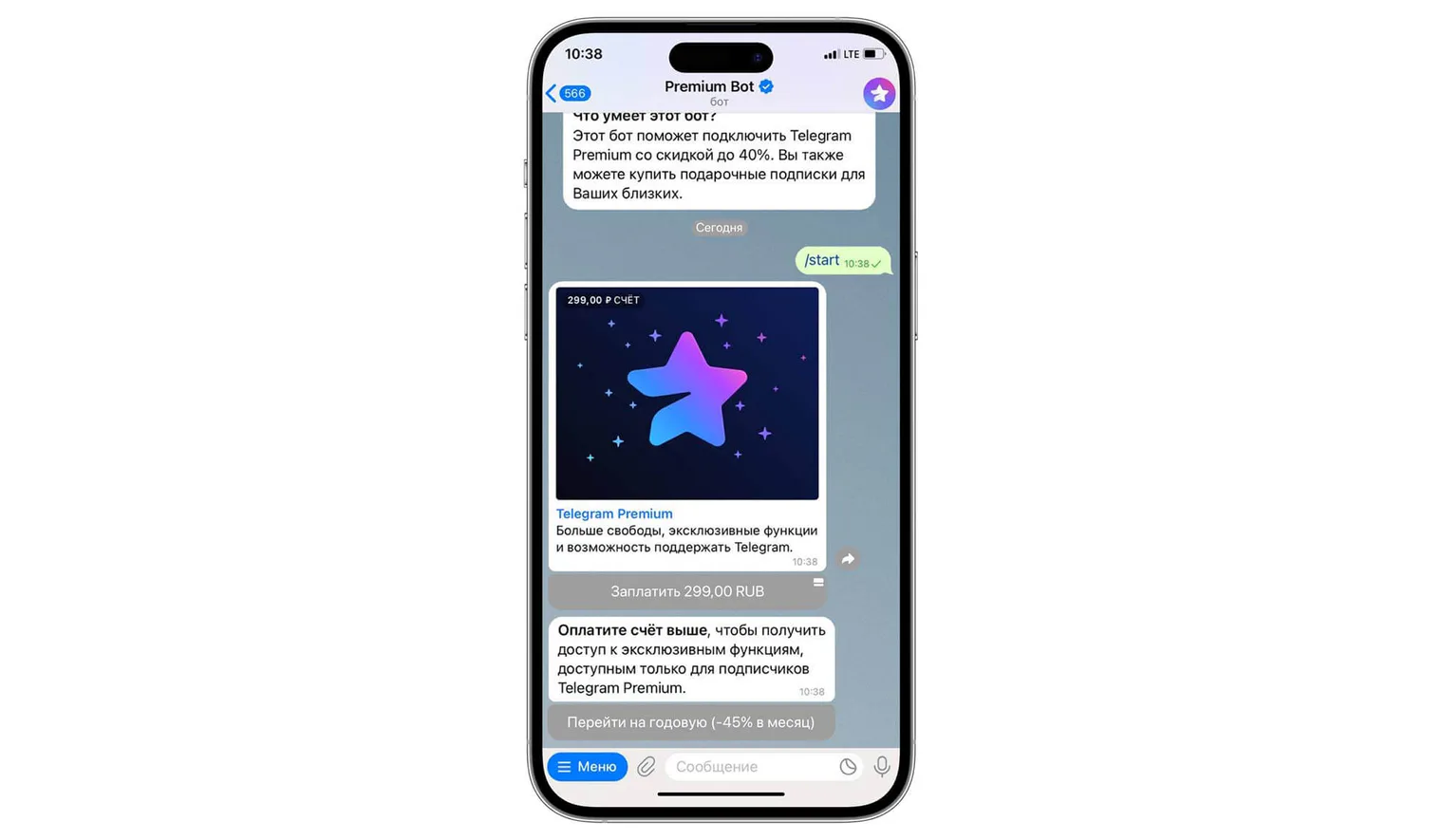
3. Select a payment method available in your region. The archived example included card entry; having a Russian bank card does not guarantee that it is accepted today.
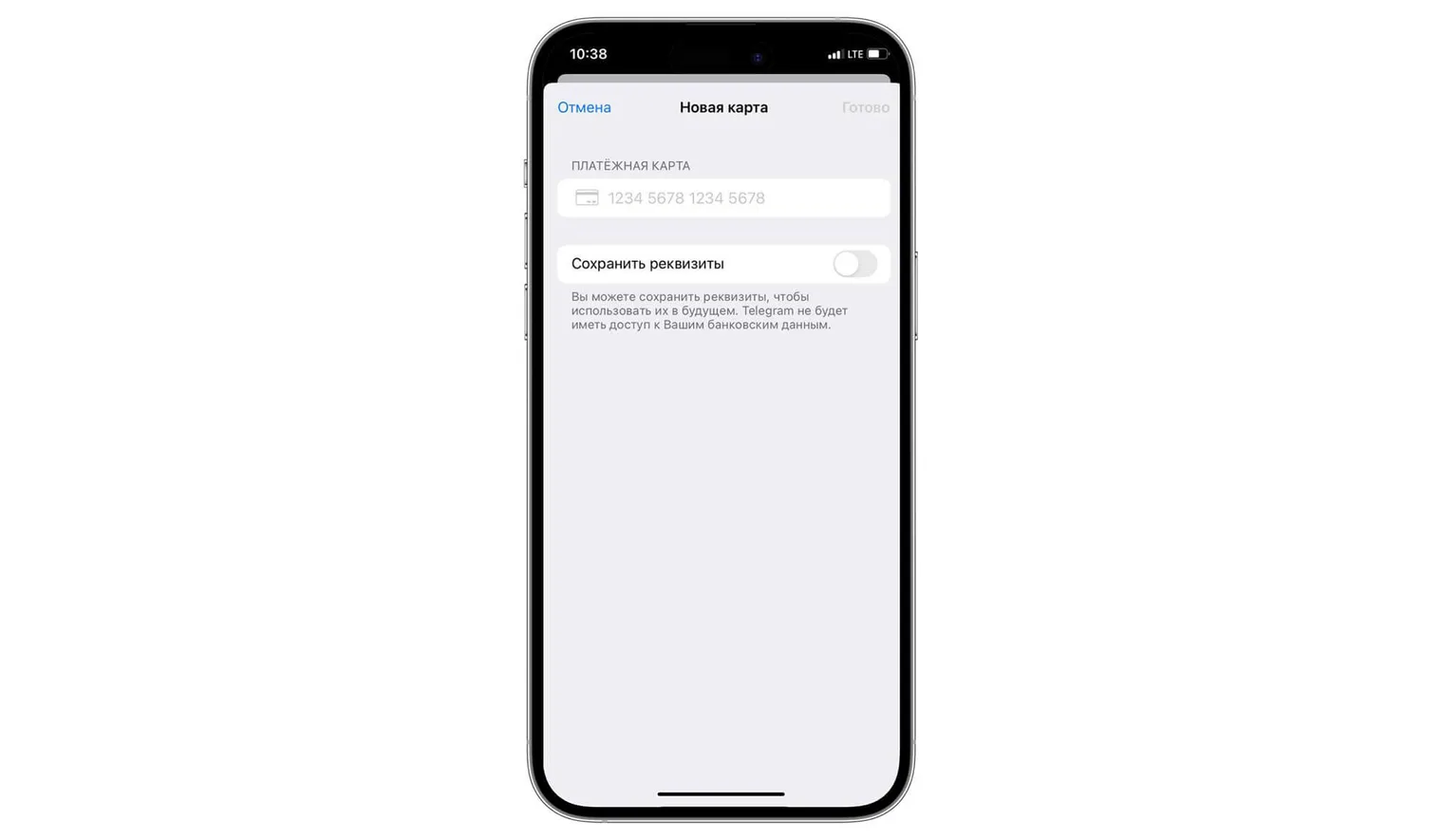
4. Before confirming, check the current amount, currency and renewal terms, then complete payment if the offer suits you.
Keep up with updates
One advantage of Telegram is its continuing development. Its developers introduce new features along with the usual performance improvements:
1. Stories
Posting stories is no longer limited to Premium: the feature was expanded beyond its initial launch for subscribers. Capabilities and limits depend on the account, while Premium adds further features. You can choose the story's audience, including people outside your contacts.
2. Shared folders
Sharing your folders by link is convenient.
3. Power Saving Mode
Settings let you disable animations and visual effects in Telegram to save battery power.
Move to Telegram correctly
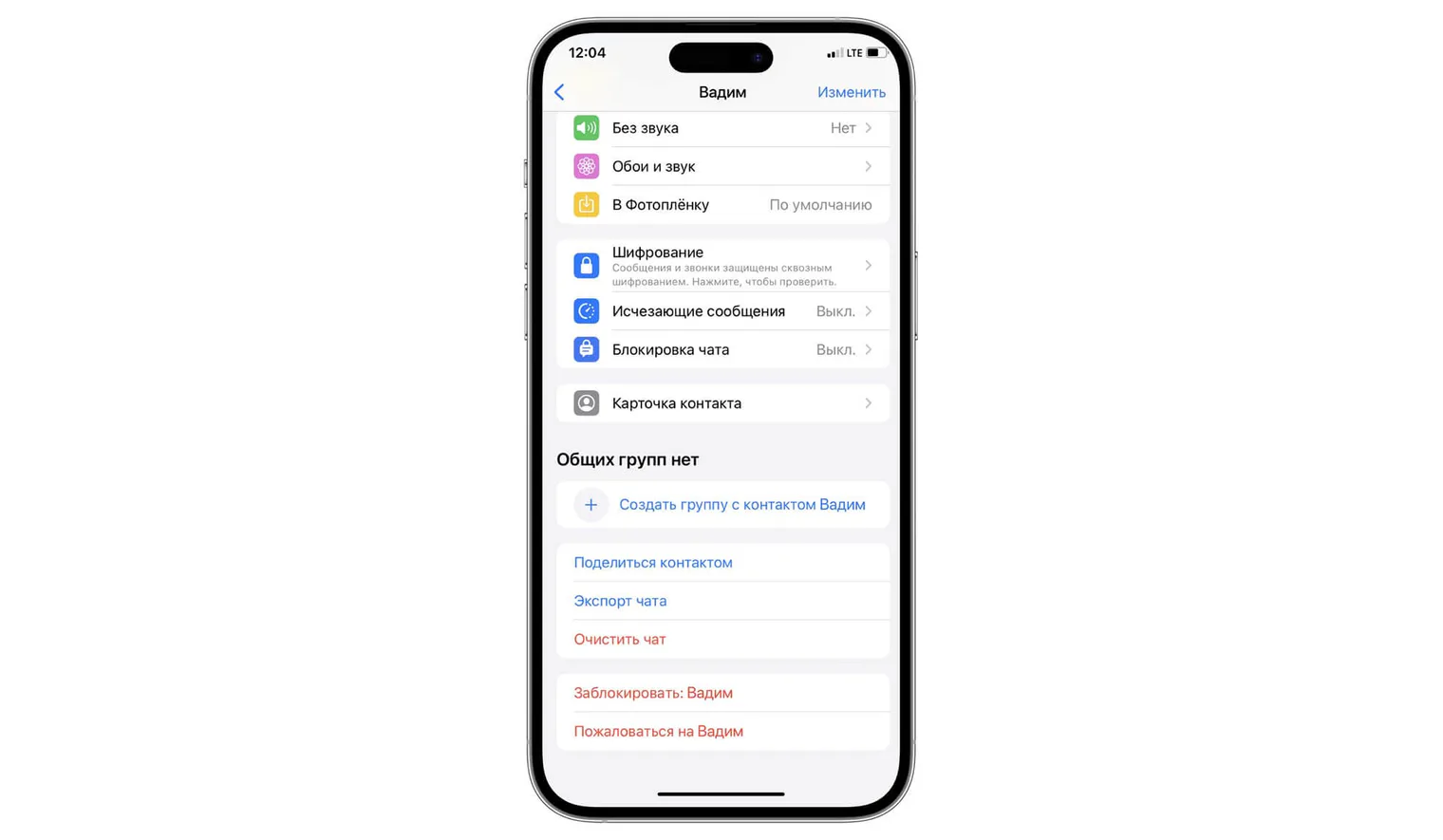
If you have long used WhatsApp to communicate with colleagues and value your conversation history, you can import it into Telegram:
1. Open the chat you want to import and tap the group or contact name.
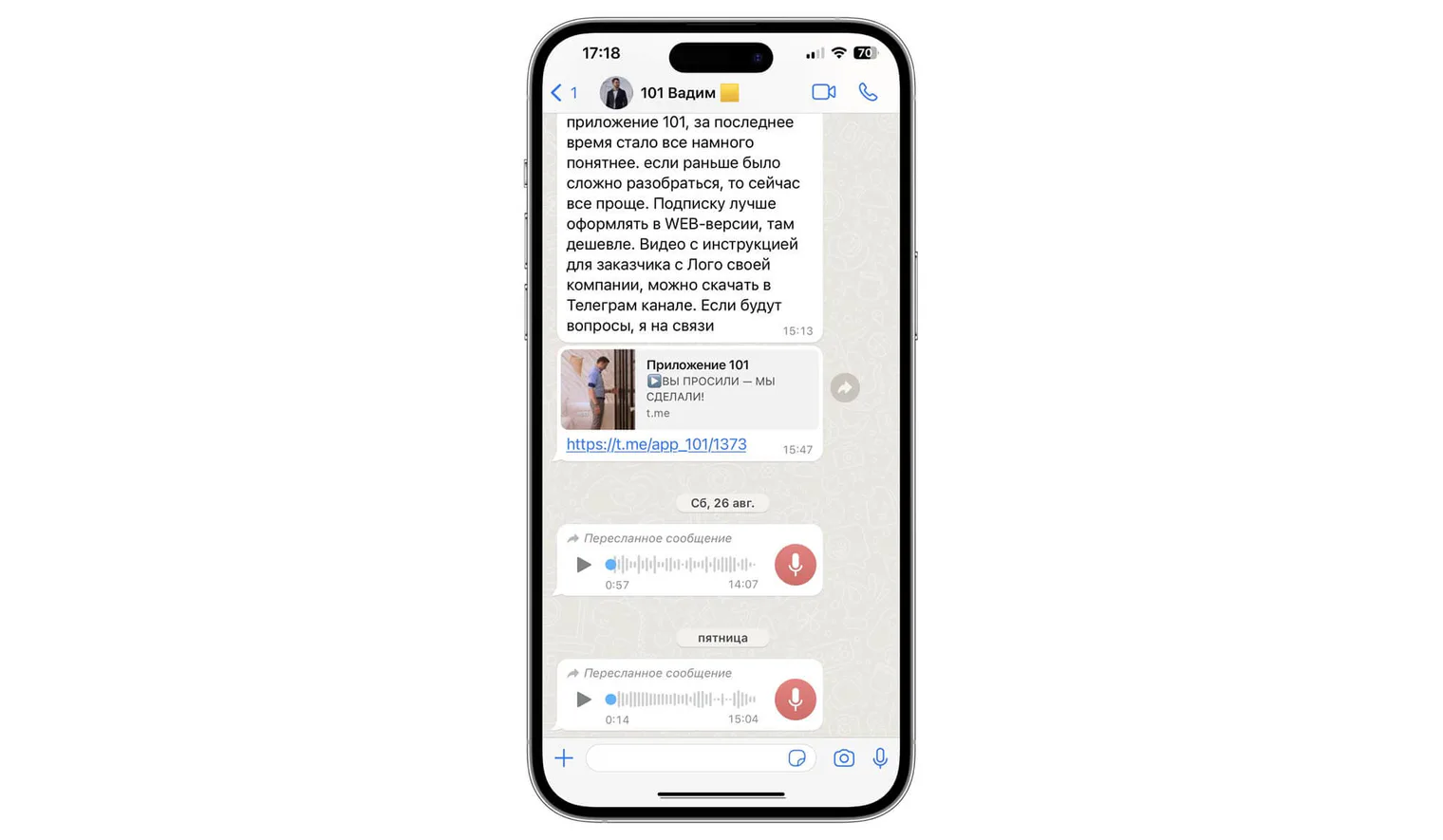
2. Scroll down the menu and select “Export Chat”.
3. Choose whether to include media files.
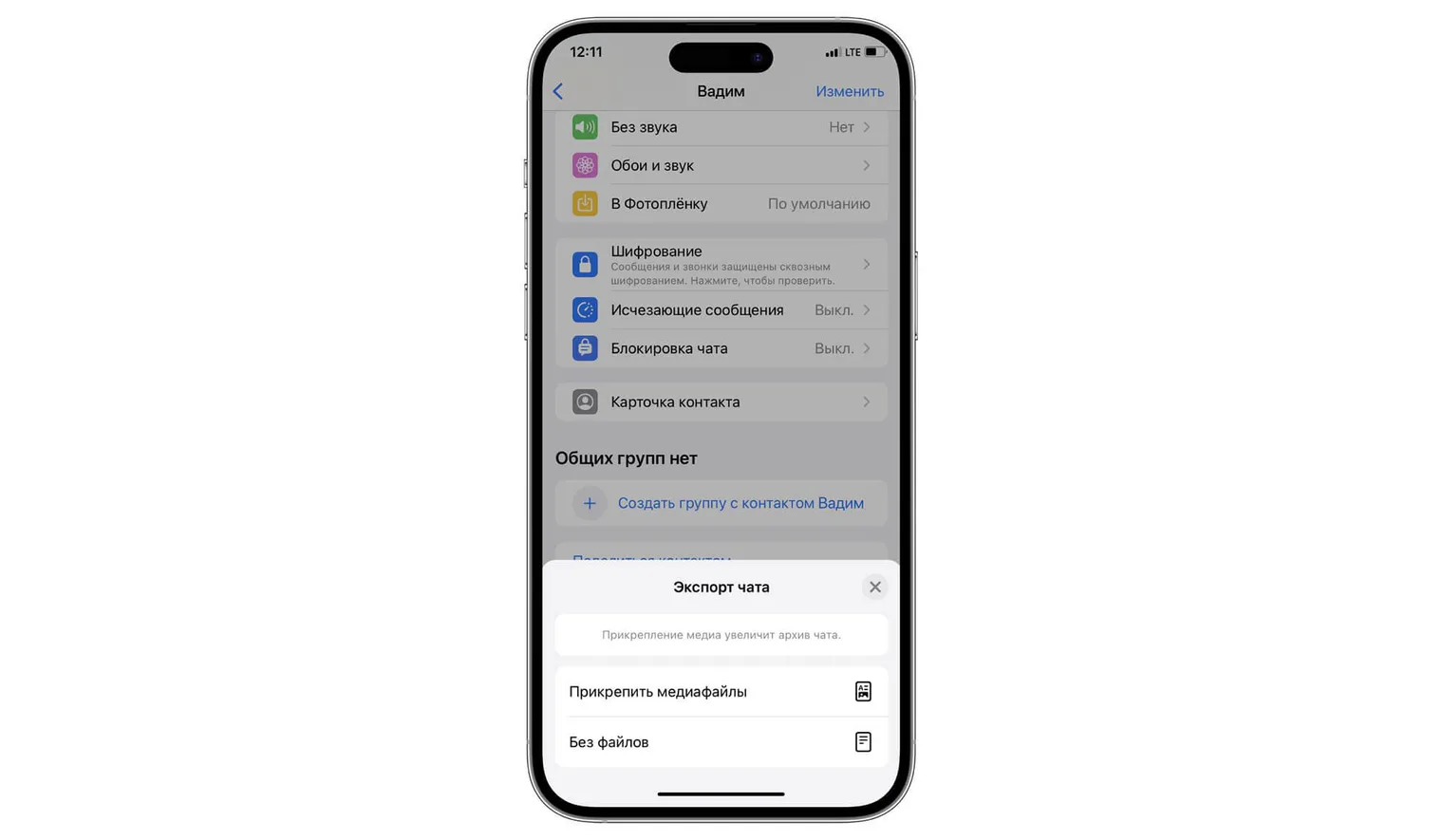
4. Choose Telegram, then the chat into which you want to import the history.
For importing a personal conversation, Telegram requires mutual contacts; in a target supergroup, administrator permission to change information (change_info) is required. Select the correct chat and check participants' permission to import the history. Imported messages retain their original timestamps but appear on the day of import, and all members of the selected chat can see them. The steps above show WhatsApp on iPhone; on Android, the path starts with ⋮ — “More” — “Export Chat”. Do not combine conversations with different people without consent. Before importing, ensure you have the right to share participants' messages and files.
What else can improve your Telegram experience?
Read the 101 channel (in Russian) and explore materials from the entrepreneurial community. This can help you:
- study published materials about business, construction and financial management;
- learn from colleagues' practical experience and discuss available materials where comments are enabled;
- introduce yourself.
Materials and connections may be useful in your work, but participation in a community does not guarantee business deals.