On a construction project, documents can end up anywhere: in the procurement specialist’s Excel spreadsheet, in the contractor’s Word document, in a Telegram chat, in a photo gallery, or on a scrap of paper that later gets lost. The result is predictable: numbers are copied by hand, line items in the estimate stop matching, and the client receives the report later than planned.
In the 101 App, you can use AI to transfer line items from an external source into an “Estimate” or a “Report”. As of 21 October 2026, the web panel lists photos of tables, XLSX, CSV, PDF, and DOC files, and text from chats or notes. This is a list of supported input types, not a promise that every document will be recognized correctly.
The result depends on the structure and legibility of the source. Blurry photos, cropped rows, and illegible handwritten notes may require another photo or manual entry. Handwriting recognition is not guaranteed; every result needs to be checked against the original. Current transfer methods are described in the official 101 Help guide (in Russian).
Contents:
What has changed in AI Insert?
The purpose of the transfer is to reduce the amount of retyping. Recognized line items still need to be checked: they cannot be treated as a finished calculation simply because the software has filled in the table.
A source that clearly shows item names, quantities, units, and amounts is easier to transfer. A short message such as “Total 86,400, plastering 3 rooms” does not contain enough data for a detailed, verified estimate: ask the person who prepared it to clarify the missing quantities and rates.
Do not mistake calculated values for information supplied in the document. If you know the total and quantity, you can check the unit price by dividing; if you know the price and quantity, multiply them. When data is incomplete, first clarify the basis of the calculation and the units of measurement.
Which documents can you digitize?
The type of document and the file format are different things. An invoice or delivery note may arrive as a PDF, DOC, XLSX, or photograph; the name of the document alone does not guarantee successful recognition. For a handwritten note, assess its legibility first: entering unclear lines manually is more reliable.
Compare the recognized rows with the source and fill in any missing details manually. Do not assume the software will spot every omission: check item names, units, quantities, and prices yourself.
Here are common sources that are useful to digitize into an estimate or report:
- On a computer: XLSX, CSV, PDF, and DOC files, photos of tables, and copied text. These input types are listed in the “Add items with 101 AI” panel.
- On a phone: the Help guide describes transferring text copied from a document. Do not assume the web version’s button names apply to the phone app; see the official instructions linked above for details.
- For a screenshot or photo, the rows need to be clear and complete. A handwritten source needs especially careful checking and, where necessary, manual entry.
- A message from a messenger is a source of text, not an automatic connection to your conversations: transfer only the information needed for the calculation.
If you already use the feature to insert line items from tables, you may find “Quickly import an estimate from Excel into the 101 App (AI Insert)” (in Russian) useful. It helps build a habit of turning any list of work into line items straight away, while the numbers are at hand.
How do you check costs when data is missing?
Estimates and source documents often arrive incomplete. One person provides only a section total. Another sends a quantity without a price. Someone else gives a price without a unit of measurement. This is where manual calculations begin and can later lead to an argument: “Why is the amount in the report different?”
The logic is straightforward and easy to check:
When checking the relationship between quantity, price, and total, use a consistent set of units and allow for rounding. If the quantity is unknown, do not divide the total by an arbitrary quantity or substitute a guess for source data.
AI speeds up preparation of the draft, while the sender remains responsible for the final calculation. After recognition, check the entire list of line items, correct the values, and only then save the result and send it to the client.
How do you use AI Insert in an estimate or report?
The transfer is used when working with line items in an “Estimate” or “Report” event. In the verified computer scenario, an existing training “Estimate” is open; this does not mean a document has already been recognized or sent to the client.
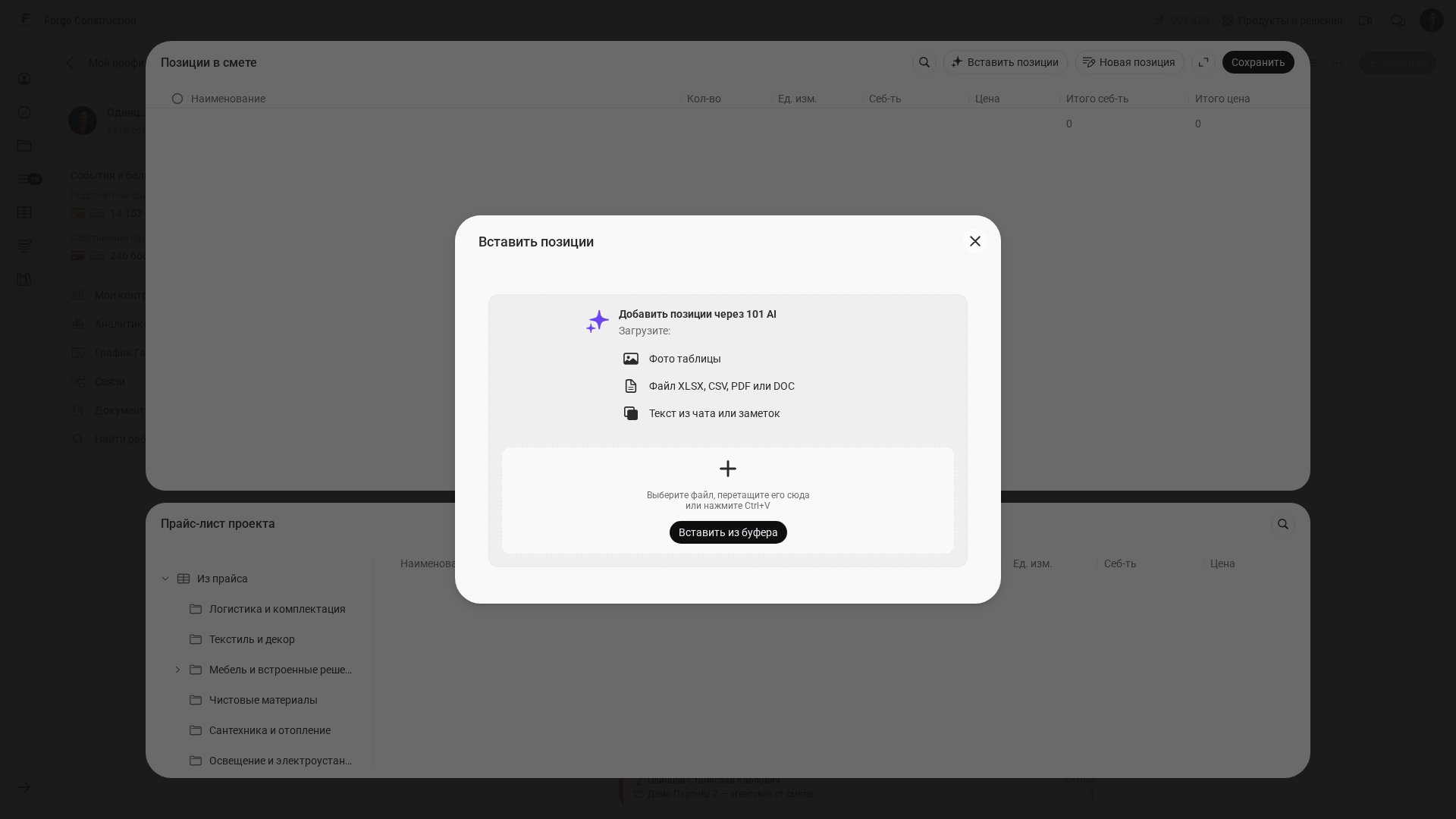
In the web version, “Add item” → “Insert items” opens the “Add items with 101 AI” panel. It lists the supported sources and includes “Paste from clipboard”. Recognition starts as soon as you submit a file or text, so submit only information you have prepared for processing. Details and differences on a phone are covered in the Help guide to transferring line items (in Russian).
Follow this sequence when preparing the source and checking the result:
- Choose a source with legible, complete rows. On a computer, check the format against the list in the panel; on a phone, check the transfer method in the official Help guide.
- Open the line items of the relevant “Estimate” or “Report” and the insertion method you have prepared to use. The verified entry point on a computer is shown in the illustration above.
- Compare the resulting line items with the original: names, units, quantities, prices, costs, totals, and any extra or duplicate rows.
- Correct omissions and errors, then save the result. Recognition and checking time depend on the source; completion within a fixed one-minute period is not guaranteed.
To learn more about how estimates work in the 101 App, see “An online estimating service: download the 101 App and create estimates yourself” (in Russian). It explains the logic of events and how to work with line items.
How do you check the result and finish the report sooner?
After digitizing the source and before sending the report, compare the recognized line items with the original document: names of work and materials, units of measurement, quantities, prices, and totals. Clarify values that are missing from the source, then correct or complete any uncertain rows before sending. The time needed to check the result depends on the length of the document and the quality of the source data.
There are several common areas that deserve a closer look:
- line items with identical names from different sources, which AI may have placed in two separate rows;
- rows where the source provided only a section total;
- materials and work that were written in a single line in the chat.
If you work with receipts and source documents, it helps to follow a consistent sequence: attach the document, transfer the line items, complete any uncertain details, and send the report. This routine helps keep your records consistent even when work, purchasing, and approvals are happening at the same time on site.
What do the client and team gain?
Once the line items have been checked and the report prepared, it is easier for the client to understand the work, materials, and amounts. If necessary, attach the source document to the event separately: recognizing its line items does not in itself prove that the original has been attached.
For a site supervisor or project manager, this also means greater peace of mind: less manual entry, fewer lost documents, and fewer discrepancies between what was agreed and what was calculated. AI already helped recognize line items from copied text and put prices into columns. The same approach now extends to files and images.
AI Insert becomes a regular part of the workflow: receive a document, digitize it, check it, and submit the report. No separate evening spent retyping, and no requests to “send it again, I can’t read it”.