An online estimate builder helps you put together a renovation or construction estimate from work items and materials: specify quantities, rates, costs and prices for the customer. In 101, you can use your own price list and templates, and for recurring calculations, parametric templates with variables and quantity formulas.
This approach is useful when your company carries out similar work but room dimensions and quantities change. We explain how the calculation works, how price lists differ from templates and what to check before agreeing an estimate.
Contents:
- What is an online estimate builder?
- What goes into an estimate for work and materials
- Parametric estimate templates: variables and formulas
- What to prepare before creating an estimate
- How to check the calculation and save the estimate
- How to agree an estimate with the customer
- Who can benefit from the estimate builder in 101
- Frequently asked questions about the estimate builder
What is an online estimate builder?
An estimate builder brings together line items, quantities, units of measurement and rates in one document. It calculates an amount for each line and then adds the lines to produce a total. If a quantity or price changes, you can check how this affects the cost of the stage.
In a spreadsheet, you maintain the file structure and links between cells yourself. In 101, items are linked to a price list and a project, and saved estimates are available in the shared accounting system. The service runs in a browser on computers and phones; the layout and available actions depend on the device and the participant's permissions.
The main benefit for a contractor is being able to reuse prepared rates and sets of work items. For the customer, it is a clear list of what the proposal includes, in what quantities and at what price. Adding up the lines automatically helps with the arithmetic, but a person still needs to check that the work is complete and the input data is correct.
What goes into an estimate for work and materials
The calculation is based on price list items. Each has a name, a unit of measurement, a cost and a price. The estimate adds a quantity, such as the area to be painted, the length of skirting board or the number of fixtures to be installed. Work items and materials should have names that make their purpose clear without verbal explanations.
Cost represents the company's expenditure on an item; price is the amount charged to the customer. It is important to distinguish between them: the same quantity can produce different totals in an internal calculation and a customer proposal. The difference between cost and price does not, on its own, describe the profit on the whole project, which may have other expenses.
In 101, you can maintain your own price list and add the items you need to a calculation. Once rates are prepared, you can reuse them; the article on price lists (in Russian) explains how to work with the catalogue. Check that prices are up to date before creating a new estimate. Changing a price list does not, by itself, confirm that previously saved estimates have been updated.
Price lists, standard templates and parametric templates
| Comparison | Price list | Standard template | Parametric template |
|---|---|---|---|
| Set of items | A catalogue of individual work items and materials | A prepared set of price list items | A set of items with rules for calculating quantities |
| Quantity | Specified in each calculation | Checked and adjusted for the site | Calculated using specified parameters and formulas |
| Reuse | Rates for different estimates | The items for a typical stage of work | A typical stage with different input dimensions and quantities |
Parametric estimate templates: variables and formulas
A parametric template links item quantities to input values. Instead of recalculating each line repeatedly, you enter the site's parameters and formulas determine the required quantities. In 101, you can use named parameters, numbers and arithmetic operations. The person creating the template decides which work items and materials to include and how to calculate their quantities.
For painting, for example, you could use a “Wall area” parameter and the rule “Wall area × 2”. If the area is 10 m², the result is 20 m² of single-coat application, provided that the rate is indeed for one coat. If the item already includes two coats of paint, its quantity for the same surface would be 10 m². Multiplying again would overstate the calculation.
Materials are included in a template as separate items from your price list. Their quantities depend on the chosen method and the material consumption rate. For example, the surface area and consumption per square metre can serve as inputs to a formula. Take the consumption rate from the technical documentation for the specific material, allowing for working conditions; the program cannot determine it from the item name alone.
These templates are useful for recurring finishing, installation and other standard work. For the next site, change the parameters and then check the resulting quantities, set of items and prices. The template itself also needs checking: an incorrect formula will repeat the error in every calculation that uses it.
The setup rules are explained in the “Formulas and variables in templates” guide (in Russian), and the usage procedure is covered in “How to use templates in 101” (in Russian). The price list containing the required template must be linked to the project. You can find a detailed explanation of recurring calculations in the article on formulas and parametric estimate templates.
What to prepare before creating an estimate
Start with the input data: a list of work items, measurements and the agreed scope of the proposal. A room renovation may require wall and ceiling areas, lengths, and the number of openings and pieces of equipment. Some work is measured by area, some in linear metres or individual units; one overall site area cannot replace all of these measurements.
- Divide the work into clear stages and decide which materials each stage includes.
- Check the units of measurement, rates and costs in the price list.
- Select suitable templates and prepare the values for their parameters.
- Clarify exceptions: delivery, removal of existing elements, waste disposal and other items that depend on the particular site.
If the original list is already in a file or message, you can use AI-assisted data transfer in 101. This helps prepare items, but you need to check the recognised names, units, quantities and prices against the original. The guide to importing an estimate from spreadsheets (in Russian) explains the transfer method.
How to check the calculation and save the estimate
After adding items, enter their quantities and check the units, costs, prices and total. Selecting an item does not mean the calculation is ready. The example below illustrates the difference between cost and the price charged to the customer.
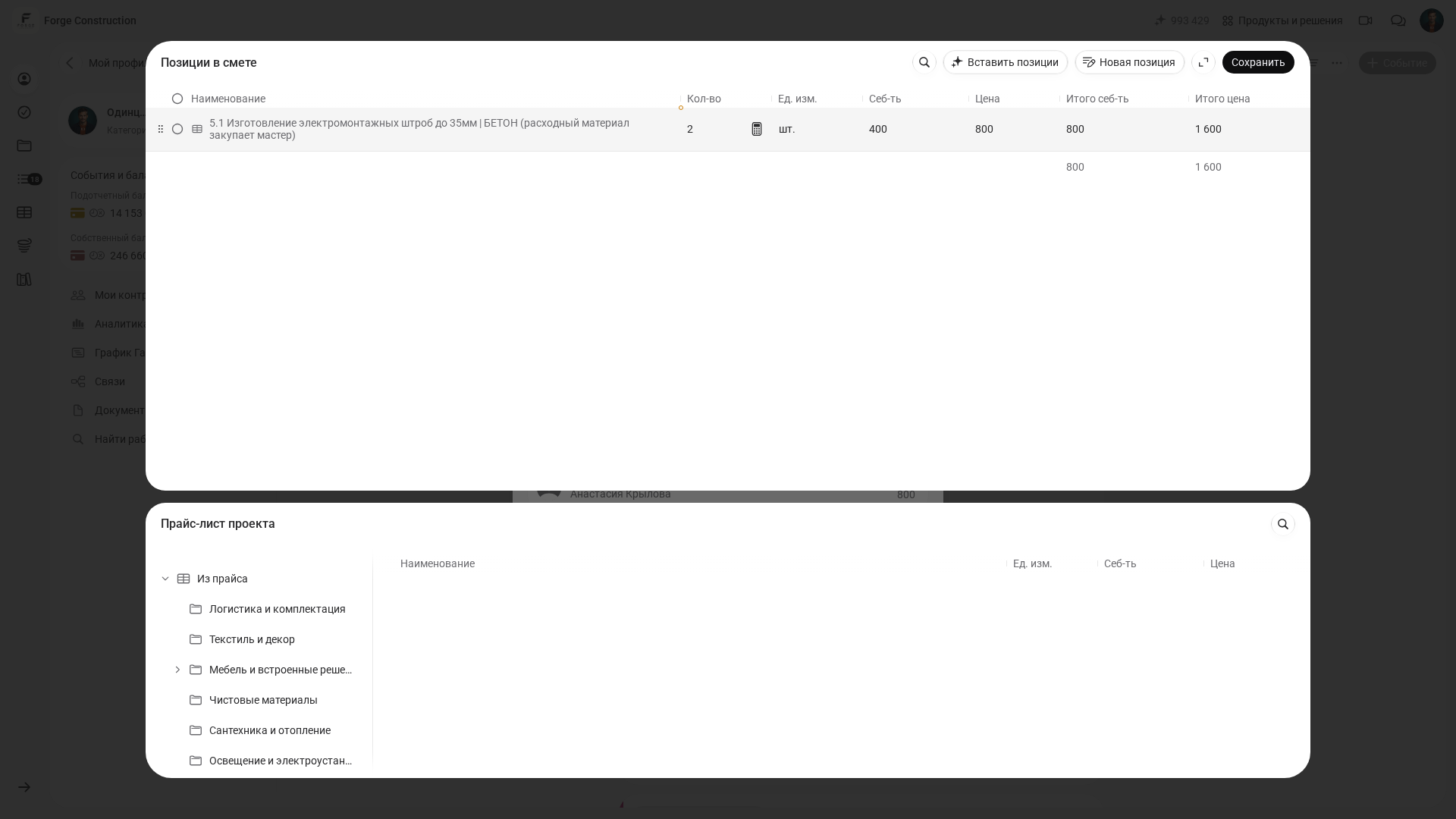
In this example, 2 units × ₽400 gives a cost of ₽800, while 2 units × ₽800 gives a customer price of ₽1,600. Checking a single line can reveal a mixed-up price, an incorrect unit or a quantity error before you send the full estimate.
Before saving, check the quantities, units of measurement, costs, customer prices and totals. In the desktop web version, click “Save” in the items window, then check the project, expense category, stage description, date and participants, and click “Save” in the estimate form. Open the saved card and check the amounts and status. If the estimate is awaiting confirmation, an authorised participant must confirm it separately; saving alone is not enough.
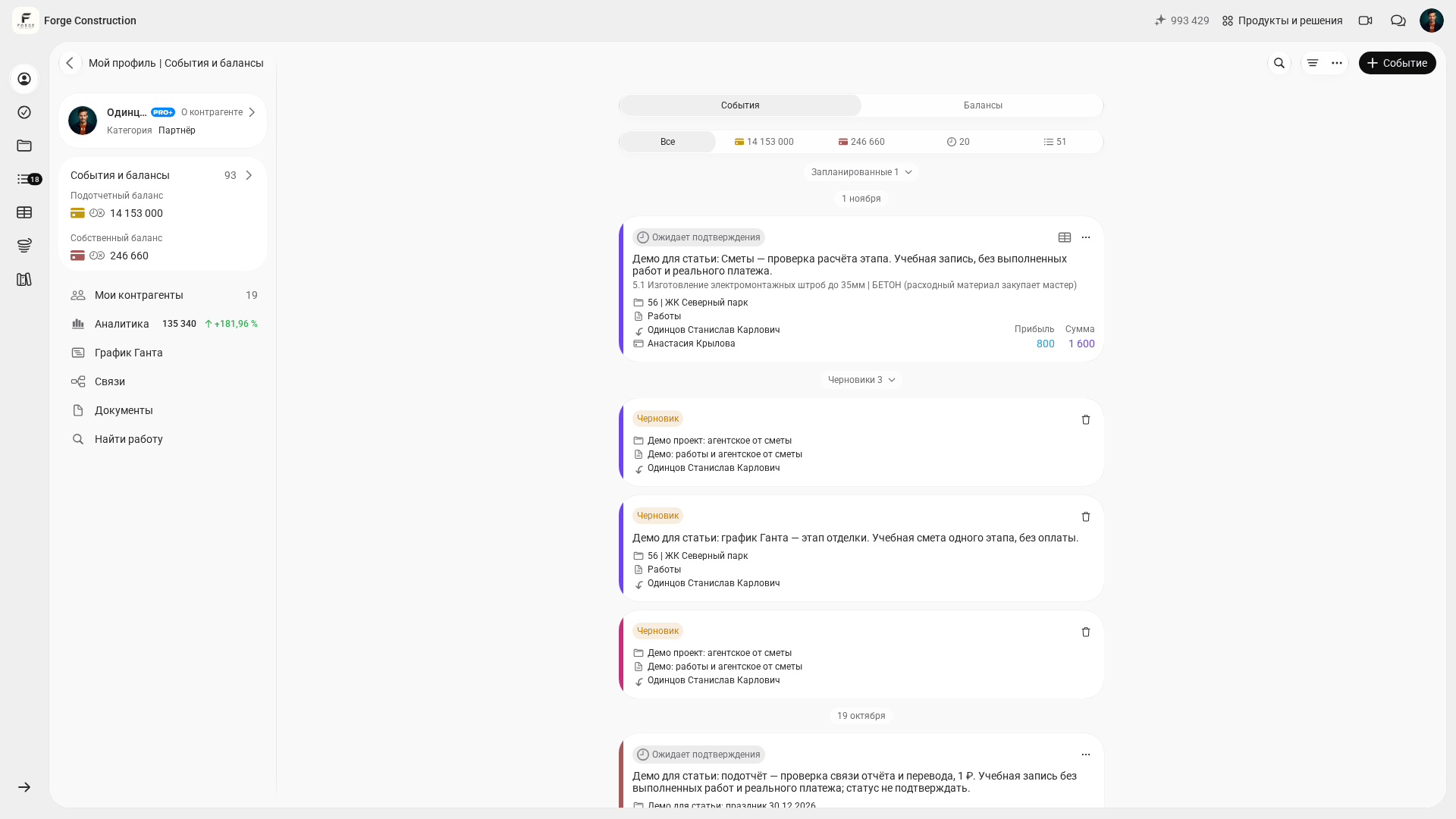
For the full procedure on phones and computers, see how to create an estimate in 101 (in Russian). The article on calculating an estimate online covers input data preparation and stage calculations in more detail.
How to agree an estimate with the customer
Before agreeing the estimate, check that the customer understands the scope of the proposal. Clarify which work items are included, which quantities have been measured, which still need clarification and whether materials are included in the stated amount. It is better to discuss additional work in a separate calculation so that the changes are clear.
In 101, you can save an estimate to share with the customer and invite the customer to the project to view and confirm the events available to them. Access depends on their role and settings. The “Awaiting confirmation” status means that the required confirmation has not yet been received.
Before sending, check the total against the individual lines, look for duplicates and make sure templates have not added the same work twice. A saved estimate records a specific calculation; before preparing a new version, check any changes to quantities and prices separately.
Who can benefit from the estimate builder in 101
For site supervisors and tradespeople, the builder helps prepare estimates for their work and reuse a prepared price list. For the manager of a renovation or construction company, consistent names and rates make it easier to compare estimates prepared by different employees. Parametric templates are particularly useful when the method stays the same but dimensions and quantities change.
For the customer, a detailed calculation helps clarify what the proposal includes and raise questions before work begins. For the company, the value comes after preparing its own catalogue: up-to-date prices, clear item descriptions and checked templates become the foundation for future estimates.
Frequently asked questions about the estimate builder
Can I create an estimate using my own price list?
Yes, in 101 you can use your own items and rates. Before calculating, check that the price list is linked to the project, that the items are available and that prices are up to date.
Is a parametric template suitable for every site?
It is suitable for work whose scope and quantity rules match the site. If the method or specification is different, check and adjust the template; changing the area alone may not be enough.
Can I work on a computer and a phone?
Yes, 101 is available in a browser and on phones. Actions and layouts may differ, so use the guide for your device for step-by-step instructions.
Does the estimate builder guarantee error-free estimates?
Automatic line calculations do not replace measurements or checks of the work scope, units and formulas. Before agreeing the estimate, check the input data, prices and total, even if you used a ready-made template.
To assess the estimate builder using your own example, book a 101 demonstration. Discuss your price list, a typical stage of work and the possibility of parametric calculations with an expert. This will make it clearer how to prepare templates for your company.