
Contents:
What is the 101 estimating app?
101 helps the manager of a construction company organize estimating, management accounting and reporting. This approach lets you share the work on calculations and project data among your team:
Shared responsibility. Employees with the appropriate permissions can report completed work and expenses. The manager uses this information to monitor the project and reconcile calculations; each participant's access depends on their role and the company's settings.
Mobility. The app helps you obtain information about project balances, funds entrusted to employees and expenses by category. Mobile use means working with data on your phone; access to figures and the ability to add records depend on the participant's permissions. The step-by-step screenshots below were taken in the desktop web version, so controls may be arranged differently on a phone.
Working together on estimates. Tradespeople can prepare cost estimates for their own work, while the manager can put together an agreed list of upcoming work and discuss it with the customer. This process helps you check quantities and the initial prices. Choose how to share calculations and give the customer access according to the permissions you have configured.
How do you calculate an estimate in 101?
The steps below show the calculation process in the current web version of 101, using a company owner's account. All new screenshots show the Russian interface; the control names in the text are translated for clarity. Opening a new form and the completed example are shown separately: a previously saved demonstration estimate with fictional data is used to check items, totals and the PDF menu.
1. Create an Estimate event
Open the relevant project, click Add event and select Estimate. In the verified interface, this is the event name for a planned calculation; the previous version of this article called it Preliminary calculation.
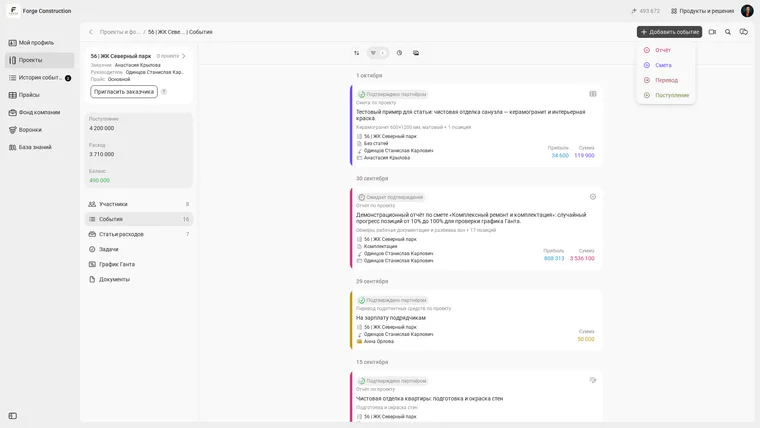
The event creation menu inside a project: Estimate is available.
2. Check the event card details
For a calculation relating to a job site, select Project mode and check the selected project. When you open the form from a project, it may already be filled in. Check the customer and choose an appropriate expense category, such as Work for labor or Materials for materials. For another role, first check its available actions and permissions.
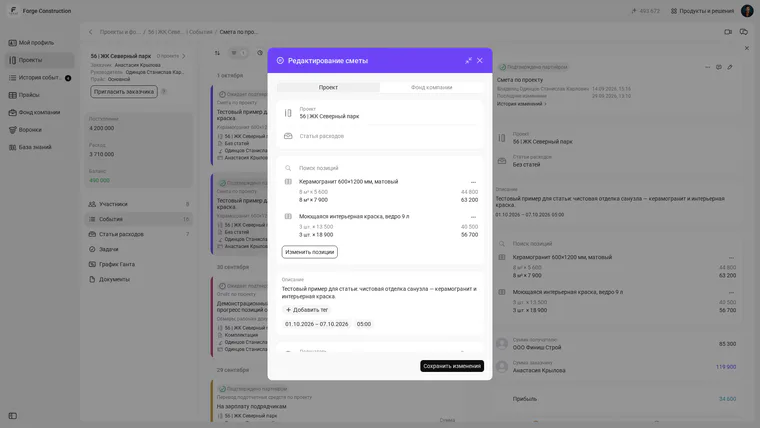
A previously saved demonstration example in the editing form: the project, items and description.
3. Add items and check quantities and prices
Click Add items, or Edit items for a calculation that already contains items. The window offers From price list and Add new. You can use a prepared price list as an initial set of work items and prices; check the relevant items, quantities, units, costs and customer prices. Before returning to the card, check the totals and click Done.
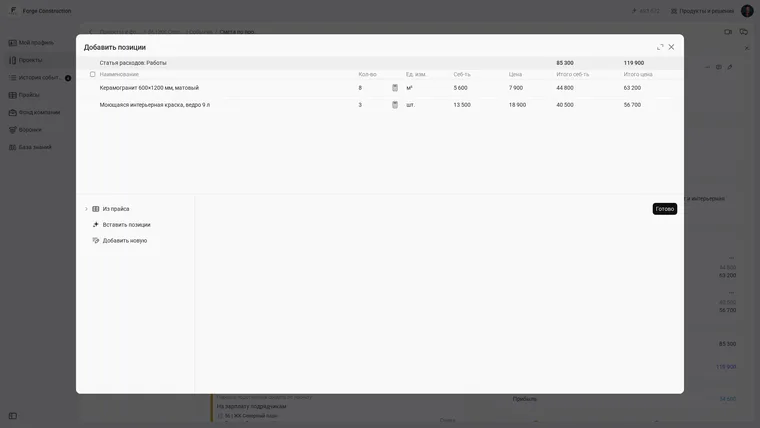
The demonstration item table. Work is selected in the open form; the saved example card has the No categories category.
4. Choose a name for the estimate
In the Description field, enter a clear name for the calculation, such as finishing work. Check the items, participants and totals, then click Save in a new form. When editing an existing record, the button is called Save changes. Saving a record and having a participant confirm it are separate actions: do not assume every saved calculation has already been agreed.
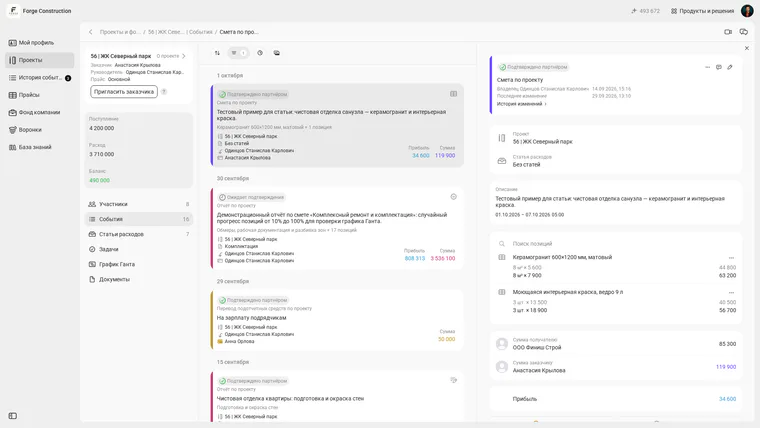
The previously saved demonstration example: 85 300 for the recipient, 119 900 for the customer and a profit of 34 600.
In the saved estimate, open Event actions, then Share → PDF. The menu offers Customer — Price only and Contractor — Cost only: choose the information you need before exporting.
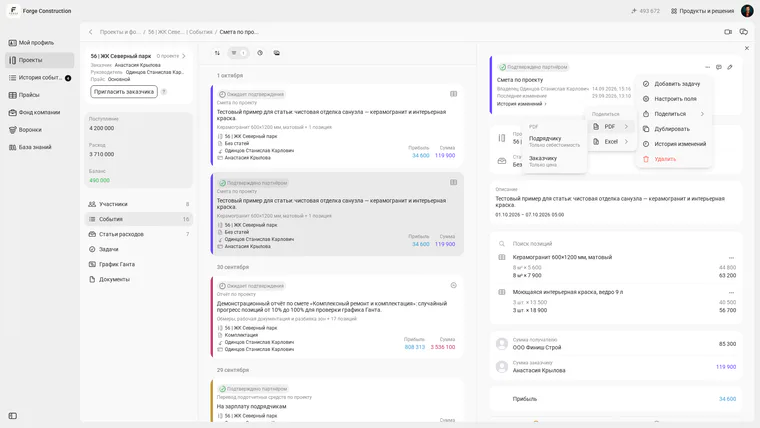
The PDF menu in a saved estimate: costs for the contractor and prices for the customer.
The archived PDF illustration below is retained from the original publication of 25 June 2025. It relates to a different calculation and differs from the demonstration estimate in the new screenshots.
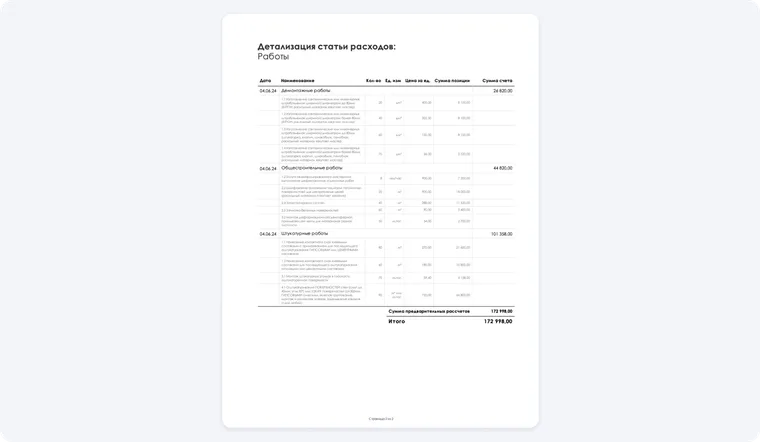
A new way to work with estimates
101 is suitable for quickly preparing calculations for individual types of work and discussing plans with the customer. You can work with app data on your phone; the specific actions and the arrangement of controls depend on the interface version and your permissions. Give the customer access through the project's available settings.
For large estimates with several stages, a single quick calculation may not be enough. Choose a planning process that suits the job site and the contract. Consider these ways of working:
Use balance reports alongside your estimate. At the start of a working relationship, a price list and data from similar projects can help you make an initial budget assessment. Compare quantities, prices, timelines and conditions: actual expenses on another job do not guarantee the same cost for a new one. This initial budget assessment does not replace an agreed estimate or any required estimating documentation.
Work as a team. Tradespeople can prepare calculations for their own work, while the manager and customer can agree on plans in a way available to them. Clarify who is responsible, the quantities and the conditions for each stage. This helps reduce paperwork and maintain control when participant permissions and the approval process are configured for the project.
Set priorities. Alongside the cost calculation, agree in the contract on payment, performance and acceptance of the work. If the renovation is for a consumer in Russia, take the applicable Russian consumer protection legislation into account. The 101 material on a renovation works contract relates to the Russian context and is published in Russian; its terms cannot automatically be applied in another country.
In the original publication, the 101 team introduced a contract prepared together with a construction lawyer. A template like this helps you formulate payment, performance and acceptance terms, but it does not guarantee protection against every dispute or instance of fraud. Check that the document fits the specific work, the parties' relationship and the applicable law; outside Russia, choose terms according to local legislation.