In Excel, estimates are usually built around three things: a list of items, a price list and formulas. This is enough for a one-time calculation. Difficulties begin at typical objects, where the same stage includes dozens of works, and the volumes depend on the area, length, number of layers or other initial parameters.
Excel formulas are still useful: they help you check arithmetic and put together a simple file. For repetitive calculations, a parametric template is more convenient. In 101, such a template stores a ready-made set of items from the price list and rules for calculating the quantity for each item. You enter the parameters of a specific object, and the service recalculates volumes, price and cost.
Contents:
- How to arrange an estimate in Excel?
- What Excel formulas are needed for an estimate?
- Why copies of the Excel template start interfere?
- What is a parametric template in 101?
- Example of calculation by parameters
- How to collect a template and estimate in 101?
- Excel and 101: what changes in the work?
- Recommendation: where to calculate the work estimate
How to create an estimate in Excel?
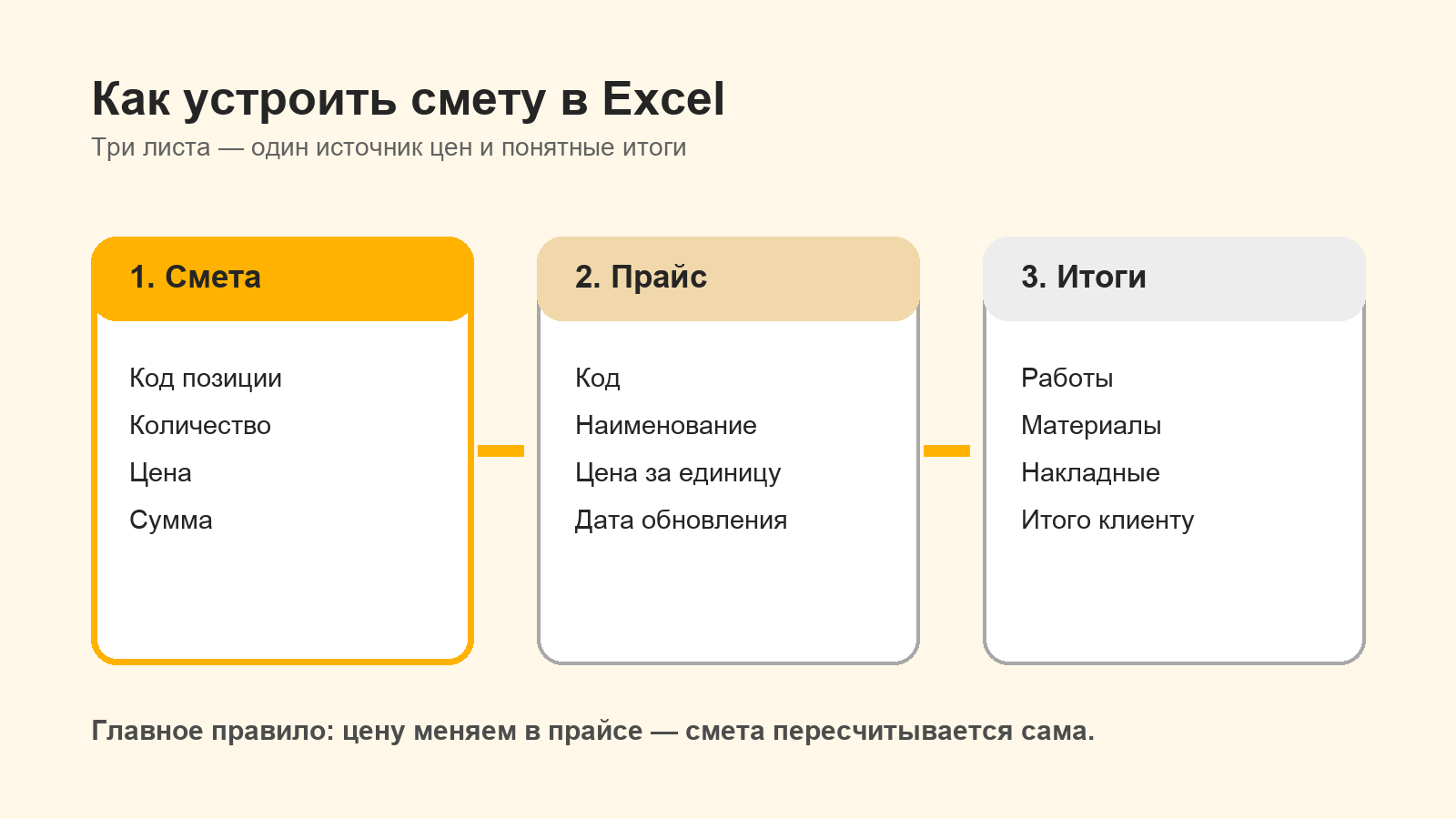
For a small calculation, create three sheets. On the “Price” sheet, store the position code, name, unit of measurement, price and, if necessary, cost. On the “Estimate” sheet, indicate the positions and volumes of a specific object. On the “Results” sheet, collect the cost by section.
The “Estimate” sheet has enough columns: code, category, name, unit of measurement, quantity, price and amount. The code connects the line with the price list, the quantity specifies the volume, and the amount shows the cost of the position.
What Excel formulas are needed for estimates?
Position value
If the quantity is in E2 and the price is in F2, the line amount is calculated by the formula =E2*F2. This formula is extended down through all positions.
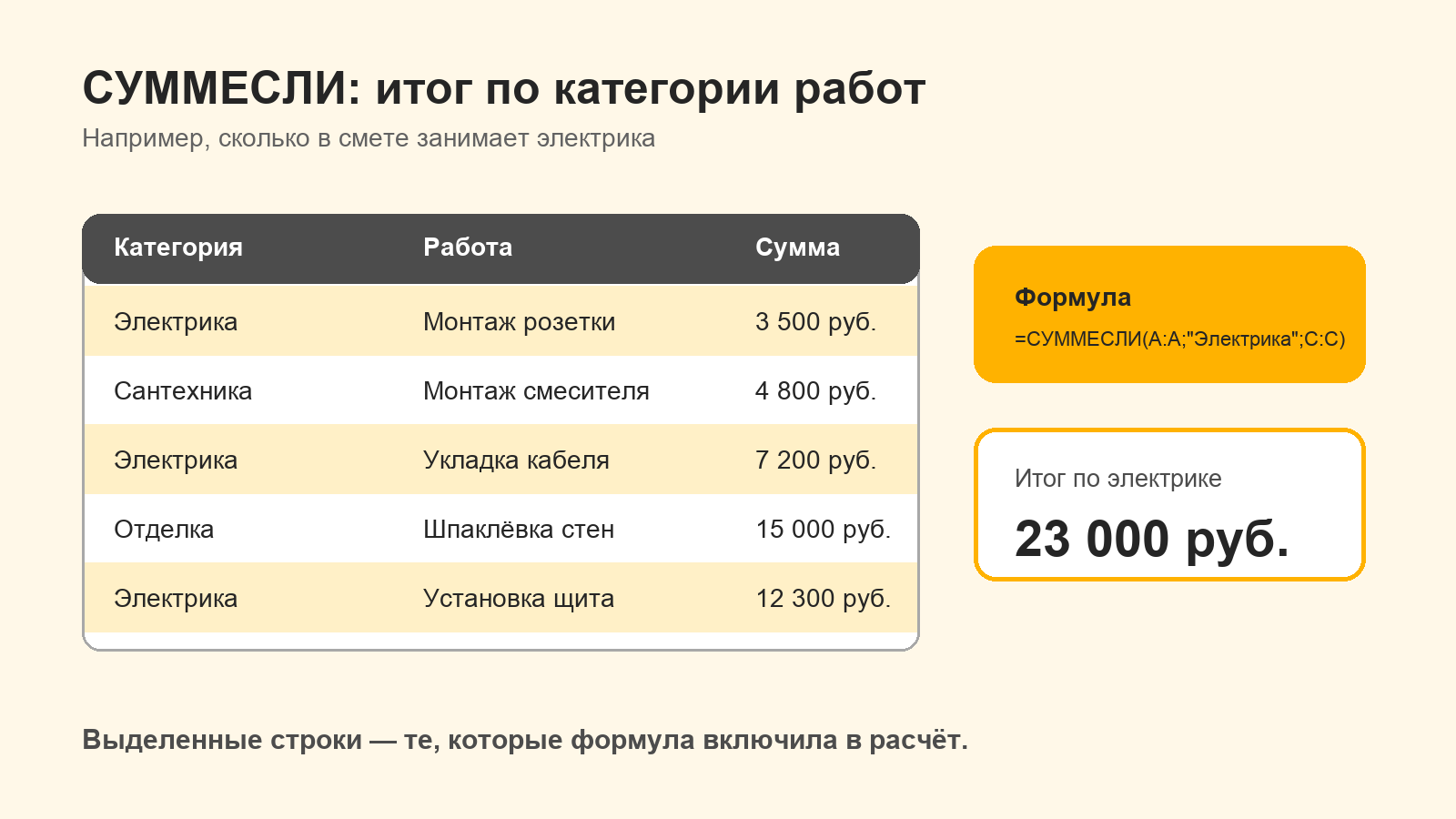
Total by category using SUMIF
Formula =SUMIF(B:B,"Electrical",G:G) adds the sums from column G only for rows with the category "Electrical" in column B. For multiple conditions, use SUMIFS.
Price from the price list via VLOOKUP or XLOOKUP
Formula =IFERROR(VLOOKUP(A2,Price!A:B,2,FALSE),"Check the code") looks for the code from A2 in the price list and returns the price. FALSE includes an exact match.
In new versions of Excel, the same task is more conveniently solved by XLOOKUP: =XLOOKUP(A2,Price!A:A,Price!B:B,"Check the code"). The formula does not need the number of the returned column, so the price structure changes with less risk for calculation.
Why do copies of an Excel template begin to interfere?
A regular Excel template is a file with pre-configured sheets and formulas. For a new object, it is copied, the volumes are replaced and, if necessary, lines are added. Along with each copy, a separate version of the price list and a separate set of formulas appears.
If an employee inserted a line past a range, replaced a formula with a number, or opened an old copy of a price list, the result may look plausible. The error will only be discovered during reconciliation. The more standard calculations a company carries out, the more time it takes to control the file structure.
The most difficult part of a typical estimate relates to quantities. For finishing walls, one area is not enough: the consumption of some items depends on the number of layers, the length of the junctions, the number of openings or the thickness of the material. In Excel, these dependencies have to be distributed across cells and transferred to each new copy.
What is a parametric template in 101?
B 101 template is a ready-made set of items from the selected price list. It can be assembled for a stage or type of work: electrical installation, plastering, painting walls, flooring. The basic procedure for creating a template is described in Instructions 101 on Template Formulas and Variables.
The parametric template complements this set with calculation rules. It has a basic quantity and additional parameters, which you name according to the meaning of your technology. You can leave a fixed quantity for an item or set a formula. The base quantity, parameters, numbers and arithmetic operators are inserted into the formula.
For additional parameters, you can set a default value and acceptable limits. When adding a template to an estimate, 101 checks the required values, calculates the quantity of each item and returns the final price and cost.
If some of the items are already in the estimate or report, the interface suggests adding the volumes or replacing them. After insertion, the result remains editable: you can change the quantity of an individual item, remove work or add a new one.
Example of calculation using parameters
Introduce the Painting the Walls template. The base quantity is the wall area - 120 m². The additional parameter “Number of layers” is 2. Inside the template you can set the following rules:
| Position | Quantity formula | Result |
|---|---|---|
| Wall priming | Basic quantity | 120 m² |
| Wall painting | Base quantity × number of layers | 240 m² |
| Surface protection | Basic quantity × 0,3 | 36 m² |
This is a training example. You set the composition of positions, coefficients and units of measurement according to your technology for performing the work. Prices and costs are taken from the linked price list, so the same calculation logic is applied to the current prices.
For the next object, it is enough to specify new initial values. For example, with an area of 85 m² and three layers, the template will recalculate related positions according to the same rules. Manually pulling formulas and checking ranges is not required.
How to collect a template and estimate in 101?
- Create a price list in 101 or download items from Excel.
- Add a template for a recurring step and include the required price items in it.
- In the formula editor, add a named parameter and fill in the required fields: in the help example, 1, parameter “Wall area” - 10. Do not rename the field if there is no visible signature in the interface.
- Add parameters that affect the volumes: number of layers, number of points, thickness or other indicator.
- For each position, select a fixed quantity or create a formula from the parameters and operators.
- Create an “Estimate” event, select a project and expense item, then add a template and fill in the object parameters.
- Check the calculated items, price and cost before approval.
A step-by-step script for creating an event is available in Creating an Estimate Help 101. If the original items are already in the table or document, use the estimate transfer script using 101 AI, and then link the recurring jobs to your price list and templates.
Excel and 101: what changes in work?
| Task | Excel | 101 |
|---|---|---|
| Price storage | Separate sheet or file price list | Linked price list with price and cost |
| Repeat of a typical step | Copy of file or range | One template with a ready-made set positions |
| Volume calculation | Formula in cells | Quantity formulas inside template positions |
| Initial data | Values in different cells | Base quantity and named parameters |
| Reuse | Checking references and ranges in each copy | Input parameters of the new object and recalculation of positions |
| Identical positions | Manual reconciliation of lines | Choice: add volumes or replace them |
| Further work | Transfer of file and manual data transfer | The estimate remains associated with the project, expense item and subsequent events |
Excel remains useful for one-time calculations, non-standard analytics and sharing tables. 101 is more convenient where the company regularly calculates similar stages, maintains a single price list and uses the estimate further in the work on the project.
Recommendation: where to calculate the work estimate
For educational or one-time calculations, use Excel and four basic tools: multiplication, SUMIF, VLOOKUP or XLOOKUP and IFERROR. For working commercial estimates, do the math 101: store prices in one price list, collect repeating steps into parametric templates and enter only the initial data of a specific object.
Start with one familiar step. Transfer its positions to 101, set the base quantity and one formula, then compare the result with the verified estimate. If the calculation matches, add the remaining stages and use the template on the following objects. Open 101 and assemble the first parametric template.