Mobile recordkeeping helps you log expenses, incoming funds and details of completed work while you are still on site and the details are fresh. Here is how to organize this work from your phone and what to check in 101.
Contents:
- Mobile working on construction sites: what does it mean in practice?
- How can a smartphone help a builder on site?
- The 101 mobile app: your work dashboard in your pocket
- Mobile working in numbers: where can you save time and money?
- How do you introduce mobile recordkeeping in a construction company?
- Conclusion: mobility as a competitive advantage
Mobile working on construction sites: what does it mean in practice?
Mobility in construction is often understood as simply being able to make a call from site or send a message. In practice, it means keeping all the key project information in one app on your phone: estimates, expenses, photos of work, advances to contractors and payments from clients.
Construction involves travel, meetings, inspections and purchasing. By the time a manager reaches the office and a computer, a lot may have changed: material prices may have risen, a tradesperson may have bought supplies elsewhere, or a client may have transferred another advance. Mobile recordkeeping lets you record these events as they happen rather than leaving them until the evening.
101 has had a mobile focus from the start: it was created specifically for builders and fit-out contractors who spend most of the day on site. The article Why we built a mobile app instead of a desktop program (in Russian) explains the advantages of having everything on your phone in detail.
Mobile recordkeeping helps you see recorded incoming funds and expenses for each project sooner. Assess financial results after checking that the records are complete: a project balance alone does not show net profit.
How can a smartphone help a builder on site?
If you use your phone only for messaging, project information can remain scattered across conversations. Keeping records on it can help you enter data and check entries sooner, while the details of the work are still at hand.
In 101, the main mobile tasks for builders and site managers include:
- prepare preliminary estimates on site and show them to the client straight away;
- record completed work with photos and video files in the attachments available to you, so you can discuss quantities and deadlines using a shared project history;
- scan supported QR codes on Russian fiscal receipts to account for funds advanced for expenses: retrieving item details depends on data from the Russian Federal Tax Service (FNS); check the result and enter the details manually if the data is unavailable;
- see the balance for each project: recorded incoming funds, recorded expenses and the difference between them; this balance is neither funds available to spend nor net profit;
- manage several projects at once without opening a dozen separate spreadsheets and chats.
Some of these workflows are explained in The 101 estimating app: how it can make a builder's life easier (in Russian) and the article on simplifying construction materials accounting (in Russian). Both show how a smartphone can become a work tool for crews, site managers and company owners.
The main point is that your phone becomes a pocket office that is always with you: on site, in the vehicle or at the building supplies store.
The 101 mobile app: your work dashboard in your pocket
101 was designed as a mobile construction management hub. It offers practical tools for real work such as renovation, fit-out, building services and small property development projects, rather than a general-purpose program for every situation.
Several key features of the app support mobile working:
1. Working from your phone. In the mobile app, you can prepare an estimate, record expenses and, with the necessary permissions, generate a project report. This approach underpins 101's estimating tools, described in The 101 estimating app: how it can make a builder's life easier (in Russian). The mobile app, a phone browser and the desktop web version differ: if the sources for estimate or report line items are not visible in your phone browser, use a computer. Participants in the Employee, Contractor and Supplier categories cannot export project reports from the phone app.
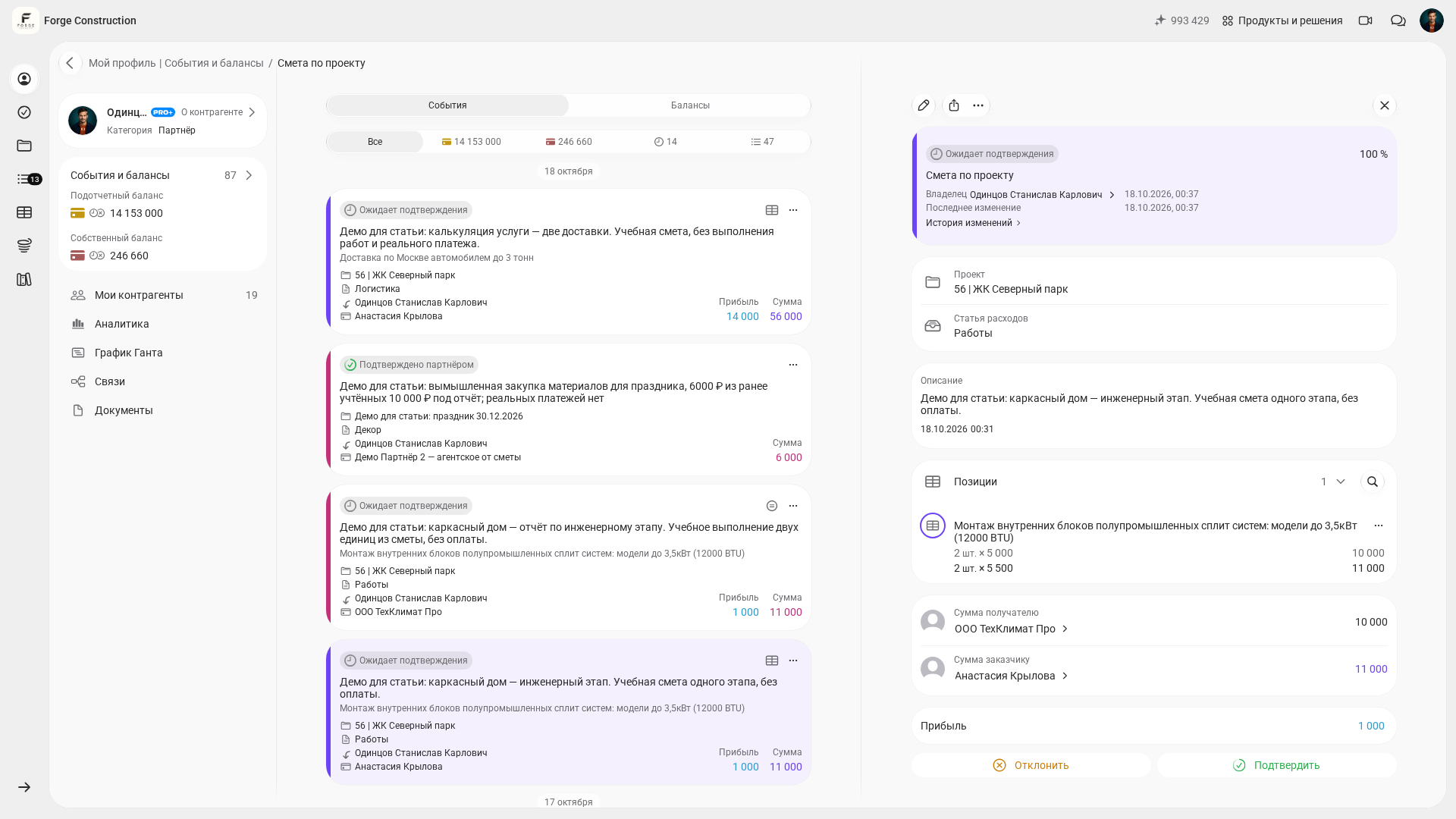
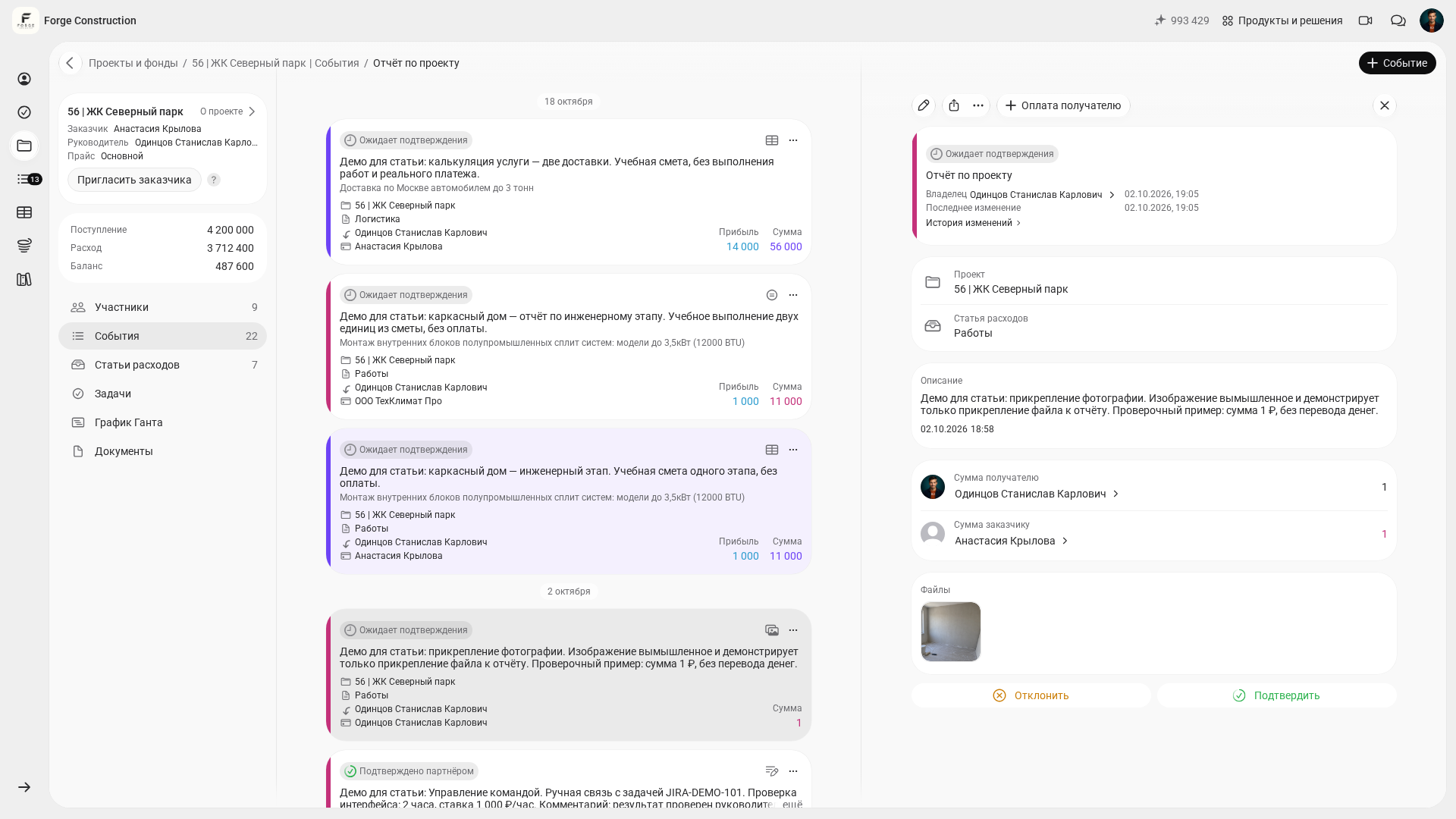
2. Teamwork. Participants work within their assigned permissions: a tradesperson enters quantities and receipts; the responsible person checks and confirms events available to them; accounting staff or the owner view the information they can access. This approach is discussed in Why add tradespeople to the app (in Russian).
3. Tracking money by project. An owner or manager can compare incoming funds, recorded expenses and the balance for each project. The balance is the difference between incoming funds and recorded expenses; it is not net profit or the amount of money held by an individual participant. To assess profit, check revenue and all the associated costs separately. This is part of management accounting, covered in Management accounting in 101: how to stop losing business money (in Russian).
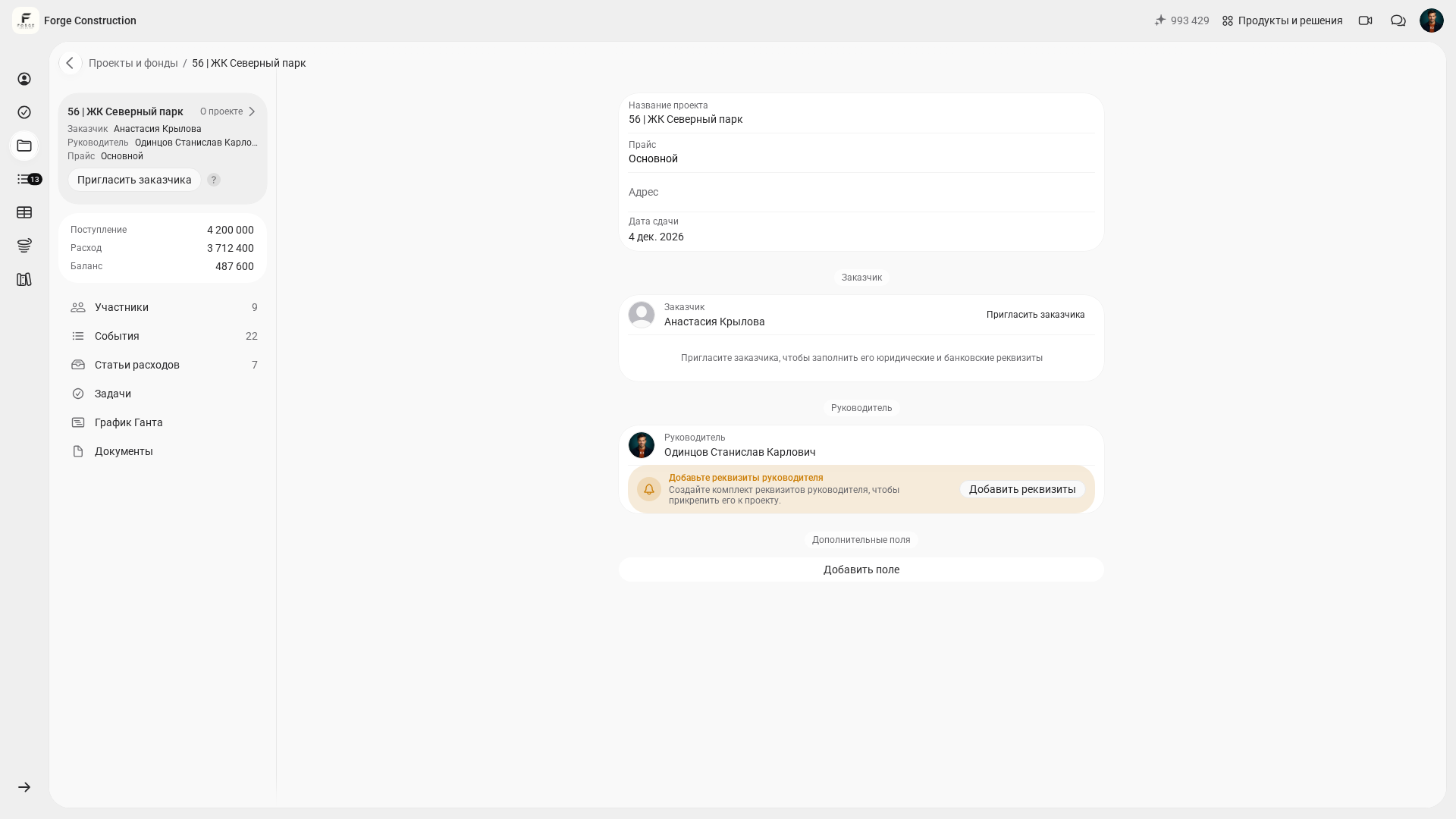
Your smartphone helps you check recorded figures promptly while traveling to a site, in meetings or during work inspections. How current the picture is depends on how promptly the team enters and checks the data.
Mobile working in numbers: where can you save time and money?
When recordkeeping revolves around an office computer, managers keep having to catch up with events: collecting receipts once a week, asking tradespeople to recall completed quantities, and compiling estimates after the fact. Some expenses can be missed as a result, while some projects appear profitable only on paper.
A hypothetical example in Russian rubles: a tradesperson buys materials for 35 000 rubles and records the purchase in 101. If the receipt's QR code is supported, they check the imported line items and supplier; if the data cannot be recognized, they enter the details manually and attach a photo of the receipt. The crew finishes a plastering stage and adds the completed work to an event with a photo report. A client transfers another advance, so you record the money actually received in the project and check the updated project balance. Record a payment to the supplier only when settlement has actually taken place, and check that it has not already been recorded.
When introducing mobile recordkeeping, you can set the team the following goals:
- stop preparing estimates late at night and free up your evenings;
- take on another project without feeling overwhelmed by the paperwork;
- reduce situations where everyone earns money but the company is left with almost no profit;
- have focused conversations with clients based on verifiable records of work and settlements.
Mobile recordkeeping in practice is discussed in How to manage financial records with the best app for site managers (in Russian) and How the 101 mobile construction app can help increase profit (in Russian). Assess the capabilities described in relation to your own company's processes.
Assess the financial effect of mobile recordkeeping using your own data: time spent processing records, completeness of expense records, and project results. Whether you can handle more projects with the same team, and whether each project makes a profit, depends on how work is organized, prices and costs; the app does not guarantee either outcome.
How do you introduce mobile recordkeeping in a construction company?
To make mobile working useful, build the app into your team's day-to-day work and agree on how records will be kept.
Step 1. Define the figures you want to see for each project: client funds received, purchases, completed work, settlements with participants and profit measures. Identify the revenue and costs needed to calculate profit separately from the project balance. This will guide how you structure events and expense categories in the app.
Step 2. Add your current projects to 101 and invite the key people: site managers, tradespeople and purchasing staff. The process is discussed in Why every builder should download 101 for free (in Russian).
Step 3. Agree recording rules with the team: which transactions each person records, the deadlines, and how photos and comments should be provided. Every tradesperson should understand that each receipt and work quantity forms part of the project's overall records.
Step 4. Use the price list and work templates to populate estimates and reduce repeated entry. When you use “Дублировать” (Duplicate) in the web version, remember that it immediately creates a separate event: check its project, participants, date, line items and amounts, and avoid recording the same transaction twice. The article on working with estimates in 101 (in Russian) offers practical ways to organize calculations.
Step 5. Compare recorded incoming funds and expenses across projects each week, and check cost overruns and problem categories. If you assess margin, check its calculation and the costs included separately. Regularly reviewing and checking records helps you make management decisions based on data.
As you introduce the system, discuss with the team where each project's history will be kept, how records should be updated, and what needs to change in day-to-day work.
Conclusion: mobility as a competitive advantage
The construction and fit-out market is changing: clients expect transparency, schedules are becoming tighter, and margins are under pressure. In these conditions, companies that can promptly calculate, monitor and show the figures for each project have an advantage.
Mobile working can help builders combine on-site recordkeeping, teamwork, and checks of estimates and reports. Clear communication with clients depends on the information they can access and on verified records. You can organize these tasks in the 101 mobile app, taking account of participants' permissions and the differences between versions.
To see how mobile recordkeeping could work in your company, book a free online demonstration. A 101 specialist will review your processes and show how you can move them to your phone without unnecessary complexity.
Mobile recordkeeping can become a competitive advantage when it helps you check information and make decisions sooner. Assess its value to your company through actual changes in the way you work and in project results.
How can you connect mobile working with financial recordkeeping?
Decide which figures you need for decisions and bring them into the mobile app: client funds received, purchases, completed work and project settlements. To assess profit, also check the related revenue and costs: the balance of incoming funds and recorded expenses does not by itself show net profit. You can add the remaining information as you refine your recordkeeping.
What should you show tradespeople when introducing the app?
Show tradespeople the practical benefit: how to enter receipt details, record the quantity of completed work, and check settlement information within their access permissions. Agree who checks the records and how the team discusses discrepancies.
Do you need to give clients access to mobile project records?
Give a client access if they need to view their project information regularly. First check the invitation and access to the company, project and specific data. A participant in the Client role sees information and client prices within their granted access; check which amounts, events and documents are visible from their own account. The project manager checks events, while confirmation by the responsible person and acceptance by the client are separate actions. A client can accept or reject an event available to them if their permissions and its current status allow it. Event status cannot be managed in an archived project until the project is restored. If they only need a report for a particular period, you can send the relevant document without giving them ongoing access to the project.
How should you get started with the 101 mobile app?
An effective way to start is to install the app, add one current project, and try the basic functions: estimates, events, receipts and analytics. You can then bring in the team and extend the approach to your other projects.