
Contents:
Which contact names cause problems, and why?
It happens all the time: you ask a friend for a good drywall installer's number, receive it, and save the person as “great drywall installer from Alex.” Sound familiar?
Avoid saving contacts in a hurry under a few keywords or a nickname. These examples tell you too little:
- “Auntie Helen”
- “Tanya designer in town”
- “Sam with the SUV”
- “Mr. P”
- “Alex drywall guy”
- “Pete electrician”
- “Andy bad workmanship”
- “Anna from entrance 5”
- “David BMW”
- “Nina wallpaper”
- “Victor rubbish”
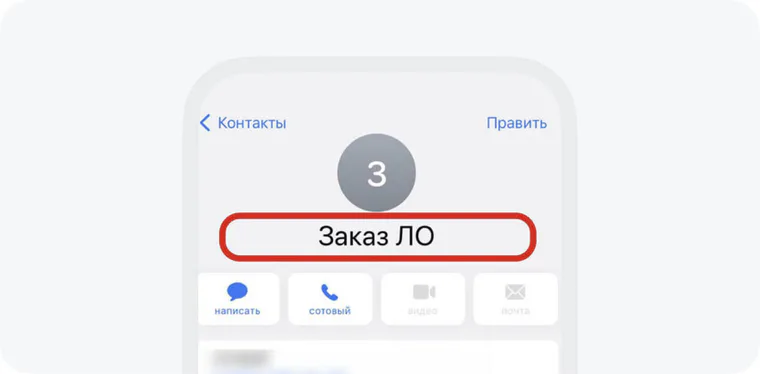
A couple of months later, you may not remember who the person behind a hastily saved label is.
First, the label tells you little. Second, sharing “Mr. P” with a colleague in a few taps is hardly useful without more context. Third, vague names clutter your contact list, which works best when it is organized.
How do you save useful contacts?
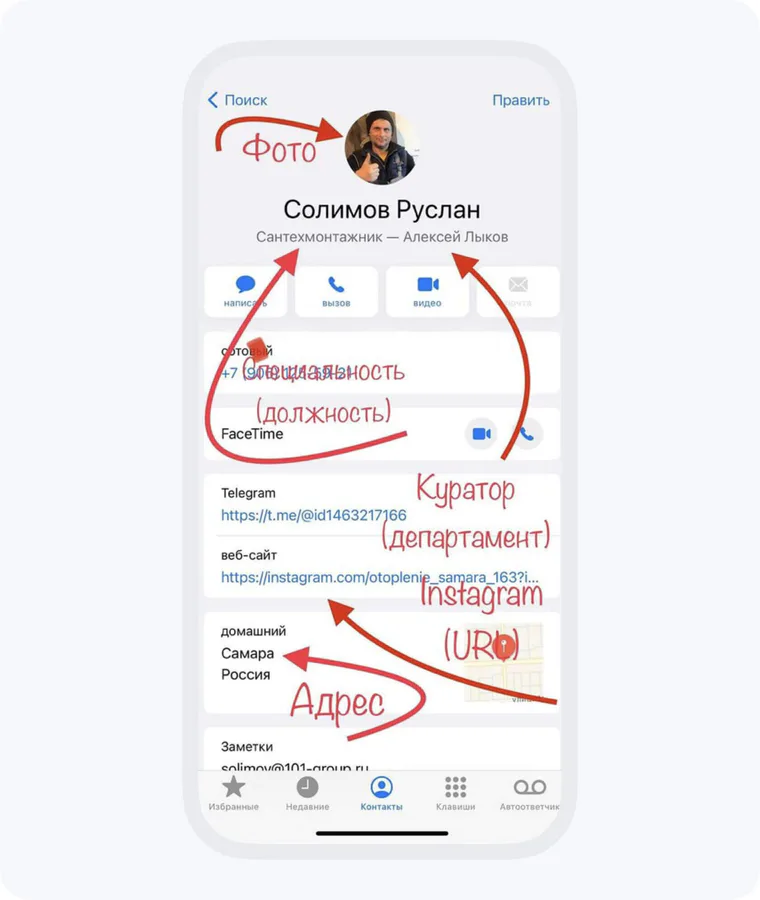
When you tap “Save contact,” record as much relevant information about the person as you can.
First and last name
Enter the first name, last name, and a middle name or patronymic when it matters for that person. If you do not know the last name, leave a placeholder so you can add it later. This makes the contact easier to find when someone mentions either name in conversation.
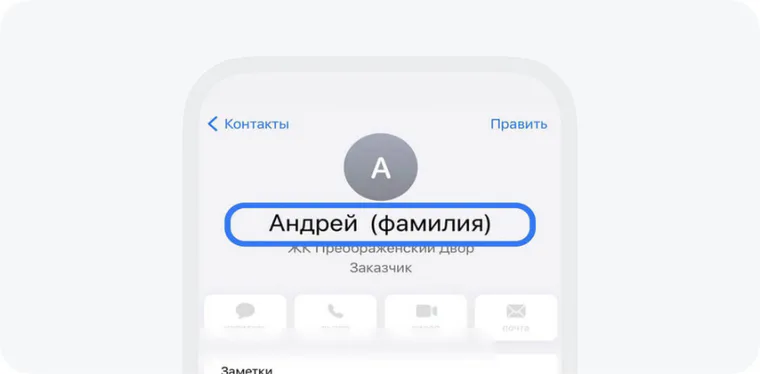
Relationship to your business
Note whether the person is a client or an employee.
For clients:
- Job title: write “Client.”
- Company: enter the name of the residential development or project, where relevant.
- Department: enter the person or source who referred the client.
For employees:
- Job title: enter the person's specialty, such as marketer, electrician, or tiler.
- Company: enter the team or division.
- Department: enter the person or source who referred them.
Extra fields help you distinguish people with similar names and remember the context of your relationship. Whether these fields appear during a call depends on your device and app. They can save you from repeatedly wondering, “Who is this?” and help you get to the point.
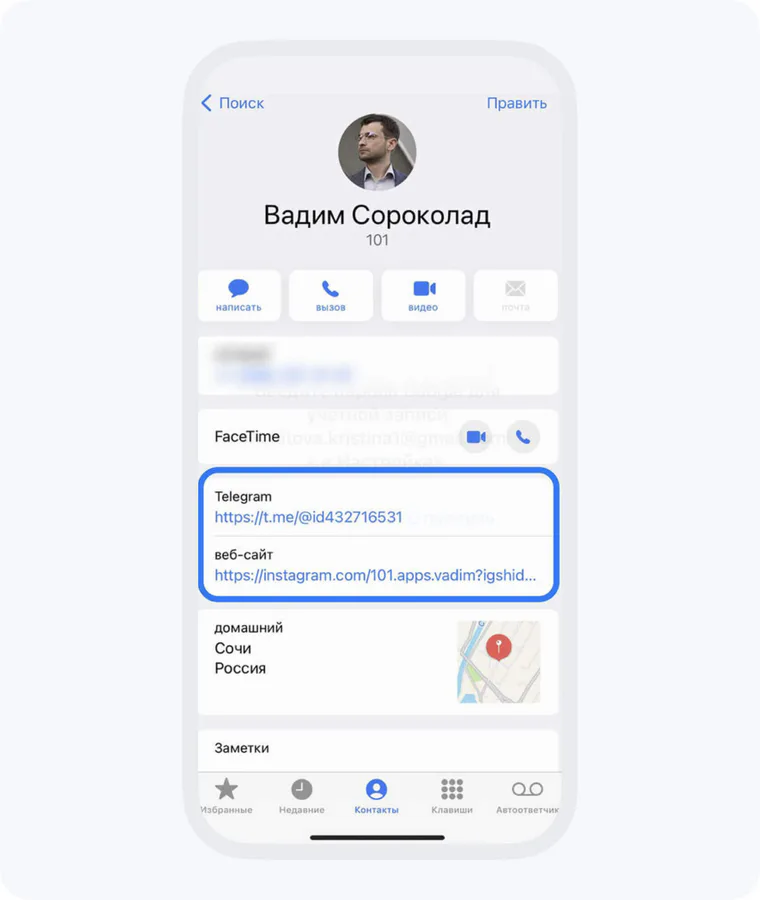
Website and social media links
A contact card is a handy place to keep links to useful resources. You may not want to follow someone's profile, yet social media may still be the easiest way to reach them.
Photo
If the person agrees, add their photo to the contact card. Seeing a photo can change how you relate to the person compared with seeing only a first and last name.
Location
If you have branches or clients in different time zones, save the city or time zone in a contact note. This can help you avoid calling too early or too late.
Notes
Use this field for useful personal observations, including your impressions of the person's professional qualities.
Once you fill in the useful fields, you have a contact card you can share with the person's consent.
How do you share contacts safely?
Messaging apps often let you send a contact card instead of a bare phone number. Check which fields the message will include and obtain the person's consent before sharing their details.
For example, in the app shown in these screenshots, the interface is in Russian:
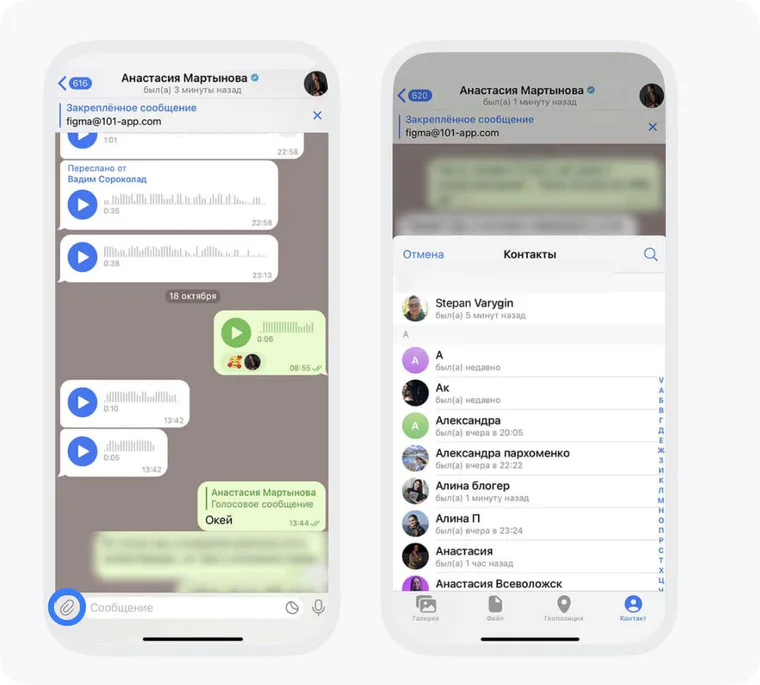
1. Tap the paperclip 📎 on the left, then choose “Контакт” (“Contact”).
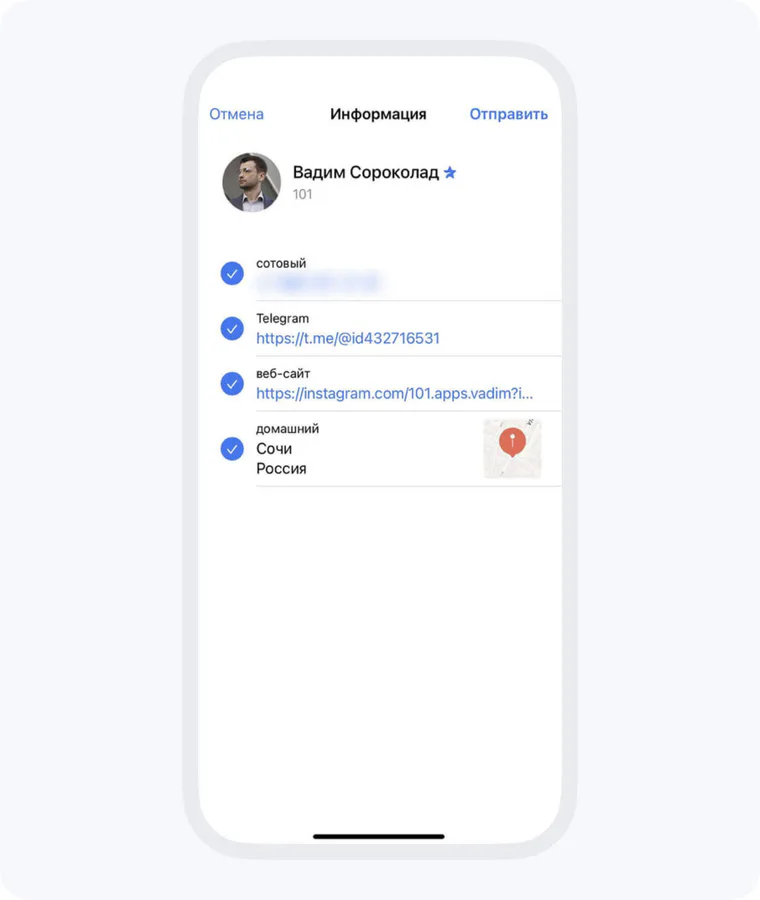
2. Select the contact and tick the details you want to share.
For example, you can leave out the address or website.
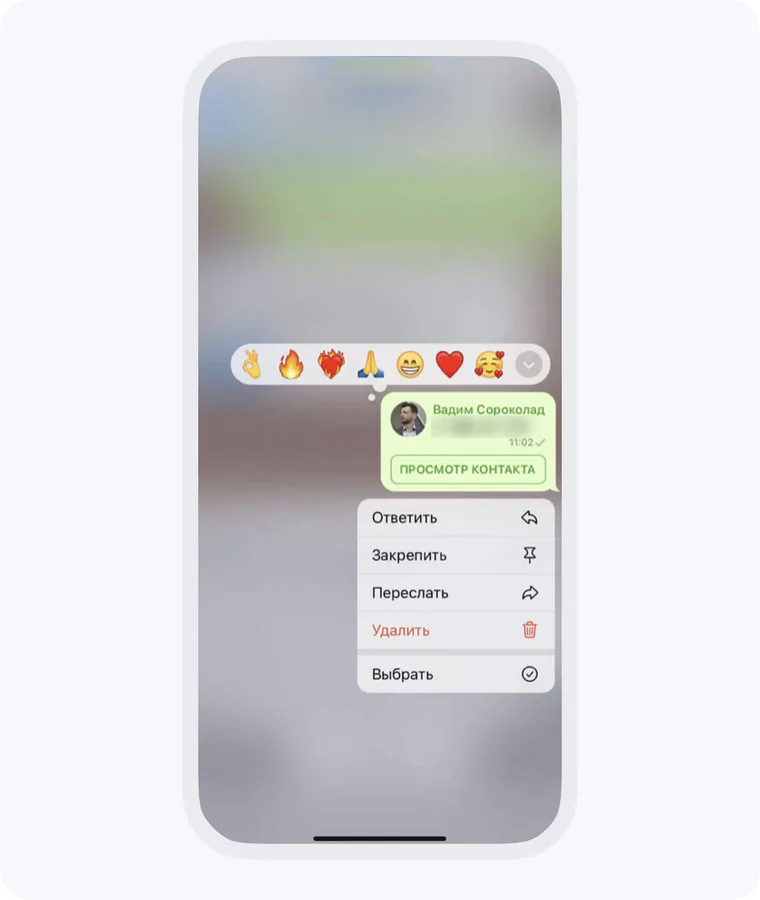
3. Send the contact card. The recipient can save the important details in a few taps, including useful links, the person's full name, and phone number.
How do you save contacts? Share your approach in the 101 business community (in Russian).