

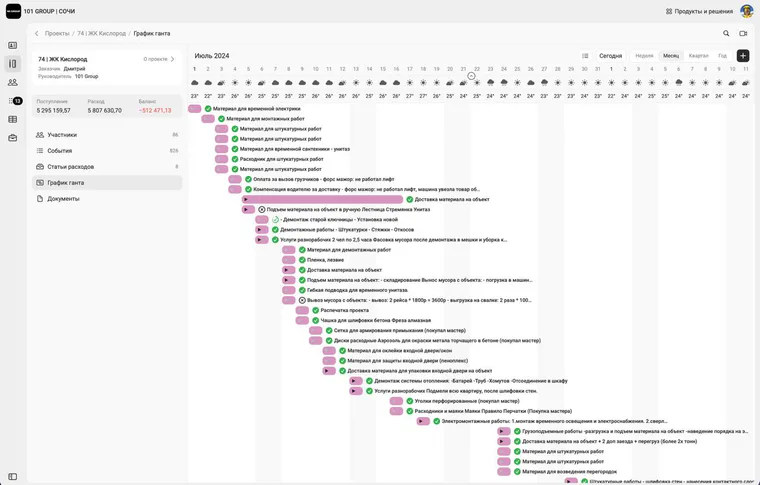
An online Gantt chart in the 101 App connects work planning with project data. Price-list and report items appear on a timeline, where you can see deadlines, amounts, assignees, and weather. This Gantt chart software suits construction and renovation teams that need one shared schedule without manually moving work between several services.
You can start free in the 101 web app. On the current product page, the Gantt chart is included among free features together with company creation, price lists, and documents. When a project needs unlimited events and a broader management toolkit, you can choose a suitable plan.
Contents:
What does an online Gantt chart provide?
An online format keeps an up-to-date plan in one place for the manager, site supervisor, and team. Each task has its own line on the timeline: its start, finish, duration, and adjacent stages are visible. It is easier to spot a shift in one block before it affects a delivery, the next tradesperson, or the completion date.
In 101, the plan is built from the same items your team uses in its price list, estimate, and reports. Task names stay consistent throughout the project. This makes it easier for a manager to compare a promised deadline with completed work and event amounts.
What can a Gantt chart app do?
The Gantt chart is available in the 101 web app and uses data from an active project. Planning is based on real work items, so the timeline remains connected to your records.
- Add work from the project price list and reports.
- Place items on a timeline with start and finish dates.
- Show the amount, person responsible, and recipient for an event.
- Show weather for future and past dates to review construction conditions.
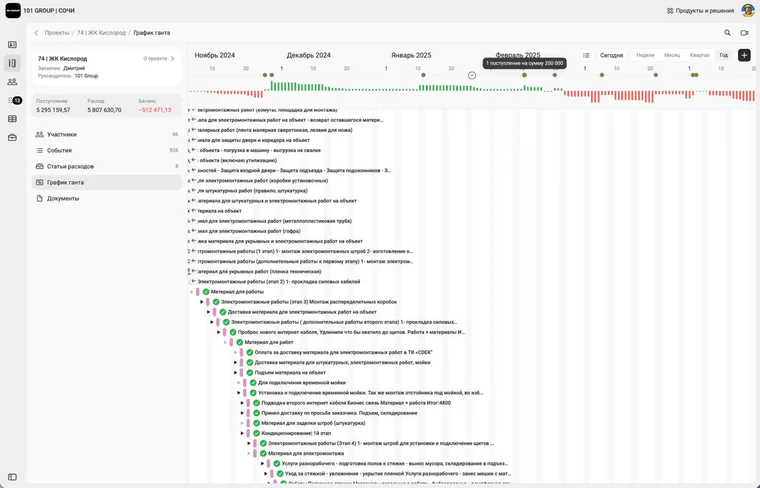
- Connect to the balance chart and project reports.
How do you create an online Gantt chart?
For your first chart, you only need one project and a structured price list. Start with a short two-to-four-week section of work, so your team can test how it updates deadlines on a live site.
- Open the 101 web app and select an active project.
- Go to the Gantt chart and add the required items from the price list or reports.
- Place tasks on the timeline and set their start and finish dates.
- Check the sequence of stages, parallel tasks, and time buffers.
- Assign recipients and people responsible where work belongs to a particular contractor.
- Compare the plan with project reports and update dates after confirmed changes.
You can create a price list from scratch in the web app or import it from Excel.
How do you plan construction work?
A construction planning app is useful when several stages are happening on site at once, different contractors are working, and deadlines depend on deliveries or weather. A schedule on one screen shows the order of work and helps you see a conflict early.
Start with top-level construction blocks: preparation, demolition, rough work, utilities, finishing, and handover. Then add specific price-list items. Give each block a realistic duration, a recipient, and a buffer before the following task.
A broader calendar approach, the composition of a work production schedule, and a structure example are set out in “Construction work calendar schedule” (in Russian). This article focuses on the workflow directly in the 101 app.
Can you start for free?
Yes. On the 101 home page, the Gantt chart is listed among the features of the free mode. You can create a company, prepare a price list, and test planning on one real project before deciding on a subscription.
The free mode has event limits. The current FREE, PRO, and PRO+ scheme is explained in “What the 101 trial period includes” (in Russian). For your first Gantt test, it is more important to take a small part of the plan and agree who updates deadlines after changes.
How do you start your first project?
Choose one active site, upload the price list, and put the upcoming tasks on the timeline. Assign people responsible, check overlaps, and agree to change dates only after a confirmed change. After a week, compare the chart with reports: you will see which stages are moving, where a buffer is needed, and which price-list items should be renamed for shared clarity.
If you need to review the structure of a price list and schedule for a real site, the 101 team will demonstrate a working workflow in a personal presentation. To start independently, open the app and build your first short plan for free.