The customer asks what has already been done, what stage is currently underway and when the next work will begin. The contractor sends a screenshot, table or chat message. After a few days, the deadlines change, leaving participants with different versions of the plan.
In 101, you can collect a work control schedule from the estimate and open it to the customer via a public link. The customer does not need to register in the service: he follows the link or scans the QR code and sees the published schedule. If access is no longer needed, it can be closed. If necessary, the link can be reissued.
Let's look at the whole path: create an estimate from the price list items, check the work on the Gantt chart and send the customer a link to view it.
Why show the customer a Gantt chart?
A Gantt chart shows work on a timeline. It makes it easier to understand not only the list of stages, but also their sequence: when the work begins, how long it lasts, and what tasks are going on in parallel.
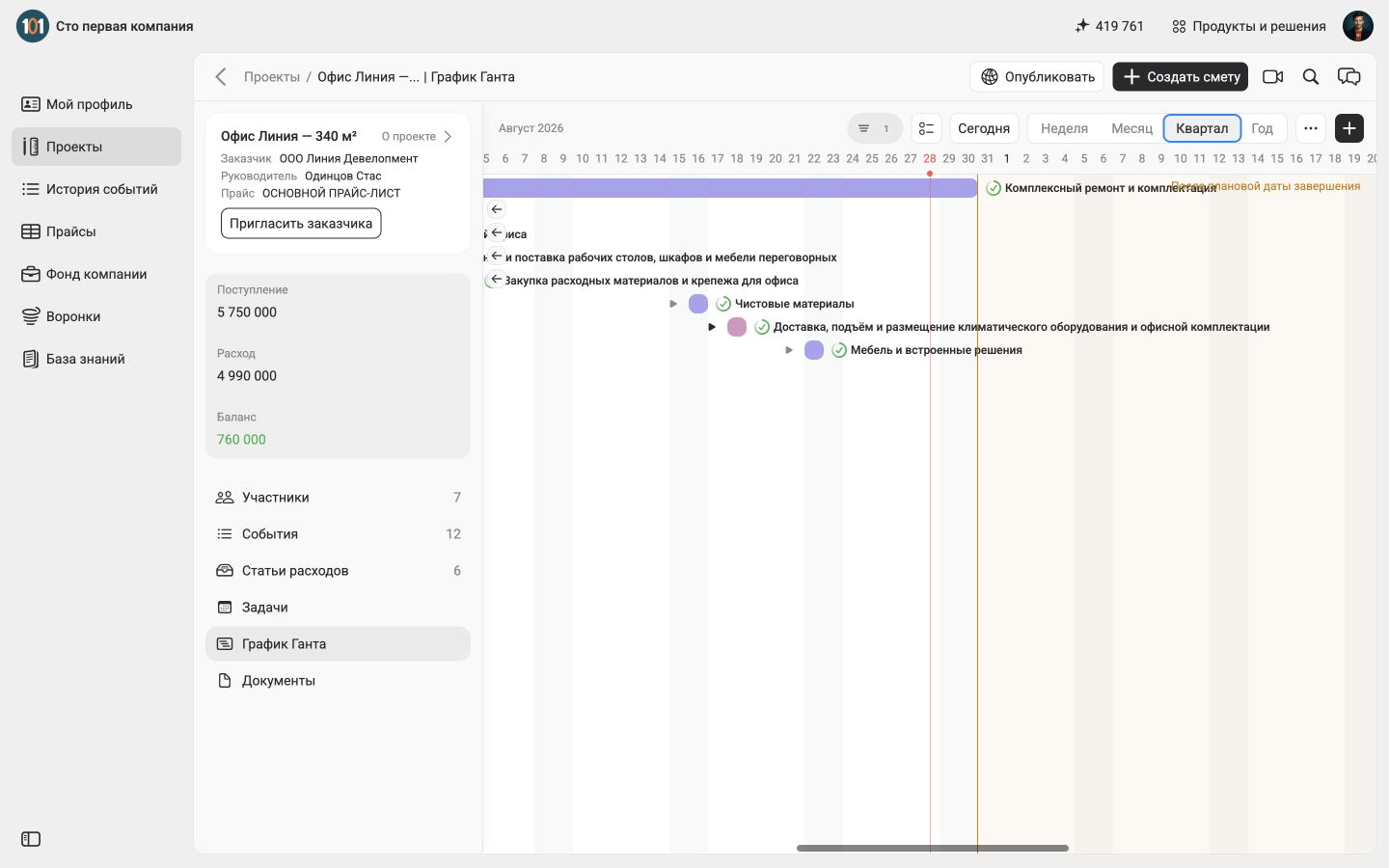
Using the example of an office project, the overall renovation period and individual stages are visible on one timeline: purchase of materials, delivery of equipment and installation of furniture. The manager immediately notices the order of work, the intersections and exit of stages beyond the planned completion date.
For a manager or contractor, this is a work schedule for monitoring the progress of work. For the customer there is a clear answer to three questions:
- what is planned;
- at what stage is the project;
- what work should go next.
A public link does not replace a contract, official agreement on deadlines or a certificate of completion of work. It solves another problem: it gives participants one current version of the plan instead of several files and outdated screenshots.
If you are just getting acquainted with this method of planning, read first: what is a Gantt chart and how does the timeline work?. For a construction project, these work schedule preparation instructions will also be useful.
How to share a Gantt chart with a customer?
1. Create an estimate from price list items
In 101, estimates form the plan on the Gantt chart, while reports help record the actual work. Therefore, you first need to prepare a planned event - an estimate for the project.
Open the desired project and create an estimate. Select an expense item, then add items from the price list. It is better to use the same job titles that the team uses at the site: “Dismantling”, “Electrical installation”, “Plastering walls”, “Laying floor coverings”. This will make it easier for the customer and contractors to compare estimates, schedules and actual work.
For each item, indicate the volume. Check the price, recipient and total amount. Add a clear description of the estimate: for example, “Rough work” or “Comprehensive repairs and equipment.”
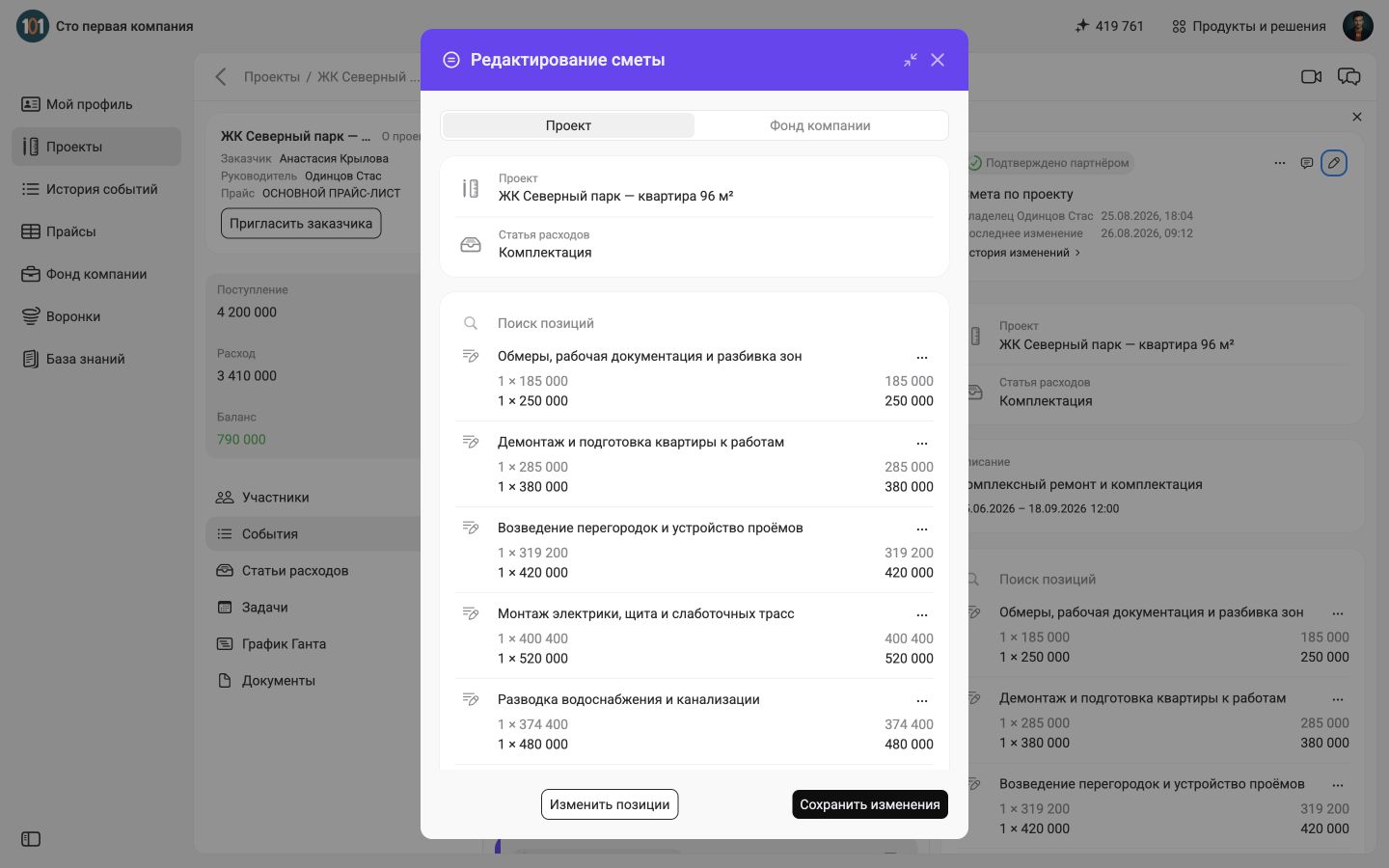
The screenshot shows that price list items have already been added to the estimate. The volume and cost are shown under the name of each item. Before saving, check that the plan contains exactly the work that needs to be shown on the graph.
2. Specify deadlines and save estimates
Set the date or period for the estimate. If a large stage is included in one estimate, indicate the duration of the entire stage. If you need a detailed schedule, divide the work into several estimates with separate dates.
Before saving, check:
- the right project has been selected;
- the required expense item is indicated;
- added items from the price list;
- volumes are filled;
- the deadline is indicated;
- the description is clear without further explanation.
Once saved, the estimate will appear in project events and on the timeline. There is no need to separately transfer job titles to another planner.
A detailed scenario for the connection between estimates and timelines is discussed in the material "Online Gantt Chart in the 101 app".
3. Check the plan on the Gantt chart
In the project card, open the “Gantt Chart” section. Estimates and other related project events will be visible on the timeline. Use a weekly, monthly, quarterly, or yearly timeline view to check your plan is at the right level.
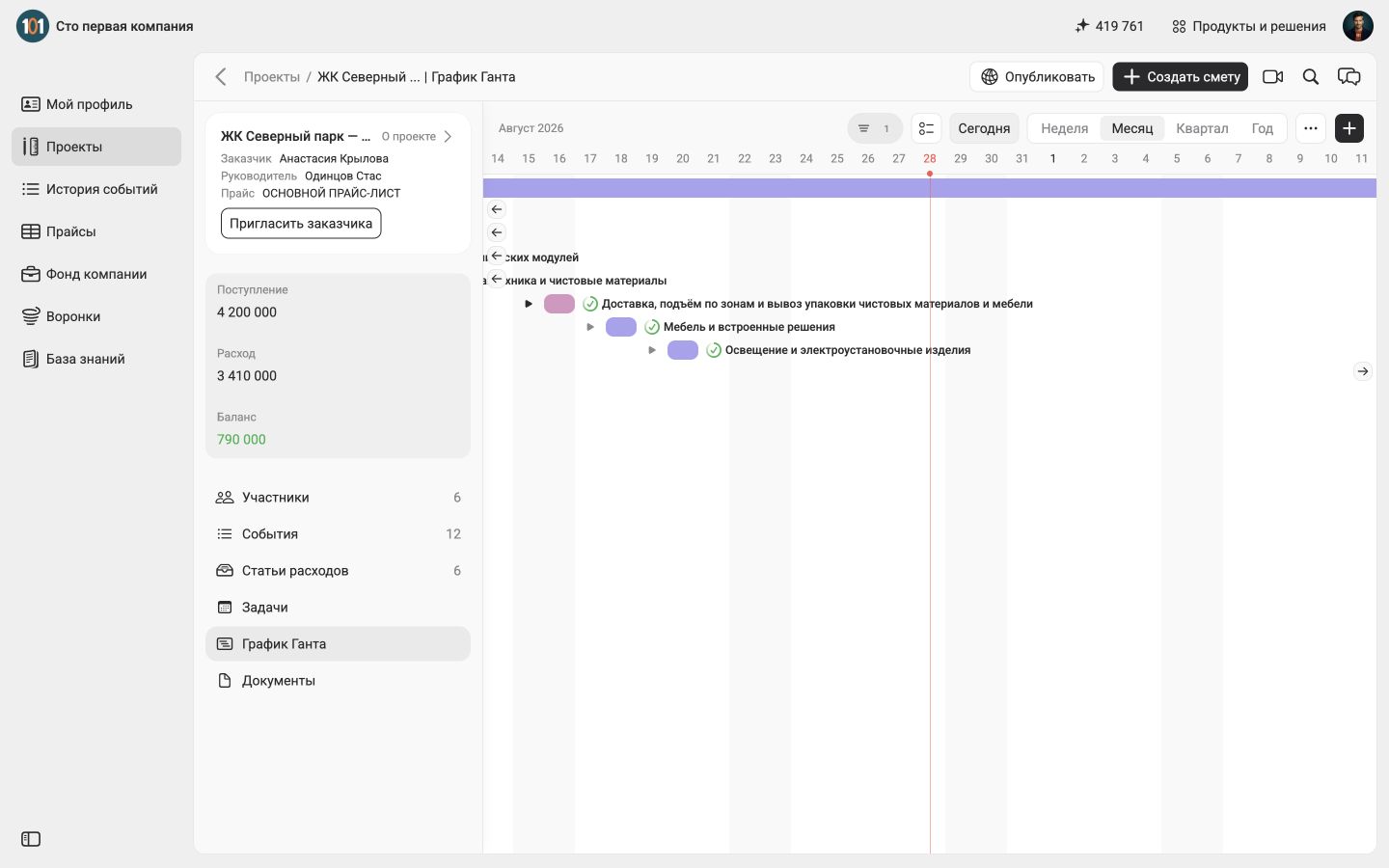
Before sending it to the customer, look at the chart through his eyes:
- titles of works must be clear;
- dates must correspond to the current plan;
- completed, current and future stages should not contradict each other;
- The schedule should not contain internal or draft language that could be misinterpreted by the client.
If the deadlines have changed, first update the plan in 101 and only then send the link. This way, the customer will open the current chart, rather than an old screenshot.
4. Make it public
In the Gantt Chart section, click Publish. The Share Gantt Chart window opens.
By default, public access may be disabled. In this state, the link and QR code are not shown.
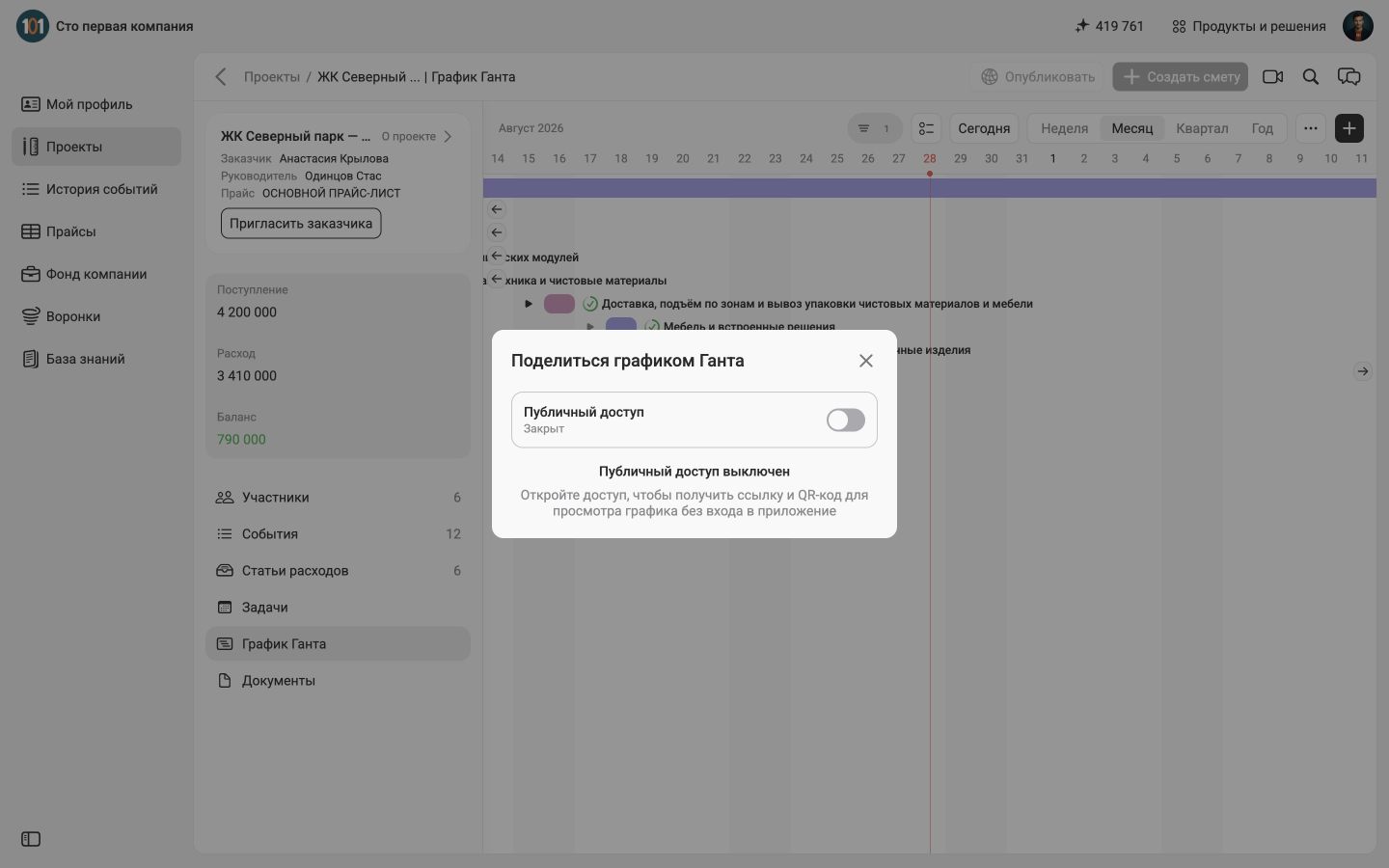
To prepare the chart for sending, turn on the “Public access” switch. Once enabled, 101 will show a public link and QR code.
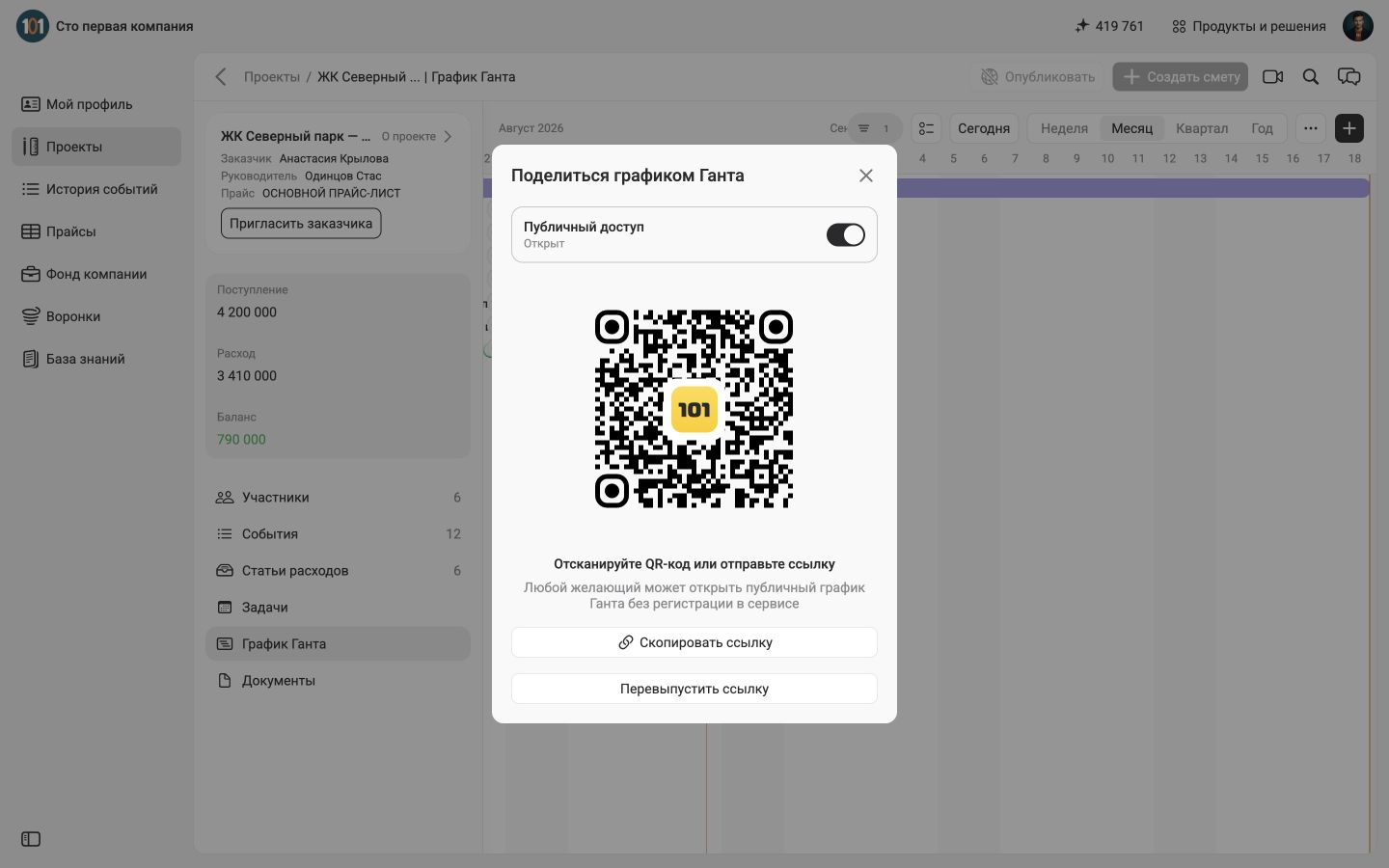
When open, the window shows a QR code, a “Copy link” button, and a “Reissue link” action. Copy the address only after you have checked the schedule and are sure that you have opened access to the desired project.
5. Send a link or QR code to the customer
Click “Copy link” and send it to the customer in the agreed channel: for example, in a work chat or email. If you are discussing a schedule at a meeting or site, the customer can scan the QR code with their phone camera.
The public page is intended for viewing. The customer does not need to create an account and log into the application to see the published schedule.
It is useful to add a short explanation to the link:
The current work schedule for the project is available here. The planned stages and deadlines are visible here. Before your next call, please check the upcoming works.
Don't send one link without context. It is important for the customer to understand which project is open, what date the plan is relevant for, and what exactly you want to discuss.
6. Check the public page through the eyes of the customer
After clicking on the public link, the customer will see the Gantt chart of the project and will be able to study the plan without registration. He will be able to look at the work on a timeline and understand the sequence of stages.
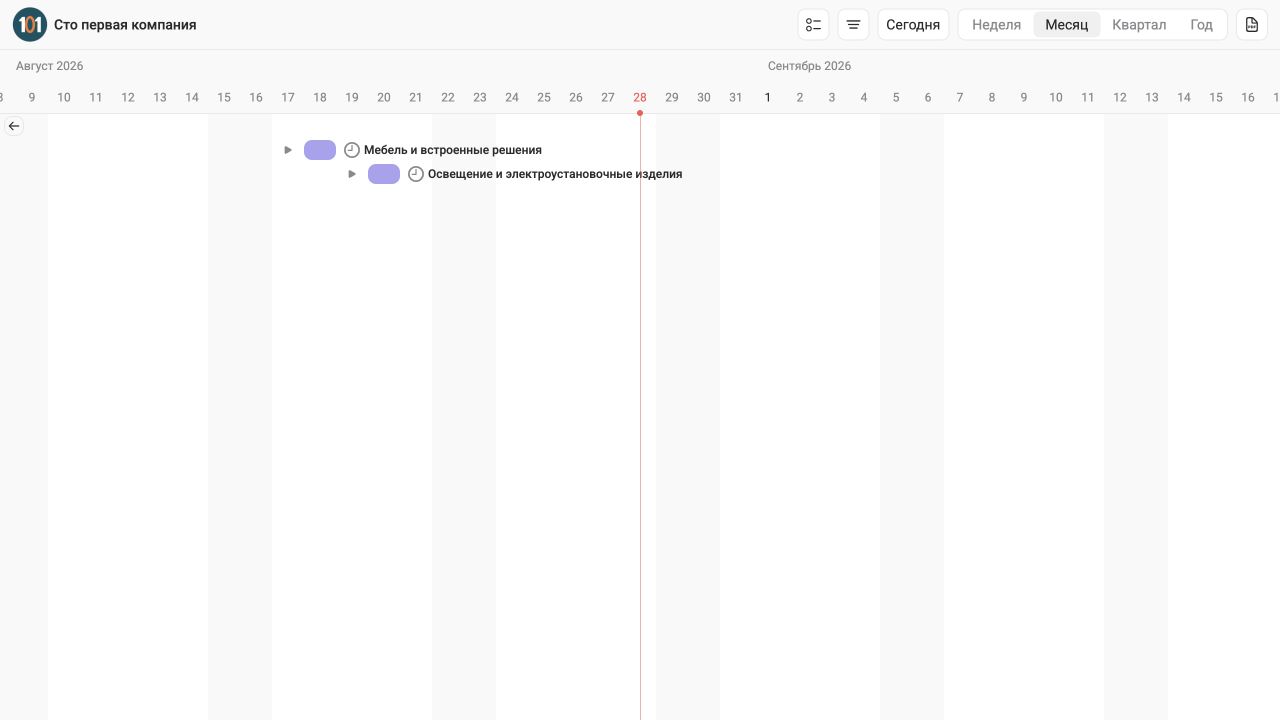
Public viewing does not turn the customer into a member of the work account and does not give him access to all sections of the project. But the schedule itself may contain names and deadlines of work, so before publishing you still need to check what information you are opening.
To control the progress of work, it is convenient to agree on a simple procedure:
- the contractor updates the schedule after a confirmed change in deadlines;
- the customer views the current version using the same public link;
- the parties agree on controversial changes separately in the channel provided for in the contract;
- Once the project is completed, public access is closed.
7. Close access or reissue the link
Open the Share Gantt window again.
To completely close public viewing, turn off the Public access switch. After this, the published schedule will no longer be available through public mode.
If you need to get a new link, use the Reissue Link action. After reissuing, copy the new link and send it to those members who still need access. Before submitting, be sure to open the new link yourself and check that it points to the right project.
Don't reissue a link without reason: Members who kept the previous address will lose a single point of reference and may continue to use the outdated message. Reissue the link when the link went to the wrong recipient or you need to re-limit the viewing circle.
8. Check your details before sending the link
- The required project is open in the link.
- The estimate uses clear titles for the work.
- Volumes and deadlines have been verified.
- There are no draft events on the chart.
- The customer understands what date the plan is valid for.
- The message indicates exactly what needs to be looked at or agreed upon.
- Public access will be closed when it is no longer needed.
It is better to check access rights not after sending, but before it. Open the link in a separate tab without logging into your account and make sure that the customer sees the desired schedule - and nothing extra.
Frequently asked questions
Does the customer need to register with 101?
No. A public link and QR code allow you to view the published chart without registering in the service.
Can the customer change the schedule using a public link?
The public page is used to view the chart. Work changes are made by project participants in the main interface 101 with their access rights.
What if the customer no longer needs access?
Open the chart publishing settings and turn off public access. If access needs to be maintained only for a new set of recipients, reissue the link and transfer the new address to the desired participants.
Does a public schedule replace agreeing on deadlines?
No. The schedule helps participants see the current plan, but the procedure for legally significant approval is determined by the contract and the communication channels chosen by the parties.
Show the customer the current plan, not an old screenshot
Create an estimate from price list items, indicate volumes and deadlines, check the plan on the Gantt chart, and only then open it to public access. The customer will receive a clear timeline without registration, and the contractor will receive a single schedule for monitoring the progress of work.
Double-check the project, dates, and permissions before sending the link. Then copy the link or show the QR code to the customer.