AI for estimates in the 101 App helps transfer line items from Excel. A specialist then checks them against the price list and obtains a total for the work. After transfer, quantities, units, and prices still need checking so that the estimate reflects the real project conditions.
To prepare an estimate with AI, create a project, add your price list, and paste prepared rows using “Вставить позиции AI” (Insert AI items). Below is the available workflow for importing a spreadsheet or PDF file and checking the result. It does not automatically calculate measurable quantities from PDF project drawings.
Contents:
What can AI do for estimates in 101?
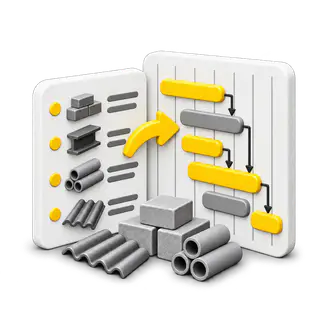
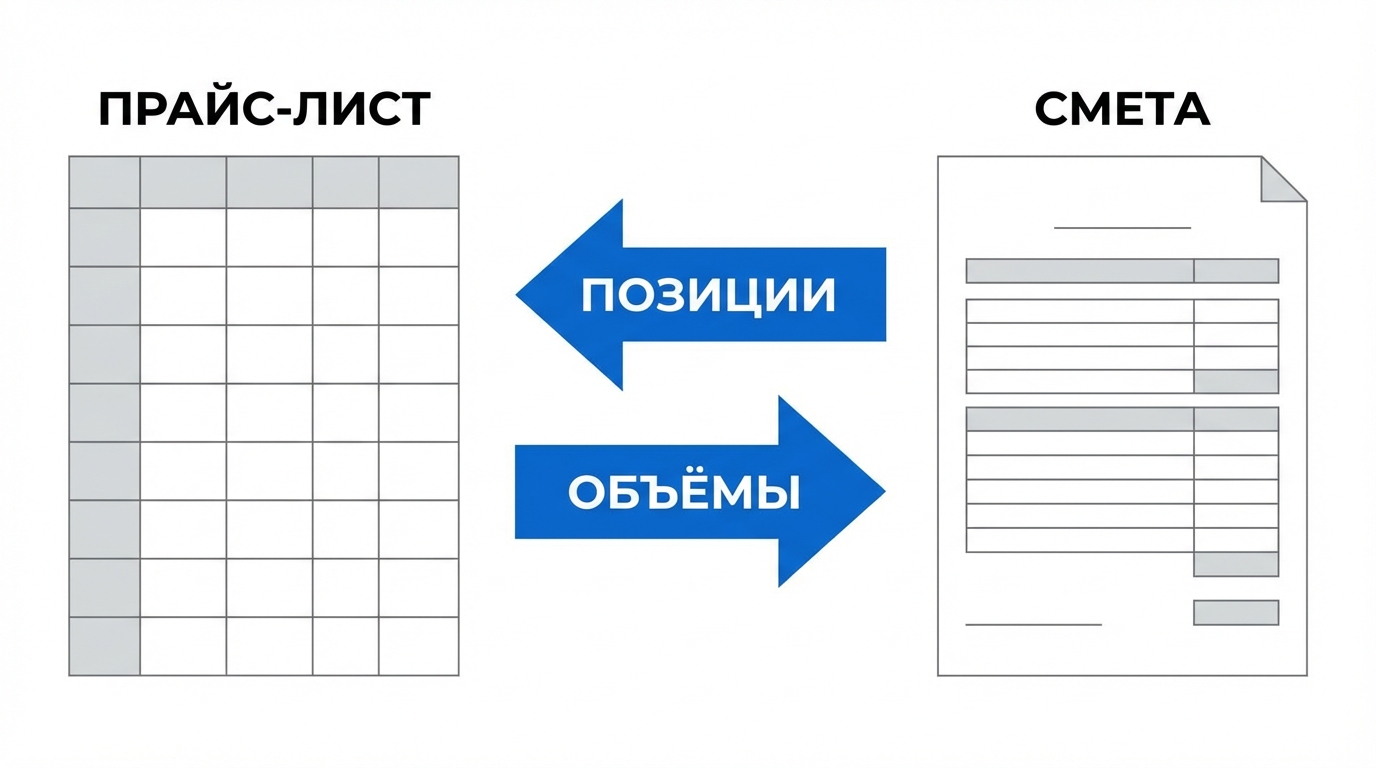
The available workflow starts with source data. Items and prices live in the price list, quantities come from the project or measurements, and AI helps parse pasted rows and transfer line items into an Estimate event.
This is useful when a calculation is already in Excel or a customer has sent a list of work. Instead of creating every row manually, you can copy a range, paste it through “Вставить позиции AI” (Insert AI items), and check the resulting items.
After checking, the estimate stays inside the 101 project: you can edit it, approve it, and export it to PDF. The transfer workflow is explained in “Importing an estimate from Excel into the 101 App” (in Russian).
How do you prepare an estimate with AI?
- Create a project in the 101 App so the estimate, payments, and documents belong to the same job. See the step-by-step guide to creating a project (in Russian).
- Add a current price list with item names, units, and prices. For setup, see importing a price list (in Russian).
- Create an Estimate event and open its line items. The basic workflow is covered in creating an estimate (in Russian).
- Copy rows from Excel and paste them using “Вставить позиции AI” (Insert AI items). Check how the app recognized names, quantities, and units.
- Match the items to the current price list, confirm quantities, and check the total for each section.
- Before sending the estimate to the customer, review disputed rows, assumptions, additional work, and the final total.
If there is no prepared Excel file, you can add items manually from the price list. AI is especially useful for transferring long lists, where creating rows by hand takes time and increases the risk of typos.
How do you import line items from Excel?
First, make the spreadsheet easy to read: one work item or material per row, with separate columns for name, quantity, unit, and price. Keep section headings separate from working rows so they do not become estimate items.
Copy logical blocks. A short section is easier to verify immediately after pasting than an error in a long estimate. After each transfer, compare the number of rows, units, and total with the source spreadsheet.
- Names should distinguish one type of work from another without abbreviations only the file author understands.
- Units should match the price list: m², linear metres, pieces, sets, and any other units in use.
- Use prices from the current project price list so old Excel values do not enter a new estimate.
- Record additional conditions and exclusions next to the relevant estimate section.
For ready-to-use items, see updating price lists in the 101 App (in Russian). For a quick calculation from your own prices, read online estimate calculation in the 101 App (in Russian).
How do you import line items from a PDF file?
In the 101 web app, you can transfer line items from a PDF file into an estimate being created through “Добавить позиции” → “Вставить позиции” (Add items → Paste items). This operation recognizes a list of rows; it does not automatically calculate measurable quantities from project drawings. See the guide to pasting from a file or text (in Russian) for details.
- Create an Estimate event and, in the items field, choose “Добавить позиции” → “Вставить позиции” (Add items → Paste items).
- Select a PDF file listing the work, or drag it into the upload area. Recognition starts after you provide the file.
- After processing, compare names, units, quantities, prices, and costs with the original file.
- Correct mistakes, confirm quantities against the project or measurements, and check the total before saving.
What should you check before sending an estimate?
Start with units and quantities. Confusing square metres and linear metres can affect the total more than a small price difference. Then check whether preparation, demolition, delivery, carrying materials upstairs, and cleanup are included.
Compare prices with the current price list. If some items came from an old Excel file, update them for current conditions. Also check zero quantities, blank prices, duplicate rows, and items with identical names.
Review the final estimate by section: preparation, main work, materials, and additional costs. This helps reveal a missing stage and explain the total to the customer.
- Every item belongs to the right project and section.
- Quantities and units match the project or measurements.
- Prices come from the current price list.
- Assumptions and additional work are explained clearly.
- Section totals add up to the overall total.
Questions about AI estimates
Can you prepare an estimate with AI without a price list?
You can transfer a prepared list of items, but a working calculation needs prices and clear units. Your own price list ties the estimate to the project’s actual economics.
Does AI check quantities and prices on its own?
AI speeds up data transfer and organization. A specialist checks quantities, units, disputed items, and final prices before sending the document.
What if the estimate is already in Excel?
Copy the rows and transfer them using “Вставить позиции AI” (Insert AI items). Then compare the result with the source file and connect items to the current price list.
Where can you learn to create an estimate in 101?
Start with the guide to creating an estimate (in Russian), then read about the estimate builder in the 101 App (in Russian).
At a presentation of the 101 App, you can see the current estimate workflow and ask about preparing a price list, importing items, and managing a project.