
101 is available as a ready-made plugin for ChatGPT. Open the plugin directory, find “101”, install it and connect your 101 account. You can then ask questions about your company’s projects, finances and tasks directly in the chat.
The availability of a particular connection in ChatGPT may depend on your plan, account, region and workspace settings. Check whether 101 is available in your account. To work with your data, you need a 101 account with access to the relevant company. ChatGPT limits and the terms of the 101 Platform still apply.
The directory listing is called 101 — Company finance and projects, and its developer is 101. Installing it from the directory does not require you to enter a server address manually or enable developer mode.
Contents:
- What is a business AI agent?
- What changes after you connect?
- What requests can you make?
- How do you install the 101 plugin in ChatGPT?
- How does the agent respond?
- How does the connection work?
- How are data and actions protected?
- Frequently asked questions about AI agents
- Why will interfaces work through agents?
What is a business AI agent?
An AI agent is an assistant that answers questions and selects available tools to achieve a goal. When connected to a working system, it can retrieve current data, compare it and prepare an authorised action.
An agent differs from a conventional chatbot in its ability to work through several steps. For example, it can first find a project, retrieve its financial events, calculate totals and display the result. The agent does not replace the accounting system: facts, permissions and records remain in 101.
What changes after you connect?
A conventional interface requires you to remember which section to open, which filter to enable and which card holds the data. In a conversation, the desired result becomes the starting point. You can ask: “Show expenses for the site in August and calculate the totals” or “Find overdue tasks for the company.”
The agent analyses the request, asks for missing parameters and calls 101 tools. This is particularly useful for a manager working with several projects, participants, tasks and financial events.
General implementation scenarios are covered in “AI for small businesses” (in Russian), while the limits of useful application are discussed in “AI in project management”. With the 101 plugin, you can test those scenarios using the business data available to you.
What requests can you make?
You can use conversational wording. The more precisely you specify the company, project, period and desired result, the faster the agent can handle the request.
| Example request | What 101 does | How the result appears |
|---|---|---|
| Show the company’s projects and their balances | Retrieves accessible projects, managers and financial indicators | Project cards in a widget |
| Show project expenses for a period and calculate the totals | Filters the event feed and returns totals from available data | A feed and totals in a widget, with the agent’s explanation |
| What are the contractor’s own-funds and accountable-funds balances across projects and the company fund? | Collects the selected participant’s balances | A structured summary |
| Find work items in the price list and prepare an estimate | Finds items, assembles the estimate and prepares the operation | Selected items, followed by confirmation of the write |
| Show project tasks and change the selected task’s status | Loads the task list, opens the card and prepares the change | A task widget, followed by a text result of the operation |
| Open the Wiki page containing the site procedure | Retrieves the accessible page and its blocks | The page interface directly in the conversation |
| Generate a KS-2 form, acceptance certificate or expense statement | Creates a 101 document using the specified parameters | A download link for the finished file |
KS-2 is the Russian construction work acceptance form mentioned in this example; the request does not establish a document requirement for another country.
From a chat request to a manager’s task
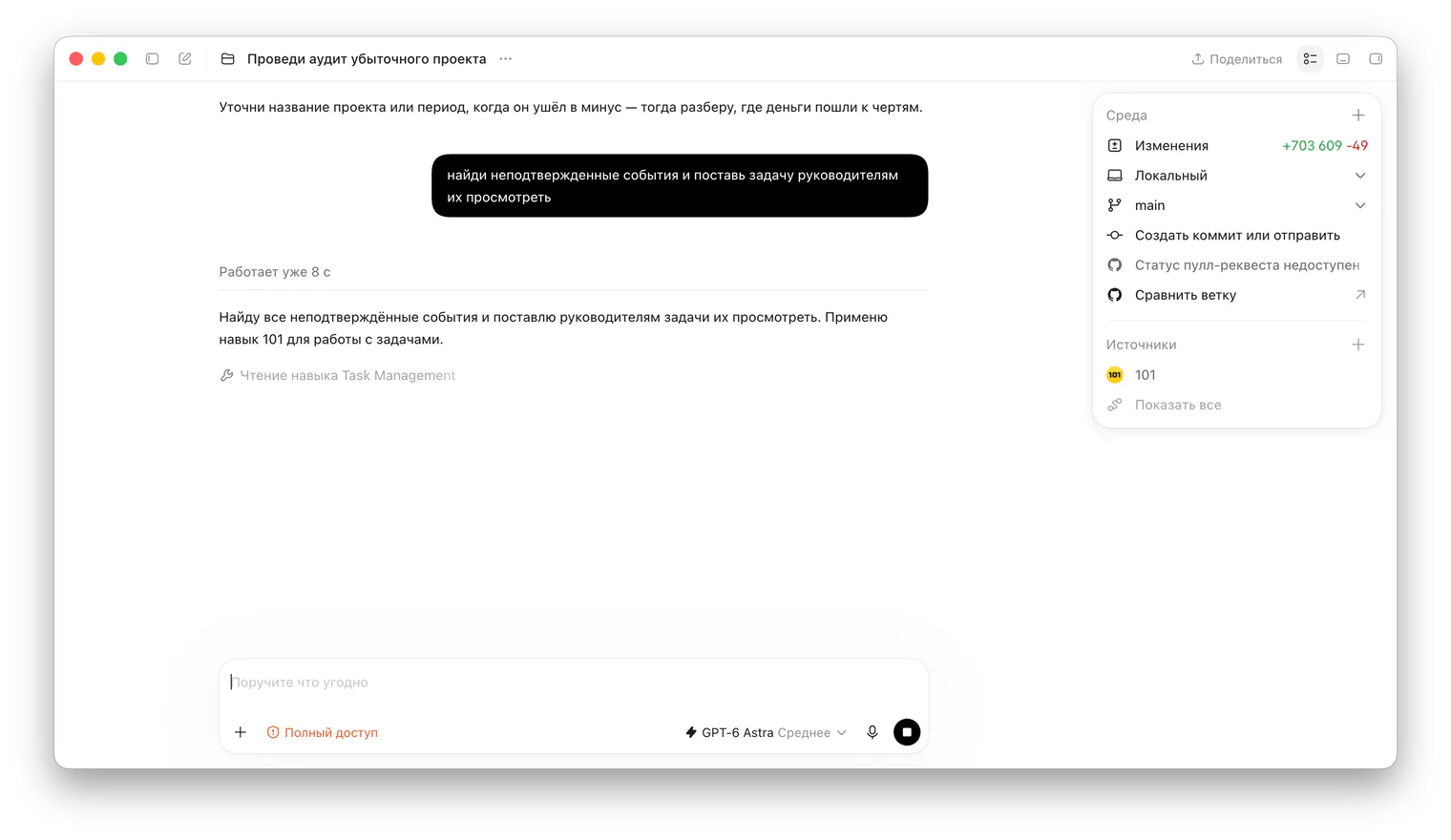
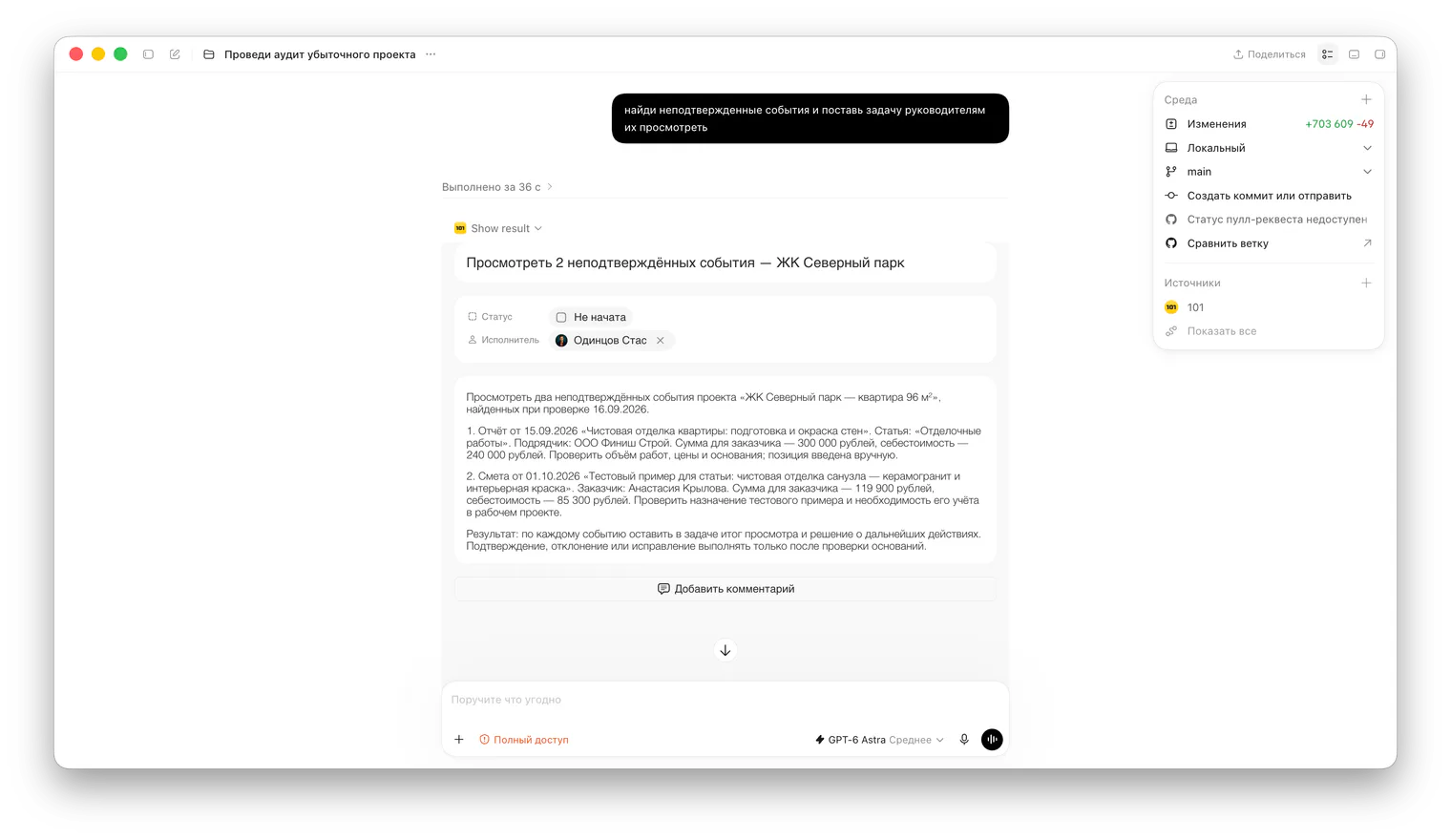
The user asks: “Find unconfirmed events and assign managers a task to review them.” The assistant starts working, then the chat displays a card titled “Review 2 unconfirmed events — Severny Park residential complex”. It shows the assignee, the “Not started” status and a description of the review.
The description lists two events and the questions to check: work quantities, prices, supporting grounds and whether a test example belongs in the working project. The manager receives a specific review subject. Creating the task does not mean the financial events have already been reviewed or confirmed: deciding on those events remains a separate step.
The screenshots for this example were taken in Codex and show its Russian-language interface. They capture an actual conversation with the 101 plugin and the task card in that environment. The connection and responses may look different in ChatGPT.
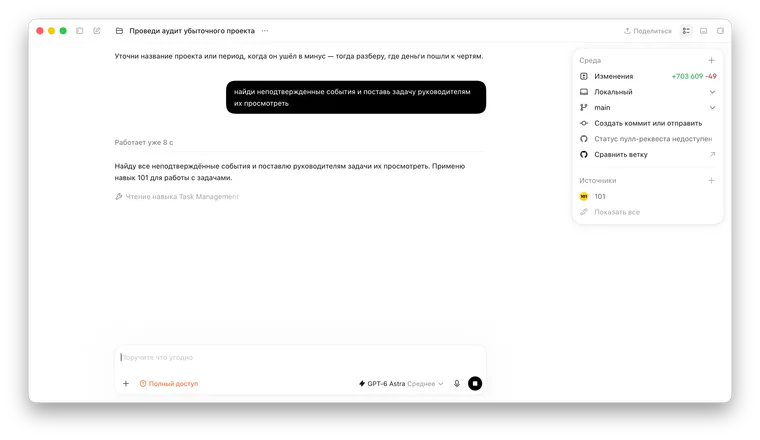
Intermediate stage: finding unconfirmed events and preparing manager tasks. Work is still in progress. Open a larger screenshot.
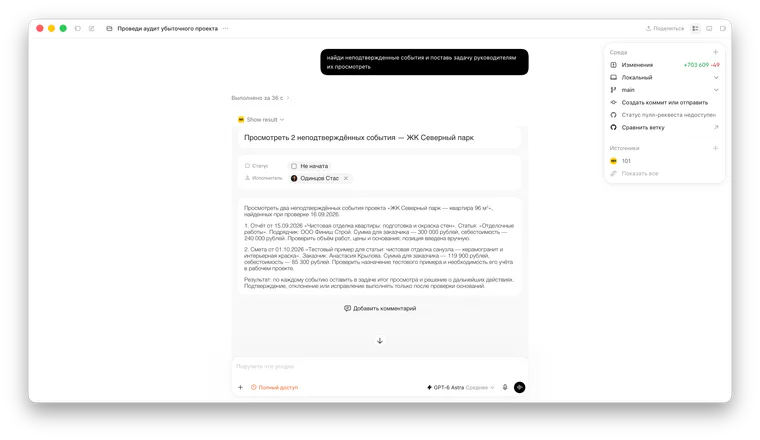
Result in the Codex chat: a task card for reviewing two unconfirmed events, with assignee, status and review description. Open a larger screenshot.
You can also work with counterparties, project participants, cost categories, price lists, task comments and financial events through the agent. Available actions depend on user permissions and the current plugin version.
How do you install the 101 plugin in ChatGPT?
Connection begins in ChatGPT itself. Find the plugin using search or open the 101 listing directly.
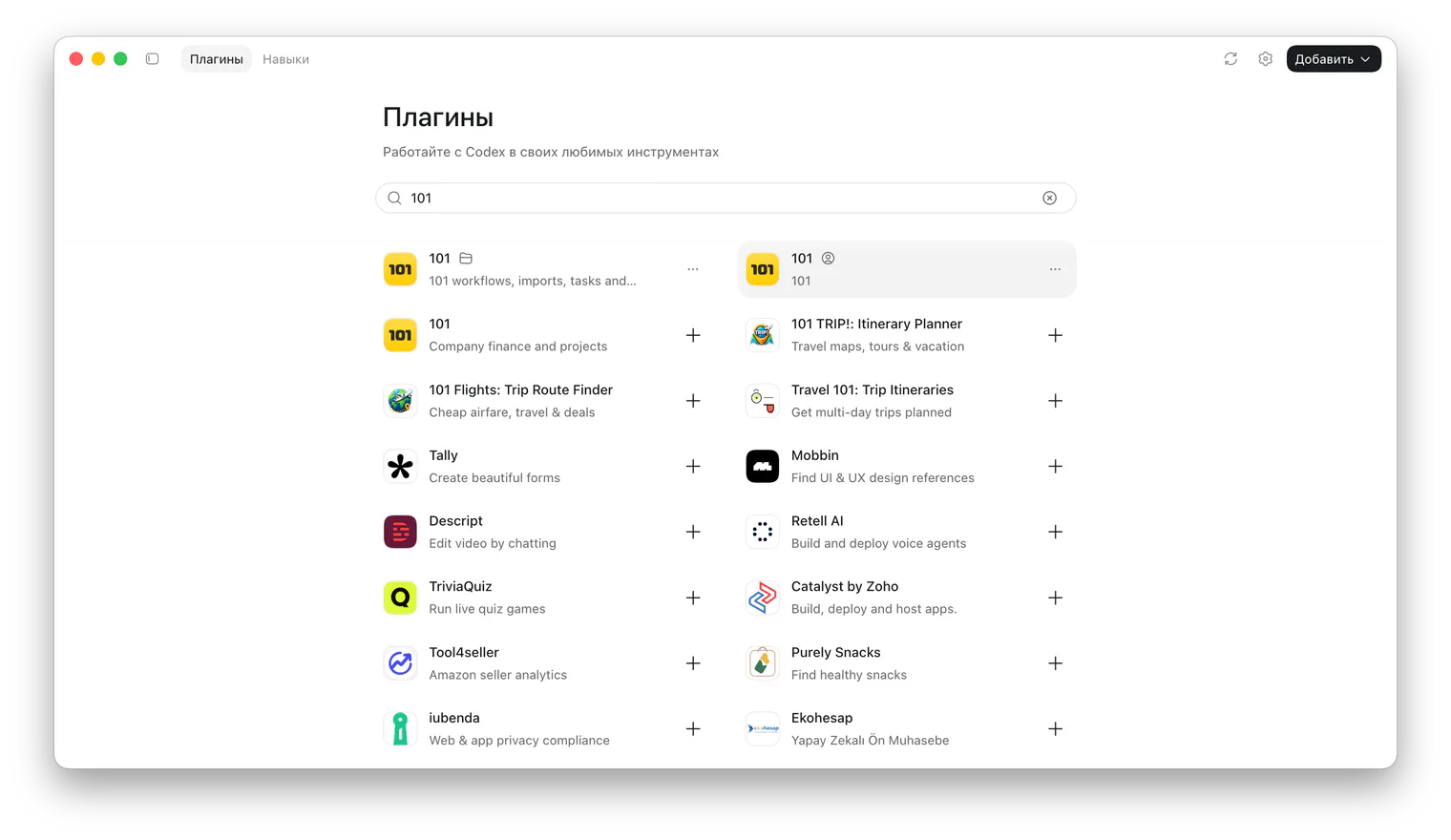
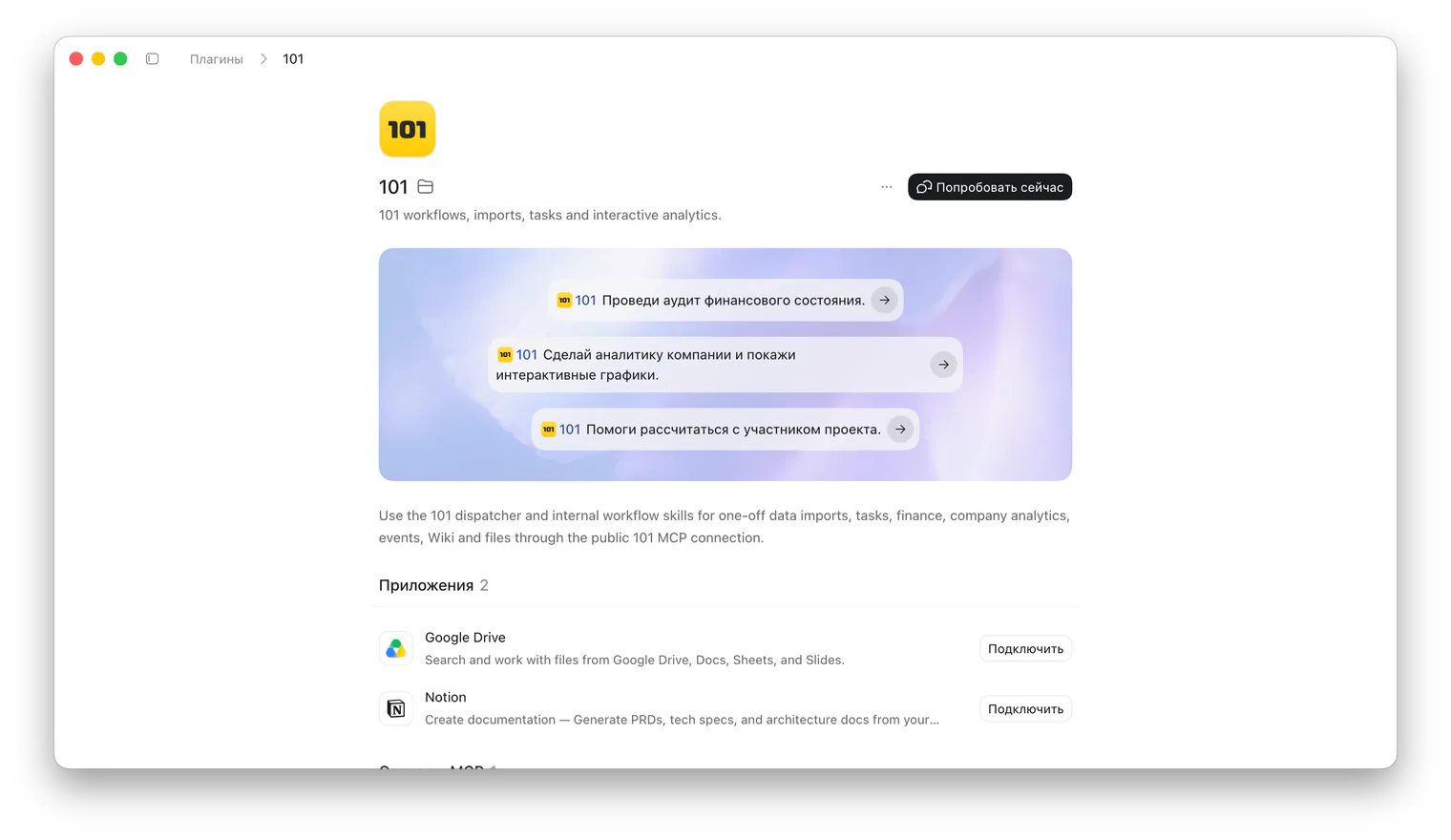
The screenshots below show a search for 101, the plugin listing and a prepared prompt in Codex, using its Russian-language interface. They illustrate a different interface and are not step-by-step ChatGPT screens. Search shows several entries named 101; use the link above to open the public ChatGPT listing. Google Drive and Notion appearing in the screenshot does not mean they must be connected to work with 101 data.
- Sign in to your ChatGPT account and open “Plugins”. In some interface versions, connections appear under “Apps”.
- Search for “101”. Select “101 — Company finance and projects” by developer 101: other services with 101 in their names may also appear.
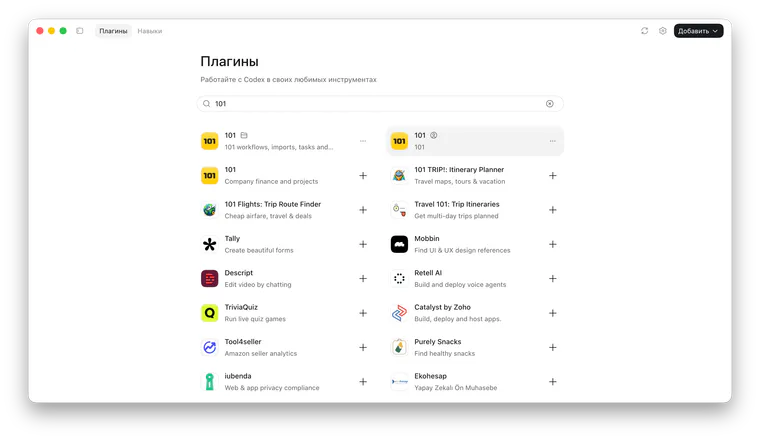
Search for 101 in the Codex plugin directory: several matches appear, including “Company finance and projects”. Open a larger screenshot.
- Open the listing and choose “Install plugin”. If the app shows a “Connect” button, use it to begin linking your account.
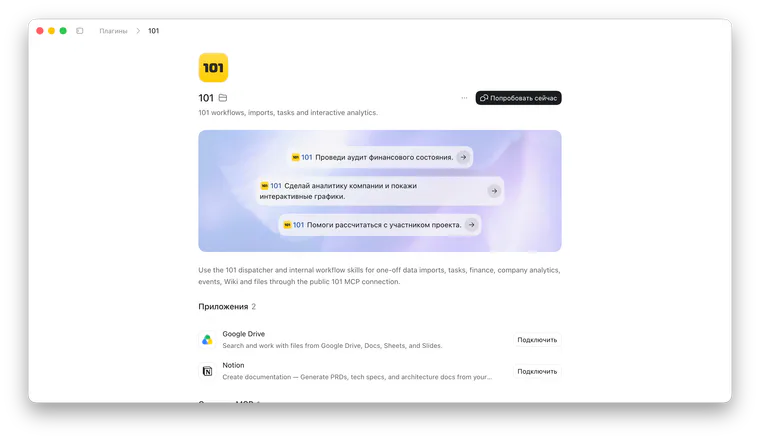
The 101 listing in Codex: a “Try now” button and example prompts. Open a larger screenshot.
- Sign in to 101 in the window that opens and check the requested access. Use an account that has access to the required company.
- Return to the chat and select 101 using an @ mention or the “+” menu, if your interface supports that method.
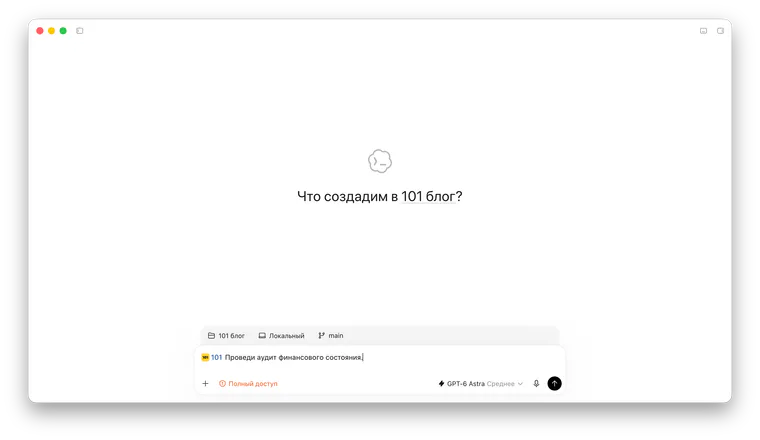
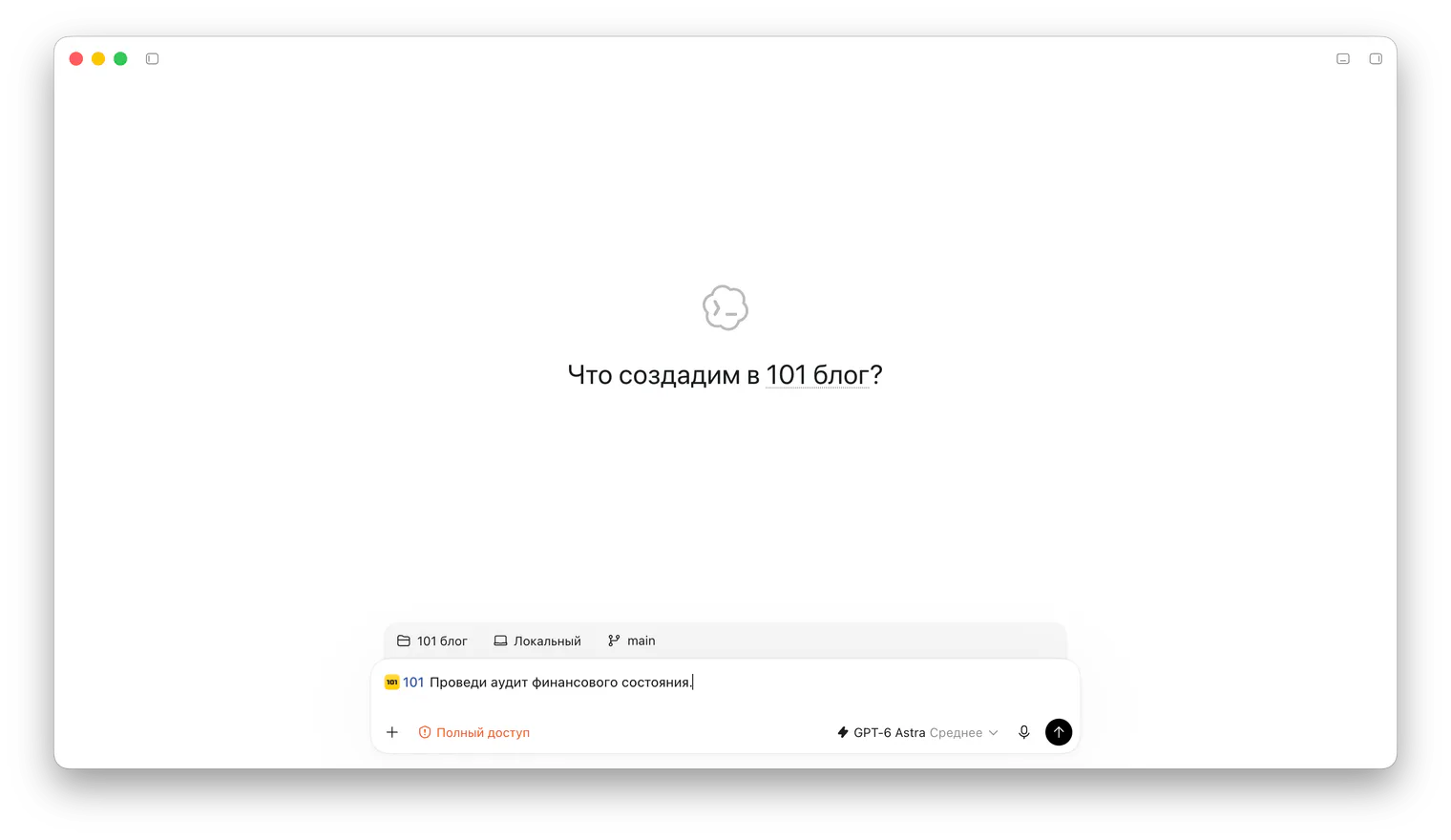
The prompt “Audit the financial position” is prepared in the Codex input field. This is not an analysis result yet. Open a larger screenshot.
- Send your first request: “Show which user I am connected to 101 as and which companies I can access. Do not change anything.”
You do not need to download a separate installer to your computer: you are adding the plugin to ChatGPT. Installation and authorisation are also described in OpenAI’s plugin guide.
Do you need a paid ChatGPT subscription?
Check the availability of the particular connection in your ChatGPT account: it may depend on your plan, account, region and workspace settings. General access to the directory does not guarantee access to every plugin. A ChatGPT subscription and a 101 Platform plan are separate things: connecting the plugin does not change your plan or permissions in 101.
What should you ask after connecting?
Start with a small task whose result you can check in the app. Specify the company, period and response format.
- “Show my tasks for this week by project. Highlight overdue tasks separately. Do not change anything.”
- “Show receipts and expenses for project [name] over the last 30 days. State the period dates, the statuses of included events and the sources of the amounts. Show internal transfers separately. Do not change anything.”
- “Check contractor settlements and prepare a list of amounts that should be reconciled this week. Explain the priorities. Do not create events or transfers.”
If you need profit or margin, first clarify which data is available and how the indicator is calculated. The difference between receipts and payments for a period does not by itself establish project profit. Ask the assistant to separate facts from assumptions and identify missing data.
What if the connection does not work?
If you cannot find the plugin or installation is unavailable, open its direct link, check that you are signed in to ChatGPT and review workspace restrictions. Individual capabilities may depend on your account, region and administrator settings. If a project is missing after connection, check the selected 101 account, company and access permissions for that project.
For other compatible AI assistants and manual connections, see the separate 101 MCP guide (in Russian). MCP, the protocol connecting an assistant to an application, remains part of the technology; ordinary users of the ready-made plugin do not need to configure it manually.
How does the agent respond?
There are four main response formats. A short explanation arrives as text. Lists and cards open in an interactive widget. Documents are returned as download links. Data changes include a preview or confirmation when the action requires it.
The 101 widget can display the user and accessible companies, a company card, projects, cost categories, price lists, events, tasks and Wiki pages. You can explore it within the conversation: view cards, select items and continue your request using the selected context.
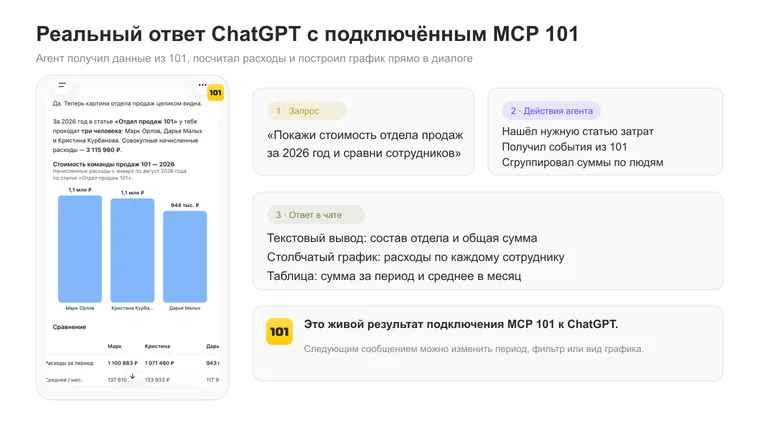
The response format depends on the request and the connection’s capabilities: it may be text, a table, a chart or an interactive card. For example, the 101 plugin listing suggests checking a company’s financial position, displaying tasks for the week and preparing a contractor settlement plan.
How does the connection work?
- The user describes a goal in ordinary language.
- The agent selects a suitable 101 tool and gathers its parameters.
- MCP passes the request to the 101 application.
- 101 checks authentication, the company and access permissions.
- The result returns to the agent in a structured form.
- The agent explains the data, shows a widget or proposes confirming an action.
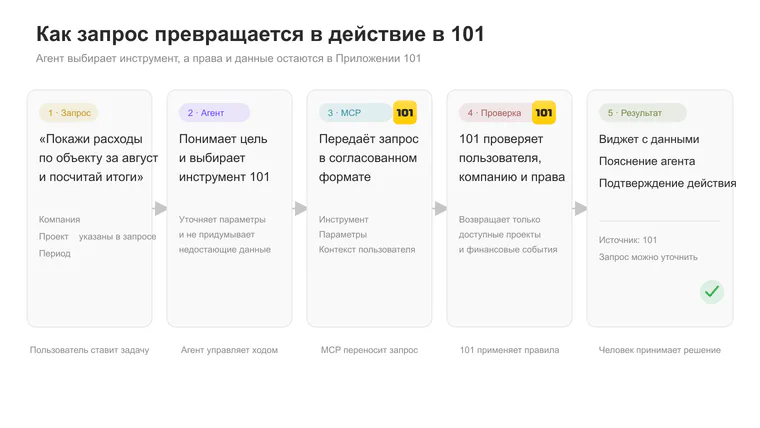
The diagram uses Russian labels; the six steps above explain its complete request, permission-check and response sequence. A plain-language explanation of the protocol is available in “What is MCP in simple terms?”. To use the plugin, the key point is that the agent receives only capabilities that 101 exposes through tools and permits for that particular user.
A separate financial scenario is covered in “AI for financial analysis: 101 MCP as a financial director” (in Russian): profit and loss, cash flow, EBITDA, charts on request and recurring summaries.
How are data and actions protected?
The plugin uses 101 authorisation. Company and data visibility matches the user’s access in the application. If someone cannot access a company, project, task or event, the agent should not obtain that data through a direct request.
The confirmation process depends on the action, the 101 tool and ChatGPT settings. Do not assume that a separate button will appear before every change. When exploring, include “do not change anything” in your request. Before a write, check the company, project and new values; after execution, check the record itself in 101.
Financial actions within 101 belong to management accounting. A command such as “create a transfer” records an event in the app and does not send actual money through a bank. 101 remains the source of truth, and the agent operates through its checks, rules and logged operations.
Frequently asked questions about business AI agents
What can AI agents do for a business?
Capabilities depend on connected tools. With 101, an agent can read accessible company, project, event, task, Wiki and price-list data, prepare changes and generate documents. It does not receive unlimited access to the entire application.
Do you need developers to connect an AI agent to 101?
You do not need a developer to install the ready-made 101 plugin from the ChatGPT directory. Find the plugin, install it and sign in to 101. A custom integration with other systems may require development.
Can you introduce an AI agent across the whole company at once?
It is safer to start with one recurring scenario and a small user group. First check permissions, response accuracy and confirmation of changes, then expand its use.
Does the agent replace the 101 App interface?
No. For now, the agent provides an additional entry point to the system. It shortens the path to the result you need, while cards, tables and conventional sections remain necessary for checking and detailed work.
Why will interfaces work through agents?
We believe that operating software will gradually move from finding sections to expressing an intention. The user describes the result, the agent selects data and an action, and the interface appears at the appropriate moment.
Screens, tables and cards will remain. Their role will change: the interface will become a confirmation, a way to explore data and a point for making choices. The agent will build the route to it.
For a manager, this means a single entry point to work. In one conversation, you can check the current situation, open the right widget, clarify figures, prepare an action and receive a final document. The 101 plugin shows how this approach already works with a real company.
Open the 101 plugin in the ChatGPT directory, connect your account and start with a request about accessible projects or tasks. Once you have checked the response, you can move on to more detailed analysis.