To share rates from 101, export the relevant price list items to PDF and check which prices the recipient will see. For a quote based on a specific site, prepare an estimate. If the client needs to check project data regularly, set up project access.
- What an online price list is for
- How price lists work in 101
- How to share rates with a client
- How to share rates with a contractor
- Three practical scenarios
- How to prepare a price list
- Getting started
What an online price list is for
A price list holds unit rates for work or materials. The estimator selects items and enters quantities for the site to produce an estimate with a total. If the client only needs a few unit rates at this stage, share the relevant items from the price list.
When you replace or update a price list, check previously saved estimates and reports separately. Do not assume that earlier calculations have been recalculated automatically.
How price lists work in 101
For each item, enter a clear name, unit of measurement, cost and client price. Group items by category so your team can find the type of work they need. Access to prices depends on the person's role and settings.
If you keep rates in Excel, import the price list in the web version using the XLSX template (in Russian). After importing it, check the categories, line items, units and prices. Then open the same price list on your phone. If your permissions allow XLSX export in the web version, use that option to work with the price list in a spreadsheet.
In the project, select the price list you want to use (in Russian) and check its name before creating the estimate. The linked price list determines where the project's items come from. Check viewing permissions separately.
How to share rates with a client
- Estimate for the site. In an estimate event, add line items, enter the quantities and check the amounts you can see. Save the estimate and check its status. If confirmation is required, obtain it from an authorised participant. Generate the document and check it before sending it. How to create an estimate (in Russian).
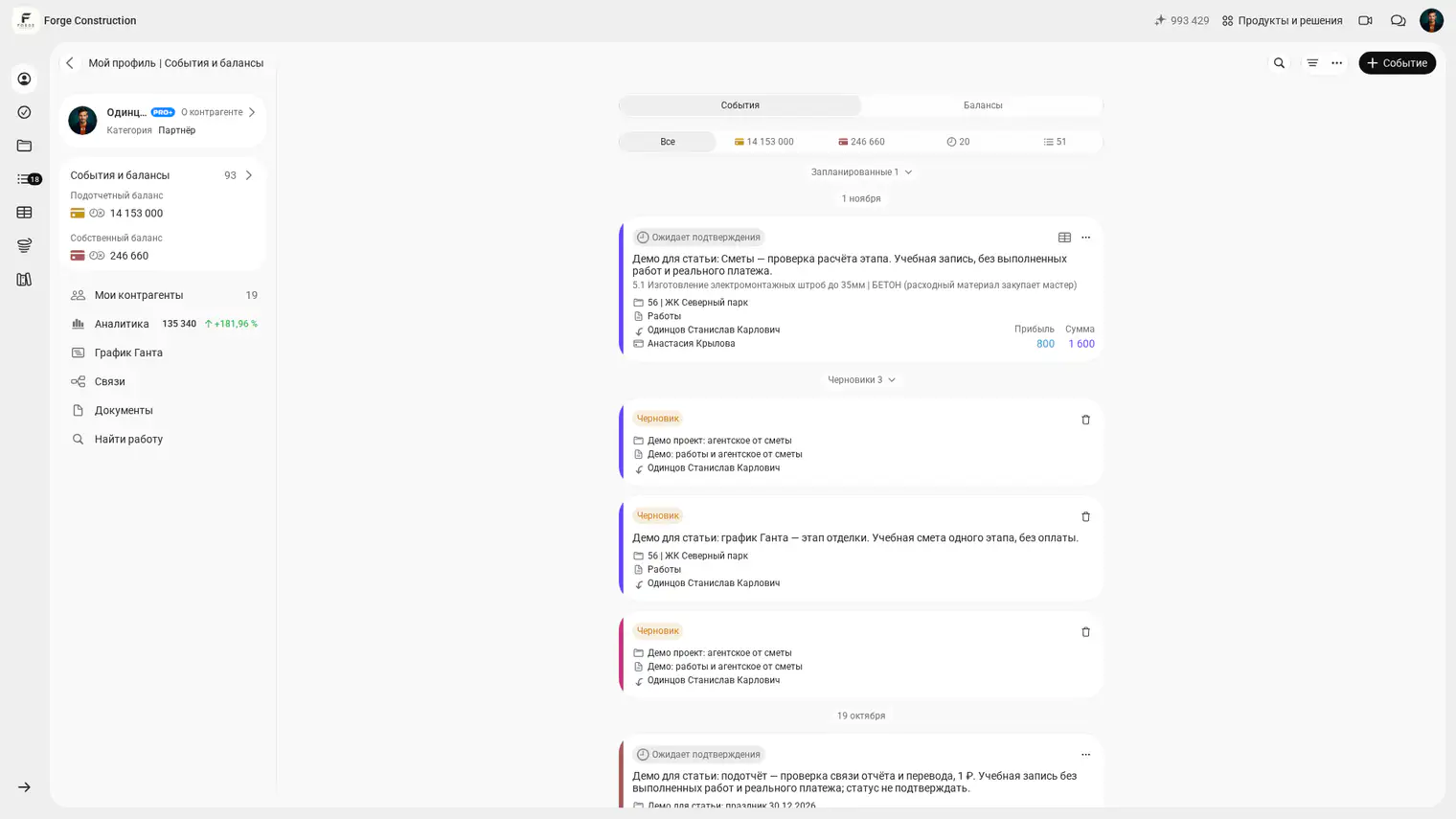
- Price list as a PDF. First, check that you have permission to export the price list. On your phone, open the full price list or the category you need and start the process for sharing it. In the web version, open the PDF export and select the categories and line items you need. If you can choose a recipient type, select the client option. Generate the PDF and check that it includes the items you need and the client price per unit. On your phone, send the checked file using the Share menu. In your browser, download the PDF first, then send it to the recipient.
- Project access. If the client needs to check project data in 101 regularly, establish what information they need to see. For an existing project, check that the correct client is listed and send an invitation if that action is available. Ask the client to open the project on their side and check together which information and amounts they can see. How to give a client access to project data (in Russian).
If you need a branded document, check which branding options your plan includes (in Russian) and open the finished file. Branding depends on the document type. The recipient keeps any PDF you have already sent, even if you later change their project access.
How to share rates with a contractor
Include only the work and materials for the contractor's stage. You can select individual items in the web version. If the contractor option is available, the PDF shows the cost per unit. Before sending the file, open it and check the included items, units and price type. If you see only one export option, first check what the file contains and which permissions you have.
For the steps for both recipients and the differences between the phone and browser, see how to export a price list (in Russian).
Three practical scenarios
- Additional work on site. Pick the relevant line items from the price list and enter quantities based on measurements in a separate estimate. Check the total, then show the client the checked estimate or send them the file. This shows them how you calculated the quote for the additional work.
- Agreeing rates with a crew. Choose the relevant plastering items, export them for the contractor and check the units and rates. Send the checked PDF to the crew so they have the list for their stage.
- Revising a quote. Check whether you can update the saved estimate. If you change the scope, quantities or prices, check the new total and status. Generate and send a new PDF so the client has the current estimate.
How to prepare a price list
Group work and materials by category. Describe what each item includes and use the unit your team uses to measure quantities. If you start with a price list purchased from 101 GROUP (in Russian), check its items, units and prices. Adapt it to your work and check the result after importing it.
Getting started
Import a few items into a price list, link that price list to a test project and create an estimate. If both options are available, compare the client and contractor PDFs. Your team can see which items appear in the file and which prices each recipient sees.
Do tradespeople need a separate price list?
A single price list can contain both the client price and the cost. A separate price list makes sense if the team does a different set of jobs. In either case, check permissions and the price type selected for export.
Should you send the client an estimate or a price list?
Send an estimate if you need to agree on the quantities and total for the site. If the client needs unit rates, send the price list or a selection of items. See how to calculate an estimate online for more details.