To import estimate line items from Excel into 101, send the spreadsheet rows to the AI tool. It turns them into draft line items so you can check the names, quantities, and prices before saving. On a phone, copy the cells you need. On a computer, you can upload the file itself.
Contents:
How to import line items from Excel
On a phone
- Open or create an estimate in the 101 app. Select the customer, project, and an expense category that allows custom line items. Then open the list of line items.

- Select and copy the rows you need in Excel or Google Sheets. Include the name, unit of measure, quantity, and price columns if they are in the source.
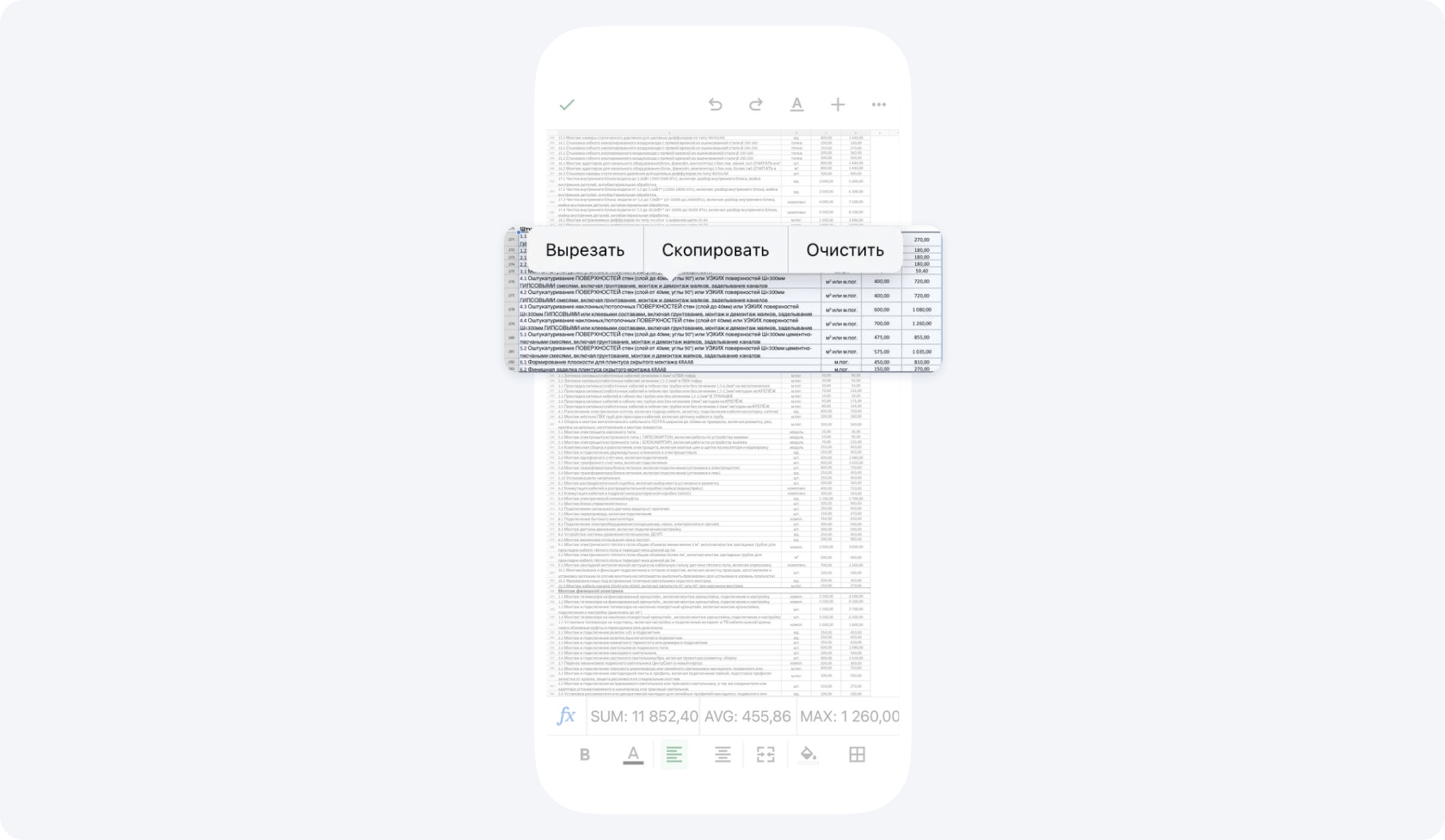
- Return to the estimate, select the AI paste option for line items, and paste the copied text. Once processing is complete, the line items appear in the estimate for you to check.


On a computer
Open the estimate in the web version of 101 and start the AI import for line items. Upload or drag the Excel file into the import panel, or paste the copied rows with Ctrl+V or ⌘V. When the results appear, compare them with the source spreadsheet.
Both methods are covered in the 101 help guide to adding line items with AI (in Russian). The buttons in the mobile illustrations may have different names or locations in the current version.
What goes into an estimate or report
If you are planning work or purchases, add the rows to an estimate to build a list of planned line items. If you have already bought materials or completed work, add the rows to a report. The report records what you actually bought or completed once you check and save it.
The web version can process XLSX, CSV, PDF, and DOC files, as well as photos of tables. For example, you can extract readable rows listing materials from a quote. The AI tool prepares line items. The original table formatting and payment details stay in the source.
What to check after importing
- Check the rows. Compare the names, units of measure, quantities, and the price and cost values you can access with the source. If a value you need is missing from the table, confirm it separately. If access settings hide a value, ask a team member with the right permissions to check it.
- Correct any discrepancies. Fix the list if the AI tool missed a row or confused the unit price with the line total. For example, 12 m² at 350 per m² comes to 4,200. Compare that amount with the line total.
- Check the total and save the estimate. Compare the total for the imported line items with the total for the same rows in the source table. If the source has no total for those rows, calculate it from the quantities and prices you checked. If the amounts differ, find and correct the discrepancies before saving.
After checking the line items, you can reorder them. If your role and the expense category settings allow you to see and edit prices, you can change the prices of several line items at once. Check the estimate total again after making changes.

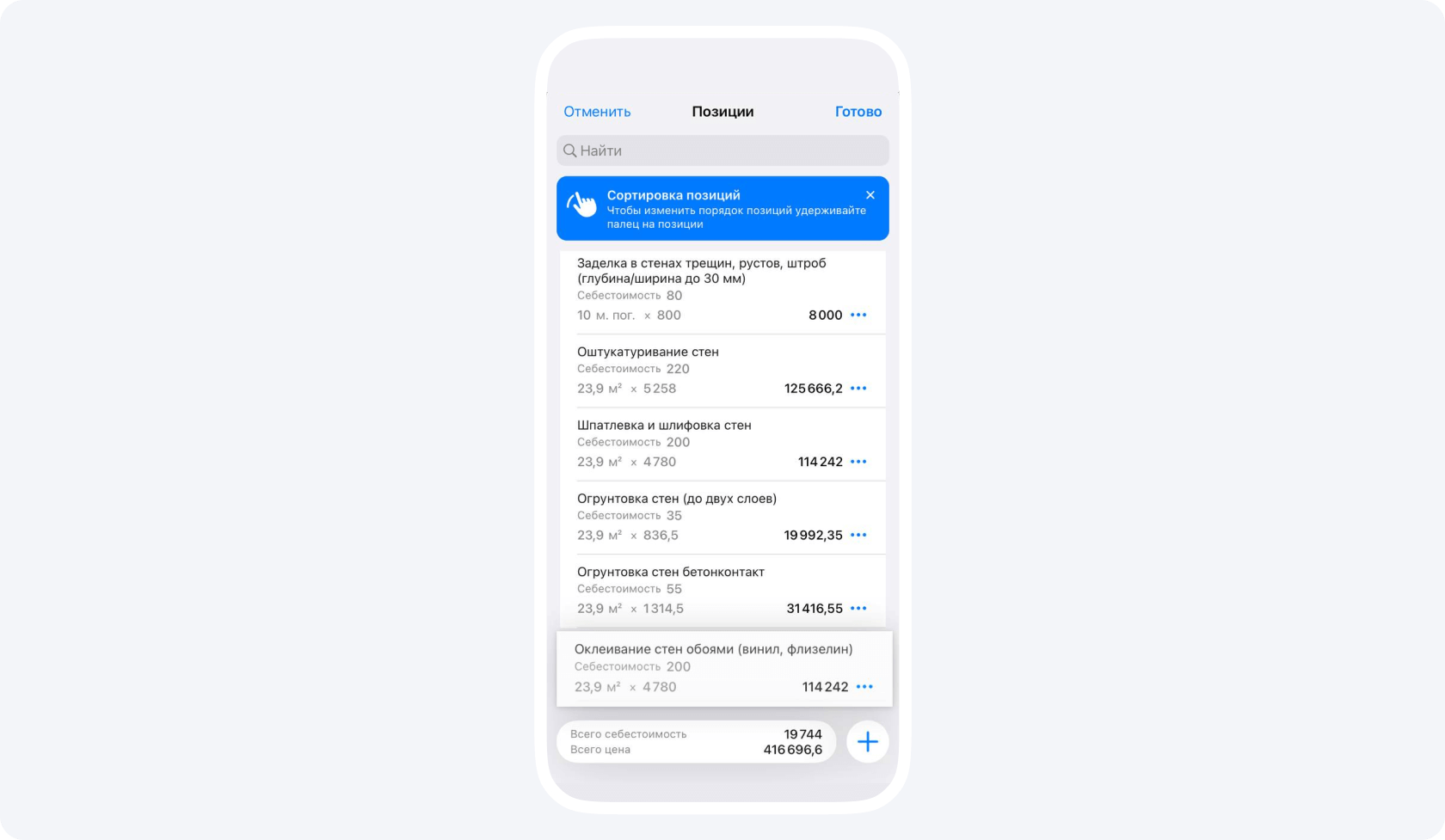
If a work item or material is missing from the estimate, add a separate line item. Depending on the expense category settings, you can select an existing item from an available price list.

If you need the same rates in several estimates, import a price list using the XLSX template (in Russian). It will serve as a source of line items for future estimates.