To prepare an estimate faster, gather your quantities and current rates in advance and use the price list for recurring items. In 101, you can prepare a separate estimate for each stage, check its amounts and, when needed, create a consolidated document for the site.
Contents:
Why estimates take longer than expected
When the scope of work changes after the estimate is prepared, the estimator has to find the affected items, update the quantities and recalculate the total. Before you start, agree on the scope of the stage, gather measurements and flag any items whose prices still need checking. That gives the client a way to check what the proposed amount covers.
What speeds up estimating
- A price list prepared in advance. Check the names, units and prices for your usual work. When you create the estimate, you can select those checked items and enter the quantities for the site. You can import your own price list (in Russian) or get and upload a ready-made price list from 101 (in Russian).
- Access on your phone. Open the project in the app and put together the line items using your measurements while you are still on site. Check the estimate before sharing it with the client.
- Separate estimates by stage. Team members with the required permissions prepare separate estimates. The person in charge checks the quantities and prices for each stage to see which estimates are ready to agree on.
How to create an estimate in 101
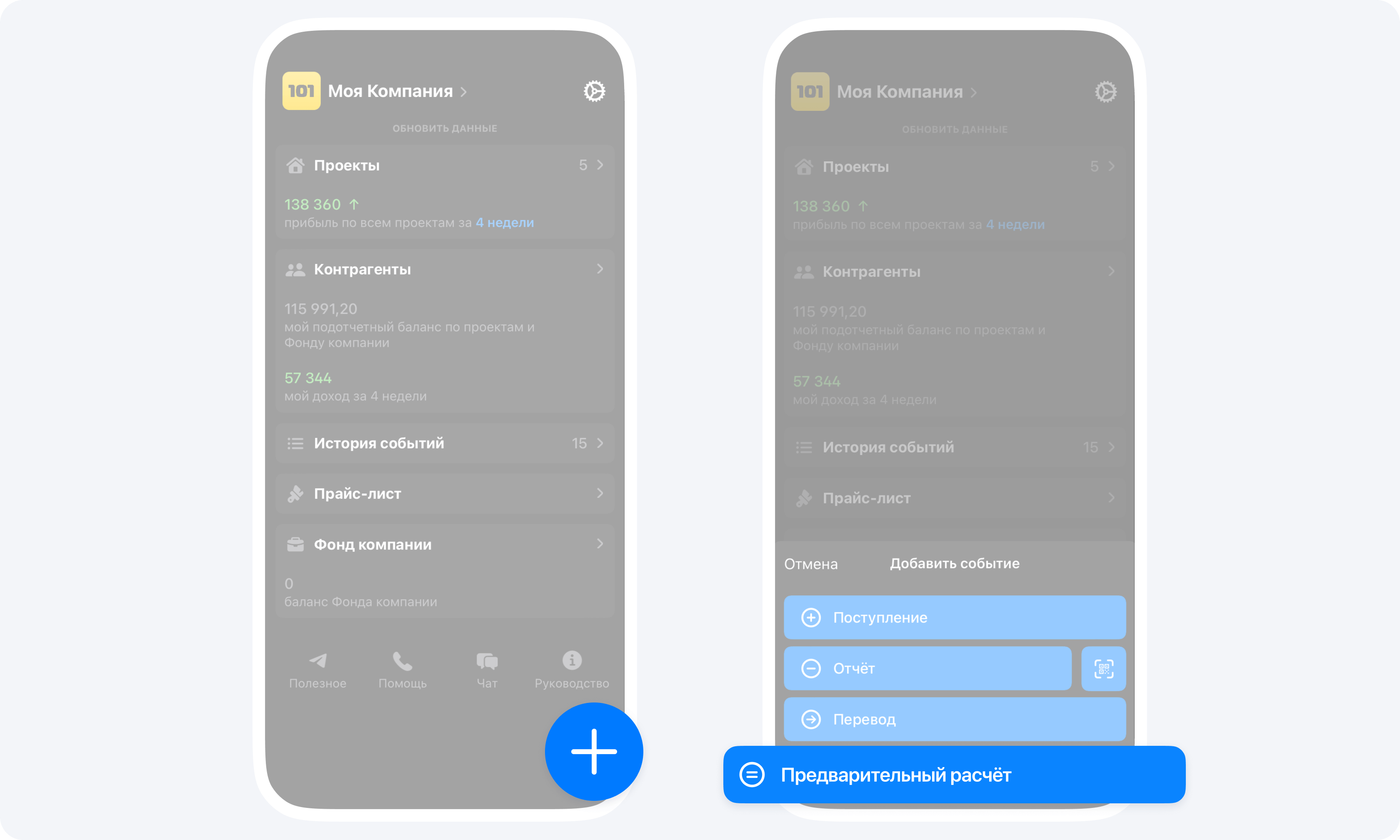
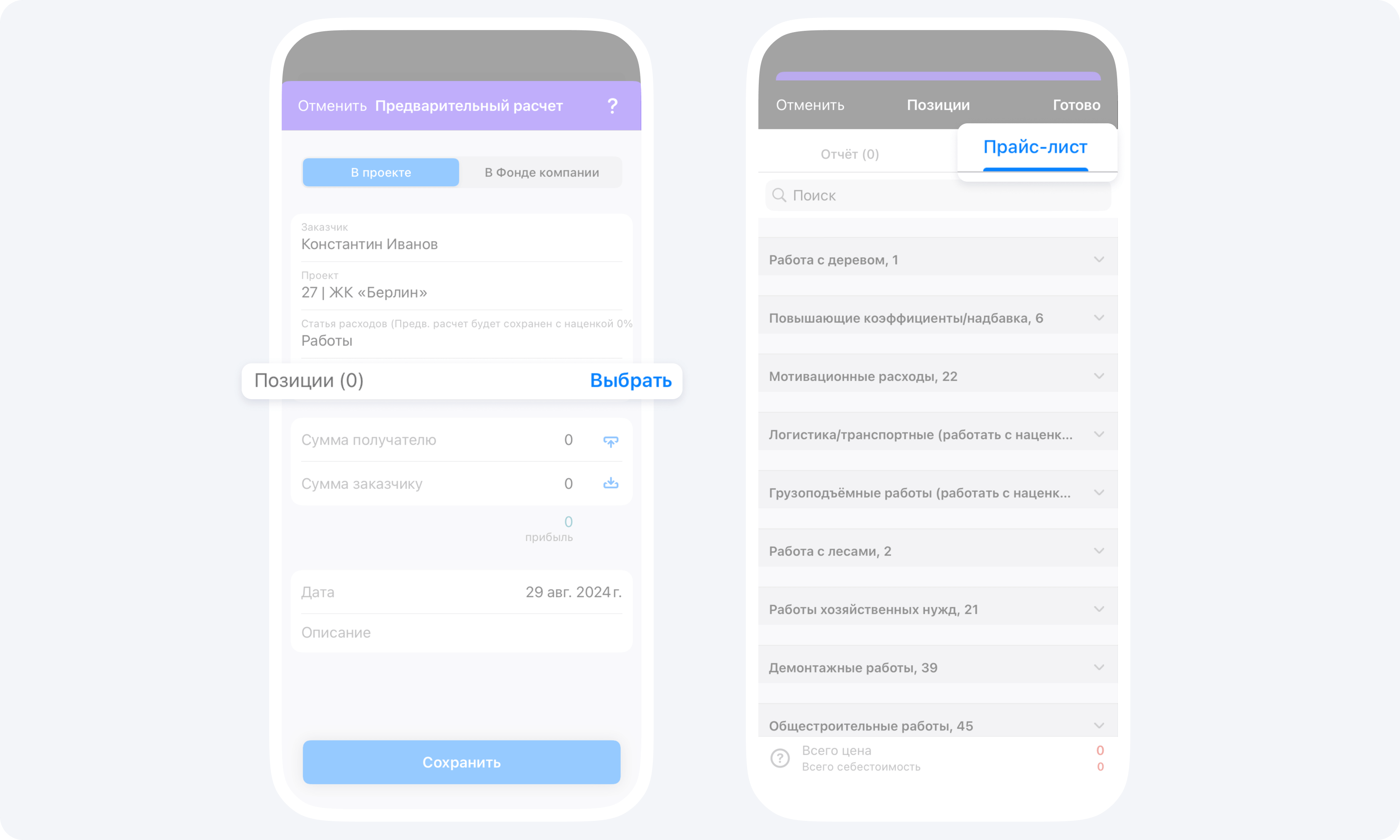
- In the app, tap + on the home screen, choose the estimate event type, then select the client and project. On a computer, open the events for the project and create an estimate event. Fill in the participant fields you can access. Select an appropriate expense category. For example, if your project has a category for works, it may be suitable for plastering. Enter the stage name in the description.
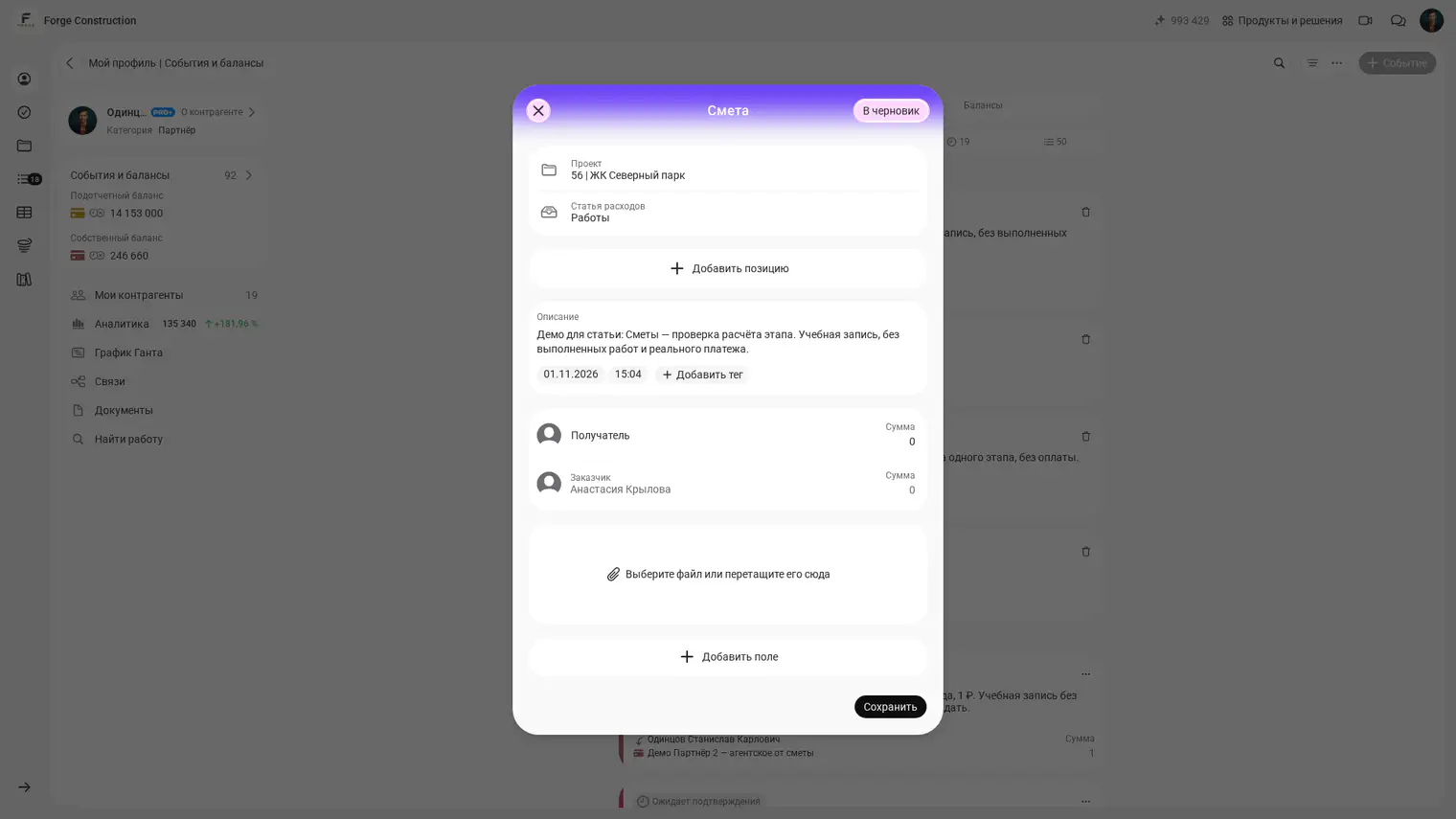
- Add items from the linked price list if that source is permitted. Manual entry and other sources also depend on the expense category settings and your permissions.
- Enter the quantities from your measurements and check the names, units and the prices and amounts you can see. If some prices are hidden, ask a team member with the necessary permissions to check them.
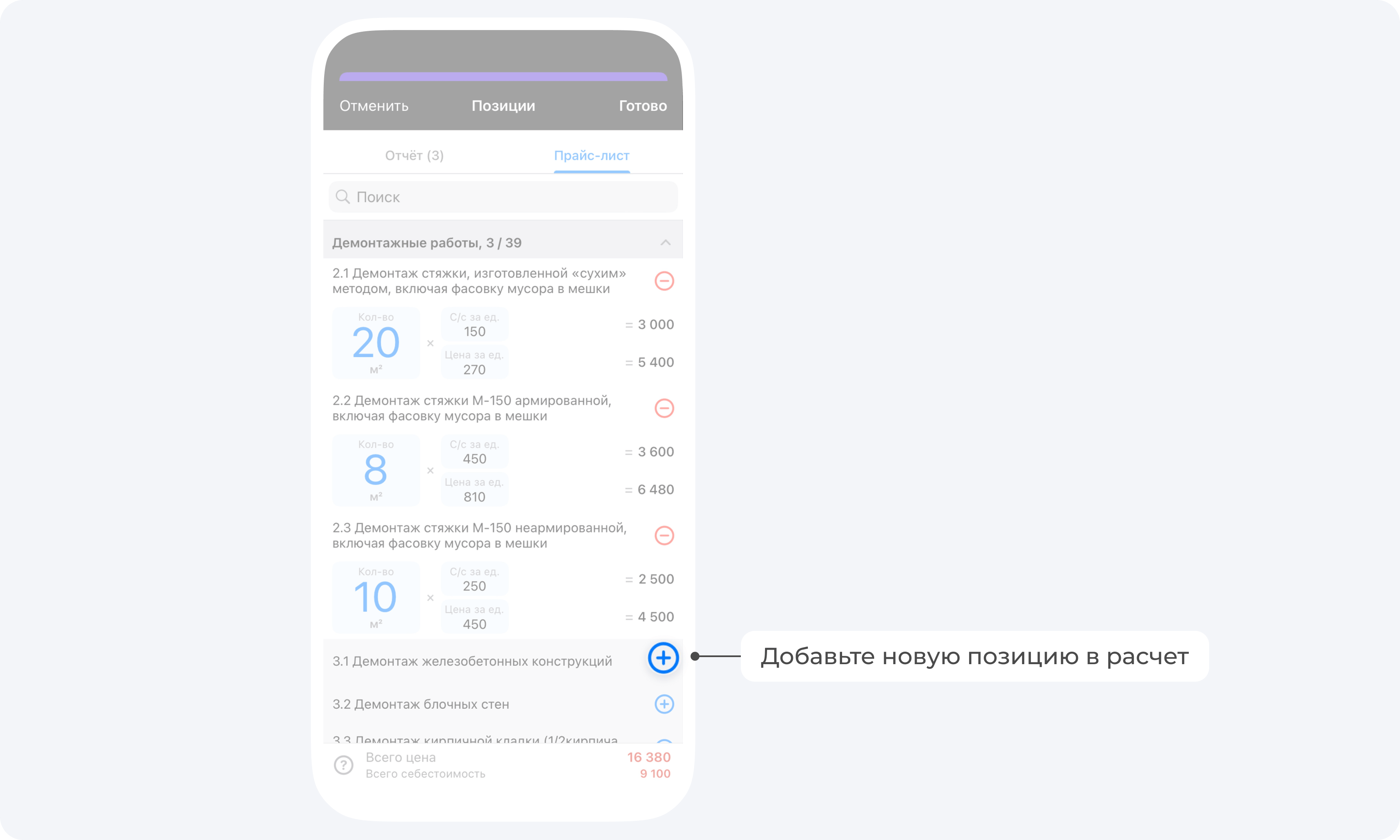
In the phone app, finish selecting the line items, then save the estimate. In your desktop browser, save the line items first. Check the project, participants, date and the amounts you can see in the form, then save the estimate itself. Reopen the saved estimate and check the amounts you can see and its status. If confirmation is required, obtain it from a participant with the necessary permissions.
See how to create an estimate (in Russian) for steps and worked examples for both versions.
How to check and share the estimate
To share the estimate for one stage, open the saved event in your browser. If sharing is available, open the event menu and choose the option to share it as a PDF. Select the version that shows the client price, then check the line items and total in the finished file. See how to share an estimate from 101 for details.
The estimate records planned work. Once the work is complete, bring the relevant line items into a report based on the corresponding estimate (in Russian), enter the actual quantities and check the total. Record purchases and payments separately.
If the client needs an estimate for the whole site, create a consolidated document from the confirmed estimates (in Russian). Check that all the required stages are included, compare the amounts and send the finished file.
Who can use this workflow
This workflow suits crews and companies that regularly estimate similar jobs. Start with one stage so the team can agree on item names, units and what to check. For one-off work, it is still useful to check the quantities, unit price and total.
How to try it on your first estimate
Creating estimates is one of the free basic tools in 101. Choose one stage, use a few familiar line items and compare the total with your usual calculation. This will show you which steps you can simplify in future estimates. For more on the calculation, see how to calculate a renovation estimate.