Start with a base price list, check who can access the price and cost fields, and record agreed rates. Use these ten tips to check line items before adding them to an estimate or report.
Contents:
- Start with a base price list
- Set up price visibility
- Check bulk price changes
- Record agreed rates
- Put report line items in order
- Check a ready-made price list before importing it
- Calculate markup and margin separately
- Add notes to line items
- Check the items AI has recognised
- Add one-off items according to the project rules
1. Start with a base price list
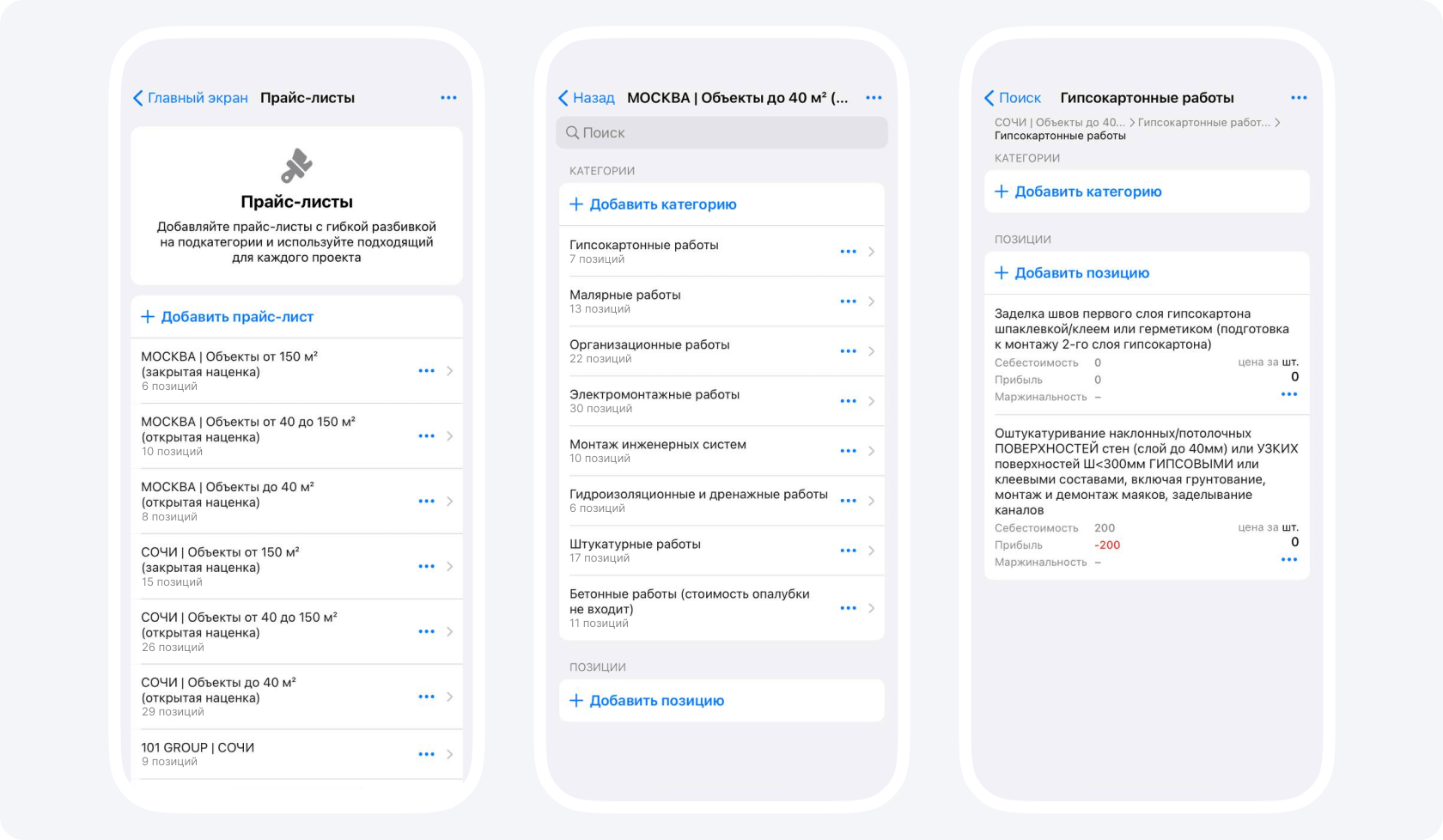
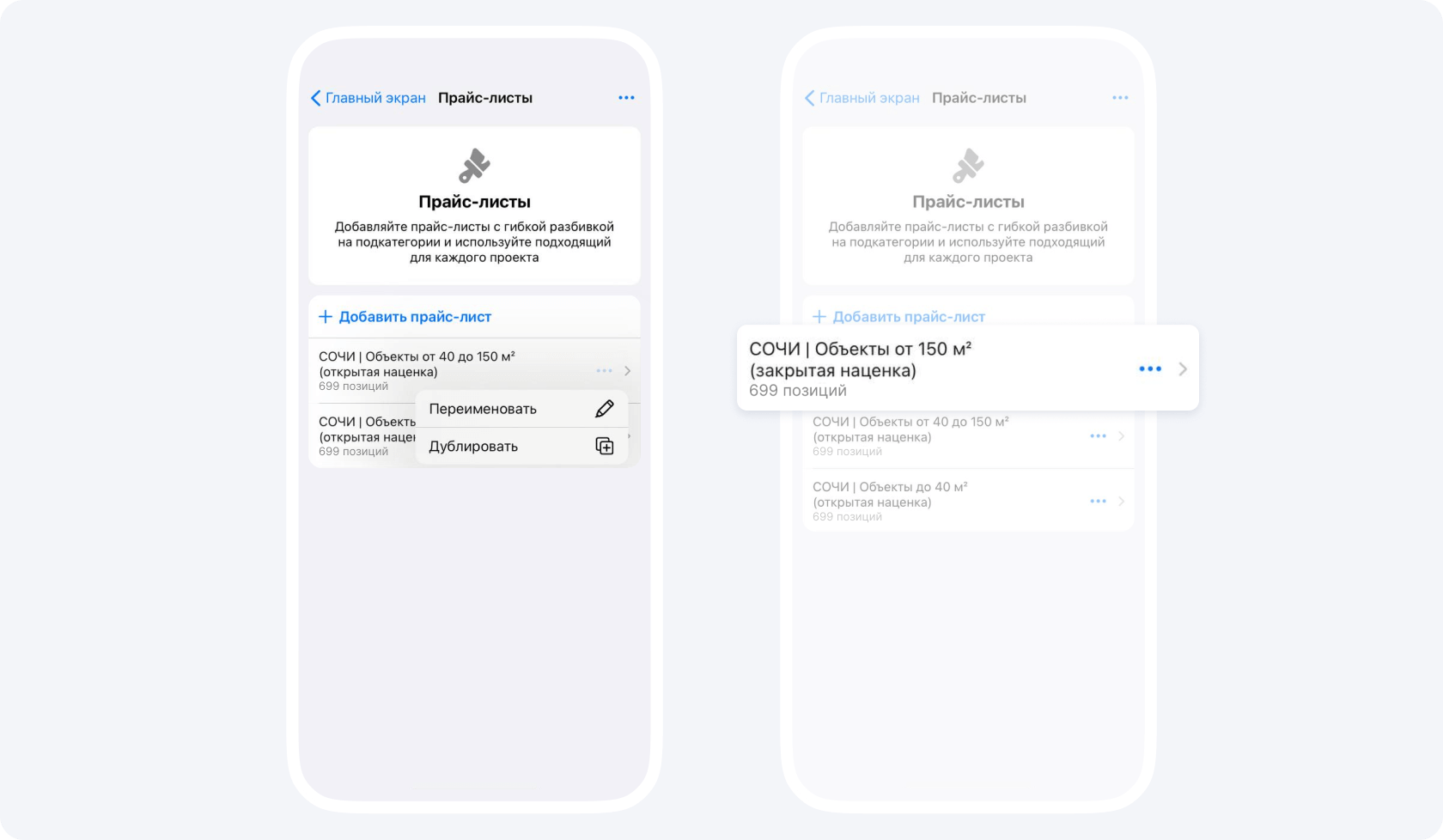
Select a company and build one base price list for recurring work. If you need a separate list for a different set of tasks or rates, make a copy (in Russian). Check the name, included items, units and prices in the copy before using it.
2. Set up price visibility
Determine who needs to see internal costs and who needs to see client prices for the task. Check price list permissions and who can see price and cost fields (in Russian). Before sharing a document, check that it shows the right type of price. See the steps in the guide to sending a price list.
3. Check bulk price changes
Before changing prices in bulk (in Russian) in the web version, open the relevant price list and select the rows. Choose which values to change, such as the price, internal cost or both. Enter an amount or percentage and check what the change will affect. After applying it, check several rows and the resulting values.
4. Record agreed rates
When the client agrees on the rates, save the agreed version with the date and scope of work. Check the rates against that version when preparing a report. If the work, price or terms change, record the new agreement separately.
5. Put report line items in order
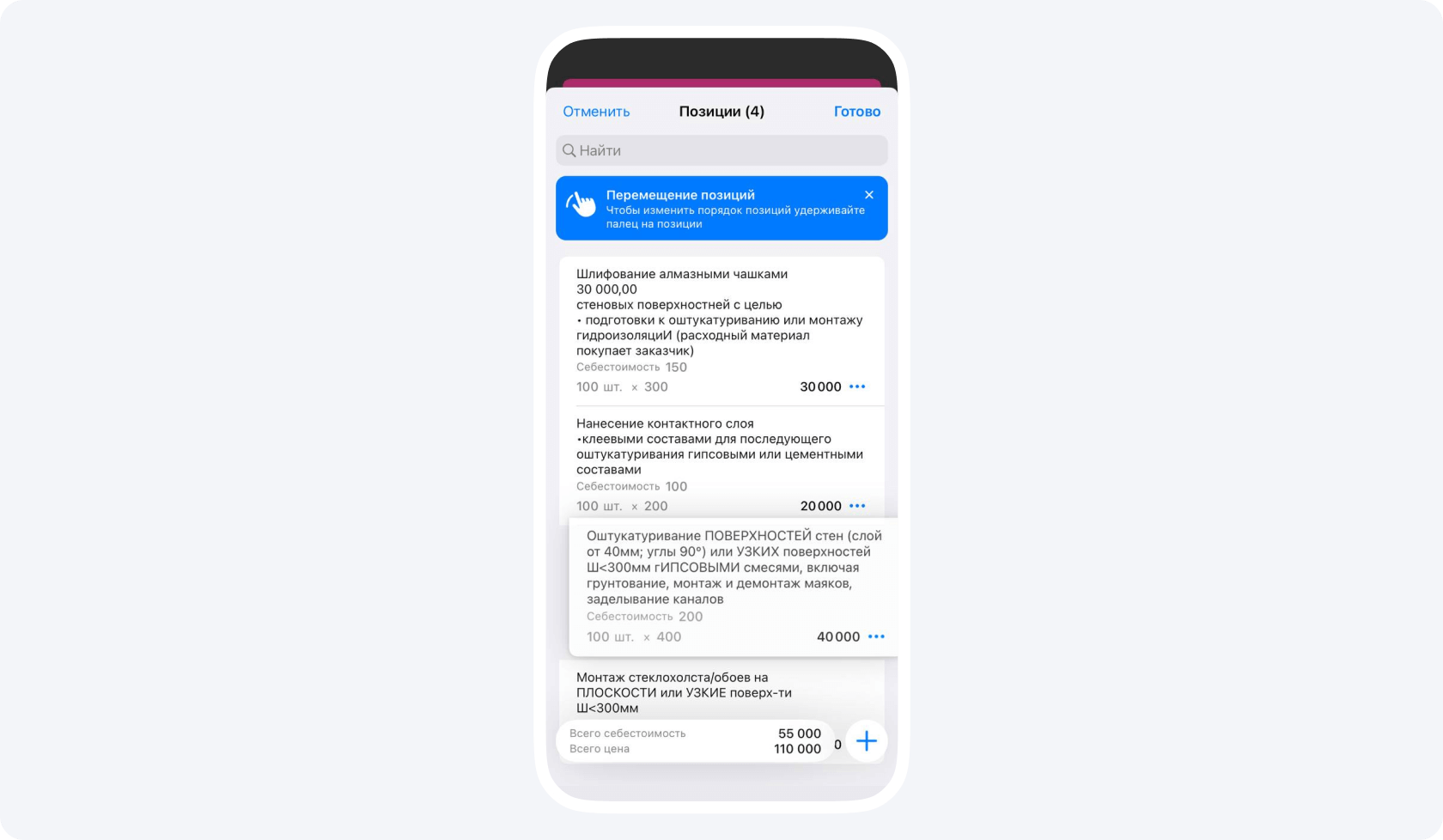
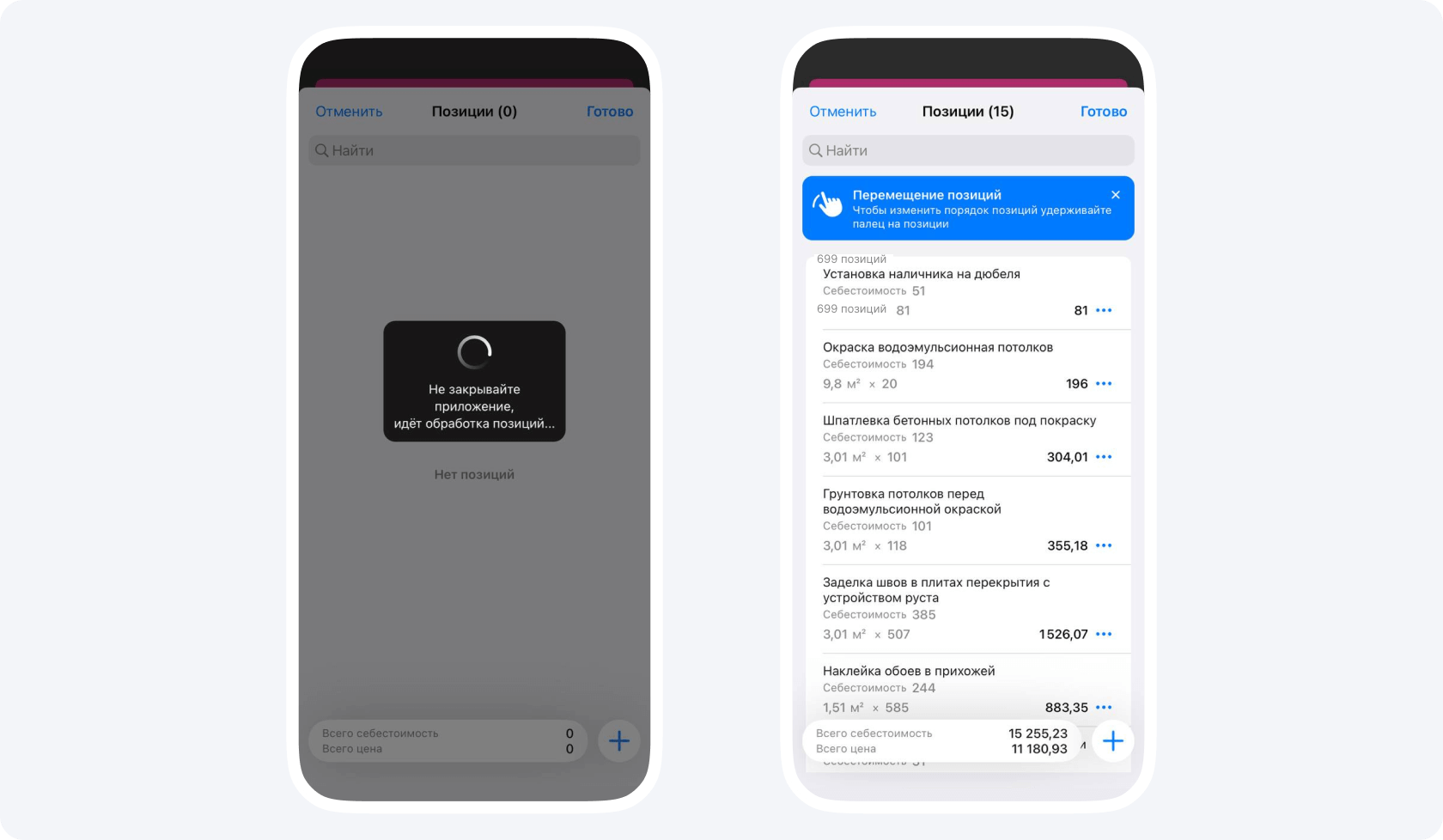
Arrange the items in an order that makes them easy to check. For example, for finishing work, list surface preparation before applying the finish. If your version allows you to move items manually, reorder the rows and check the order before saving the report.
6. Check a ready-made price list before importing it
If a purchased ready-made 101 GROUP price list (in Russian) is available in your account, download it from your connected products. Check the work items, units and prices, prepare the file using the import template, and upload it. Compare the resulting items with the spreadsheet you prepared.
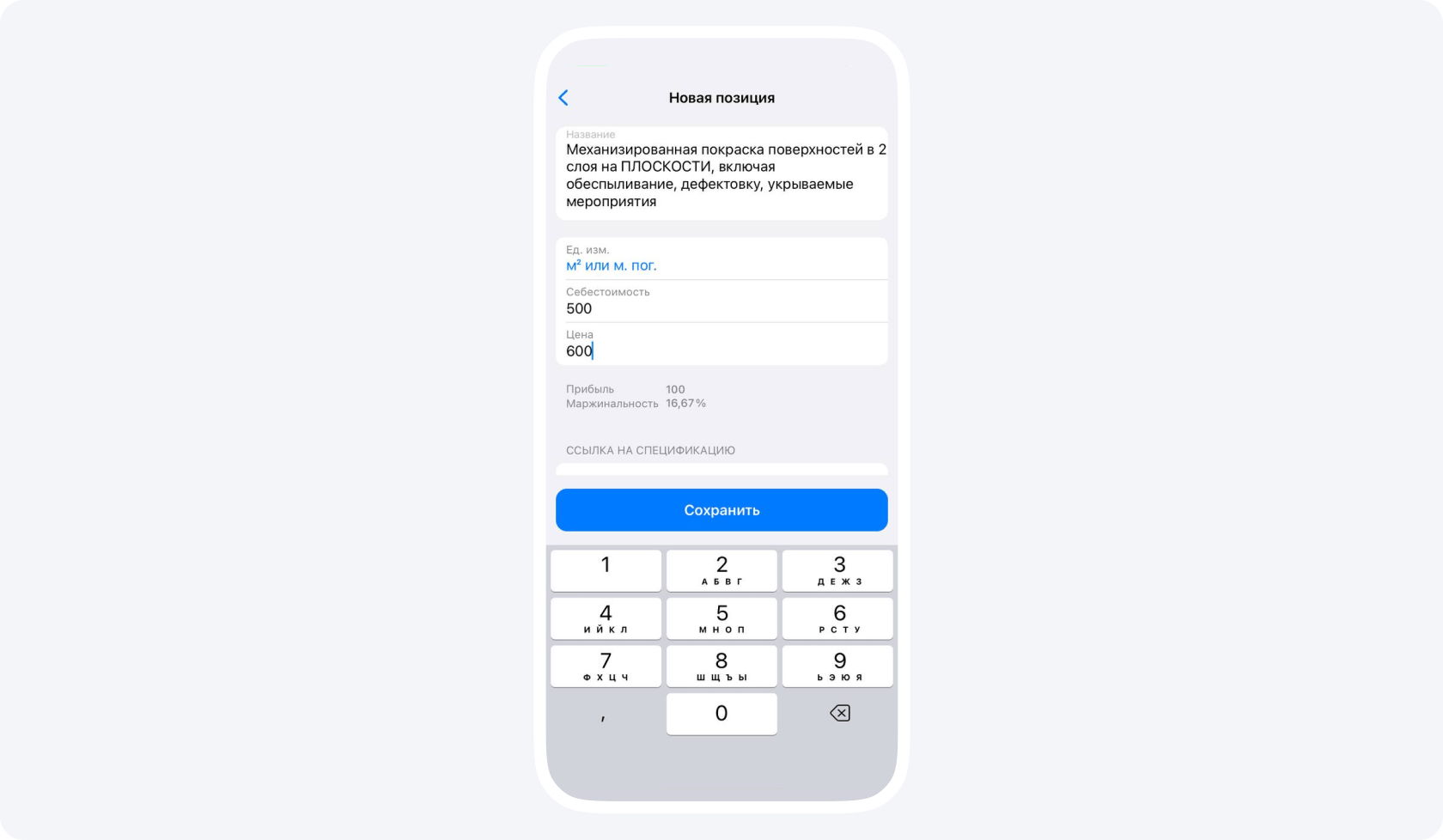
7. Calculate markup and margin separately
Compare the client price with the internal cost of the item. Calculate markup relative to internal cost and margin relative to the client price.
In this example, the internal cost is 1000 ₽ and the price is 2000 ₽. The difference before other expenses and taxes is 1000 ₽. The markup is 1000 / 1000 × 100% = 100%, and the item margin is 1000 / 2000 × 100% = 50%. If the price is zero, this formula does not give a defined margin.
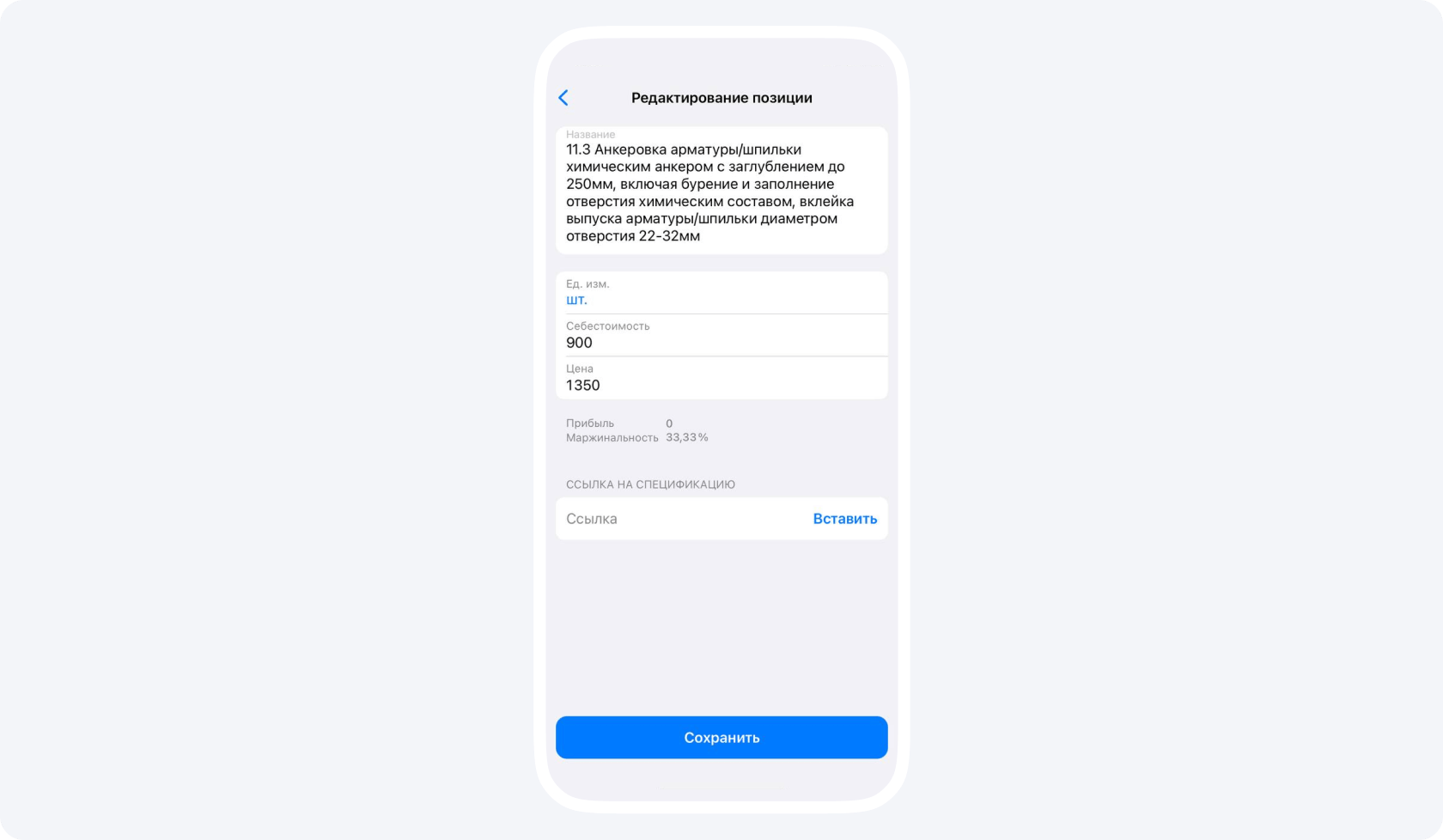
8. Add notes to line items
If a requirement affects the quantity, material or method of work, add a brief note to the item. If needed, link to the detailed specification. Check that the staff who need it can open the document.
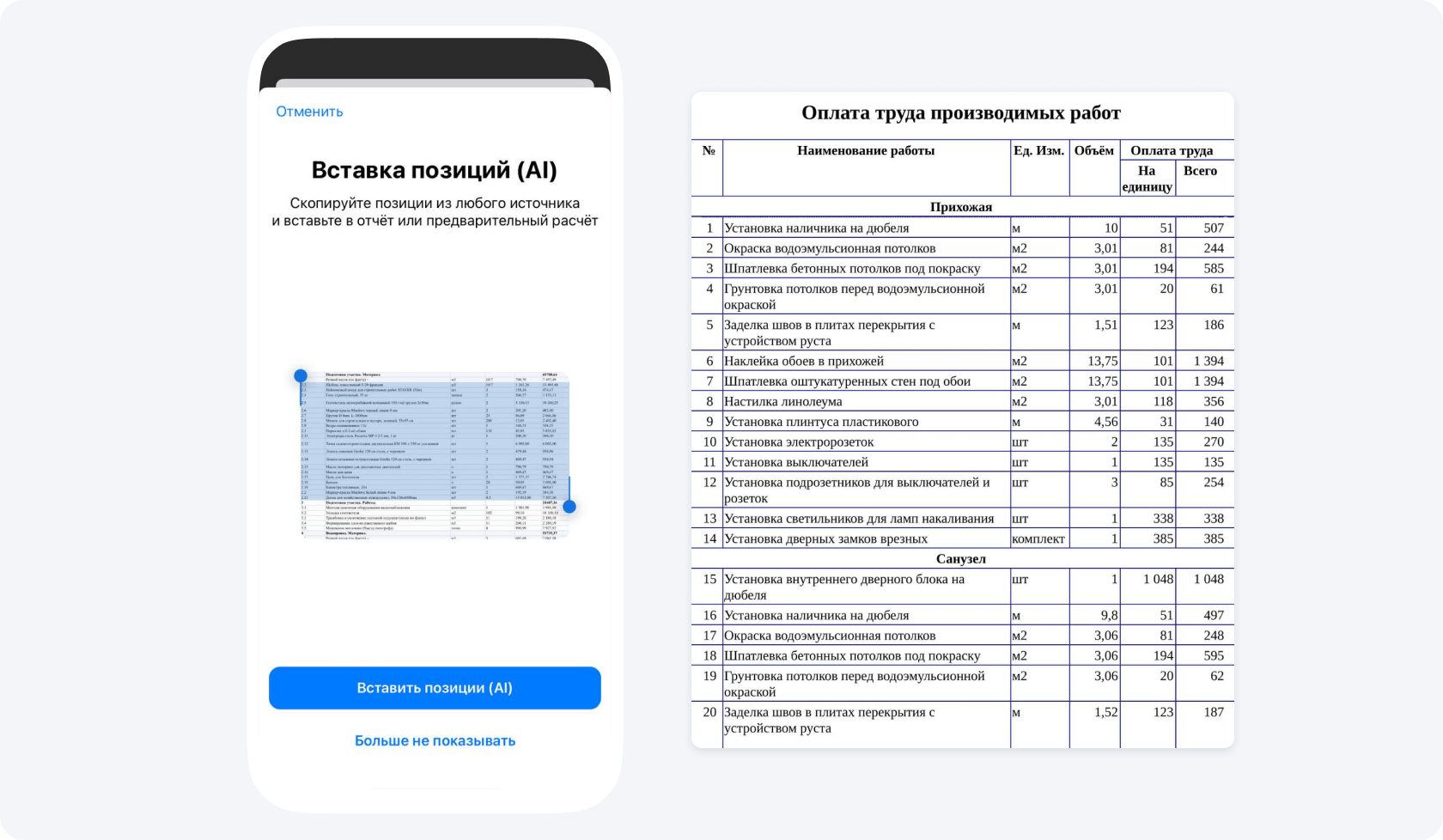
9. Check the items AI has recognised
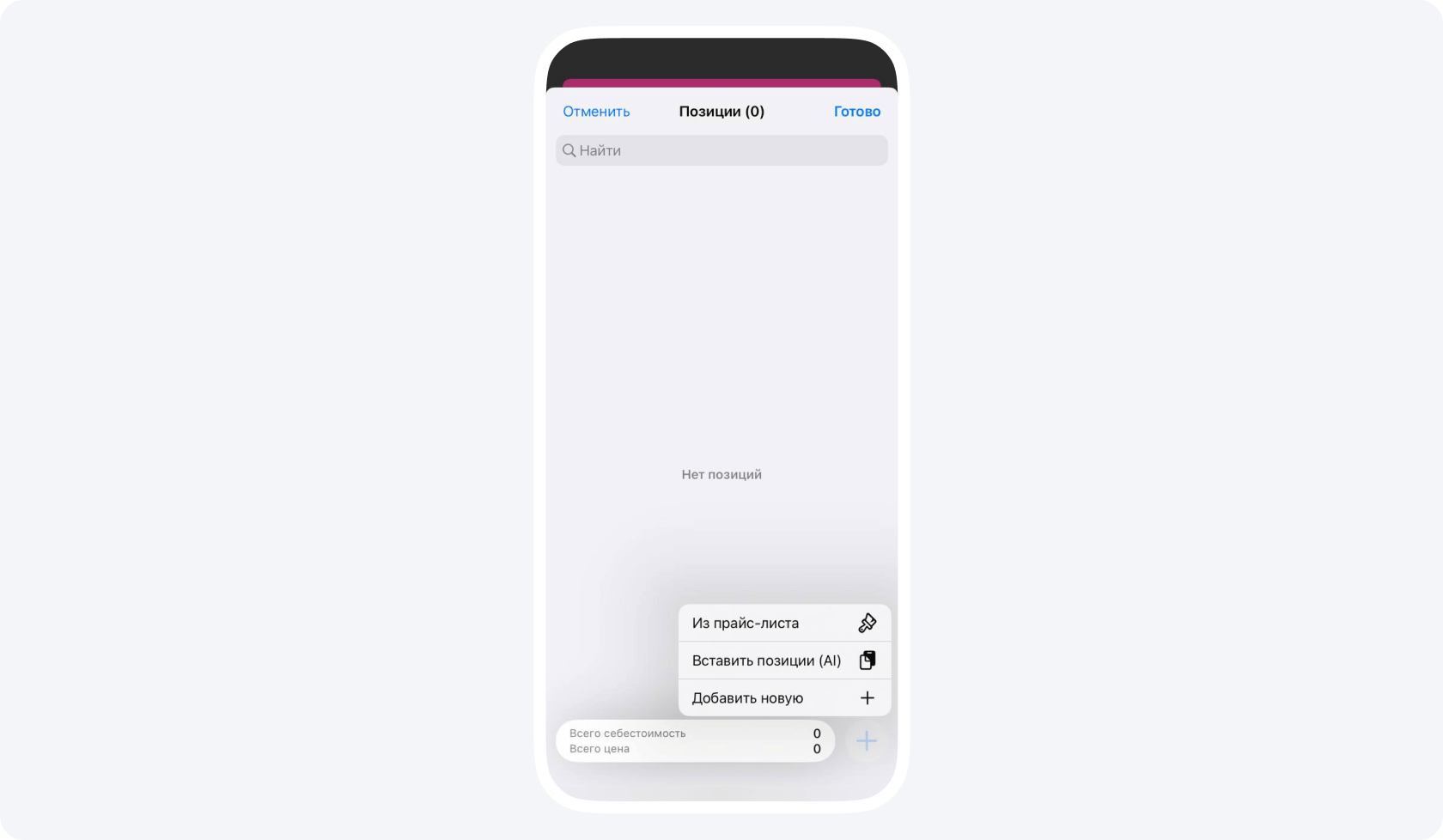
If the expense category allows custom line items, submit rows from a spreadsheet or file for AI recognition (in Russian). Check the names, units, quantities and each price or internal cost value you can see. Correct any errors and verify the total before saving the estimate or report.
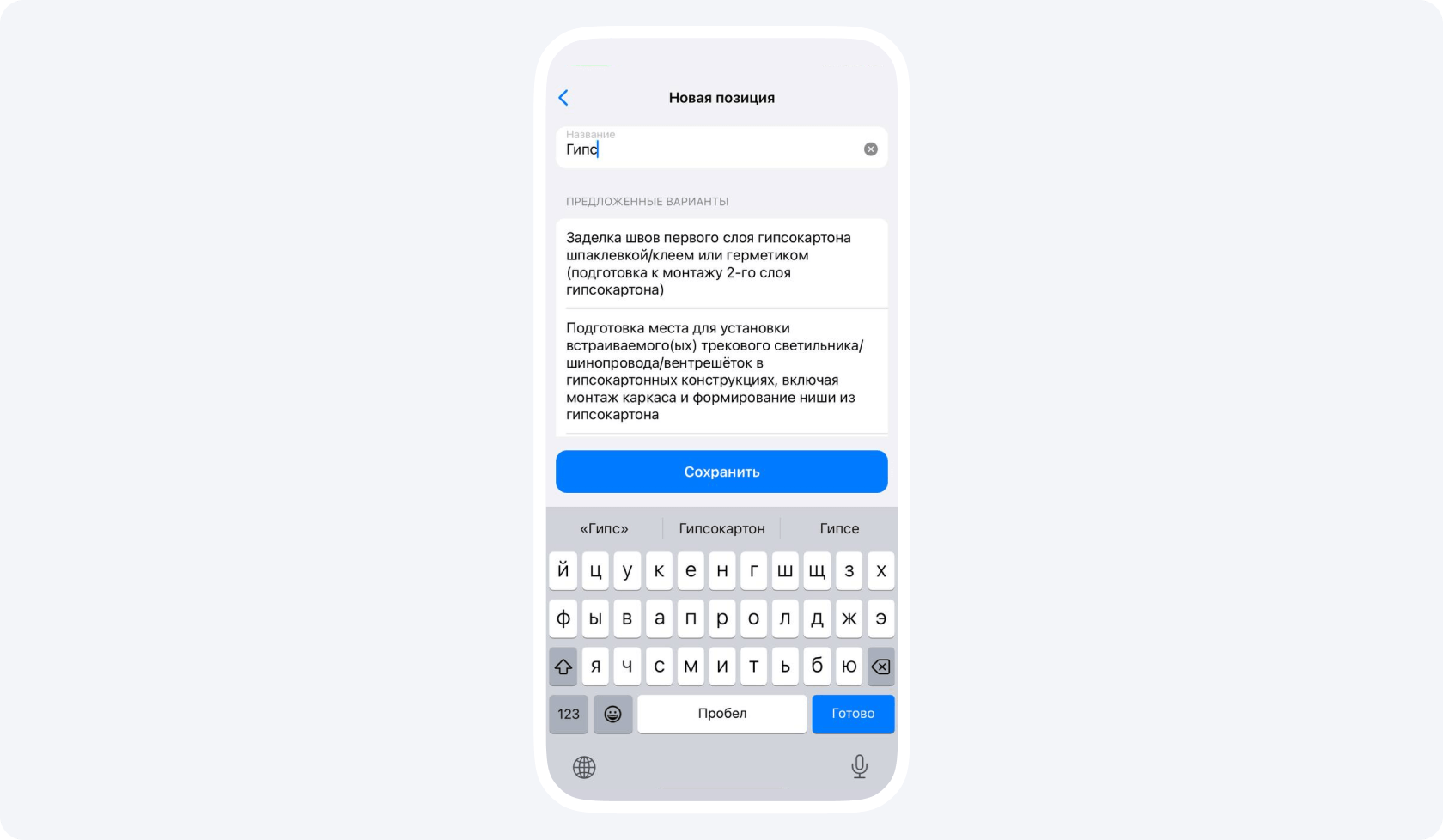
10. Add one-off items according to the project rules
If the expense category settings (in Russian) allow you to add an item manually, enter its name, unit and quantity. Fill in the monetary fields you can access and check the amount before saving. If the work recurs, add it to the price list and check the unit and price before the next calculation.