
Team management in the 101 app follows a simple principle: a project has participants, each participant has an area of responsibility, and that responsibility leaves a record in the system. When that record is updated every day, the manager no longer has to piece together the picture from messages, calls and files.
In 101, this record usually consists of events (work, purchases, accruals and work reports) and confirmations. The team records what happened on site, the manager makes decisions using the data, and the customer sees a transparent report on their project. This approach works in both the mobile app and the web workspace.
Below, we will look at the functions that help the team keep a shared rhythm: web access, events and work reports, links to tasks, the Gantt chart, and regular reports for monitoring.
Contents:
- Team management in 101: what should you keep in the system?
- Web workspace: events and project oversight
- Events and work reports: how does the team record results?
- Tasks: how do you connect a tracker to the 101 app?
- Gantt chart: where do you build it and update it using actual results?
- Reports: what should a manager review every week?
- A short rollout procedure: 10 days to the first figures
Team management in 101: what should you keep in the system?
In brief, 101 helps manage a team by keeping track of agreements, money and confirmations. A project in the system is a shared place where you can see who did what, for what amount, which work has been accepted, which expenses have supporting documents, and how much remains in the budget.
The most common breakdown in teamwork is that participants have different versions of reality. The site foreman believes the work is complete. The finance specialist sees that a purchase has not been confirmed. The manager receives a question from the customer and starts tracing the chain backwards. Events and work reports in 101 keep that chain in the system so it can be retrieved in a minute.
101 also helps separate roles: the performer records what happened, the manager confirms the event within their permissions, and the customer performs a separate acceptance action. Confirmations and acceptance are recorded in the event history with the participant and time. Section 5 of the 101 licence agreement, last updated on 30 May 2022, provides for the possible use of a simple electronic signature in relationships between users. Under section 7, this agreement is governed by the law of the Russian Federation. The legal significance of acceptance depends on the parties’ contract and the applicable law.
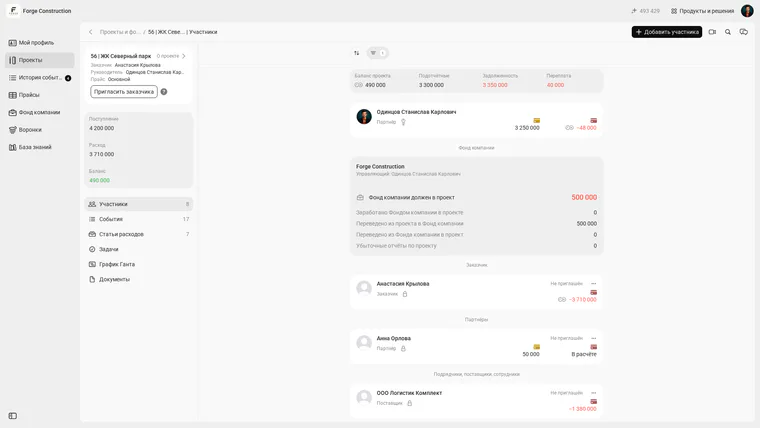
Participants and roles in the Forge Construction demonstration project. The 101 interface is in Russian; access to data depends on the participant’s permissions.
For a closer look at the idea of a project as a financial model, see Project financial management: budgeting and controlling money in the 101 app.
Web workspace: events and project oversight
The web workspace is usually most useful to managers and office staff: they can see the overall project picture, check new events, review work reports and export documents. The mobile workflow covers “do it on site and record it immediately”; the web workflow covers “check it and make a decision”.
Web work is most effective when the manager has a routine: sign in in the morning or at the end of the day and review new events. The IT case in the blog describes this directly: participants enter work events, the team lead reviews and confirms them periodically, and after confirmation the amounts are reflected in the project balance and the individual performer’s balance.
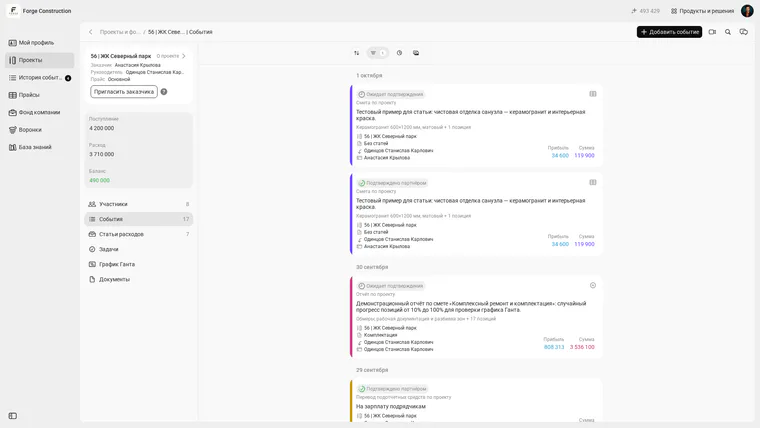
The demonstration project feed shows events awaiting confirmation and confirmed events. The 101 interface is in Russian.
Other useful things you can do in the web version of 101:
- create estimates without a subscription and, with editing permissions, work with a price list: import it from Excel, organise it into categories and update prices;
- build a Gantt chart from price-list items and project events to see dates, amounts and performers together on the timeline, and open a weather panel for a site whose location has been specified;
- compare plan and actual results using Estimate, Work Report, Transfer and Receipt events, keeping money and completed work in one connected system.
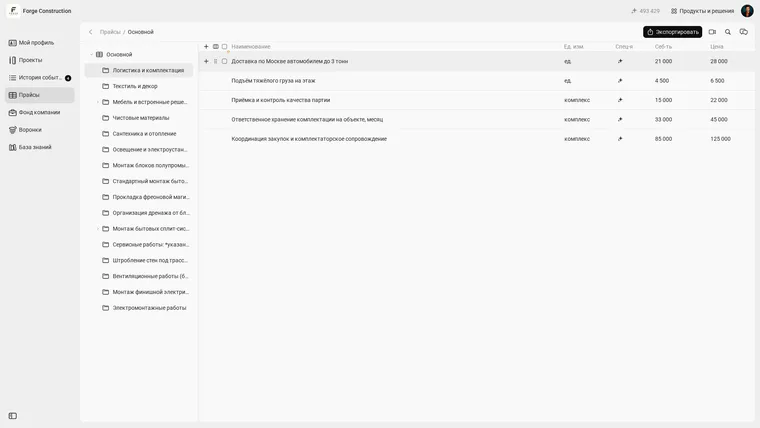
The Forge Construction demonstration company’s price list: categories on the left, cost and price in the table. The screenshot was taken in the company owner’s account. The 101 interface is in Russian.
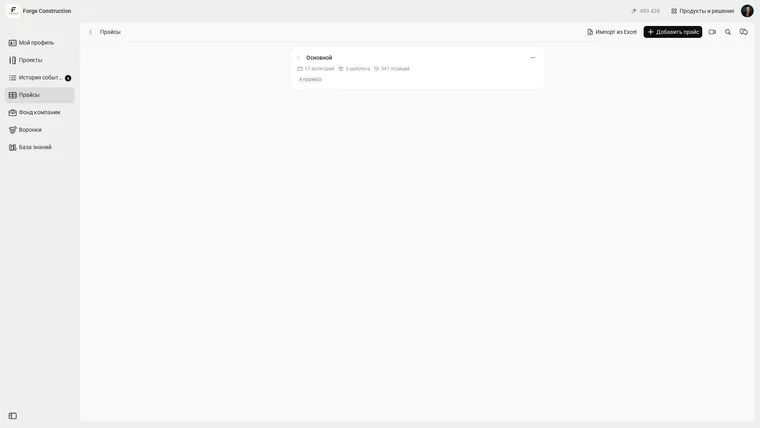
The price-list overview with the Import from Excel button in the Forge Construction owner’s account. It shows the entry point; no import was performed for this demonstration. The 101 interface is in Russian.
During meetings, the web version helps present the project as a transparent history: what was done, what was accepted, what money was spent and which documents were attached. This approach fits discussions with the customer about advance payments and approval rules: important decisions are recorded in the system, while chats remain a channel for brief everyday messages.
If a connected management system is useful to you, read Project management tools for construction and renovation companies. It explains why a combination of tools for schedules, communication, documents and finance works in practice, rather than trying to fit everything into one service.
To see the web workspace with your own projects, the easiest approach is to request a demo and prepare your questions in advance: who confirms events, which reports you need every week, and where agreements are currently stored.
Events and work reports: how does the team record results?
Events are the basic unit of teamwork in 101. Think of them as an atom of management: one fact, one date and one person responsible, with a photo, file, amount or comment when needed. This reduces retelling and disputes over what someone meant.
The Work Report event deserves particular attention. It lets you see who created the completed-work record, check the work list with quantities and costs, confirm or reject it within your permissions, and attach photographs. Separate accounting of cost and the customer’s price is available when difference tracking is enabled for the expense category and the participant’s permissions allow it. Profit shares follow the project expense category’s settings. The amounts available to you also depend on the viewing mode. Only cost is accounted for in the Company Fund. Accruing a share does not mean paying it: payment is recorded as a separate transfer.
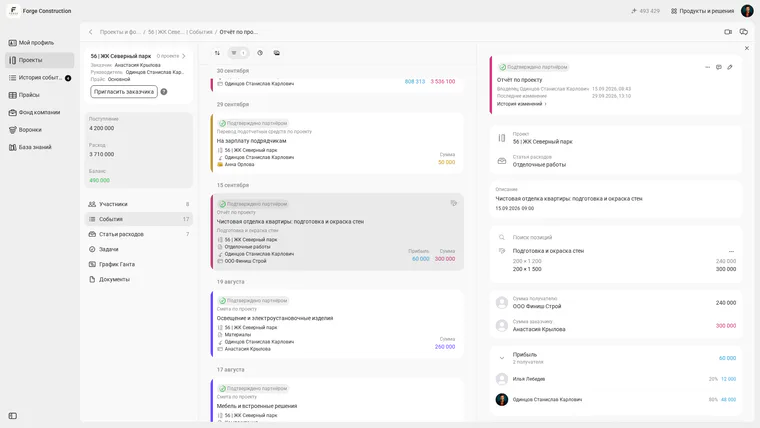
A confirmed work report in the demonstration project: cost of ₽240,000, customer price of ₽300,000 and profit of ₽60,000. Shares follow the expense category’s settings. The 101 interface is in Russian.
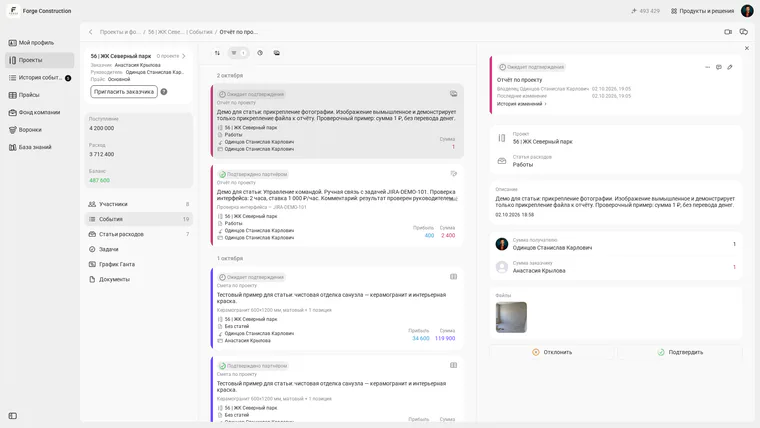
A saved demonstration work report with an attached image. The image is fictional and demonstrates attachments only; the work report is awaiting confirmation. The 101 interface is in Russian.
This gives the team a clear process: the performer submits the result as a work report, the manager confirms it within their permissions, the data is included in project and performer calculations, and the customer separately accepts the result. Confirming a work report does not mean payment: the actual movement of money is recorded as a transfer. The familiar request “put a report together by this evening” disappears because reporting lives inside the project and develops as the work proceeds.
Another practical point is source documents and evidence of expenses. In 101, spending is recorded against a project, an expense category and a date; documents are stored digitally, and tradespeople can attach photos and receipts from their phones. This speeds up both project reviews and conversations with the customer about charges.
If your team regularly chases people for status updates, see the article on micromanagement (in Russian). It shows how oversight turns into noise when the system lacks a clear record of work.
Tasks: how do you connect a tracker to the 101 app?
Tasks and events address different management questions. Tasks help plan and assign work. Events and work reports in 101 record actual work, money and confirmations. Connecting these two parts gives the manager a rare advantage: dates are visible in the task tracker, project economics are visible in 101, and the connection is maintained by a single line in the event description.
One useful method from the same IT scenario is for a participant to create an event on completing a task and enter its ID from Jira or another tracker, the hours, a comment and the amount calculated using the rate. A pull-request link or screenshot can also be attached if desired.
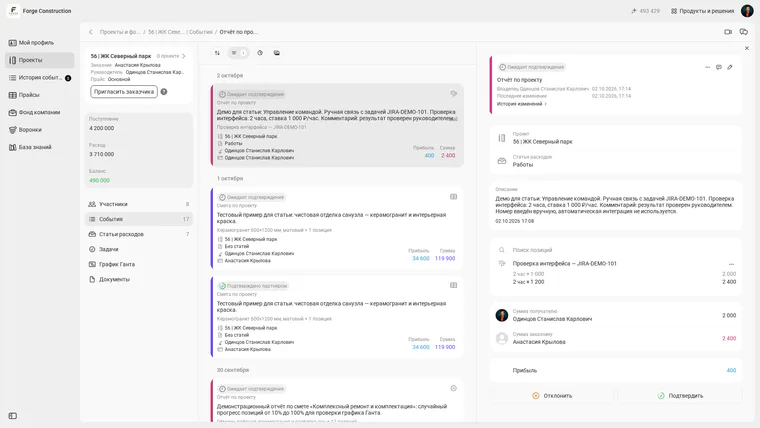
A demonstration work report with the manually entered ID JIRA-DEMO-101, two hours of work, and amounts of ₽2,000 and ₽2,400. The event is awaiting confirmation. The 101 interface is in Russian.
This connection allows the manager to answer two questions without lengthy discussions: “what was done?” and “how much does it cost the project?”:
- Statuses and dependencies remain in the task tracker.
- Confirmed facts, amounts, work reports and project documents remain in 101.
- The connection is maintained through a task link or ID in the event text.
If your company often debates priorities, agree in advance on a minimum event format: one description template, shared rules for how often records are entered, and one person responsible for confirmation. With consistent rules, discipline no longer depends on the manager’s personal heroics.
Gantt chart: where do you build it and update it using actual results?
A Gantt chart is useful when dates and dependencies matter: what needs to finish before the next activity can begin. In the current web version of 101, it can be built from price-list items and project events, showing dates, amounts and performers together on the timeline. An additional weather panel can be opened for a site whose location has been specified. This connects the plan with actual results and removes the need to move work manually between several services.
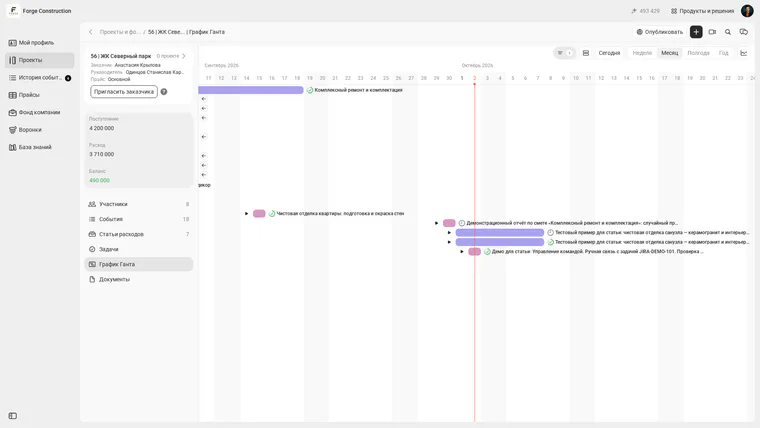
Demonstration project events on the Gantt chart timeline. The 101 interface is in Russian.
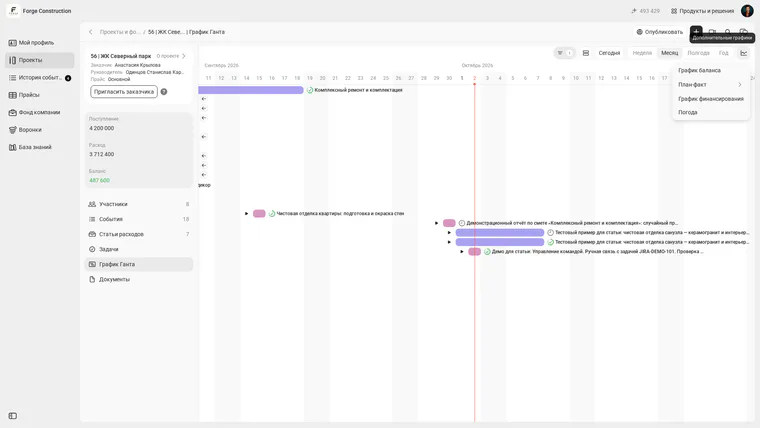
The Weather item in the additional charts menu alongside the Gantt chart. The project’s location must be specified for the weather panel. The screenshot shows panel selection in the Russian-language 101 interface.
The connection with 101 works as follows: planned items and stages are kept in the Gantt chart, while actual results are recorded in 101 events and work reports. After actual work is confirmed, the manager checks the sequence manually and updates the relevant dates within their editing permissions. Moving a confirmed work report through the Gantt chart may reset its confirmation; this case is described in the 101 help article on moving events (in Russian). Before applying the change, check the new dates and the event’s status. This lets the team manage real changes: a delayed delivery, rescheduled work, recalculated purchases and an updated picture for the customer.
You can organise a practical routine for updating the Gantt chart through 101 as follows:
- Step 1. Keep stages and dates in the 101 Gantt chart, and record completed stages using a Work Report event with photos.
- Step 2. Open the web workspace once a week and check which work reports are confirmed, which are rejected, and where items are stuck.
- Step 3. Compare confirmed work reports with the Gantt chart, then manually update the relevant dates and work sequence.
- Step 4. If the customer changes the scope, record the change in 101 as a separate event and attach a calculation so the change has a date and a basis.
For a systematic view of choosing tools to manage schedules, see Project Management System: How to Choose and Test It on a Construction Site. It explains when you need Gantt, when you need Kanban, and why project finance is managed as a separate system.
Reports: what should a manager review every week?
One of 101’s strengths for managers is reporting built from the team’s actions. The Balance Report shows the project’s money movements, while the Expense Statement by Category provides more detail on spending in a selected expense category. Specify the period and reconcile documents with events: they reflect only the data entered. The history, with dates and categories, can be used for planning and analysing mistakes.
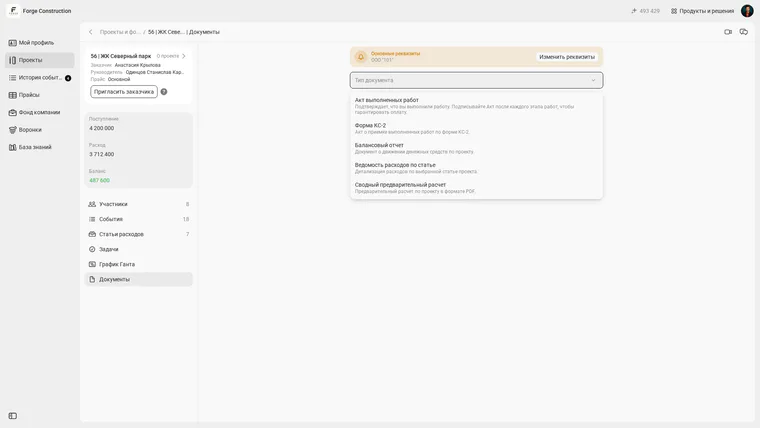
The Balance Report and Expense Statement by Category are selected separately in project documents. The 101 interface is in Russian.
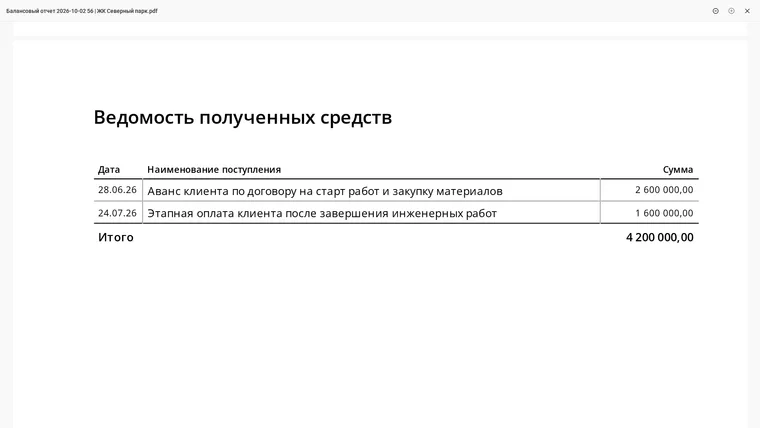
A page of the generated balance report: two receipts in the demonstration project totalling ₽4,200,000. The statement of funds received is shown in Russian.
It is useful to structure the team’s weekly review in 101 around three questions: what was accepted, what was paid, and where the risks are. This review needs to rely on confirmed events: who approved the work, who accepted the work report and who spent the money.
As the company handles more projects and needs deeper metric analysis, PRO+ expands its management capabilities with enhanced reports on key metrics and makes it easier to track money moving within the company. The availability of specific reports depends on your current plan and permissions.
To keep the review from becoming a long meeting, establish a simple rule: discuss only what is already recorded as events. Anything missing is entered and confirmed first, then brought into the discussion. This discipline protects both the manager’s time and the team’s.
A short rollout procedure: 10 days to the first figures
Introducing team management in the 101 app rarely fails because of features. It usually fails because the team has no shared rule for what counts as done and when to record it. Keep the procedure shorter than you might be tempted to make it.
One version of the procedure that often works:
- Step 1. Set up projects and roles: who creates events, who confirms them and who sees reports.
- Step 2. Agree on timing: work events are entered on the day of completion, expenses on the day of payment or purchase, and a work report when a logical block is completed.
- Step 3. Introduce a consistent event description format: what was done, where (area or stage), the linked task or stage, the amount and a comment.
- Step 4. Once a day, the manager reviews new events in the web workspace, confirms what can be confirmed and rejects records with insufficient data.
- Step 5. Hold a weekly review of reports and the project balance: accepted work, payments, and budget and schedule risks.
To strengthen management processes, explore these project-management collections: 7 project management tools (in Russian) and Project Management Software for Construction, Renovation and Project Teams. They offer ideas for combining tasks, dates, money and reporting without overload.