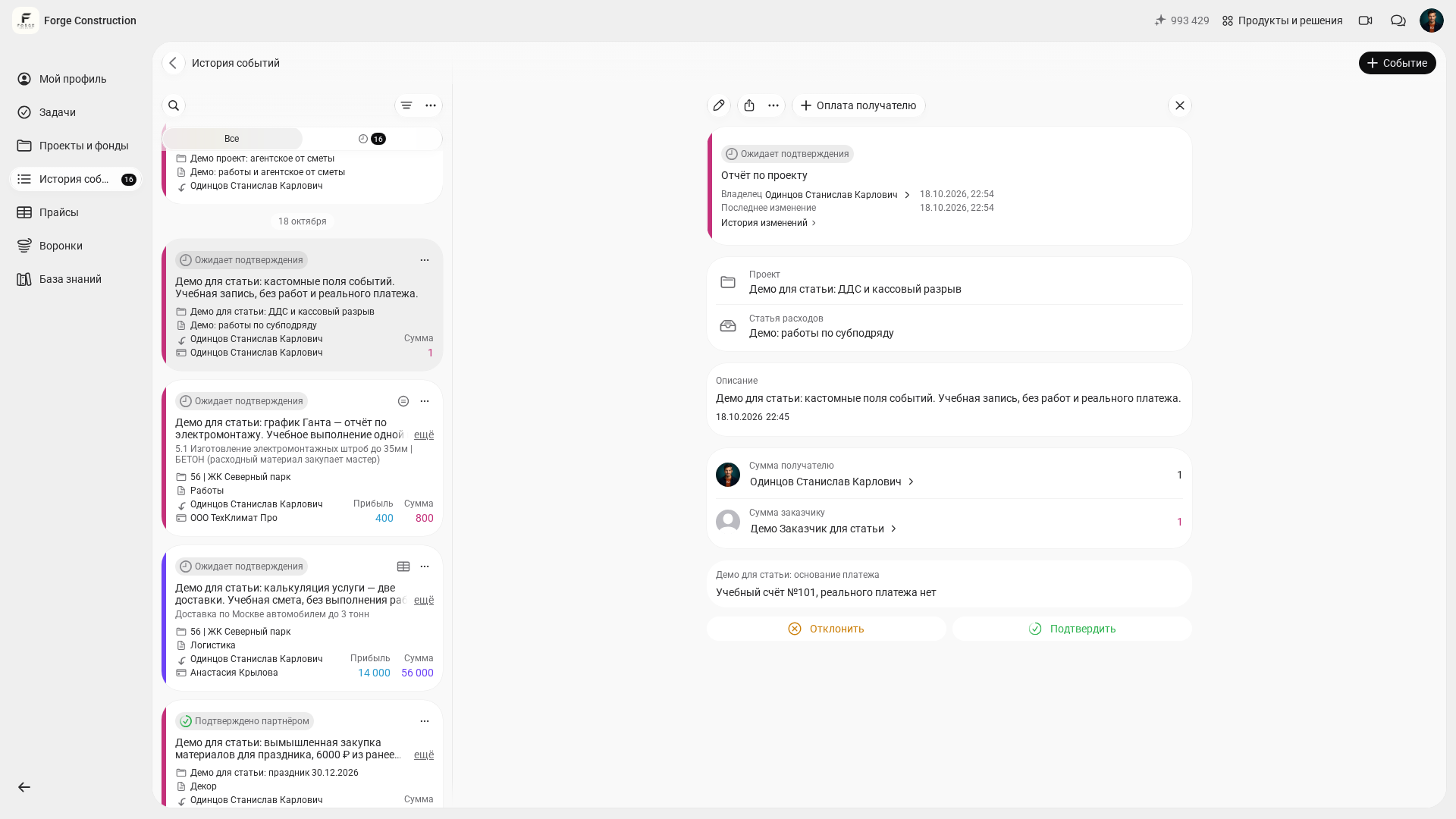
Custom event fields are now available in the 101 web app. These are additional fields that your team adds to the event form to record the details it needs directly in the event card.
The idea is simple: an event becomes more than an amount and a comment. It gains a structure that fits your process, with clear fields, required entries and predefined choices. The result is fewer questions in chat and less time searching through comments.
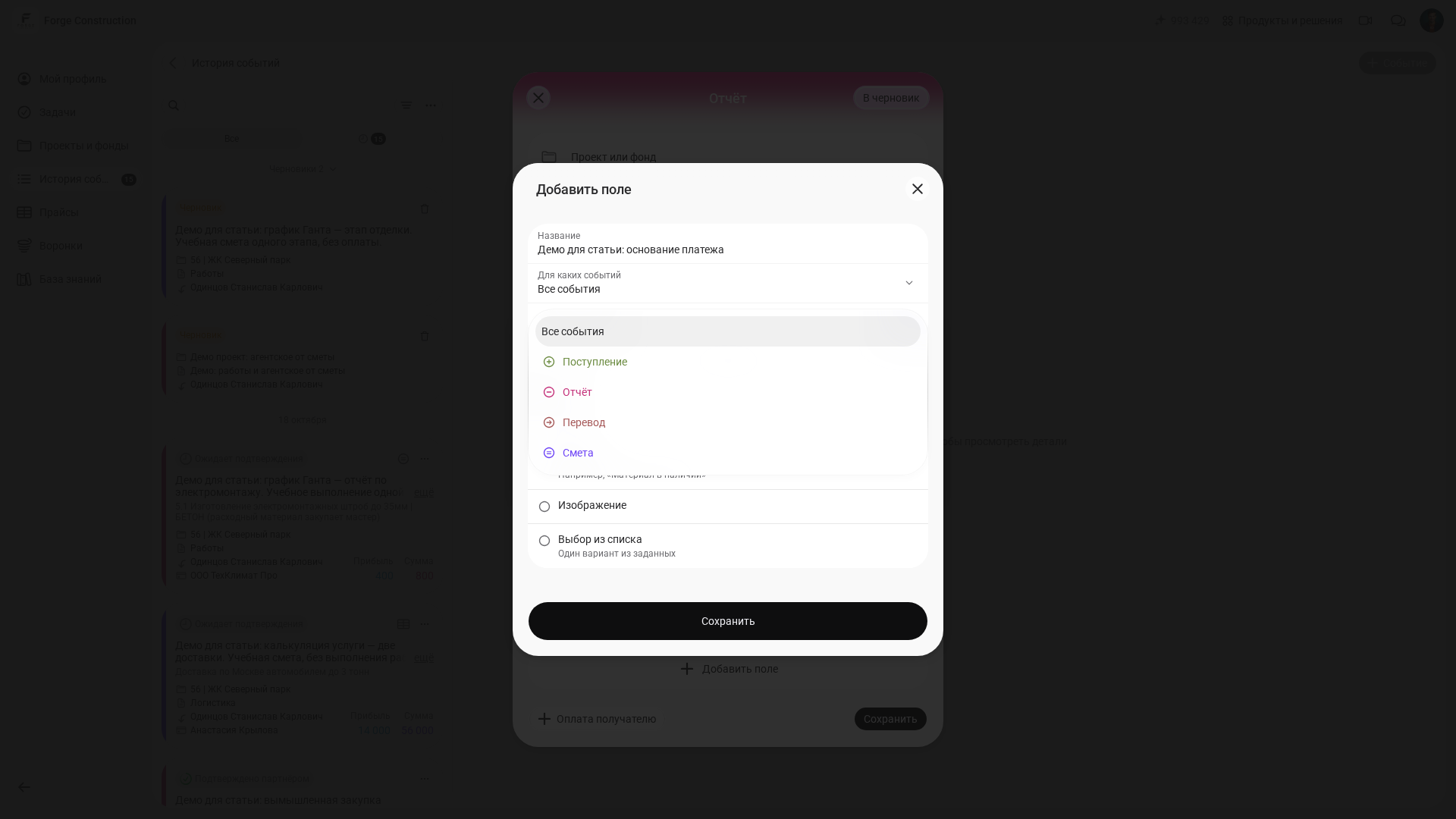
You can create custom fields for all events or limit them to specific types: “Incoming payment”, “Report”, “Transfer” and “Estimate”. The form offers five formats: “Text”, “Number”, “Yes/no”, “Select from a list” and “Image”.
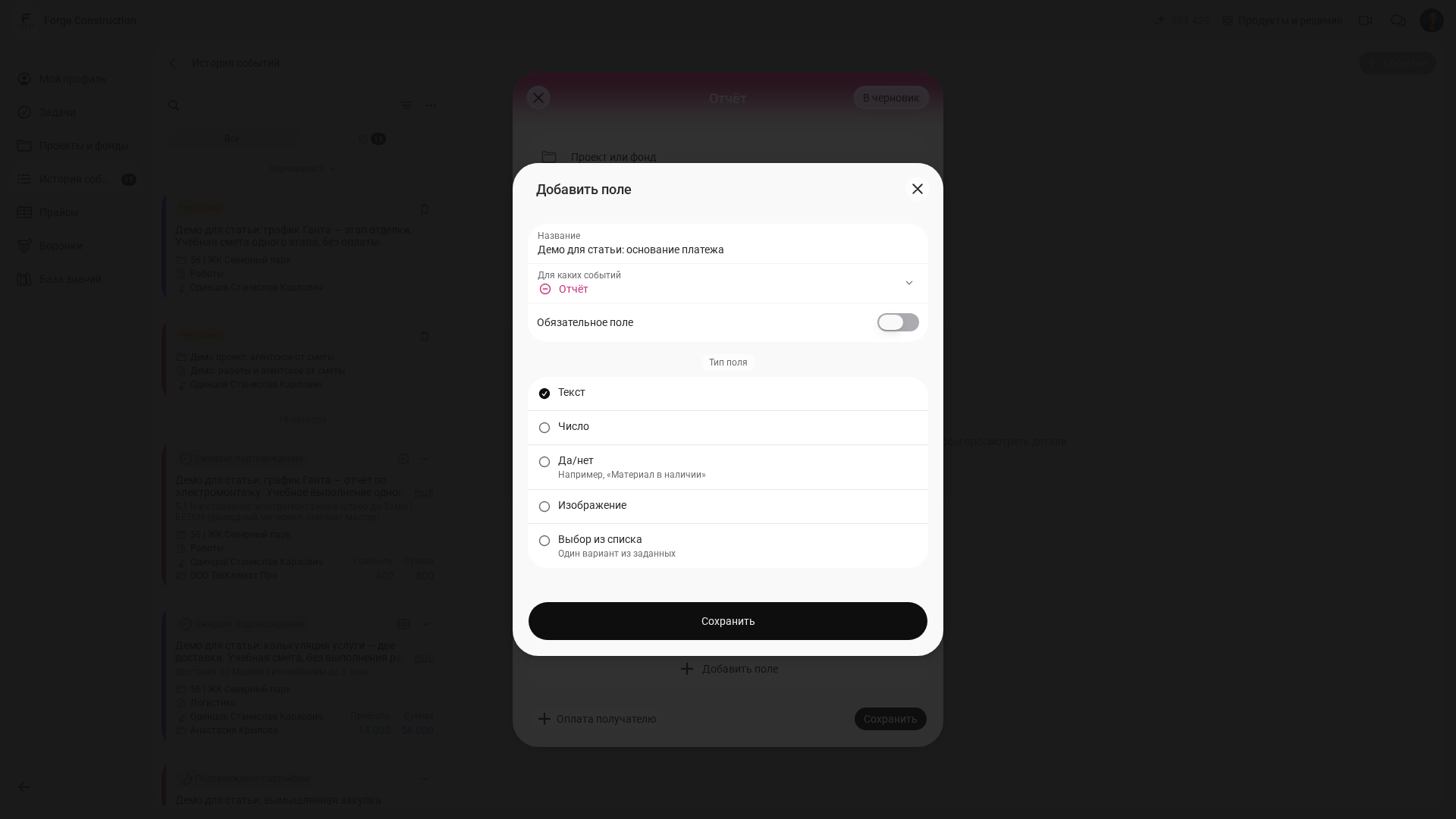
The screenshots show the interface in Russian and use fictional demonstration data.
Contents:
What are custom event fields?
In 101, the basic unit of record keeping is an event: an incoming payment, a report, a transfer, an estimate or another project action. Events are collected in the history so you can view them in one place. Standard fields and a description are enough while everyone on the team uses the same habits and terminology. As the team grows, inconsistencies appear: one person writes “paid by card” in a comment, another keeps that detail in mind, and a third attaches a banking screenshot without a caption.
Custom fields address these inconsistencies. Your team sets up a field once. It then appears in the creation form for the selected event types, and its saved value is visible in the event card. If a field is important, you can make it required.
- Text — for structured comments such as “Approved by” or “Payment basis”.
- Number — for measurable values such as “Exchange rate”, “Discount” or “Quantity”.
- Yes/no — for flags such as “Invoice received” or “Checked by accounting”.
- Select from a list — for consistent wording, such as “Payment method” or “Lead source”.
- Image — when it is easier to attach visual evidence in a separate field.
Why teams use custom fields: 3 practical benefits
1) One answer instead of a message thread. For example, when an event recording a payment has a “Payment method” field with the options “Card / Cash / Bank account”, there is no need to ask how it was paid. The information is in one place and takes seconds to read.
2) Consistent data without a 10-page rulebook. A required field gently prompts people to enter an essential detail straight away. Your team does not have to recall the rules: the form guides the process.
3) Faster checks and reviews. When events share the same fields, it is easier to spot problems: where cash is used more often, where people forget to attach evidence, or which expenses lack an invoice number. Event tags and filters then help you organize the results. These documentation guides can help: how to use tags (in Russian) and how to use event filters and statistics (in Russian).
How do you set up a field and save its value?
In the example below, the owner of Forge Construction sets up the field in the 101 web app.
- Open “Event history”, click “+ Event” and choose “Report”.
- In the event form, choose “Add field” and open the settings for a new field.
- Enter a “Name”, choose a scope under “For which events” and select the field type. This demonstration uses the “Text” type and the “Report” scope; the “Required field” switch is off. Click “Save” in the field editor.
- Return to the report form and fill in the additional field that has appeared. The example reads: “Demo invoice No. 101; no real payment”.
- Complete the other required event details and click “Save” in the report form. Open the event you created from the history and check that the field value appears in its card.
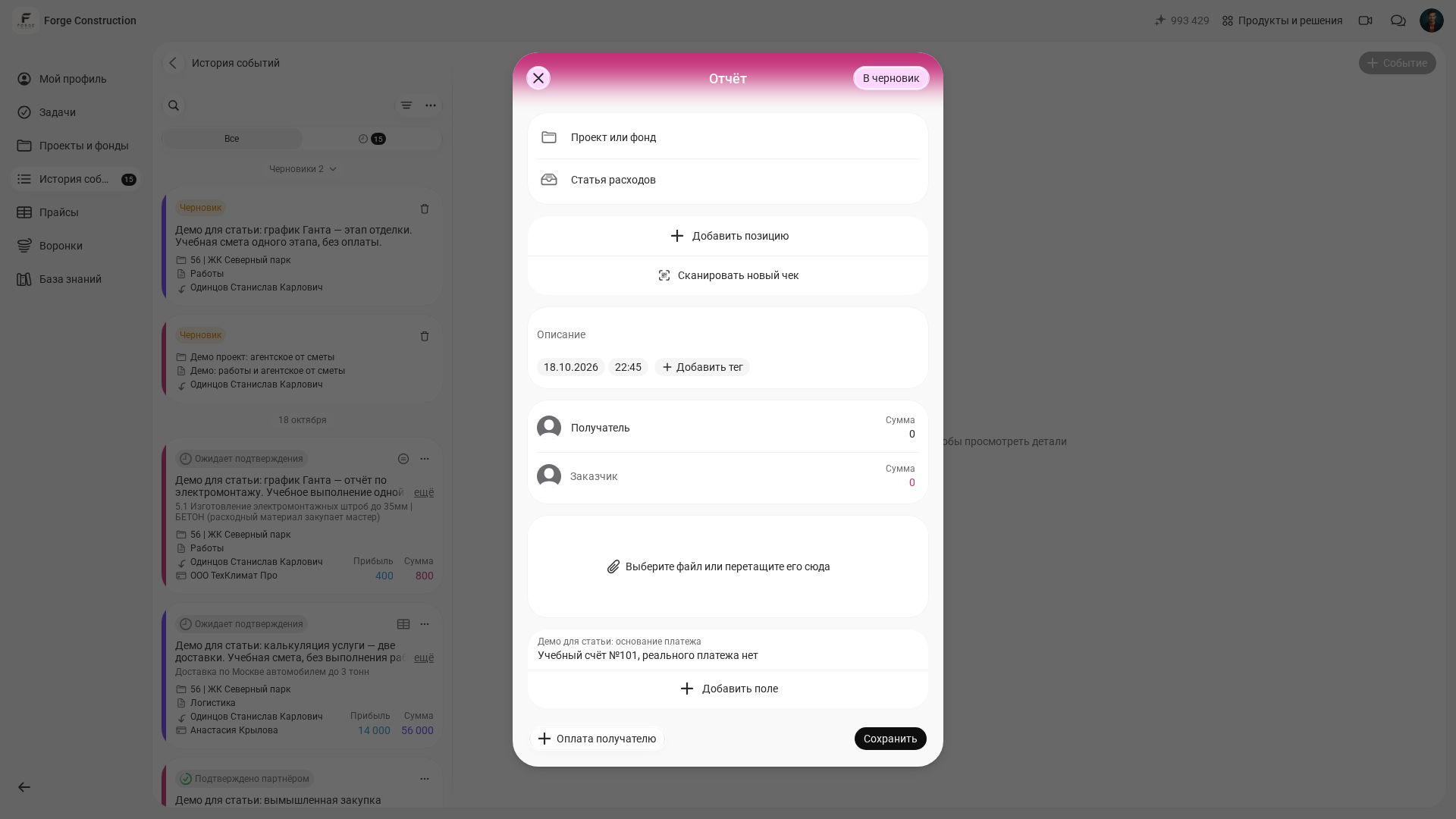
Saving the field settings and saving the event are two separate steps. The screenshot with an entered value shows the form being filled in; the result is checked by reopening the event card.