
You can prepare a work schedule from estimates for individual stages. The estimates already contain the list of work, quantities and costs. If you transfer this list manually to a separate planning tool, you have to rebuild the timeline, set dates and assign responsibility. The estimate and schedule can then end up in different files and be updated independently.
When changes arrive every few days, you have to keep maintaining that manual connection. For example, a quantity changes in the estimate while the schedule stays the same; a stage is rescheduled, but nobody checks the estimate. Deadlines are then discussed verbally, expenses are reconciled after the fact, and responsibility for updates remains unclear.
In the 101 App, create a separate dated Estimate event («Смета») for each stage, and add work and material items inside that estimate. These estimates define the stage plan on the Gantt chart; quantities actually completed are recorded in reports using items from the relevant estimate. In this workflow, the chart displays saved estimates and reports. You set and check the dates and stage sequence yourself; inserting items does not automatically create a schedule.
Contents:
Why link the work schedule to an estimate?
The estimate answers the question “What are we doing, and how much does it cost?” The schedule answers “When are we doing it, and who is doing it?” These answers are connected. If that connection is lost, work names, stage sequences and client expectations become confused. Messages say one thing, the estimate says another, and something else happens on site.
This connection also matters for managing money. Stage payments often depend on particular work being ready. When the schedule is disconnected from the estimate, control becomes a manual checklist: “Is the plastering finished?”, “Can we pay the tiler?”, “Is it time to order the doors?”
| Situation | The schedule is kept separately | The schedule is linked to stage estimates |
|---|---|---|
| Changes requested by the client | The estimate changes, and the schedule is updated manually to catch up | The work list in the stage estimate changes; the stage dates are checked separately |
| Tracking stages | Statuses are shared in chat, with no single source | Stage estimates define the plan; their items are used in completion reports |
| Investigating delays | It is difficult to identify exactly what moved the dates | It is easier to compare the stage, its work, dates, participants and amount |
For an introduction to construction schedules and work dependencies, see “How to create a construction schedule”.
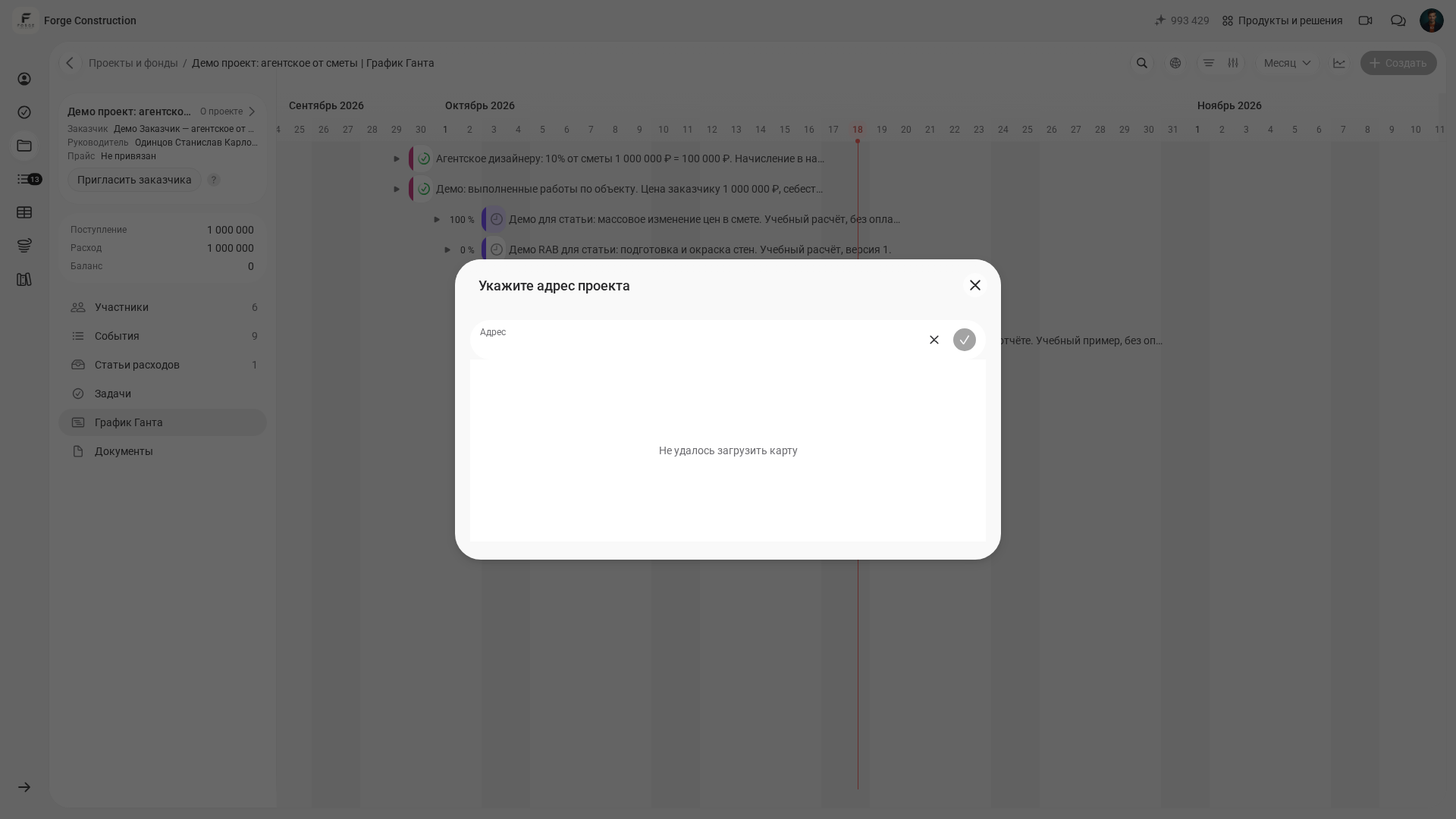
The Gantt chart in the web version of the 101 App uses separate dated Estimate events for individual stages. Work and material items are kept inside estimates, while reports record actual results. The chart shows event dates and participant details. You can open an additional weather panel when the site's coordinates have been specified and weather data is available. A participant with the appropriate permissions can change the project address.
Price list items define the contents of a stage estimate. Planning uses separate dated Estimate events, and actual work is recorded in reports using items from the estimate for the relevant stage. For more about the price list, see “Online rates in the 101 App” (in Russian).
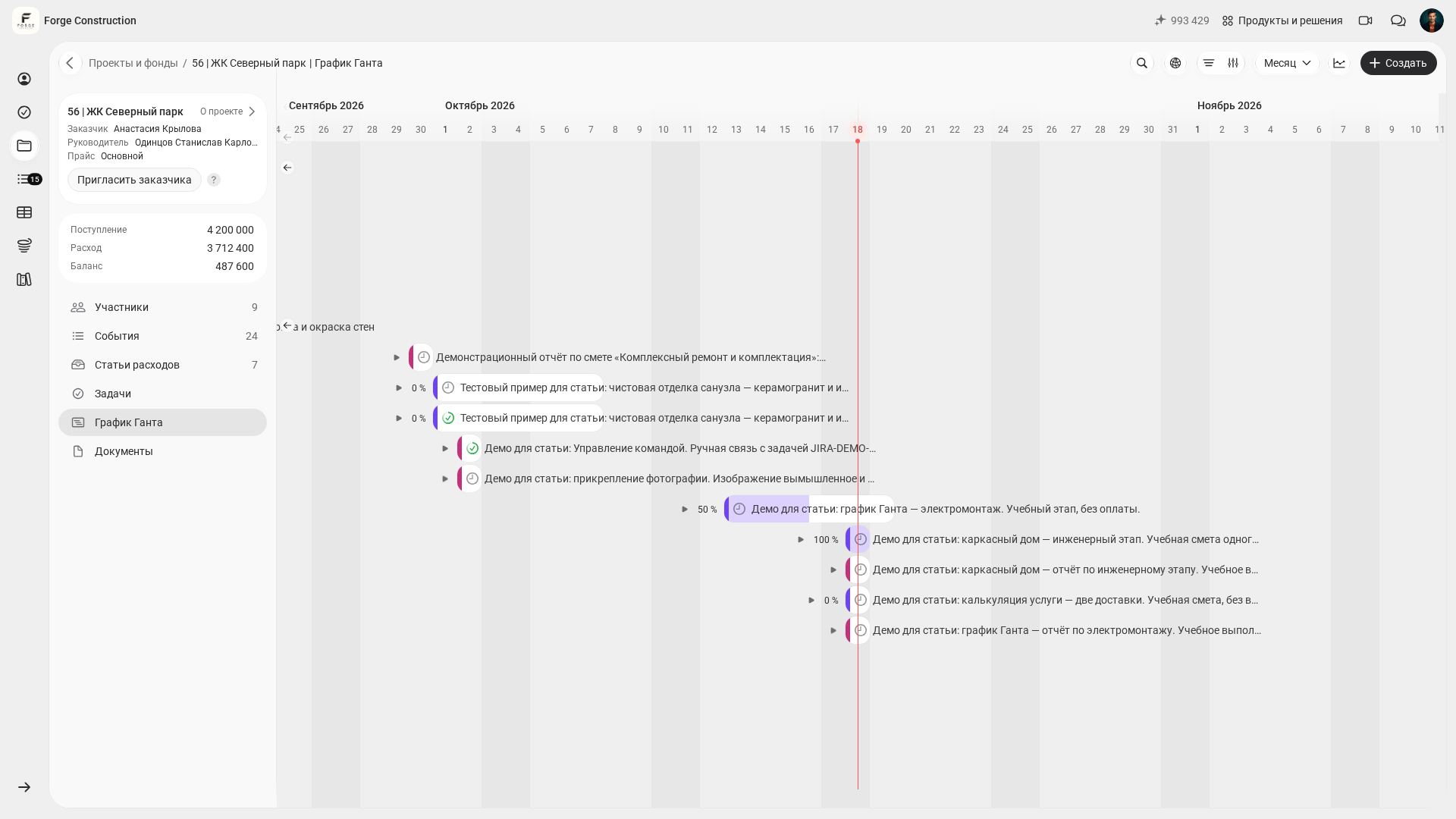
This article explains how the schedule connects to estimates for individual stages: estimates define the plan, while reports using their items record actual results. The general workflow for choosing an app, getting started for free and creating a chart from scratch is covered in “Online Gantt chart in the 101 App”.
How do you build a Gantt chart from an estimate?
To connect the estimate and schedule, follow this workflow: first divide the work into stages. Create a separate Estimate event («Смета») for each stage: add items inside the event, enter the stage name in its description and set the dates. Record quantities actually completed in reports using items from the relevant estimate.
A practical sequence is:
- Prepare a price list for typical stages: demolition, rough construction, finishing and building services. If the items you need are already in Excel, the option of transferring them into an estimate by pasting is explained in the guide to pasting items from Excel (in Russian).
- Create a separate estimate within the project for each stage. In the 101 App, an estimate is created as an event, which helps you agree on the scope of work before work begins (in Russian).
- In the web version, open the estimate already created for the relevant stage. Add work and materials from the price list as items in that estimate. After adding the items, check their names, prices, units of measurement and quantities, regardless of how they were added. Then check the estimates for the individual stages on the Gantt chart: each should have its own dates. Estimate items are not added directly to the timeline.
- Check the participants and recipient of each estimate, and agree on who is responsible for the stage. If you create a regular task for a particular piece of work, check the stage's own planned items, quantities and amounts in its estimate.
- Allow buffers between stages for required process pauses, deliveries and site access. It is a small detail on screen that can save hours of explanations later.
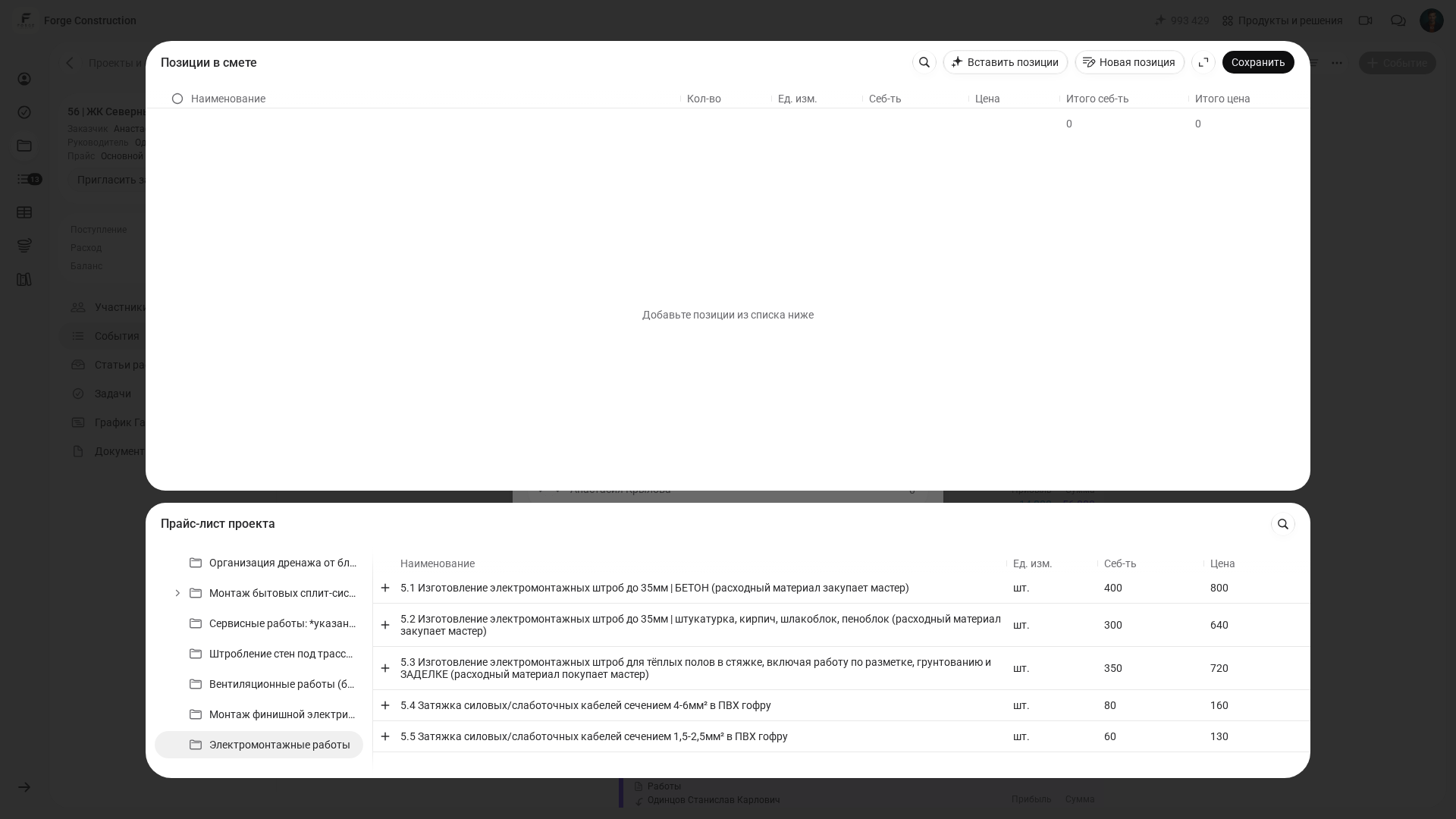
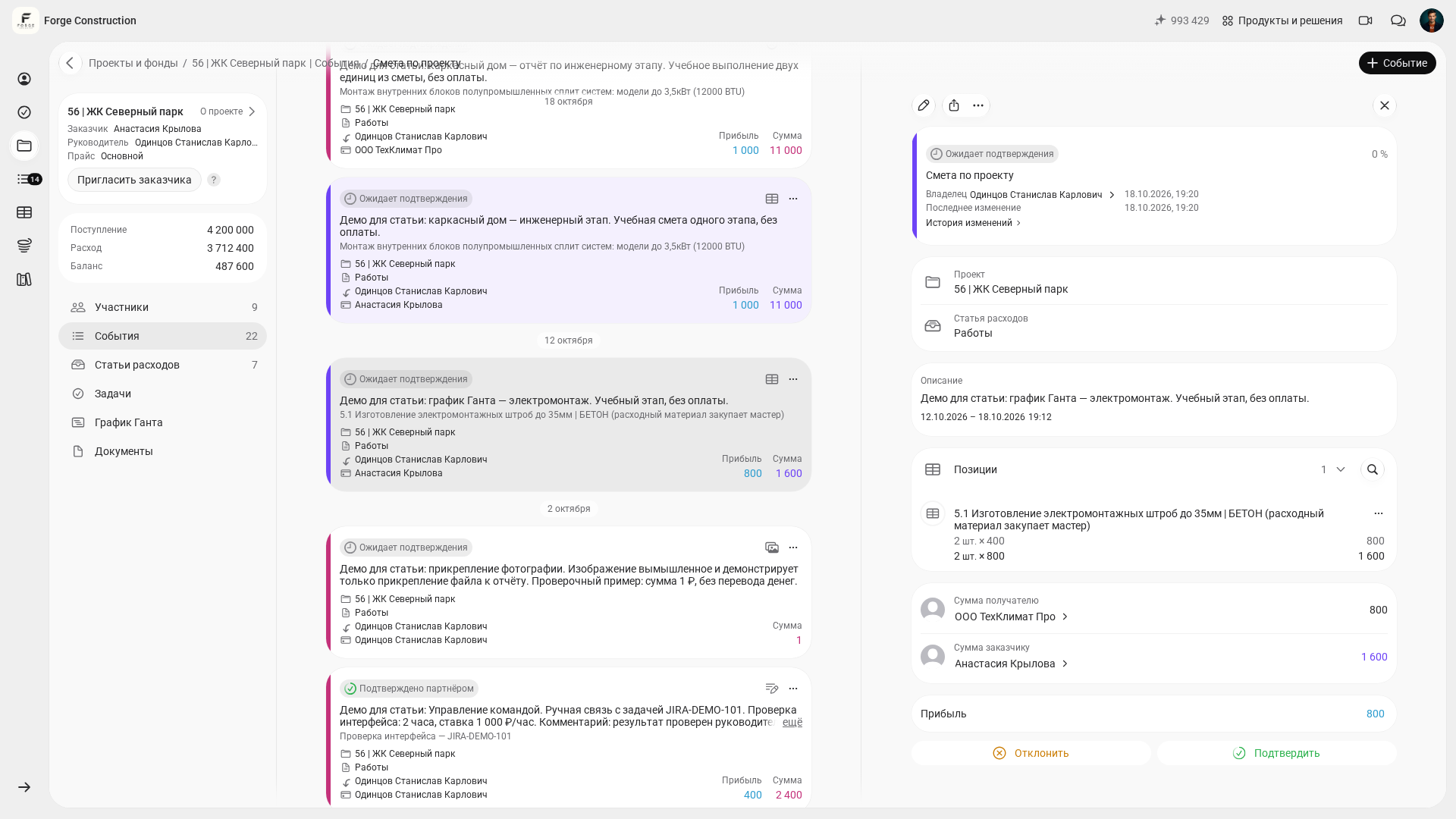
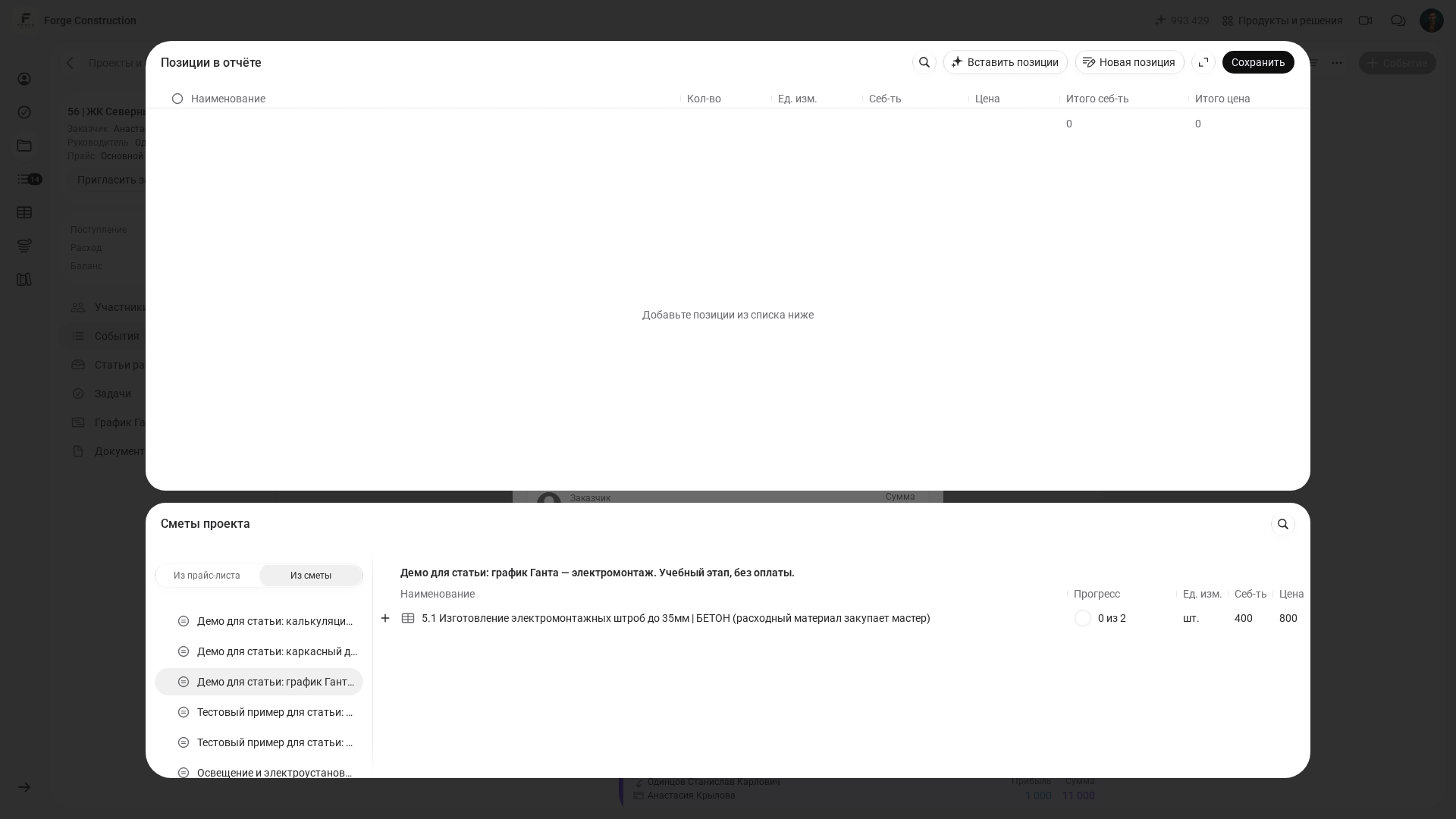
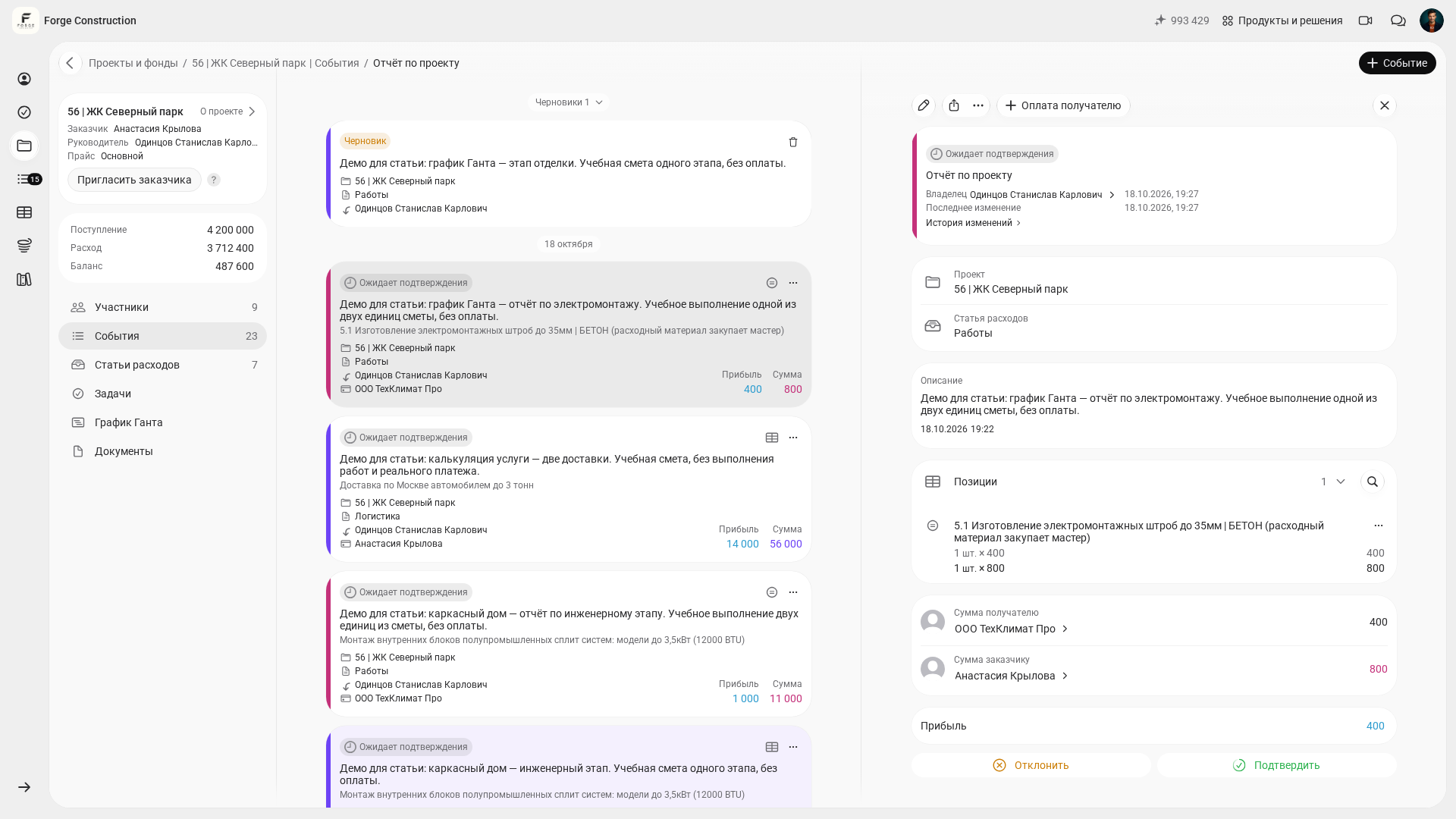
The schedule then connects to reporting. In the web version, create a project report, open «Добавить позиции» (Add items) → «Из сметы» (From estimate), and select the estimate for the relevant stage and the items you need. Check the price and remaining quantity in the estimate, enter the quantity actually completed and save the report. Availability of the «Из сметы» (From estimate) source depends on the project and category rules. How to report against an estimate without entering the items again (in Russian).
For an explanation of the estimate builder itself and how item lists work, see this article (in Russian).
Would you like to prepare your price list for a work plan quickly and see how it would look in a real project? A demonstration of the 101 App is a useful opportunity to work through this with real project data.
How do you track planned versus actual results when dates change?
A Gantt chart is useful only while it is kept up to date. A schedule that is “approved and forgotten” becomes just an illustration in a file.
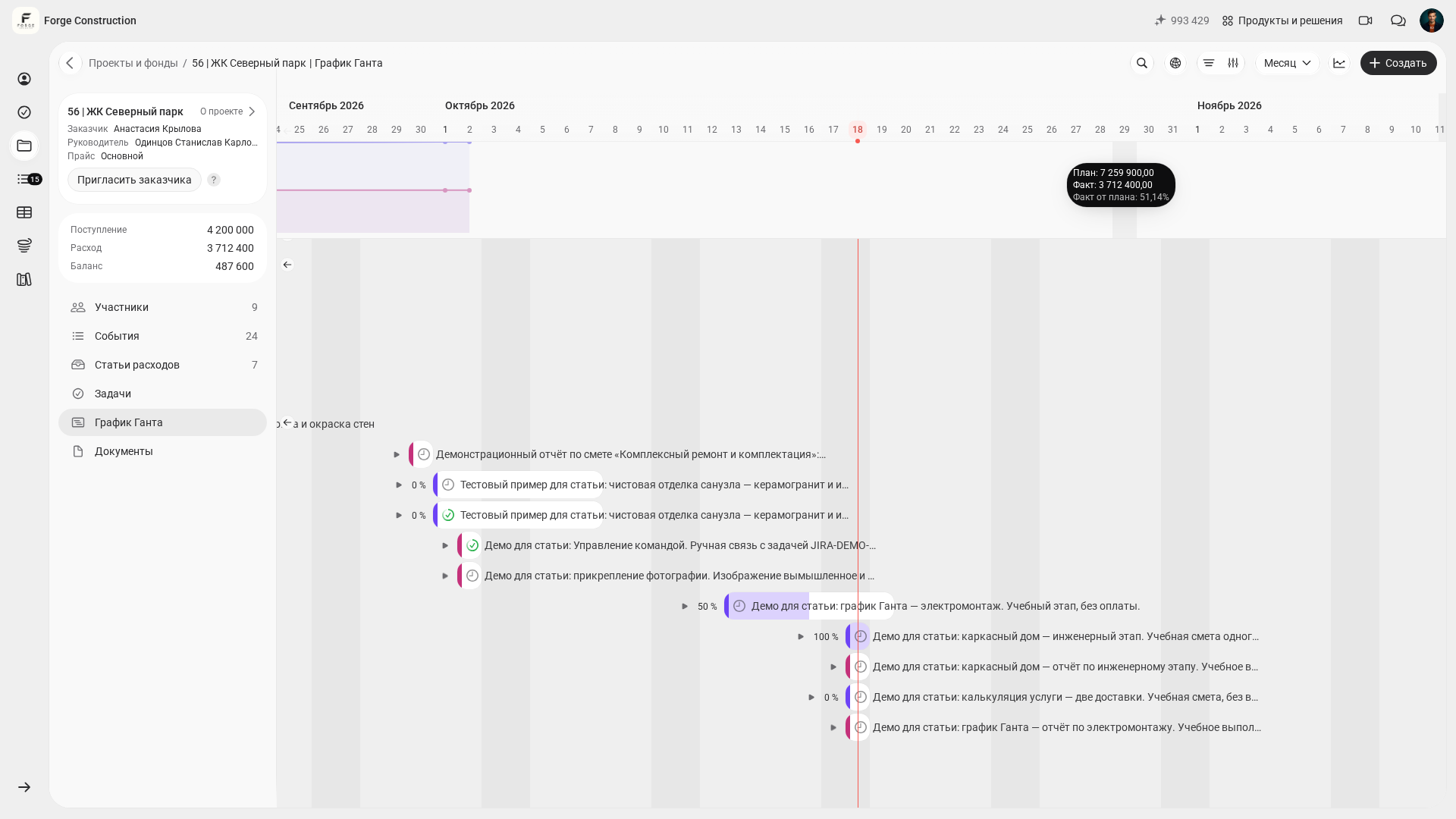
The “estimate → report” connection creates a straightforward routine. The estimate records planned items, quantities and agreements; the report records quantities actually completed and the corresponding amounts. Compare timing using the estimate and report dates on the chart. In the additional «План-факт» (Plan vs actual) panel, compare monetary measures: the cost to the client or profit. These measures cover the whole project; filtering events does not change the amounts in the panel. This keeps the comparison data within the project and makes it easier to reconcile without manually moving it between services.
Another useful layer alongside the schedule is the project balance chart. It shows the difference between recorded project receipts and expenses over time (in Russian). Reconcile its values with project events. This balance differs from a bank balance, money held by an individual participant and net profit; on its own, it is not a forecast of future cash flow. To assess the risk of a cash shortfall, check future payments and payment terms separately.
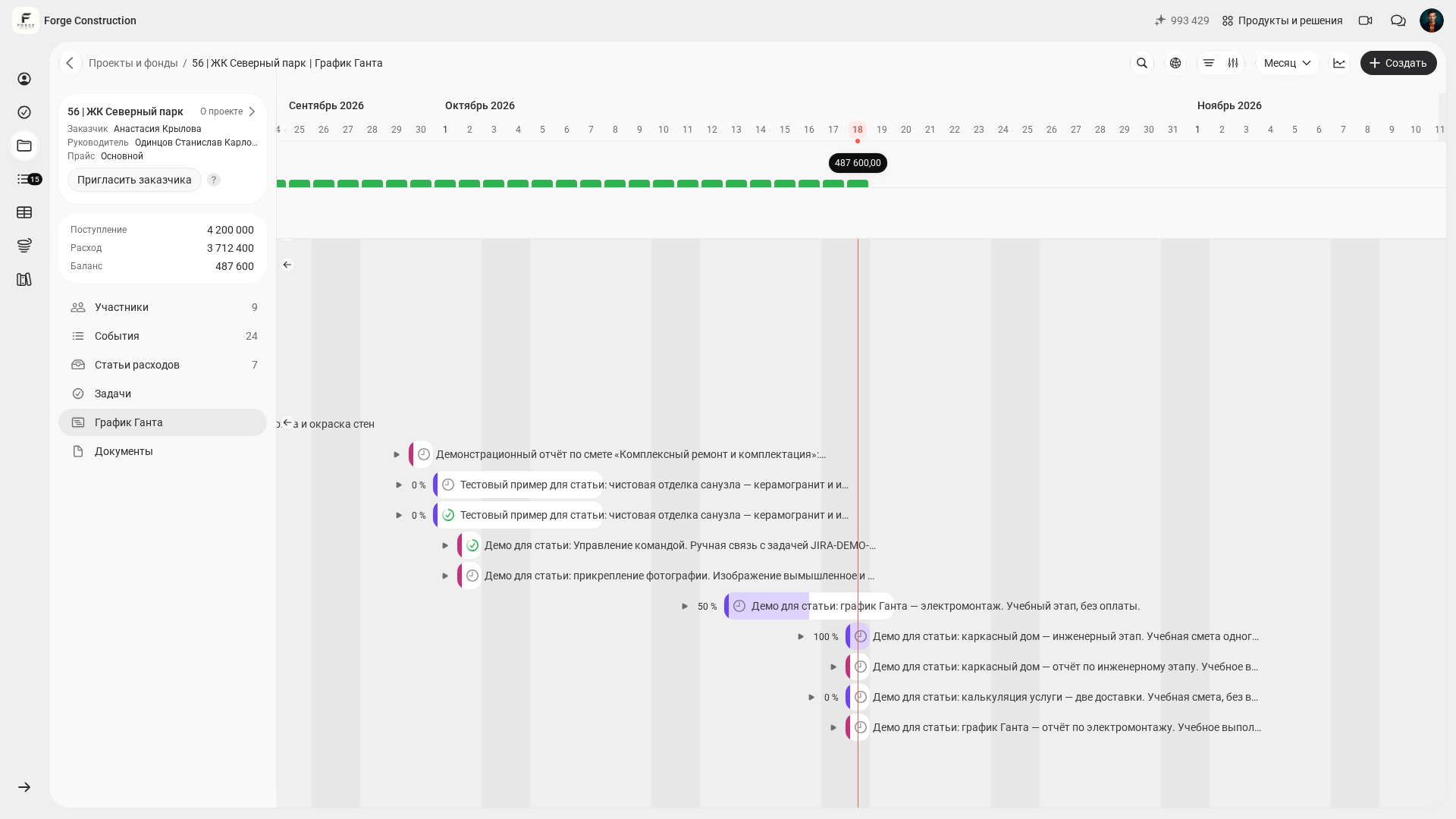
In practice, if the Gantt chart shows a stage slipping, check the recorded project balance, then review upcoming payments and payment terms separately. Otherwise, work may be delayed after a delivery has already been paid for, leaving the crew idle and you having to explain the delay to the client. Pointing to an outdated schedule does not resolve that mismatch.
Mistakes that stop an automatic work schedule from working
The work schedule depends on the structure of stage estimates, their dates and the quality of the items inside them. If the price list and estimate are disorganised, the plan is harder to understand. Start by putting the structure in order and check the stage dates separately.
- Choose stage sizes to suit your workflow: an individual estimate may contain many items or just a few.
- Work and purchasing are mixed without a clear sequence. If the delivery date is not coordinated with the start of installation, it is harder to check the stage sequence and the risk of delays.
- The same names are used for different jobs. “Installation” in three places looks like one job, even though these are different stages.
- Nobody is responsible for updates. Everyone ends up waiting for somebody else to correct the dates.
- Changes are made only in chat. The schedule and estimate are then left without updates, and decisions get lost.
For an explanation of who needs a Gantt chart and how to maintain it without unnecessary administration, see “Gantt charts in practice”.
How do you organise the team's workflow?
To stay current, the schedule needs an owner. For refurbishment work, this is usually the site supervisor or project manager. For construction across several sites, it may be a coordinator or production manager. Their job is to check and update the dates of upcoming stages once a week, coordinate the work sequence and check deliveries. A participant with permission to edit the event changes its dates; after saving, check the resulting dates and status.
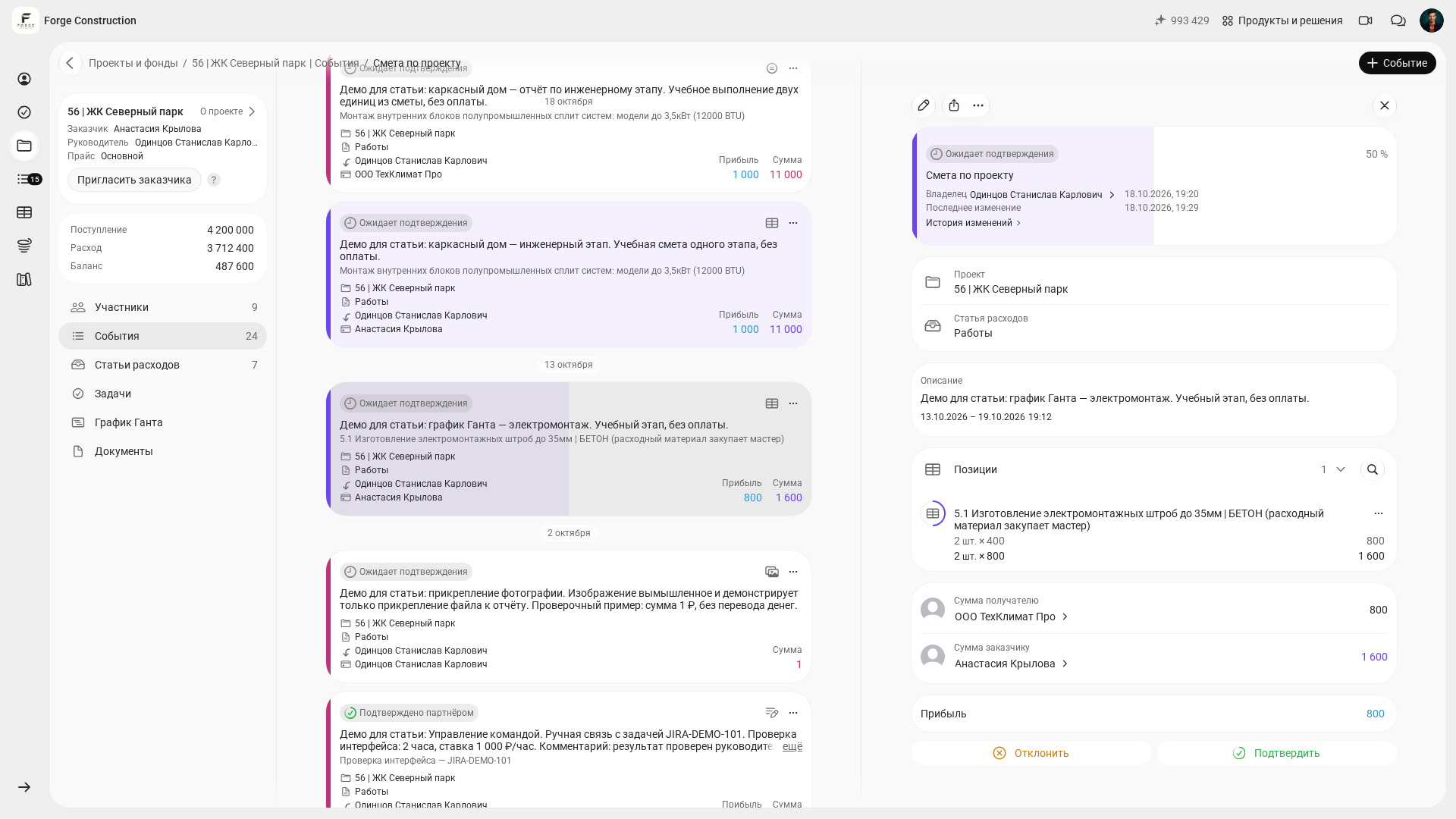
The rest of the team then joins the workflow. Tradespeople continue using the familiar 101 approach: they record completed work and purchased materials in reports and attach supporting documents. A report by itself does not prove payment: an actual transfer of money is recorded as a separate completed transfer. The manager compares these records with the project's dates and monetary measures.
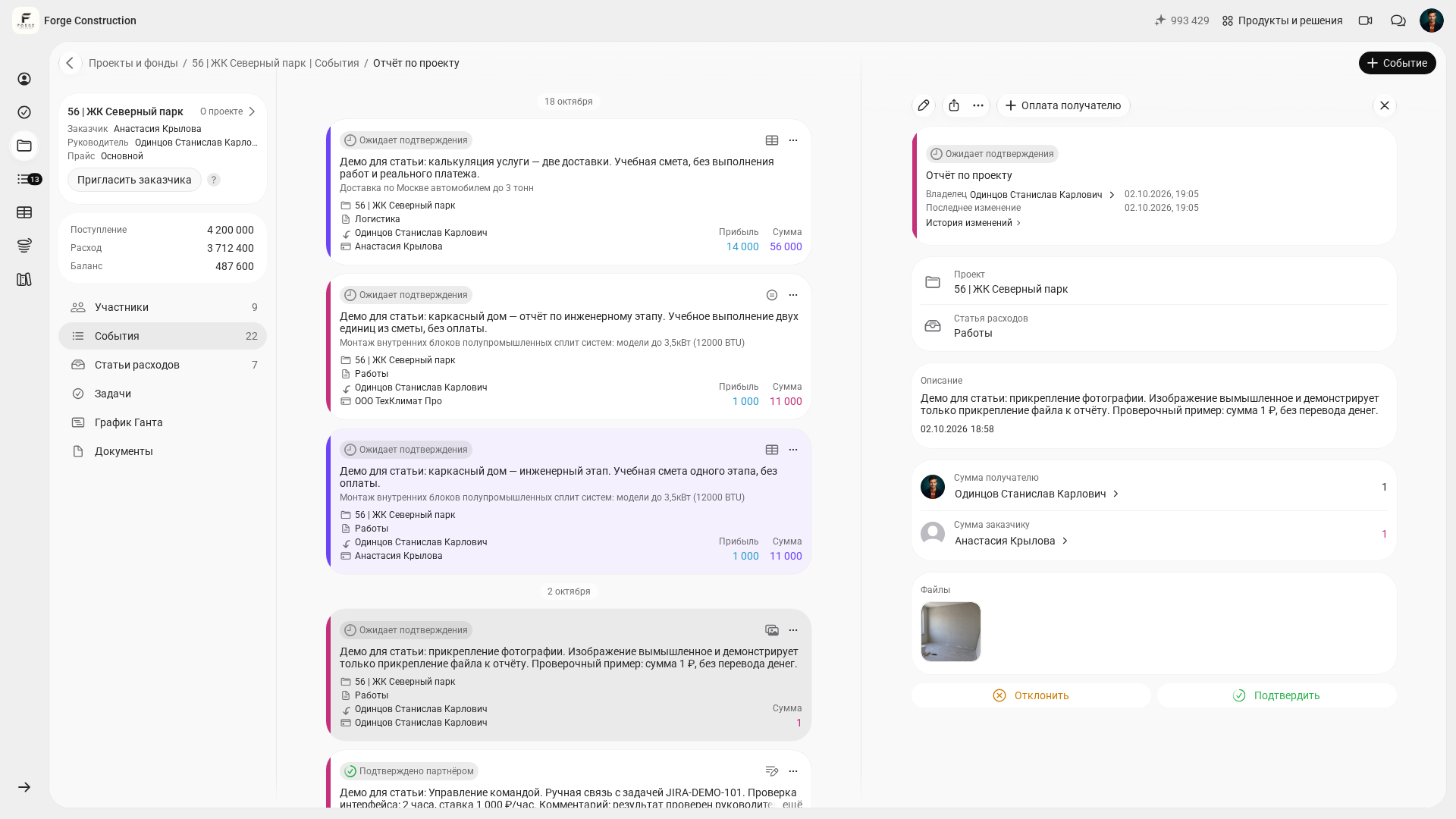
If allocating people between sites is a separate challenge, compare the site's Gantt chart with a separate workforce schedule for the company. Calculate crew sizes with simultaneous work in mind; assigning a person responsible does not by itself determine the crew size. The 101 blog has a guide to construction workforce scheduling and crew allocation.
The plan is therefore connected to estimates for individual stages, their dates and reports of quantities actually completed. Keep calculations and dates up to date, and compare planned work with reports against the estimate for the relevant stage.