A search for “free construction estimate” often comes down to one task: quickly show the client a clear calculation so that the discussion moves from general ideas to specific work, quantities, and a total. In practice, the obstacle is usually the same: the estimate lives in spreadsheets, revisions spread across different files, and the final figure has to be recalculated manually.
You can prepare estimates for free in the web version of the 101 app. It is useful when you prefer to work on a computer: upload a price list, put together the items, adjust the prices, export a PDF, and send it to the client.
Below, we explain how free estimate preparation works in the web version, why a price list is useful, how bulk price adjustments work, and how to stay organized when you have several projects.
The definition, types, and structure of the document are covered in our overview of construction estimates. This article focuses on the commercial workflow: how to calculate an estimate for free in 101 WEB and move straight on to the work.
Contents:
- Why do you need a free estimate?
- What does a “free estimate” mean in 101 WEB?
- How can you quickly put together an estimate in the web version?
- A price list or manual items: which should you choose?
- How can you increase or decrease prices in bulk without surprises?
- How do you manage several projects and estimate alternatives?
- How can you send an estimate and keep track of agreements?
- When is PRO+ useful?
Why do you need a free estimate?
It is a familiar situation: the client asks for a rough cost, the layouts are still being revised, a meeting is scheduled for the evening, and time is short. At that point, you need an estimate that serves as a basis for discussion: it describes the work in plain language, keeps the units of measurement clear, and gives a total.
When an estimate is built from clearly defined items, disagreements are easier to discuss. You can see what the work includes, what is priced separately, and where materials and services have been allowed for. Even if some quantities are clarified later, the underlying logic still holds.
For more on this workflow, the blog has a separate article, “Free Estimates in the 101 App” (in Russian).
What does a “free estimate” mean in 101 WEB?
In 101 WEB, preparing estimates is included in the free set of features. This is useful when your goal is to put together a calculation for a presentation, quickly agree on the scope of work, and move on to the next step: a contract, a schedule, and payments.
The web version is particularly helpful in two situations. The first is when your price list is stored in Excel and you can conveniently prepare it in XLSX format using the 101 template for upload from a computer. The second is when many items need editing, which is quicker on a large screen.
There is a separate article about this web workflow, “Free Estimating Software… and Why You Need the Web Version”, which explains the idea of trying the tool out in an evening.
How can you quickly put together an estimate in the web version?
If you previously kept your estimates in spreadsheets, your first reaction will often be: “At last, I can put together a calculation without formulas.” From there, the order of the steps matters: it helps keep the estimate manageable without improvised manual workarounds.
A simple sequence is useful to keep in mind: project → price list → estimate → adjustments → PDF.
- Sign in to the web version of the 101 app with your account.
- Create a job (project) for the client, address, or stage of work.
- Add a price list: import an XLSX file prepared using the 101 template, or build a collection of items directly in the system.
- Create an estimate and add items from the price list, or enter them manually.
- Check the units of measurement, quantities, and prices; if you use a bulk adjustment, check the selected rounding setting.
- Apply a bulk price adjustment to the relevant items if the estimate needs recalculating for new market conditions or the requirements of the project.
- Save the estimate and export a PDF to send to the client. Save separate calculation alternatives as clearly named copies.
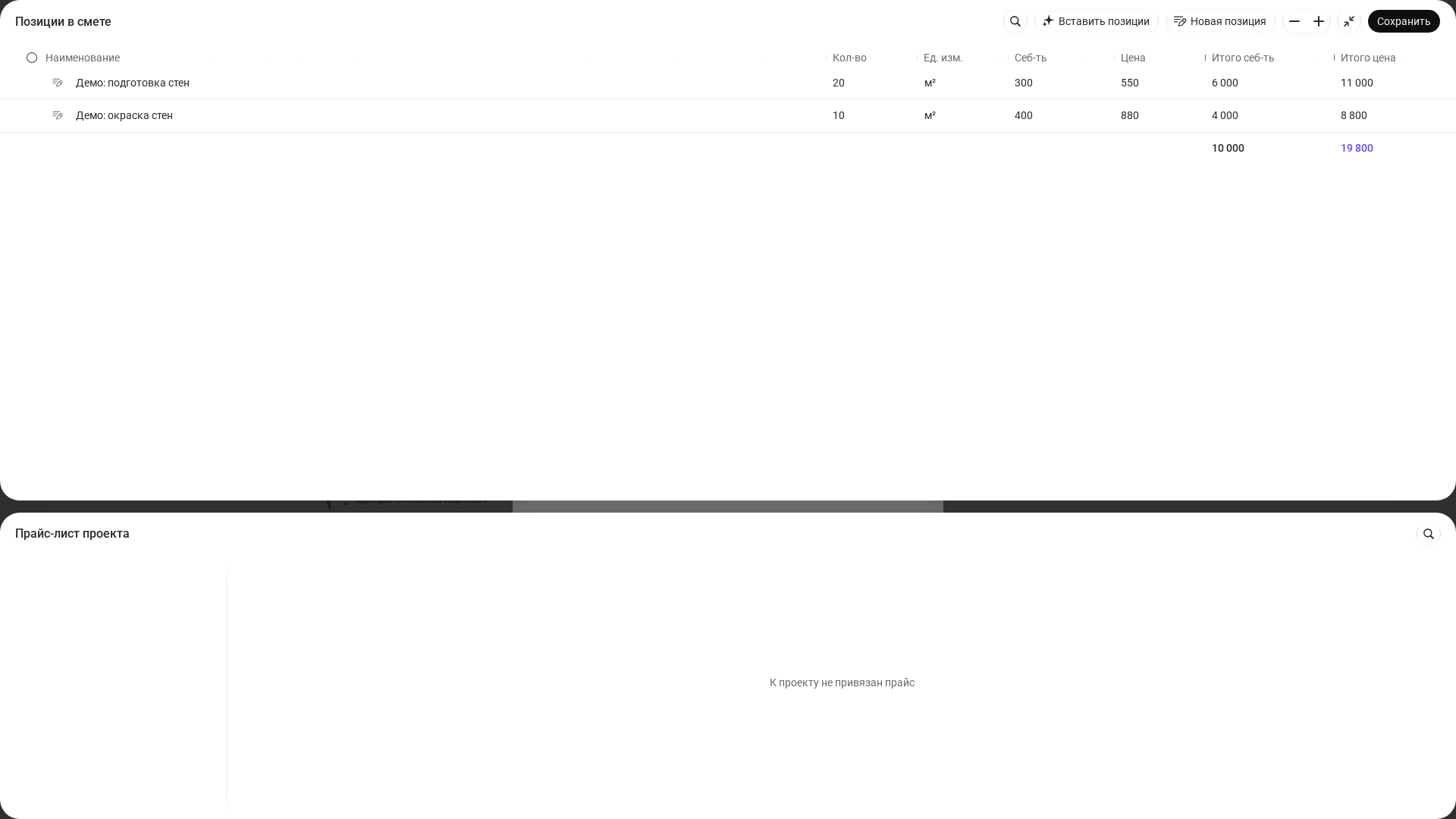
The screenshots show the Russian interface of a demo company in the owner’s account. The computer and phone use different demo estimates; the ways of working are the same.
If you would like to follow the same process on a mobile device, the guide “An Estimate in 10 Minutes” will help. For a more detailed explanation, see “Preparing an Online Estimate Yourself” (in Russian).
A price list or manual items: which should you choose?
There are two ways of working in 101, and both are valid. The choice depends on how often you prepare estimates and how your team is organized.
Manual items suit a one-off estimate or a quick outline for the first meeting. With this approach, it is important to keep names and units of measurement consistent. Otherwise, a week later you may have two items called “Wall putty application” and “Applying wall putty,” and the estimate will become inconsistent.
A price list suits recurring estimates: similar apartment fit-outs, standard details in individual house construction, or the same combination of tasks on different projects. The price list becomes the team’s shared vocabulary: consistent names, units, prices, and costs.
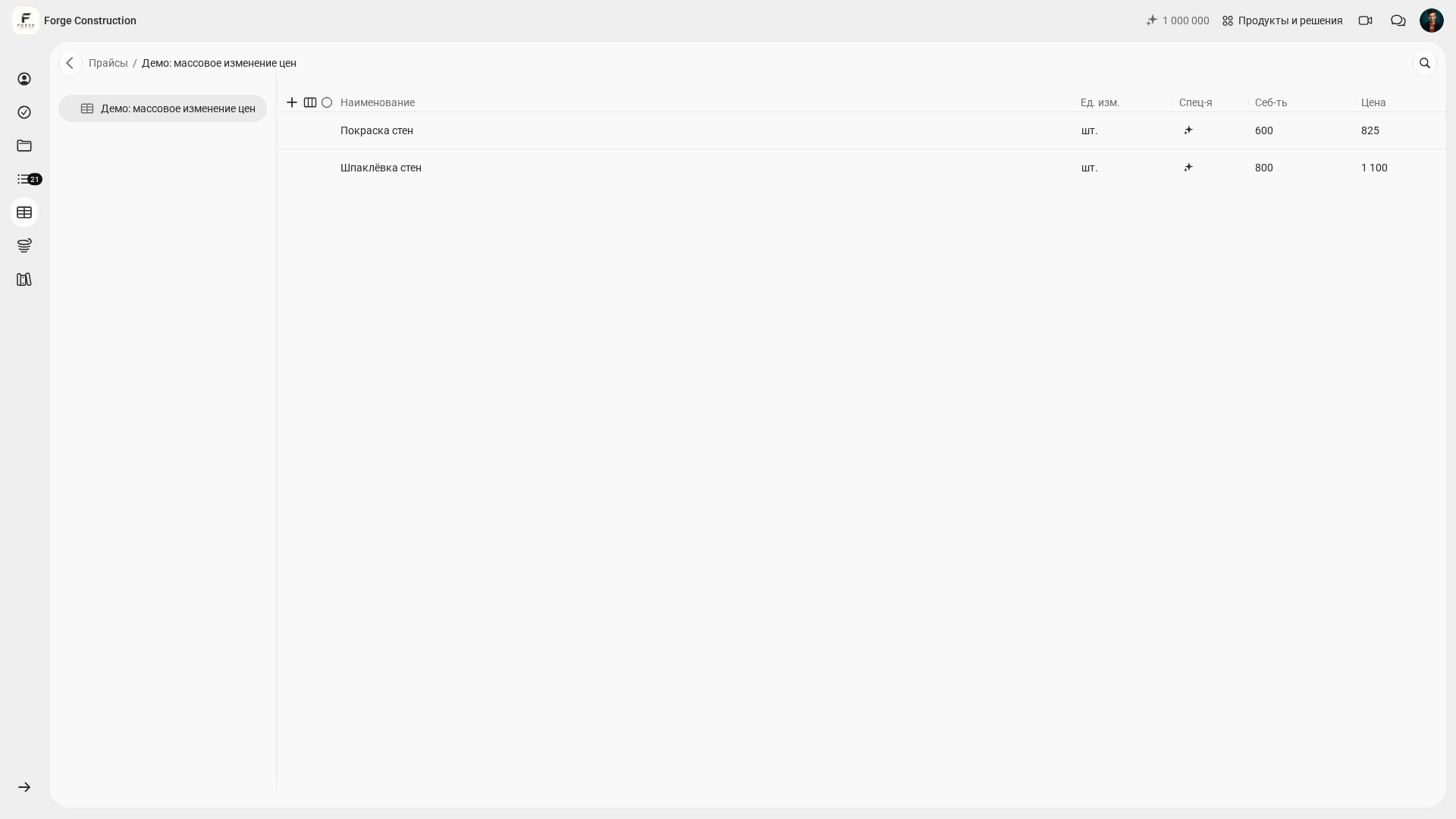
To understand how price lists and updates work, read “Updating Price Lists in the 101 App” (in Russian). For rates and sharing a price list, see “Online Rates in the 101 App” (in Russian).
How can you increase or decrease prices in bulk without surprises?
Bulk price adjustments help when the market shifts, a supplier raises prices, or you decide to change the profit margin for a group of work items. Editing dozens of spreadsheet rows manually takes time and increases the risk of errors.
In the 101 item editor, you can increase or decrease prices by a specified percentage. On a computer, first select the rows you need, including all rows if you need to recalculate the entire document; on a phone, check the set of items in the open editor. The principle is straightforward: a bulk adjustment helps you quickly recalculate the whole document, then make targeted changes to any items that need further attention.
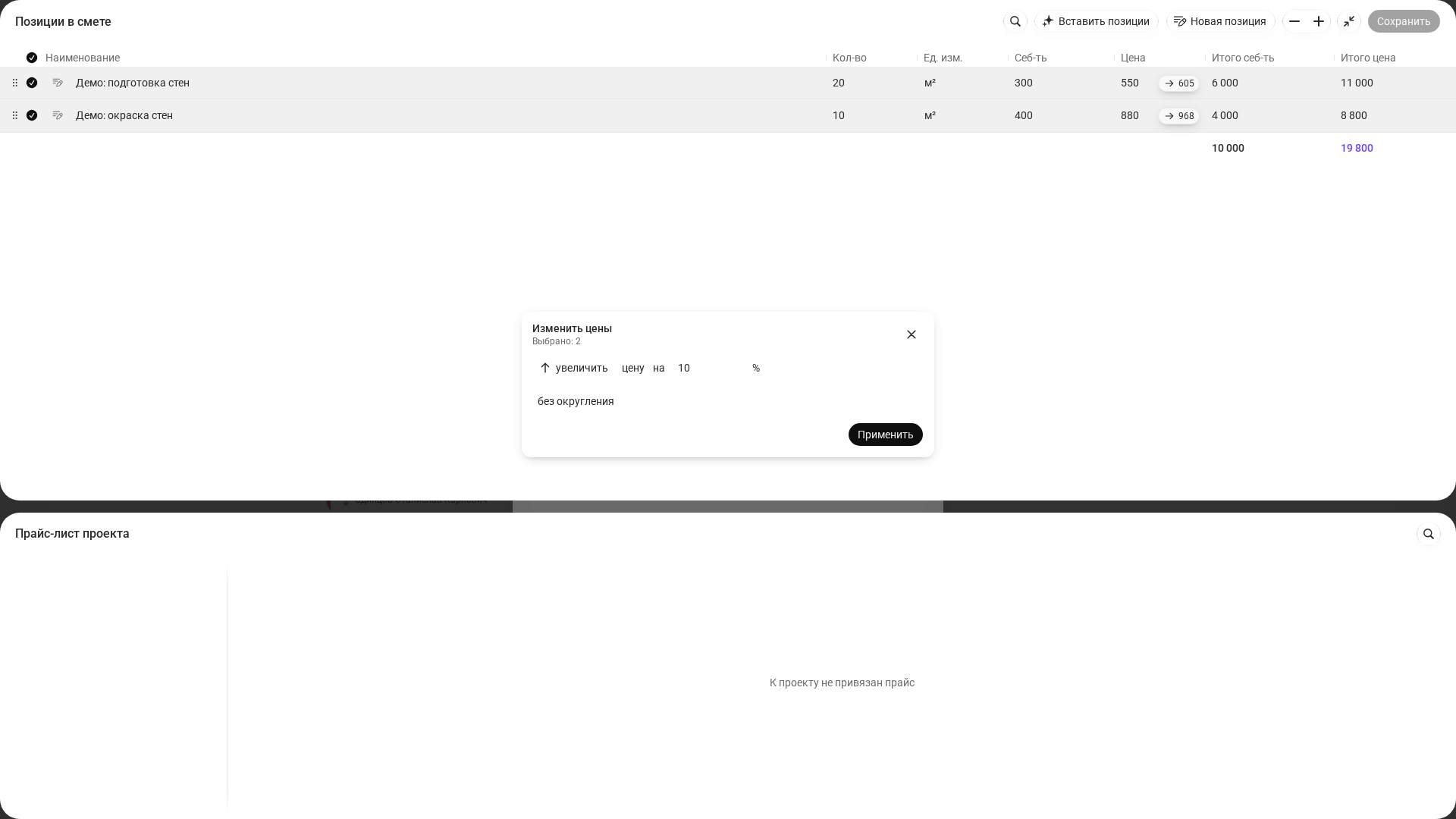
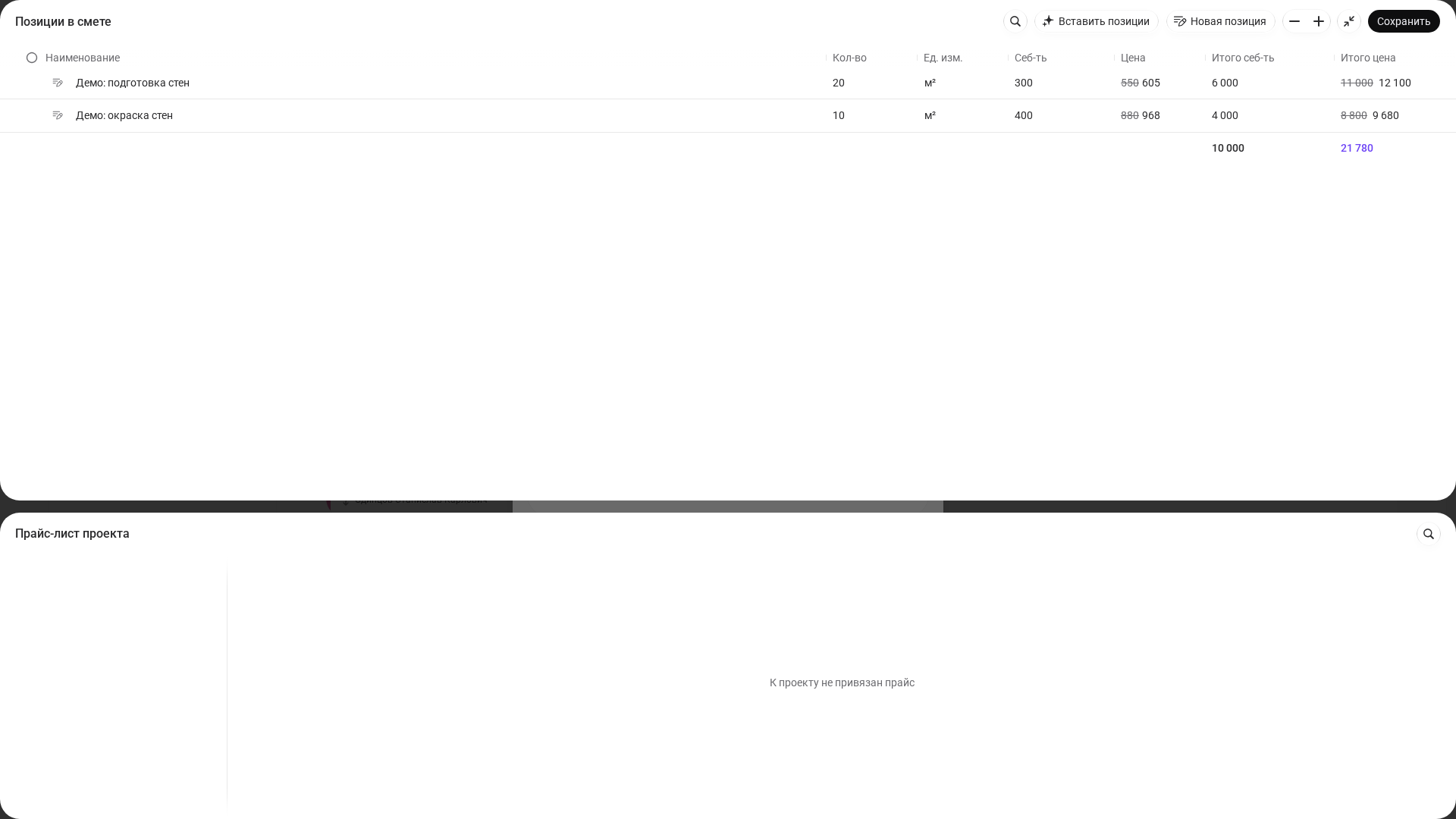
To avoid disagreements with the client, it helps to record two things in advance: which estimate is the current one and the date from which its prices apply. Even when you use the free features, this keeps both sides organized.
For more about the estimate builder itself and its features, see “The Estimate Builder in the 101 App” (in Russian).
How do you manage several projects and estimate alternatives?
With two projects, you can keep everything in your head. With five, it becomes confusing: which estimate is a draft, which is final, which is for internal use, and which is for the client? In the web version, projects provide a useful structure: the estimate is linked to the job, and calculation alternatives can be kept together with clear names.
If you need to adapt a similar estimate for a new project, the process is simple: copy the starting estimate, change the quantities, apply a bulk price adjustment if needed, and save a separate calculation alternative. This helps you compare options; separate copies do not replace the built-in change history.
The same approach helps when a client asks you to “calculate a second option”: a different material, a different quantity, or a different set of tasks. The alternatives stay together, without a separate folder of files or names such as “Estimate_final_final2.”
How can you send an estimate and keep track of agreements?
A PDF estimate is useful for sharing with the client, printing, and attaching to a contract. For the team, however, it is more important to keep the editable original in the project: you can then add to it and use it to cross-check quantities and costs when preparing work completion records and reports.
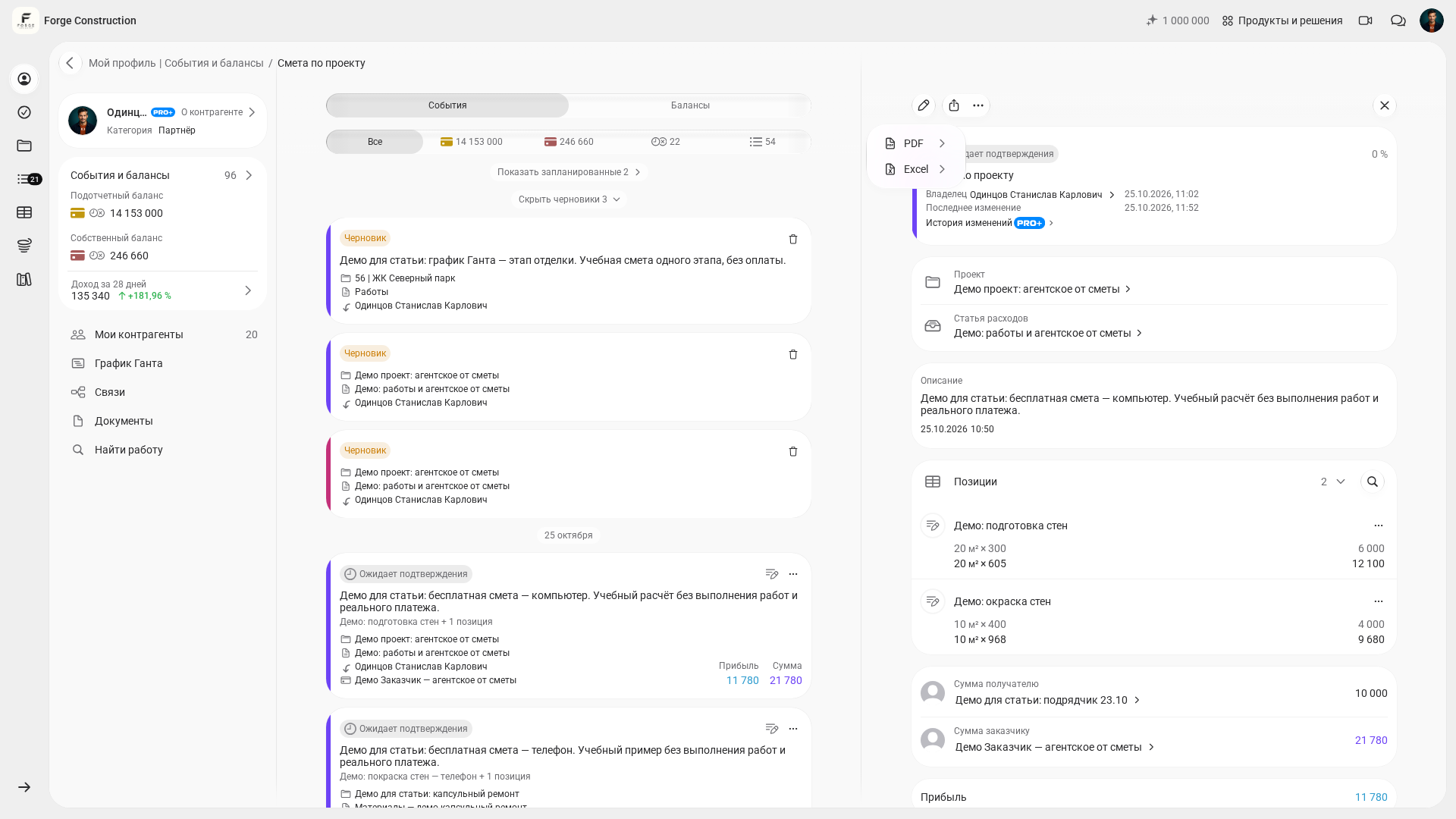
A useful habit when working with free estimates is to label alternatives for internal tracking: a date, a working label (“draft,” “agreed,” or “in progress”), and a short comment on what changed. If someone later asks why the amount changed, the answer will be easier to find.
To explore how an estimate relates to calculating work and materials, read “Online Estimate Calculation in the 101 App”. If you are comparing it with spreadsheets, see “Excel or the 101 App for Estimates” (in Russian).
When is PRO+ useful?
Free estimates cover the stage of quickly calculating costs and agreeing on them. A new need usually follows: managing the project and keeping track of money, documents, reports, and the team’s work. At that point, broader features and a process tailored to your company become important.
PRO+ is useful when you need more management features: documents with your company’s logo, advanced analytics, event history export, and the history of changes to events. Working with estimates is included in the free set of features.
For a broader look at how the web version and estimates fit into company management, read “The 101 Business Platform”.