An estimate answers “How much does it cost?”, while a Gantt chart answers “When is the work scheduled?”. In renovation and construction, the two answers can easily drift apart: the estimate has been agreed, but the schedule still lives in the site supervisor’s memory and message threads.
In the 101 App, you can find an existing estimate on the chart for the same project. You work with the same event and its line items: there is no need to enter the calculation again or assemble a similar estimate from the price list.
This guide follows one workflow in the browser version: open a saved estimate for a work stage, find it in the Gantt chart, set the date range of the event itself, and check the result after saving. The screenshots were taken in a demonstration company with owner permissions; the actions available to you depend on your role.
Creating a schedule from scratch and the general approach to planning are covered separately in “Gantt chart in the 101 App”.
Contents:
- What does “turning an estimate into a Gantt chart” mean in 101?
- How do you prepare an existing estimate for scheduling?
- How do you find the estimate in the Gantt chart and change its scheduled dates?
- How are dates, estimates and reports connected?
- Which mistakes make the schedule harder to manage?
- How do you keep the schedule up to date?
What does “turning an estimate into a Gantt chart” mean in 101?
An estimate in a project is a financial event with a description, line items, quantities and a calculation. The Gantt chart displays events on a timeline. The main transition here is therefore from an already saved calculation to scheduling its dates within the same project.
Check the link by looking at the record itself, the project and the work it contains. Two different estimates with matching names are not necessarily the same calculation. A price list helps you reuse work items and prices, but does not replace the link to a specific event.
How do you prepare an existing estimate for scheduling?
It helps to plan clearly defined stages: wall preparation, first-fix electrical work or tiling. One large estimate also appears on the chart, and you can change its dates. However, a single overall bar makes it harder to assess intermediate stages; this is a question of planning detail, rather than an interface restriction.
If you use a price list, keep its item names and units of measurement clear. The article on updating price lists (in Russian) can help with this preparation. You do not need to rebuild an already saved estimate from the price list just to make it appear on the chart.
Check the estimate’s project, stage description, line items and quantities. If you have yet to create the calculation, start with the guide to creating an estimate (in Russian). Dividing the work into stages before scheduling makes it easier to check dates and reports later.
Names should make the work easy to recognise: “Wall preparation”, “Electrical work — first fix”, “Bathroom tiling”. If different types of work share one line item, decide in advance whether that level of detail is enough for your checks.
If your original calculation is in Excel, the article on quick imports (in Russian) will help you prepare the data. Importing is a separate preparation step; in the next section, the estimate is already saved.
How do you find the estimate in the Gantt chart and change its scheduled dates?
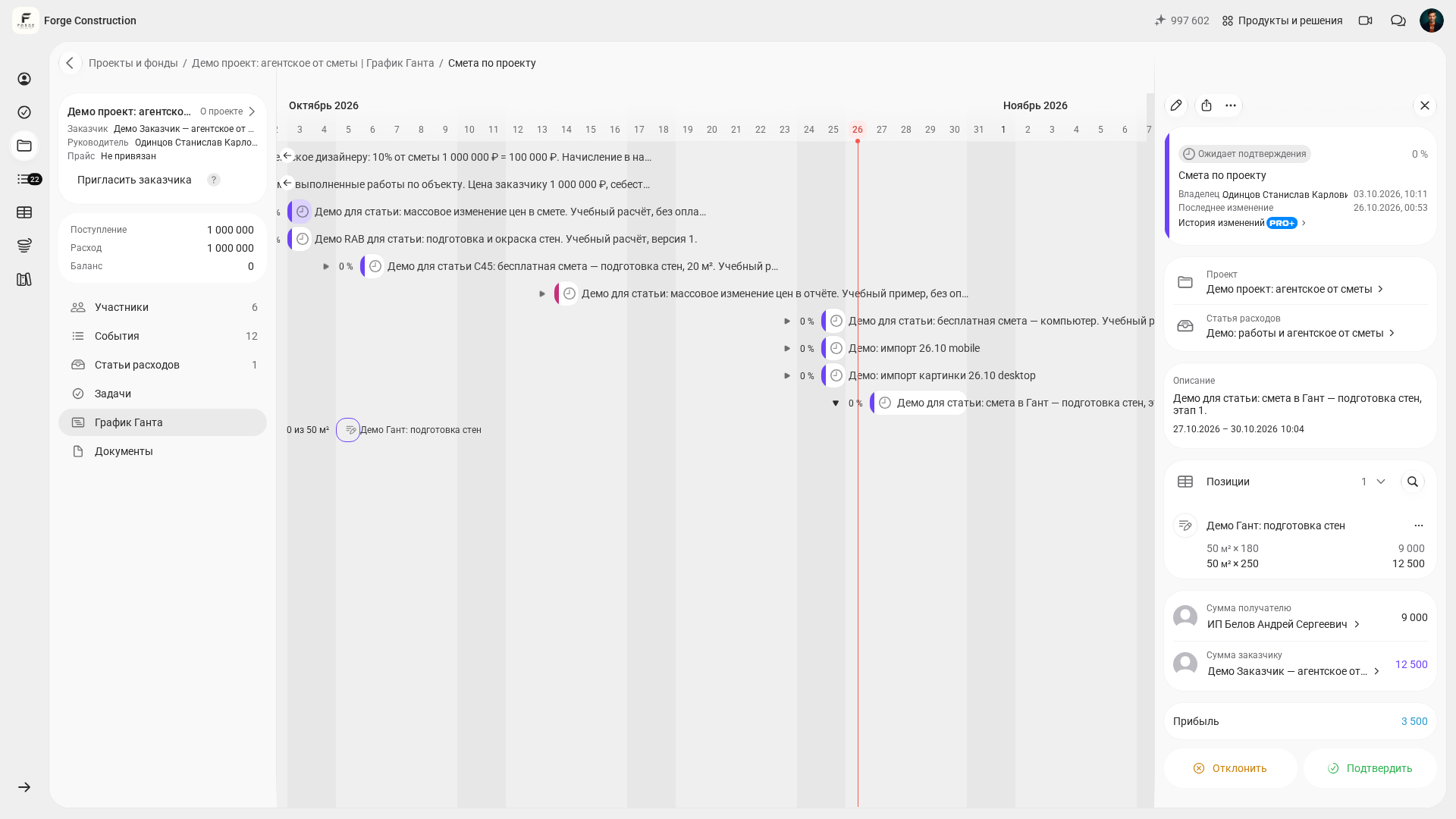
Open the relevant project and the existing estimate in its events. Check the description, line items, quantities and amounts. The desktop example uses the “Подготовка стен” (“Wall preparation”) stage: 50 m², a customer amount of 12,500 ₽ and a recipient amount of 9,000 ₽. This is a demonstration calculation with no payment.
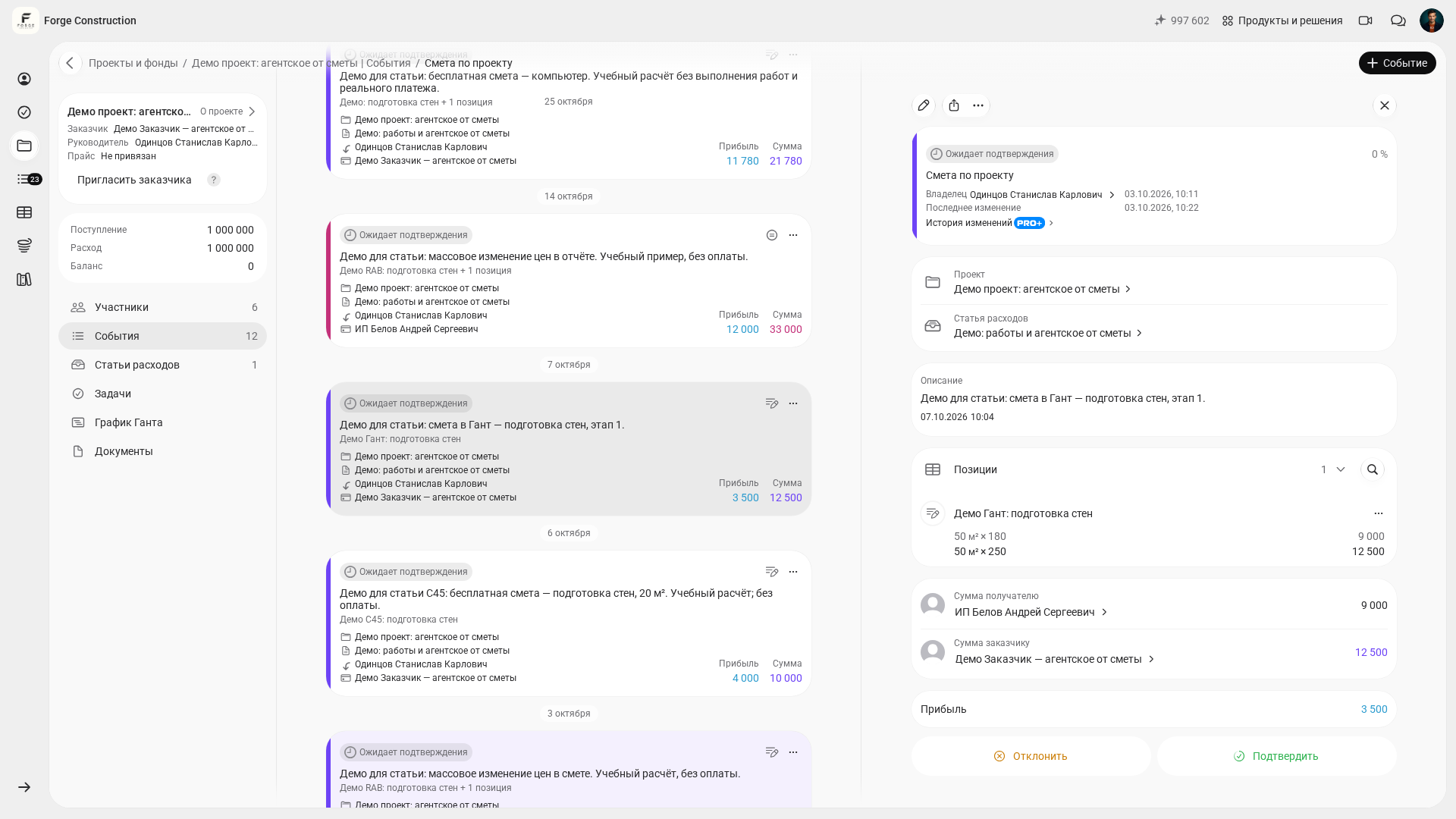
On a computer, change the dates of the same estimate:
- In the same project, open “График Ганта” (“Gantt chart”) and find the existing estimate by its description. If the event is not visible, check the selected timeline period and filters.
- Expand “Показать позиции события” (“Show event line items”) for the relevant estimate. Compare the work and quantities with the original calculation; you do not need to create a second estimate.
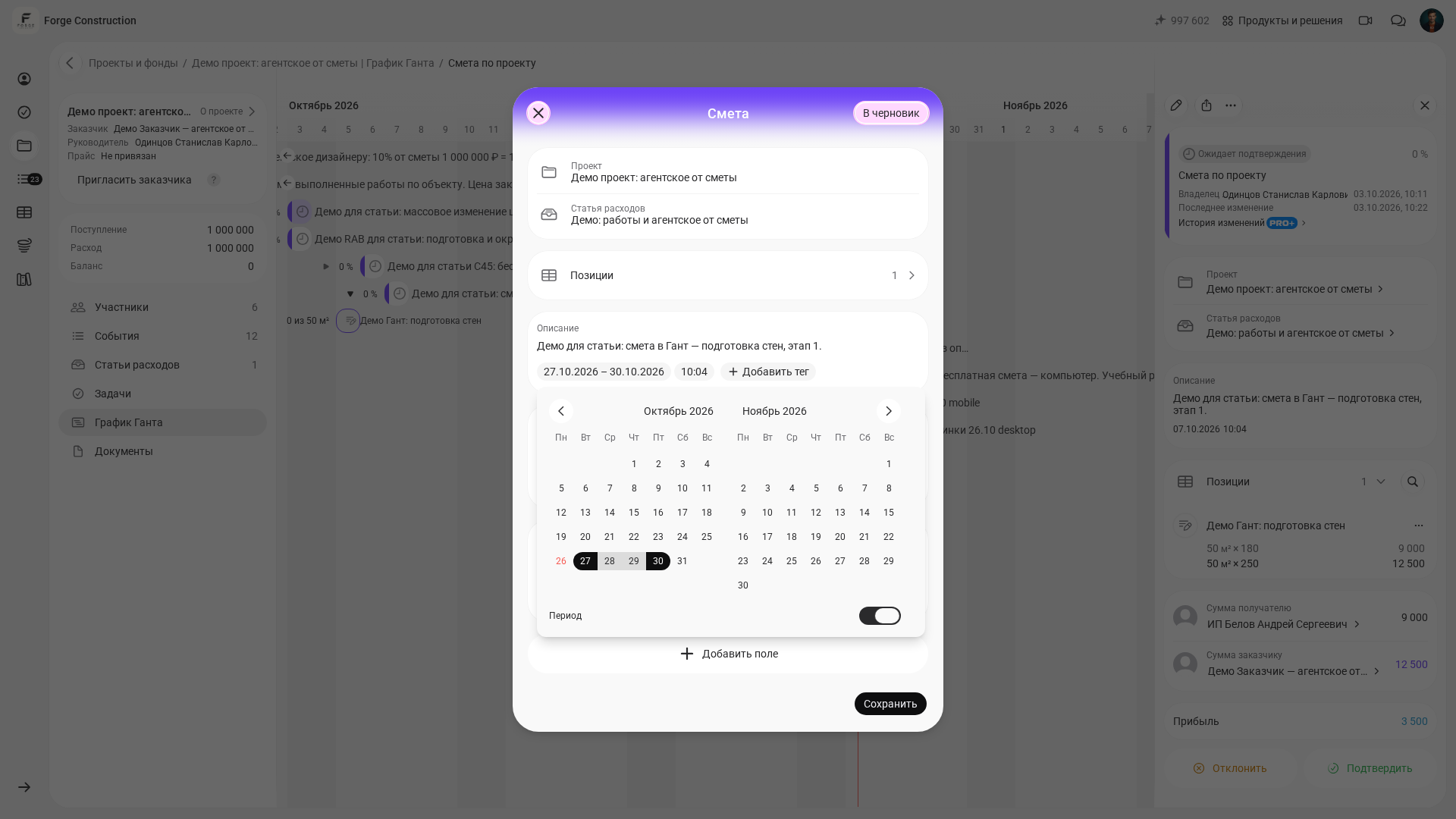
- Open the estimate itself on the timeline and click “Редактировать событие” (“Edit event”). In its form, open the button displaying the current date.
- First select the intended start date. For a range of several days, reopen the calendar, enable “Период” (“Date range”) and select the end date. If date-range mode was already enabled, switch it off first and select the new start. Before saving, always check the resulting range on the date button: in the computer example, it is 27–30 October 2026.
- Click the estimate form’s heading outside the calendar to close the calendar, then click “Сохранить” (“Save”) in the estimate form. Wait for saving to finish.
- Reopen the same estimate from the chart and check the date range, line items, quantities, amounts and status. This verifies the saved result.
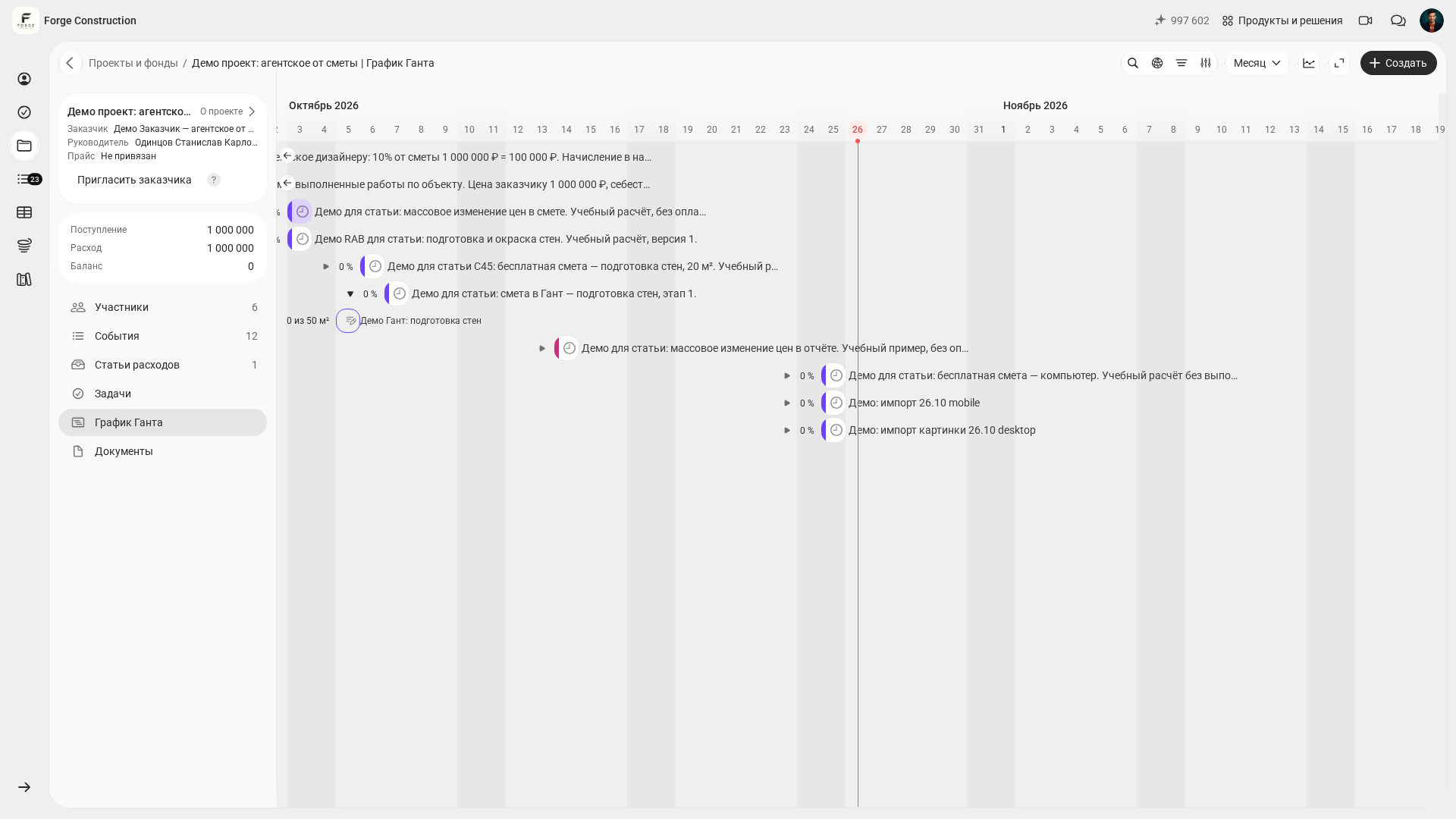
This workflow changes the date range of the estimate event. The dates of individual line items are a separate level of detail: do not assume they have automatically moved with the event. In the demonstration check, after saving the 27–30 October date range, the 50 m² quantity, amounts and “Ожидает подтверждения” (“Awaiting confirmation”) status remained unchanged.
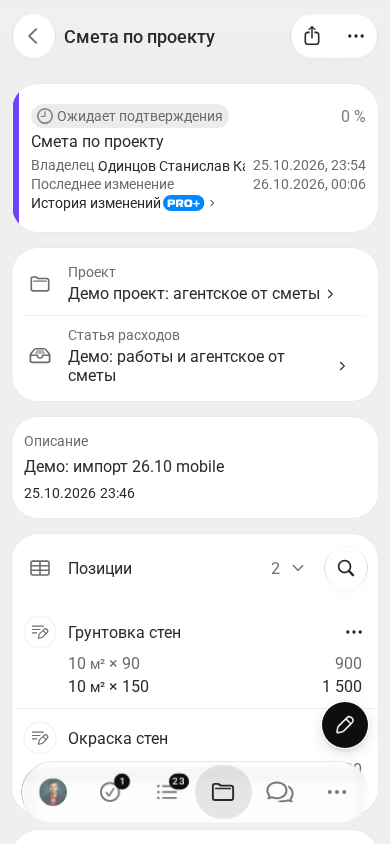
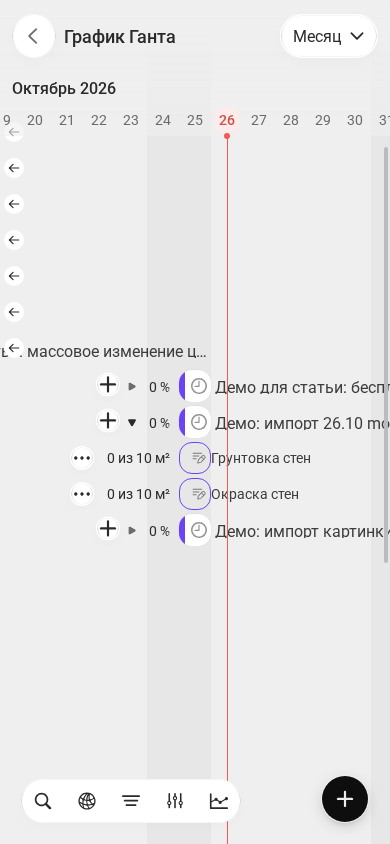
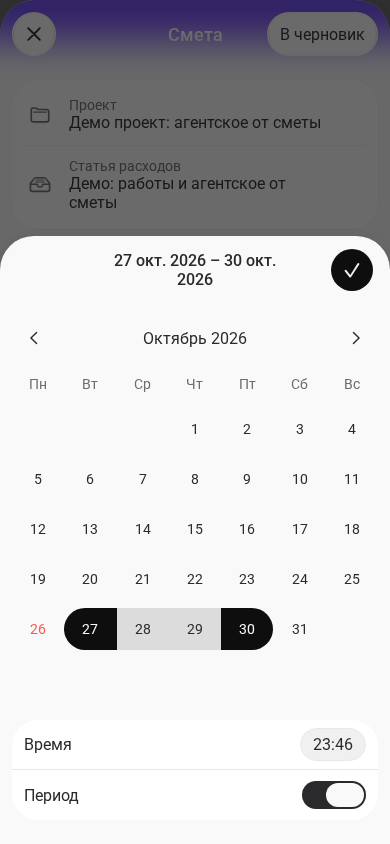
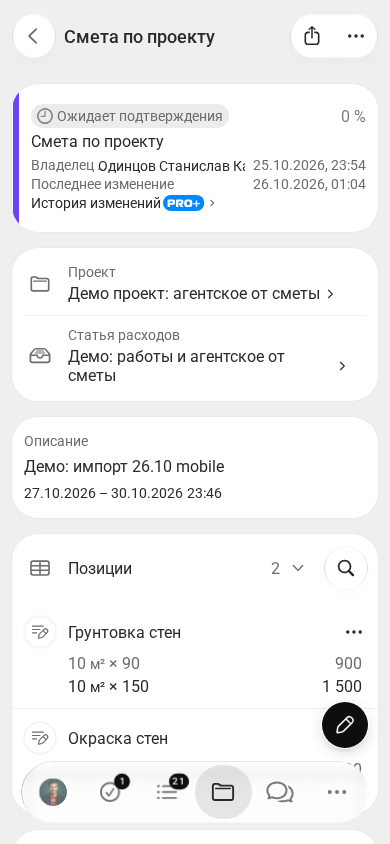
On a phone, first find the same estimate in the Gantt chart and expand its line items. To change its date range, return to “События” (“Events”) in the same project, open this estimate and enter its edit form. Tap the date and first select the start; reopen the calendar, enable “Период” (“Date range”) and select the end. Check the range, confirm your selection with the checkmark in the calendar’s top-right corner, then tap “Сохранить” (“Save”) in the estimate form. Once saving has finished, reopen the estimate and check the dates. If assigning a future date range makes the record disappear from the regular events list, expand “Показать запланированные” (“Show planned”) and find the same estimate there. This is the phone browser workflow; button positions differ from those on a computer.
The screenshots show the actual Russian-language interface. The computer and phone examples use different demonstration estimates; on each device, one record is followed from the original calculation through to its saved date range.
On a computer, the Gantt chart also lets you move an event and change its duration on the timeline. For details of this separate method, see the guide to changing an event’s dates (in Russian). If the interface warns that changing the dates of a confirmed report will reset its confirmation, take that consequence into account before changing the dates; rescheduling is neither a payment nor a new confirmation.
How are dates, estimates and reports connected?
The date range is about timing. The estimate contains the planned calculation, while reports record completed quantities of work. These details belong to the same project but mean different things: moving dates does not itself create completed work, a report or a payment.
When you need to report work against an estimate, the link to its specific line items through the “Из сметы” (“From estimate”) source matters. An identical work item name or a shared price list does not create that link. Include the additional quantity completed in the next report, rather than repeating quantities already recorded. This separate workflow is covered in the guide to reporting work against an estimate (in Russian).
Line item progress shows the completed quantity relative to the estimate. Saved reports awaiting confirmation can also count towards progress; the completion percentage does not prove payment or confirmation. The linking rules and how to view the result are explained in the guide to estimate progress (in Russian). To prepare the calculation itself, see the detailed article on estimates in 101 (in Russian).
The monetary “План-факт” (“Plan vs actual”) comparison of cost and profit serves a different purpose. Read its figures separately from completed-quantity percentages and dates: see the guide to planned and actual cost and profit (in Russian). If you need to prepare a calculation quickly, use the short guide to creating an estimate (in Russian).
During a 101 presentation, you can discuss a typical project of your own: which estimates to separate into stages, how to check the dates, and how to link subsequent reports to the original work.
Which mistakes make the schedule harder to manage?
Duplicate calculations, unclear levels of detail and a lack of regular checks are the most common obstacles. First make sure the team is discussing the same estimate and understands its date range in the same way.
- Creating a similar estimate instead of scheduling the existing one. Check the original record, project and line items.
- Assuming a price list is required for the Gantt chart. Manual line items are also valid; what matters is the project’s saved estimate.
- Expecting one overall bar to provide stage-level detail. A large estimate can be edited, but clear divisions between work stages make intermediate dates easier to monitor.
- Treating a change to the event’s date range as an automatic change to every line item’s dates. Check the relevant level of planning separately.
- Treating 100% progress as proof of payment. Dates, completed quantities, confirmations and money each require their own checks.
- Leaving no time for required waiting periods between operations or for deliveries. Allow for them when choosing the date range, and agree who will check changes.
How do you keep the schedule up to date?
Assign someone on the team to keep the plan up to date, and review the next stages regularly. When work moves, check neighbouring dates, deliveries and required waiting times between operations. Record the reasons for changes using your agreed working process, so participants understand the revised plan.
Add detail to the schedule when needed, rather than to increase the number of bars. General principles for sequencing work and dependencies are covered in the article on construction schedules. Allow for agreed approvals and deliveries when planning, without assuming that separate automatic lanes already exist for them.
The practical result of this workflow is the same estimate in the same project, recognisable line items and a verified, saved date range. Link subsequent reports to the original work, and check dates, progress and monetary figures according to what each one actually represents.