Creating estimates in 101 is included in its free basic tools. You can calculate work, quantities and prices in a browser on your computer or phone, then check the total and discuss it with your customer. Before you start, gather the inputs: a list of tasks, measured quantities and current prices.
This article covers preparing your data, creating a free estimate, checking the saved calculation and agreeing on the document. We also look at price lists, manual line items and the service’s additional features.
Contents:
Why create a free estimate?
An estimate helps a builder, finishing contractor and customer agree on the scope and cost of work before it begins. In 101, creating estimates is free for subsequent calculations too. To get started, sign in to your account and check which company is selected.
What is available free in 101?
Free estimate creation lets you prepare a calculation and discuss the scope of work with your customer. Check the terms for other 101 tools separately: a free estimate does not, by itself, give you access to every feature of the service.
In 101, an estimate is an event containing a preliminary calculation for one stage or part of the work. It helps you assess future costs and agree on quantities. The calculation itself does not mean that work has been completed or paid for. After reaching agreement, continue managing the project and recording actual expenses, receipts and reports.
In this article, computer and phone refer to the web version of 101 opened in a browser. The installed iOS and Android apps may have different menus. The interface labels in the screenshots are in Russian; quoted labels below are accompanied by their English meanings. The guide to the 101 web version (in Russian) explains how to open the service, check your account and select a company.
For an example of calculating an estimate on a phone, see “An estimating app: calculate estimates on your phone with 101”. Compare the suggested approach with your own workflow and check the final document before giving it to your customer.
How do you prepare an estimate and check the result?
Subsequent calculations are easier to prepare when work descriptions, units and prices are already organised. You can use existing line items as a starting point and check the quantities for each new job. If your source data is still in spreadsheets, “How to calculate in Excel” (in Russian) may help.
Divide the preparation into seven steps. The ways you can add line items and the actions available depend on your role and project settings. The computer and phone use separate, fictional demonstration estimates. Each example shows entering line items, saving the estimate and checking the calculation again.
1. Open the web version of 101 and sign in to your account. Check the company and your access to the relevant project. If you cannot see the project, clarify which permissions you have been given.
2. Prepare your line items and prices. Importing a price list is optional: if manual entry is available, you can start with individual tasks. If you have your own price list in Excel, use the price list import instructions (in Russian). They provide a blank XLSX template for you to fill in and check the structure. A ready-made, pre-filled price list is a separate purchased product. If you have access to it, use the instructions for obtaining a ready-made price list (in Russian). Check and adapt its line items and prices before use. You do not need to buy a ready-made price list to enter manual line items.
3. Start creating an event and select “Смета” (Estimate). Keep each calculation to a particular stage or part of the work so you can check its contents and agree on them with the responsible participants.
4. Specify the project and expense category, and fill in the description and participants. Put the stage name in the description. The expense category identifies the type of cost, such as labour or materials. Then move on to the line items.
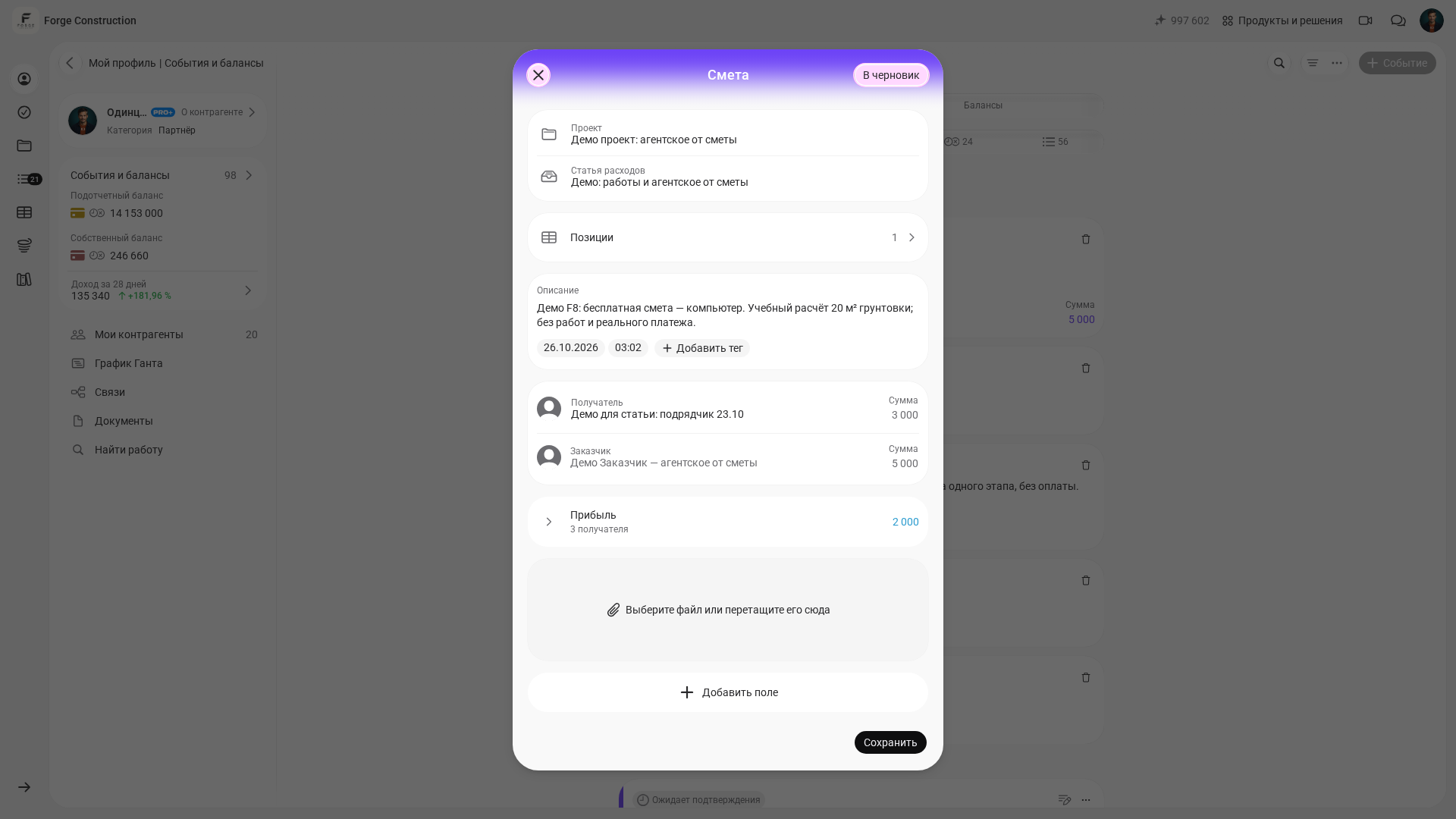
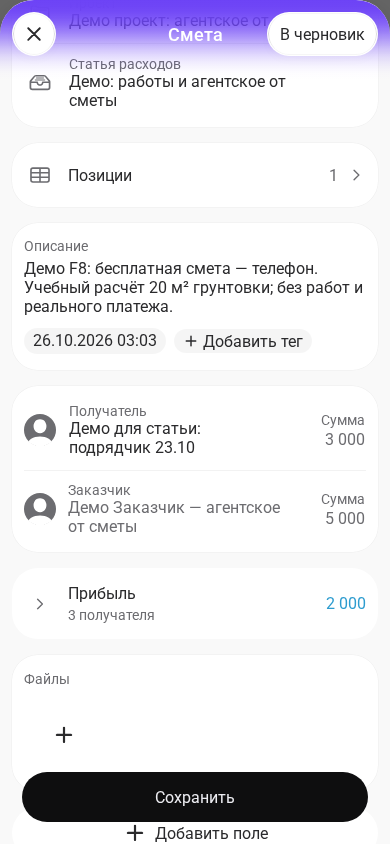
5. Select line items from an available price list or add manual rows if your expense category settings and permissions allow it. If you use the available AI-assisted insertion feature, which transfers line items using artificial intelligence, compare the result with the source. Do not treat automatically transferred rows as a finished, checked calculation.
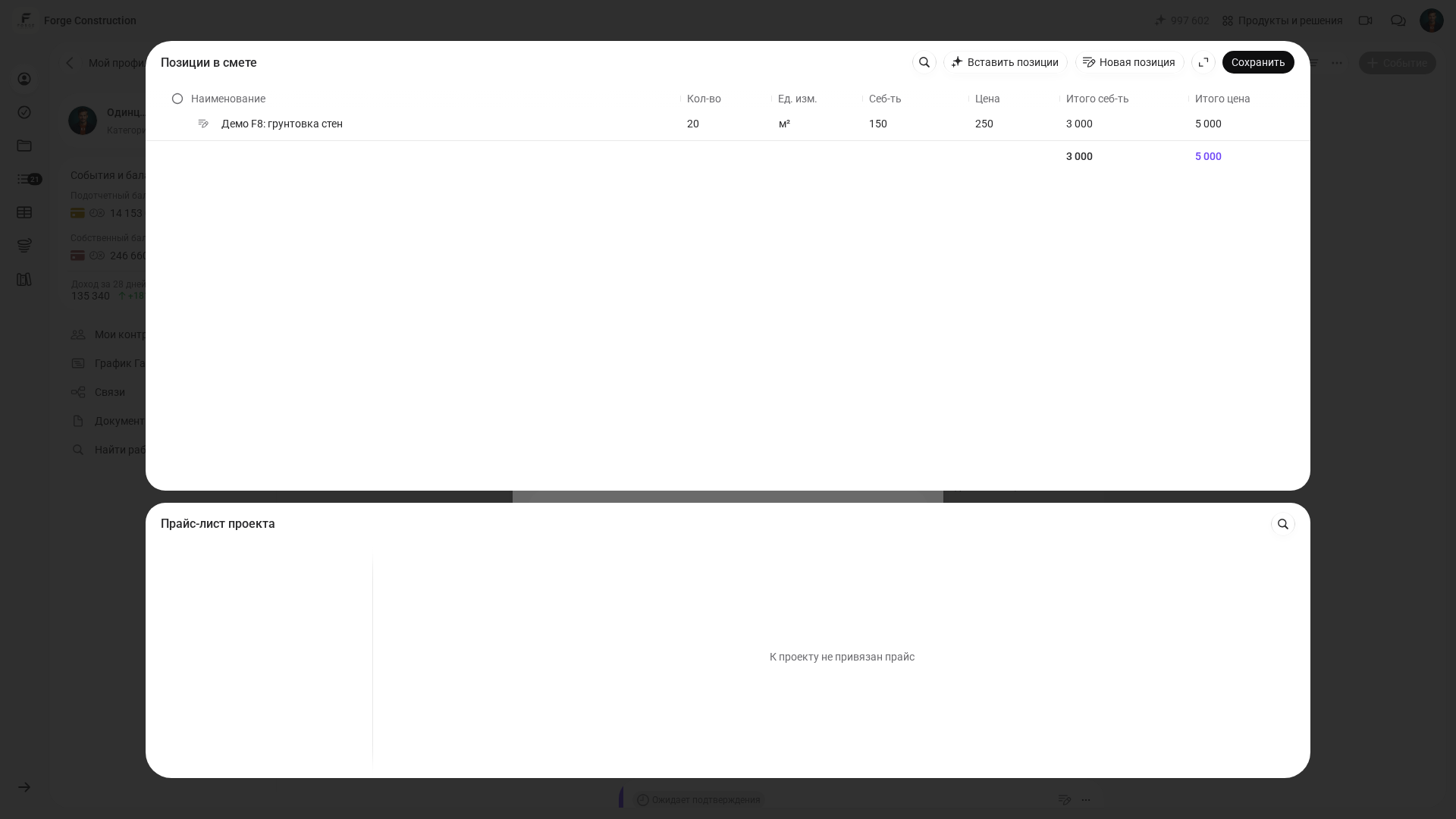
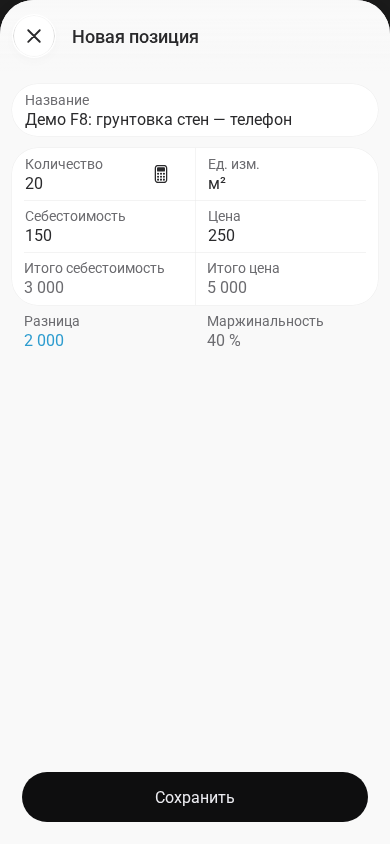
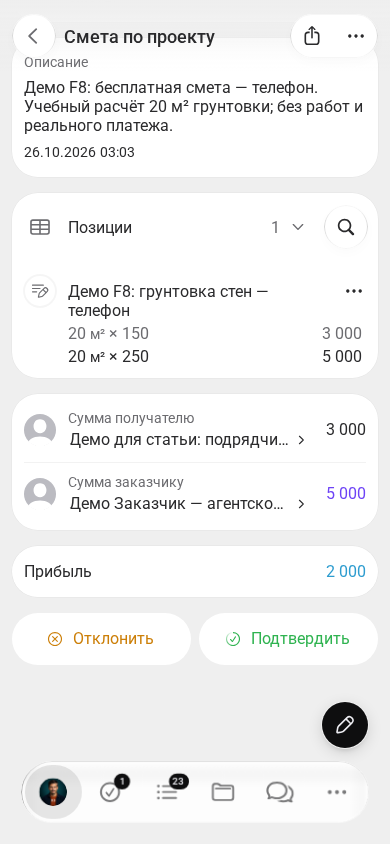
6. Check the quantity, unit of measurement, price, cost and total for each line item. On a computer, save the line items with “Сохранить” (Save). In your phone’s browser, save the new line item with “Сохранить” (Save), then finish the list of line items with “Готово” (Done). After returning to the main estimate form, check the remaining fields and press its separate “Сохранить” (Save) button. Reopen the same estimate and compare its line items, amounts and status with your calculation. Also check the form’s total field: it may differ from the sum of the line items. Confirming the estimate is a separate action performed by an authorised participant. In the demonstration, 20 m² × 250 = 5 000, while the cost is 20 m² × 150 = 3 000; the difference is 2 000. This is the difference between calculated amounts, not money received or net profit.
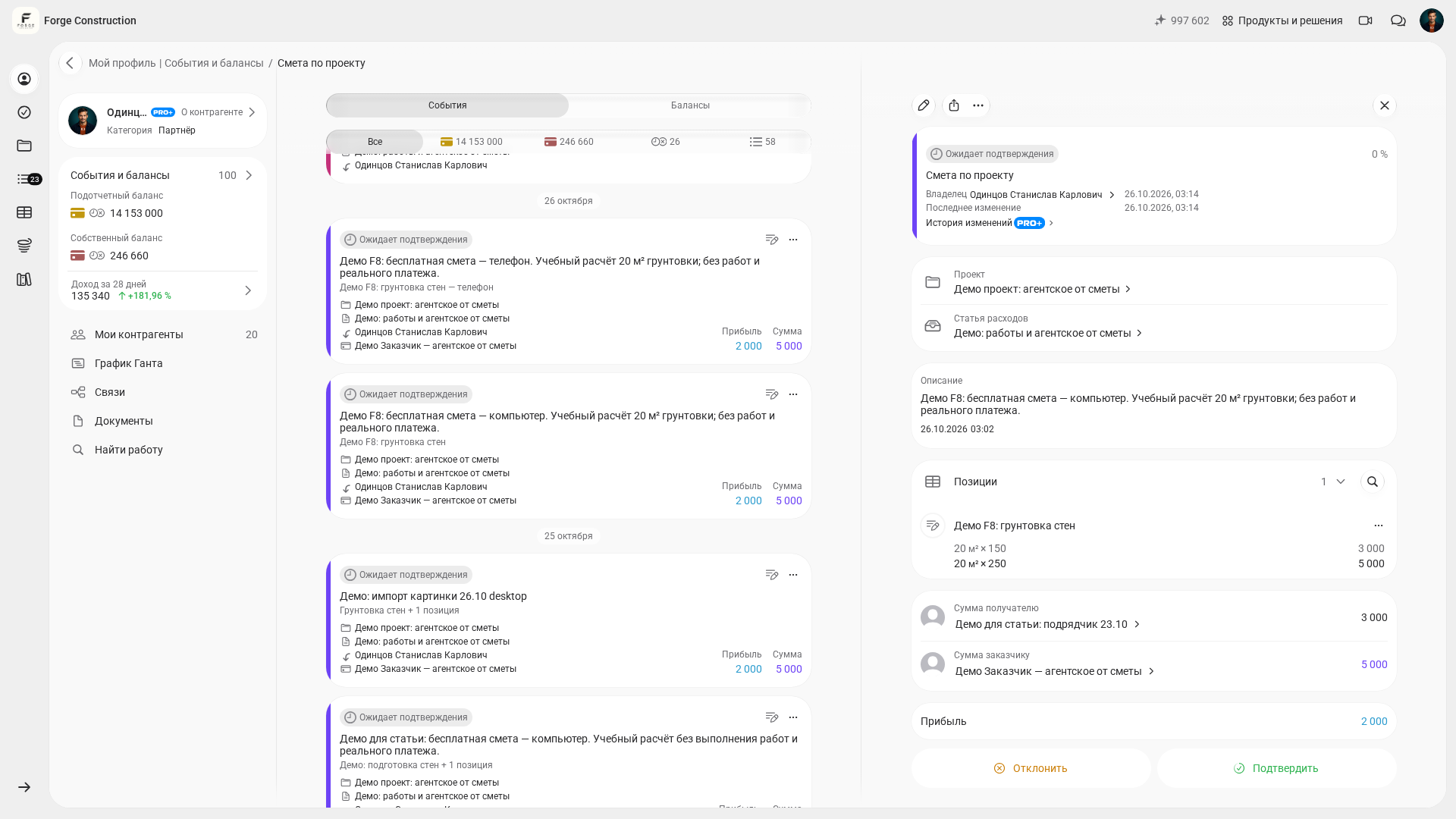
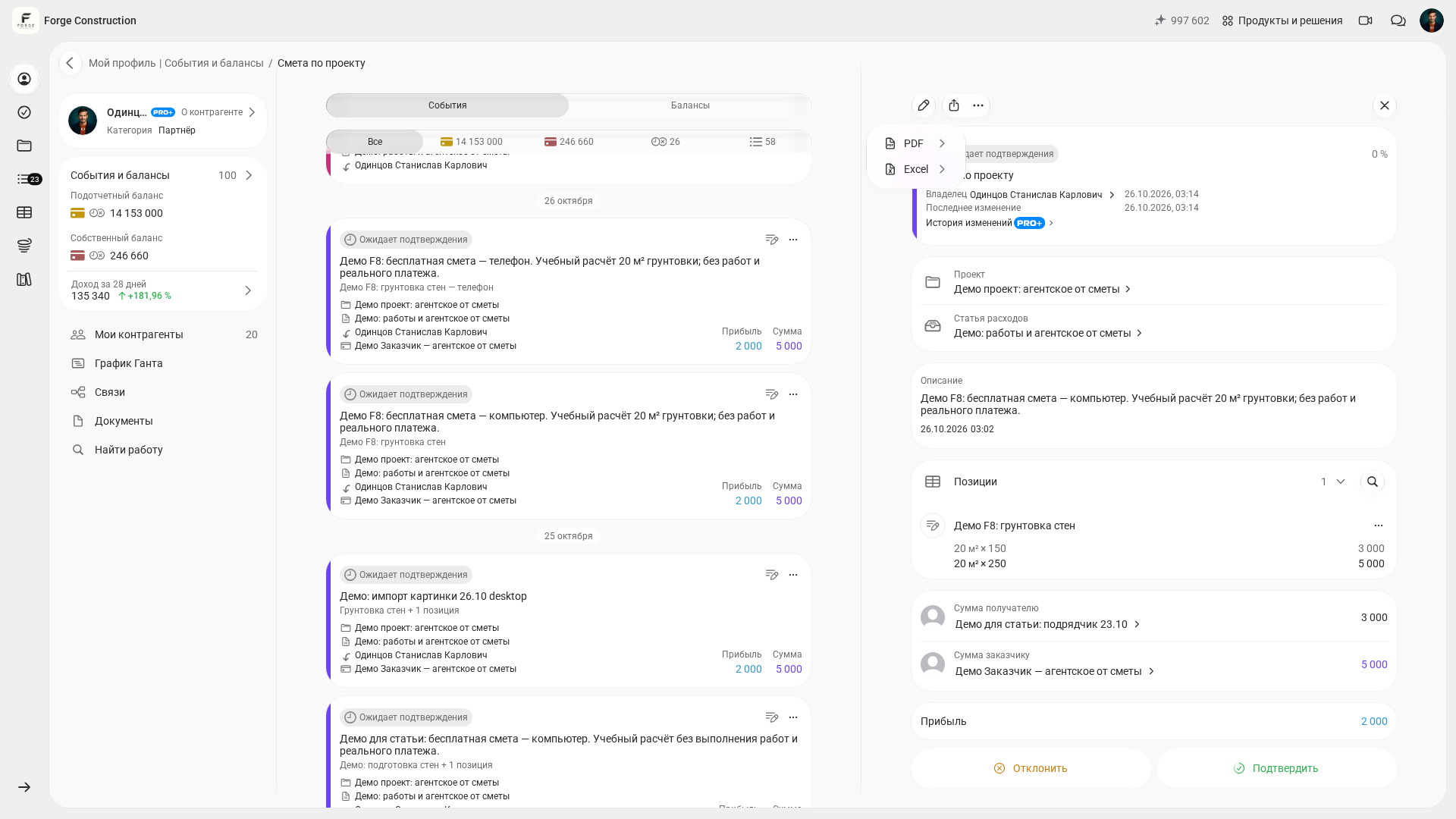
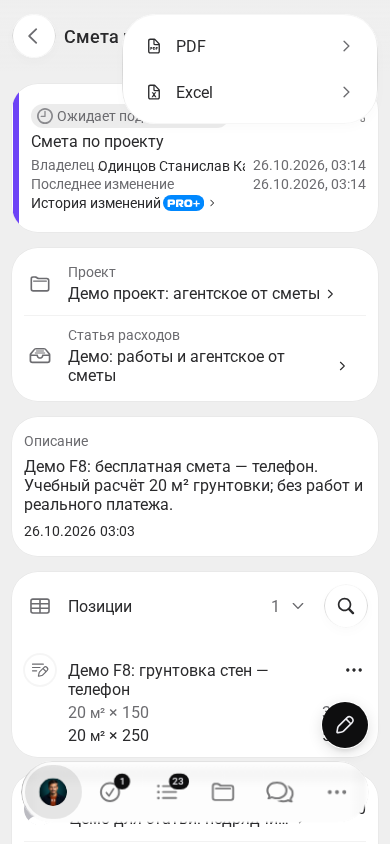
7. In the saved estimate, press “Поделиться” (Share) and select PDF or Excel to prepare a document for agreement.
For another example of preparing a calculation, see “Testing the estimate builder in 101” (in Russian). Treat it as a separate example and compare the described actions with the interface available to you.
What should you check in your price list and quantities?
Errors in the input data can change the result of your estimate. Check for duplicate line items, different units for the same task, outdated prices or quantities entered without measurement. Resolve these discrepancies before discussing the total with your customer.
Check three groups of data. First, organise work into clear stages to make the relevant line items easier to find. Second, use unambiguous units: m², linear metres, individual items or a service. Third, separate labour and materials so your customer can understand what the calculation includes. Organising by stage is a recommendation for preparing your data; it does not make importing a price list mandatory.
If you do not yet have a price list, start with a list of tasks, their units and your own checked prices. “A detailed guide to creating an estimate” (in Russian) will help you plan the calculation’s structure and the information in the document header.
How do you prepare a PDF and agree on an estimate?
For agreement, prepare a document your customer can read comfortably. PDF preserves the layout of the calculation when the file is shared. After selecting the format, open the resulting file and check its details, line items and amounts. Before sending it, make sure you are sharing the current version. If you need one document covering several stages, use the combined estimate instructions (in Russian). Prepare the relevant confirmed estimates for it. In the combined document, check which calculations are included, the sections and the overall total.
Agree in advance on how changes will be handled and decide who will collect feedback. If changes arrive in several rounds, identify each version of the estimate. For example: “we are reviewing version 2 dated 17 June” or “in version 3, we removed underfloor heating and added sound insulation”. When sending a document, specify which version is current.
After agreeing on the estimate, continue maintaining the project data: expenses, receipts, advances, purchases and reports for the customer. For an explanation of how project data, expenses and planned versus actual figures connect, see “Five 101 features for tracking projects and finances”.
If several participants prepare calculations for different sections, assign parts of the work to them and check their access to the data. “A new way to work with estimates in 101” (in Russian) describes an approach using separate estimates and a combined document. Before combining calculations, check which estimates are included and remove duplicate line items.
A 101 demonstration can help you work through your process: preparing estimates, reaching agreement and then keeping project records. Prepare a sample of the work, your input data and questions about which actions are available to your team.
What should you check in your subscription plan beyond free estimates?
Creating subsequent estimates is also included in 101’s free basic tools. Assess whether you need a subscription based on the other actions your company requires and the service’s current terms.
Check the features and limits in your account. The guide to checking your plan (in Russian) explains where to view your current plan and compare the available features.
If you are considering PRO+, compare its additional tools with your company’s needs. Check your plan and your company or project permissions separately: a subscription does not, by itself, grant access to other people’s data.
For help choosing an approach to preparing your calculation, see “Free online estimating software”.