Contents:
The PDF estimate
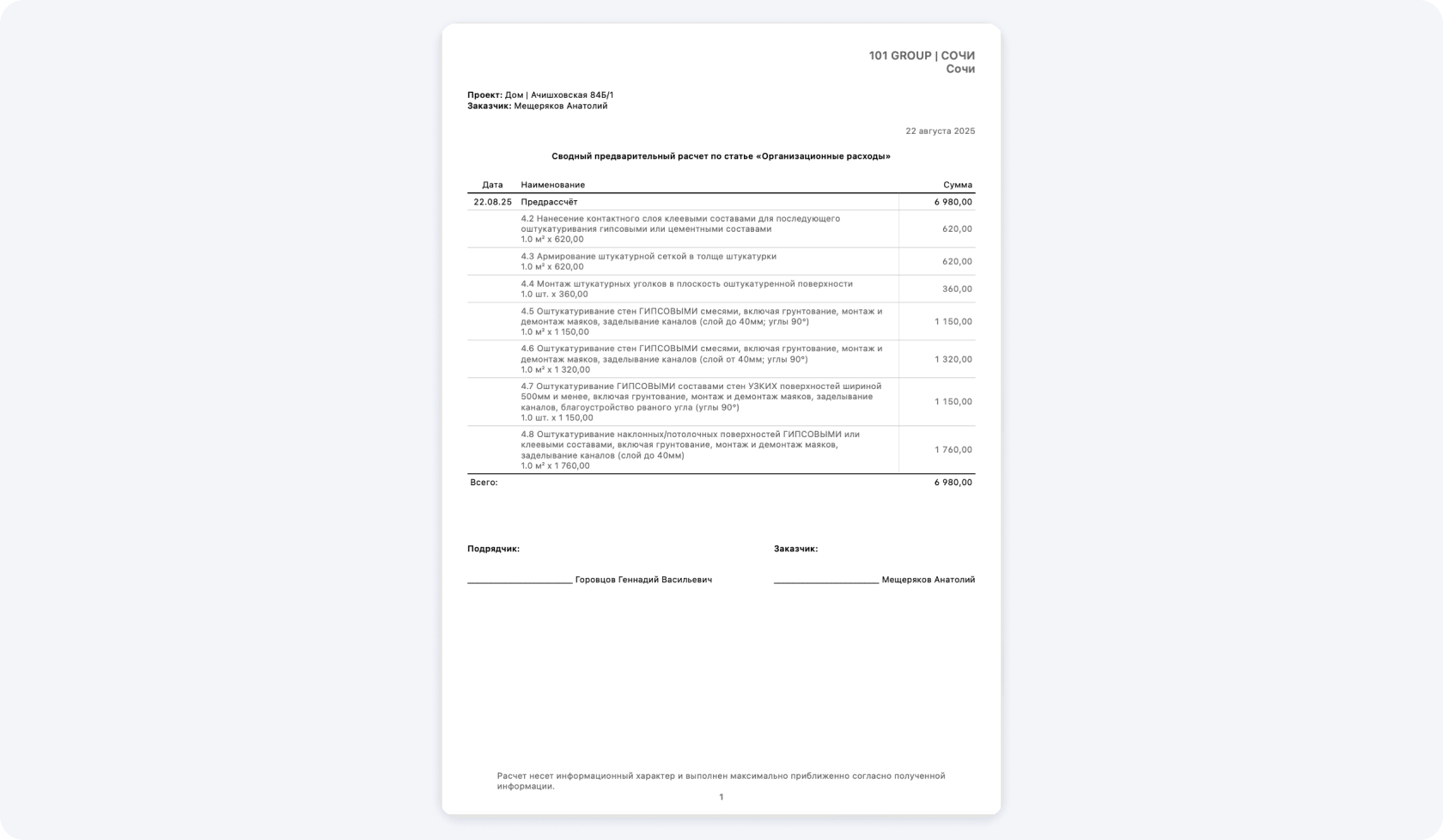
A consolidated estimate in 101 brings together confirmed estimates for individual stages and shows the sections and grand total. Export it as a PDF to send the estimate to the client for approval, attach it to the contract, or keep a copy in the project archive.
The PDF keeps the document layout when you view or share it. The recipient can open the file with a PDF viewer. If you edit the estimate in 101, the PDF you already exported will not update. Export a new copy to include your changes.
How to bring line items from a file into an estimate
101 reads the rows in your source and adds them as line items in a new estimate. Select the project, client and expense category in the estimate itself. You can set these details independently of the spreadsheet.
- Set up the project. Sign in to 101 and open the project or create a new one. Create an estimate and select the project, client and expense category. The expense category must allow you to add custom line items.
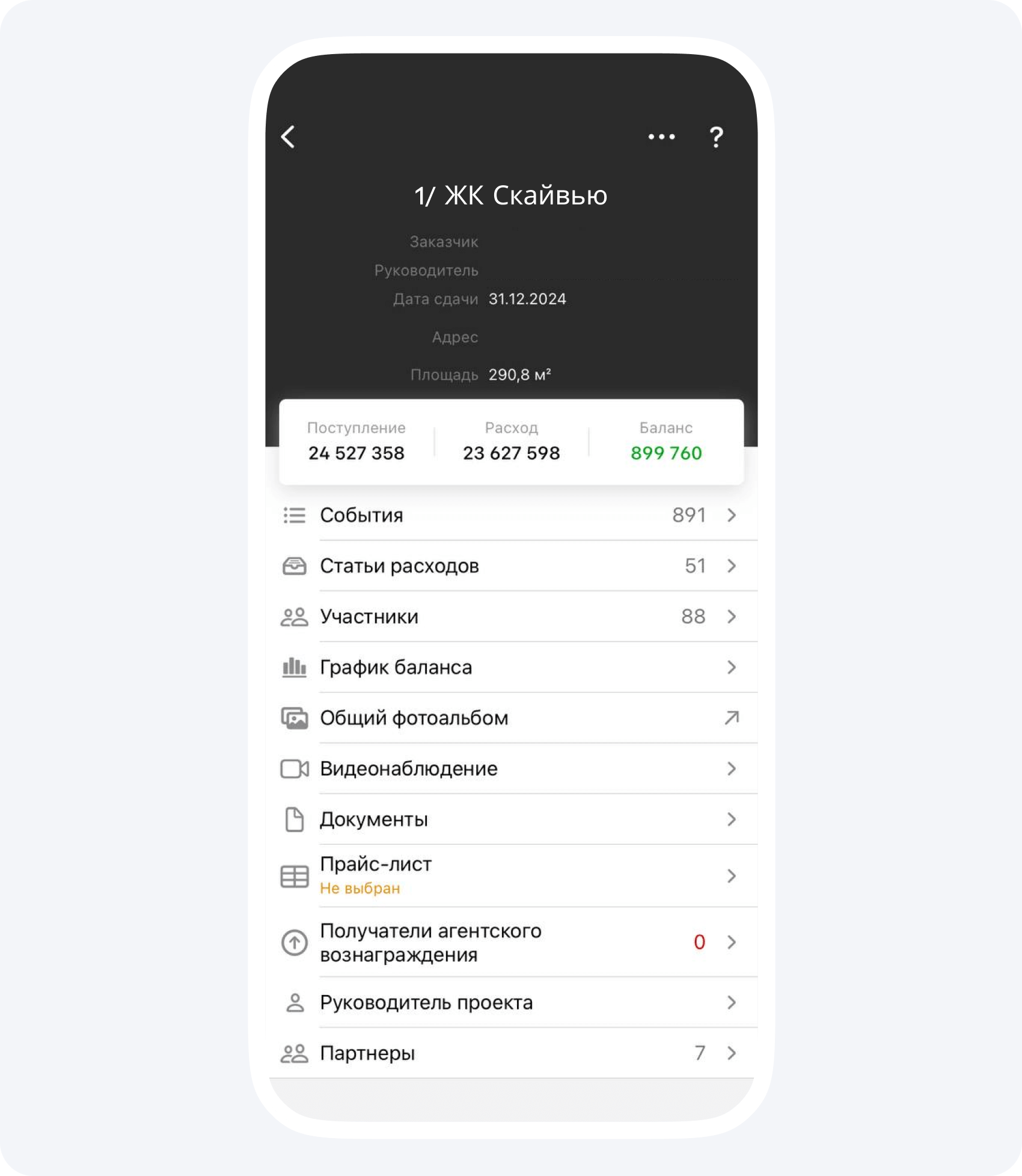
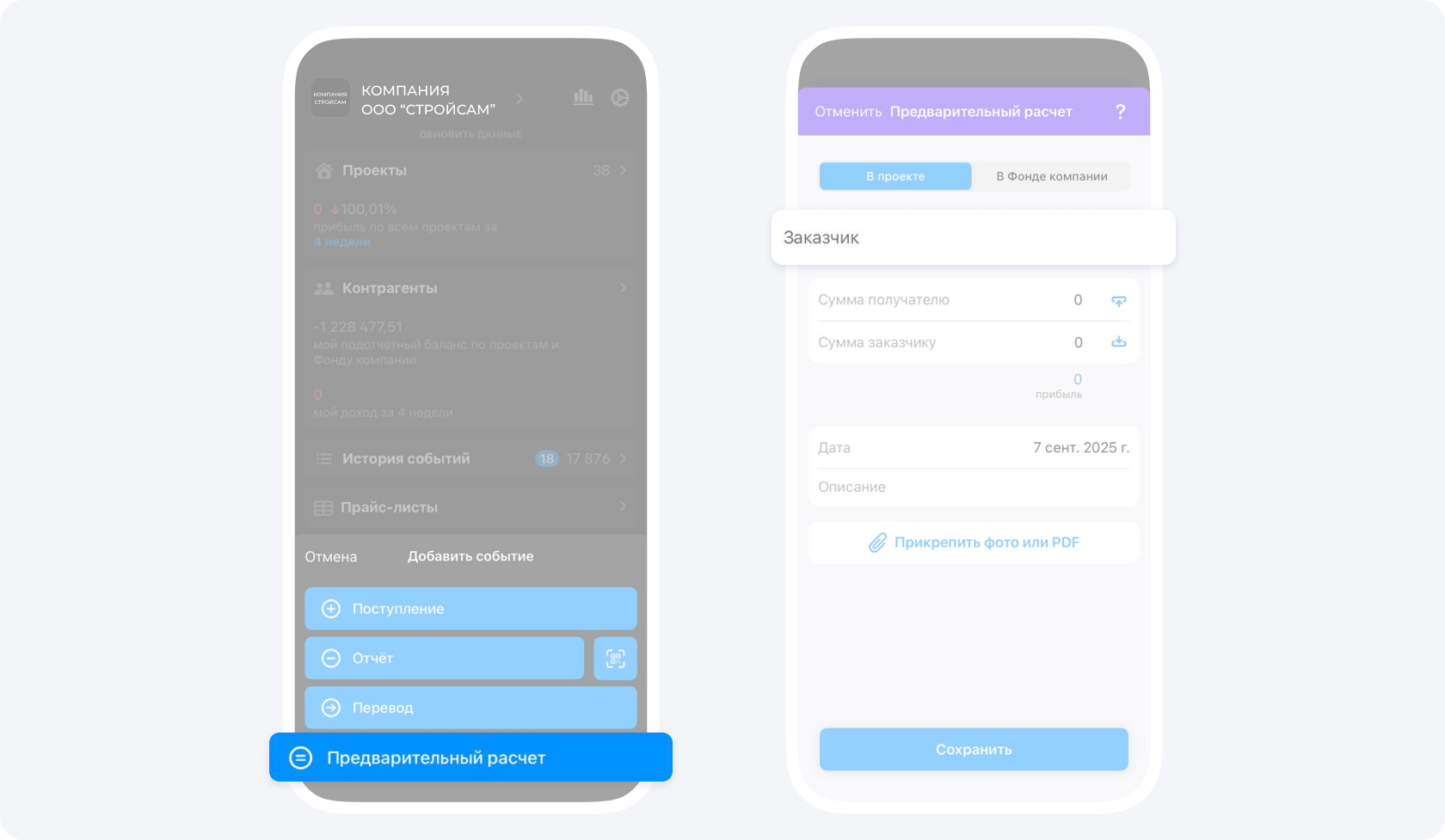
If the client is not yet in 101, see the article on adding people and companies (in Russian) and the user guide (in Russian).
2. Bring in the line items. Follow the instructions for your device, then check the result.
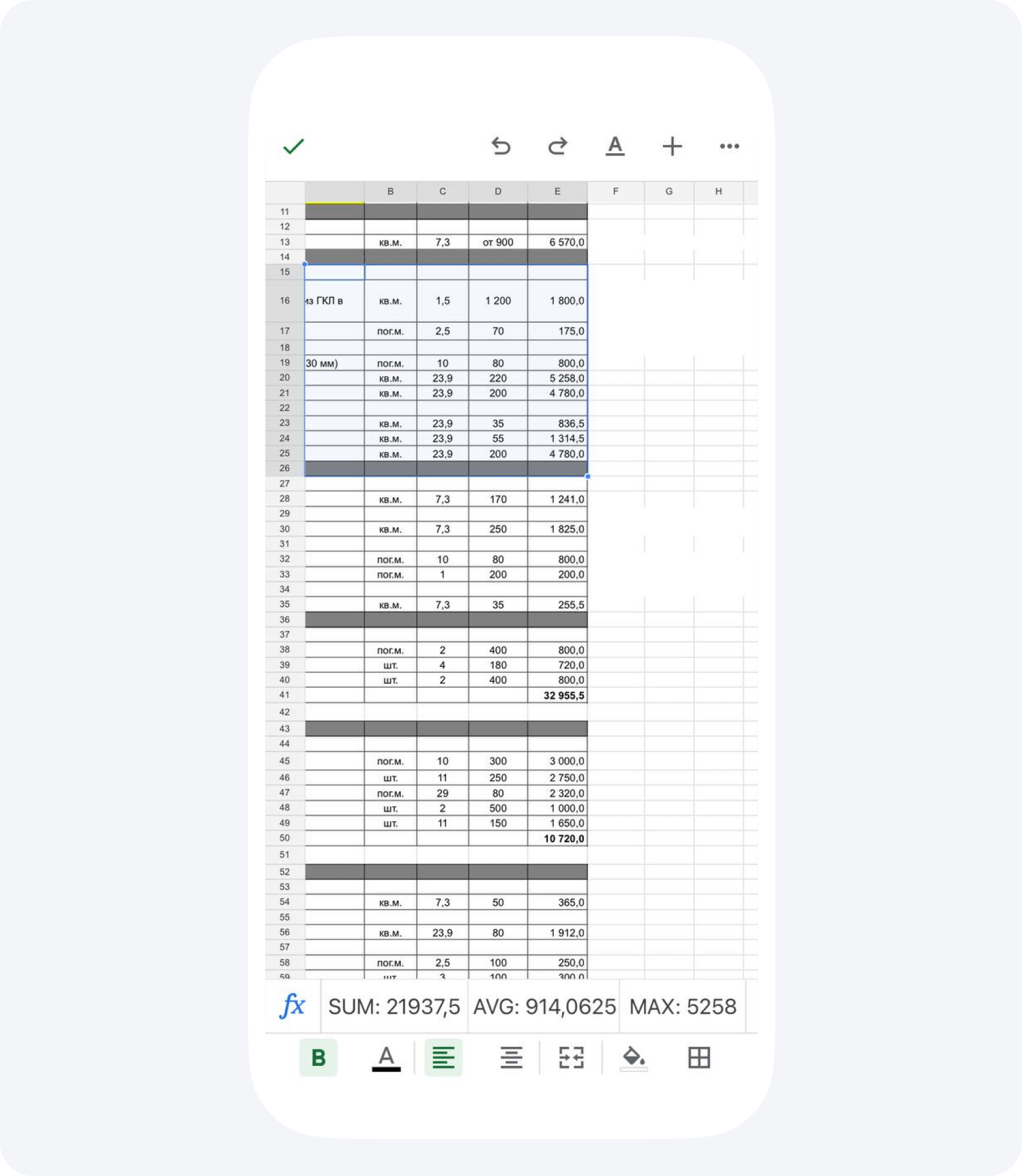
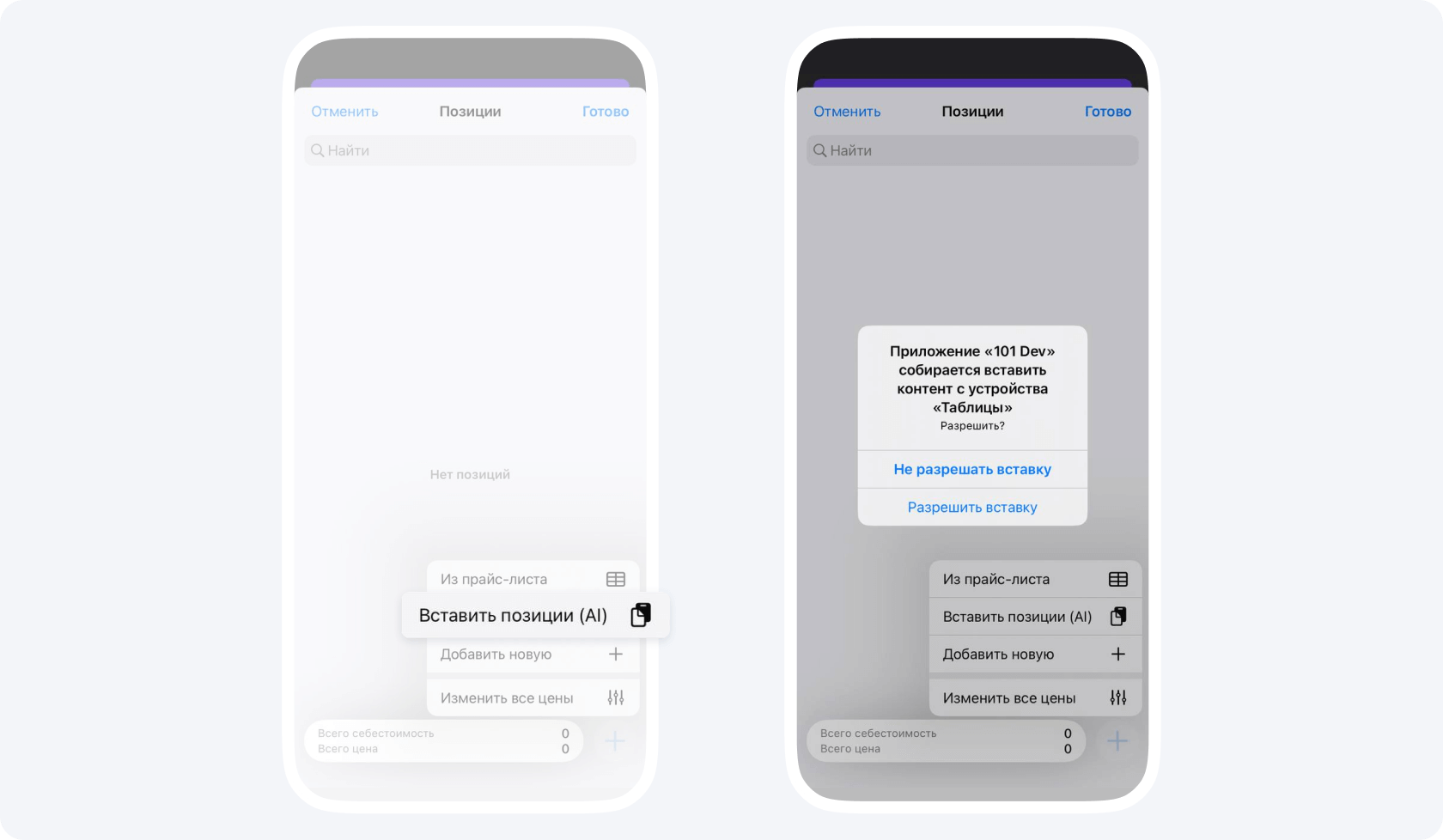
On a phone, copy the rows you need from a spreadsheet or another document. Open the item picker in the line items field and choose the AI paste option. 101 processes the copied data.
On a computer, open the controls for adding line items in the web app and choose the option to paste them. In the 101 AI panel, upload an XLSX, CSV, PDF or DOC file, or a photo of a table. To use text, paste it from the clipboard. Processing starts as soon as you submit the file, photo or text. See the guide to pasting line items (in Russian).
- Check the result. Compare the item names, units of measure, quantities, prices, internal costs and amounts with the source. Correct errors, fill in missing values and save the line items and the estimate. Before exporting, check separately that the estimates you need have been confirmed.
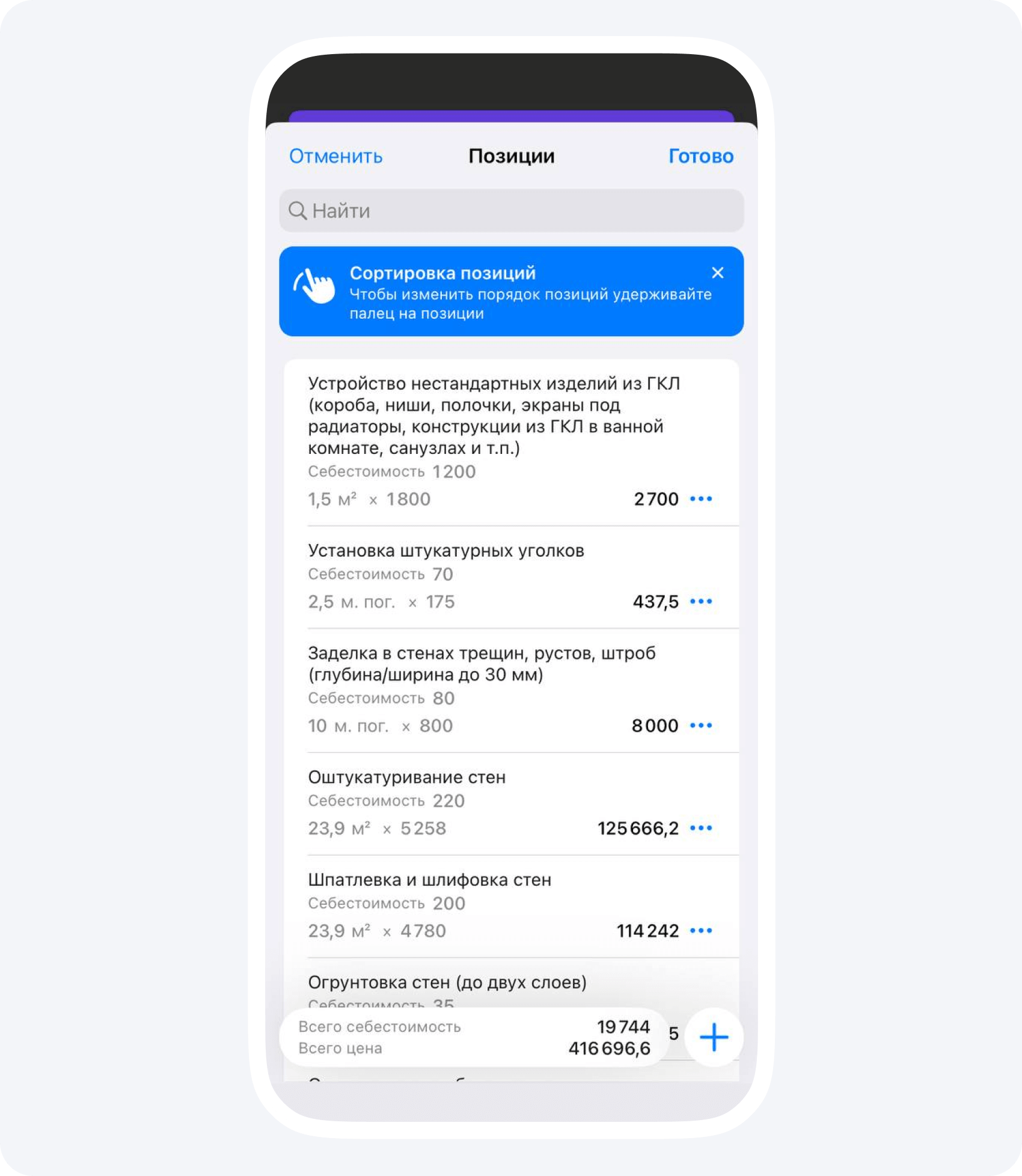
Once imported, you can edit the line items, add more or recalculate them. For more on working with rates, see the article on price lists in 101 (in Russian).
How to create and download a consolidated estimate
An estimate in 101 covers an individual stage or part of the work. A consolidated estimate combines the confirmed estimates you need in a single project document. Before exporting, check that every stage you need appears once.
- Open the project documents. Check which contract and party details should appear in the file.
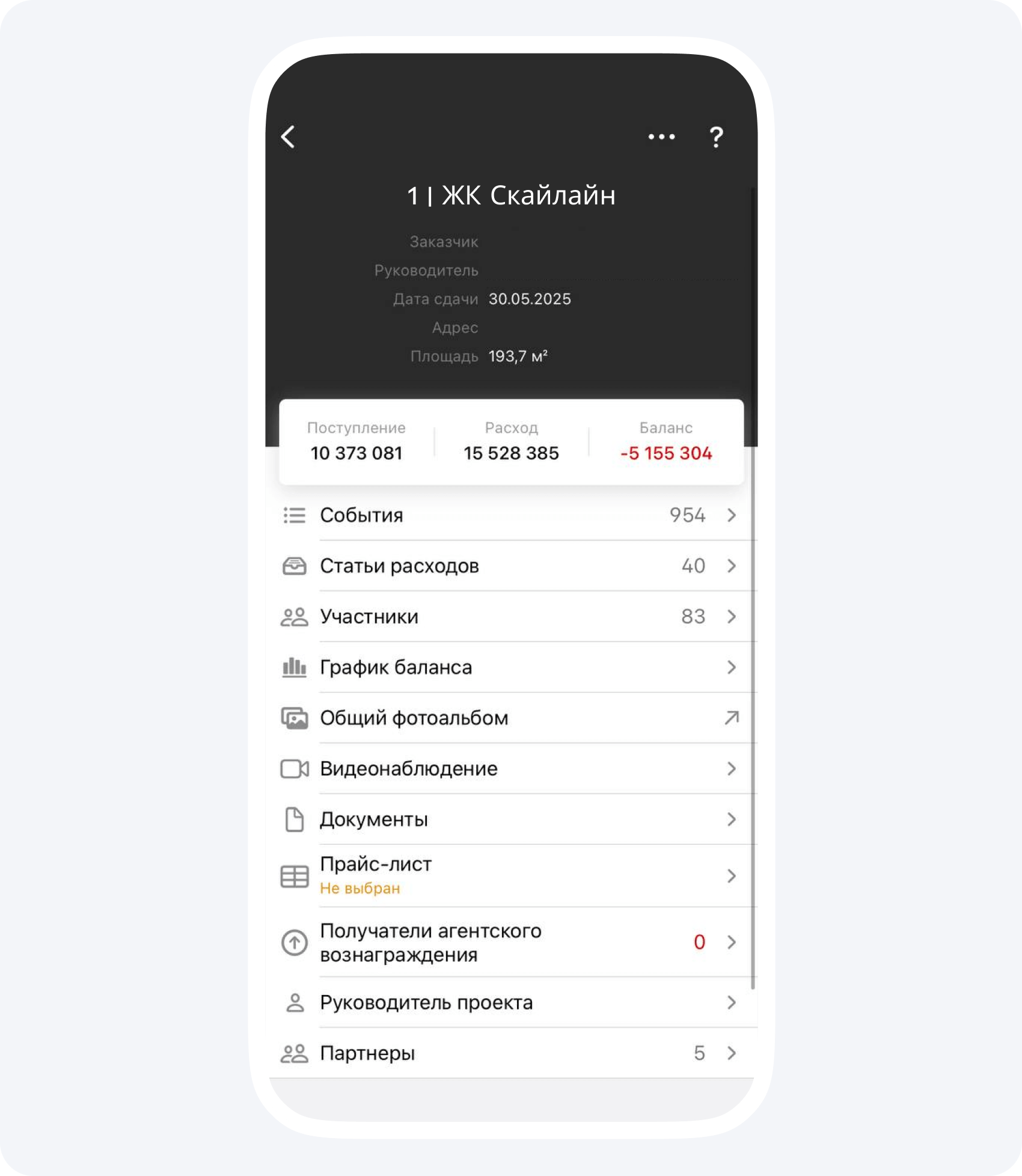
2. Create the PDF. Follow the instructions for your device.
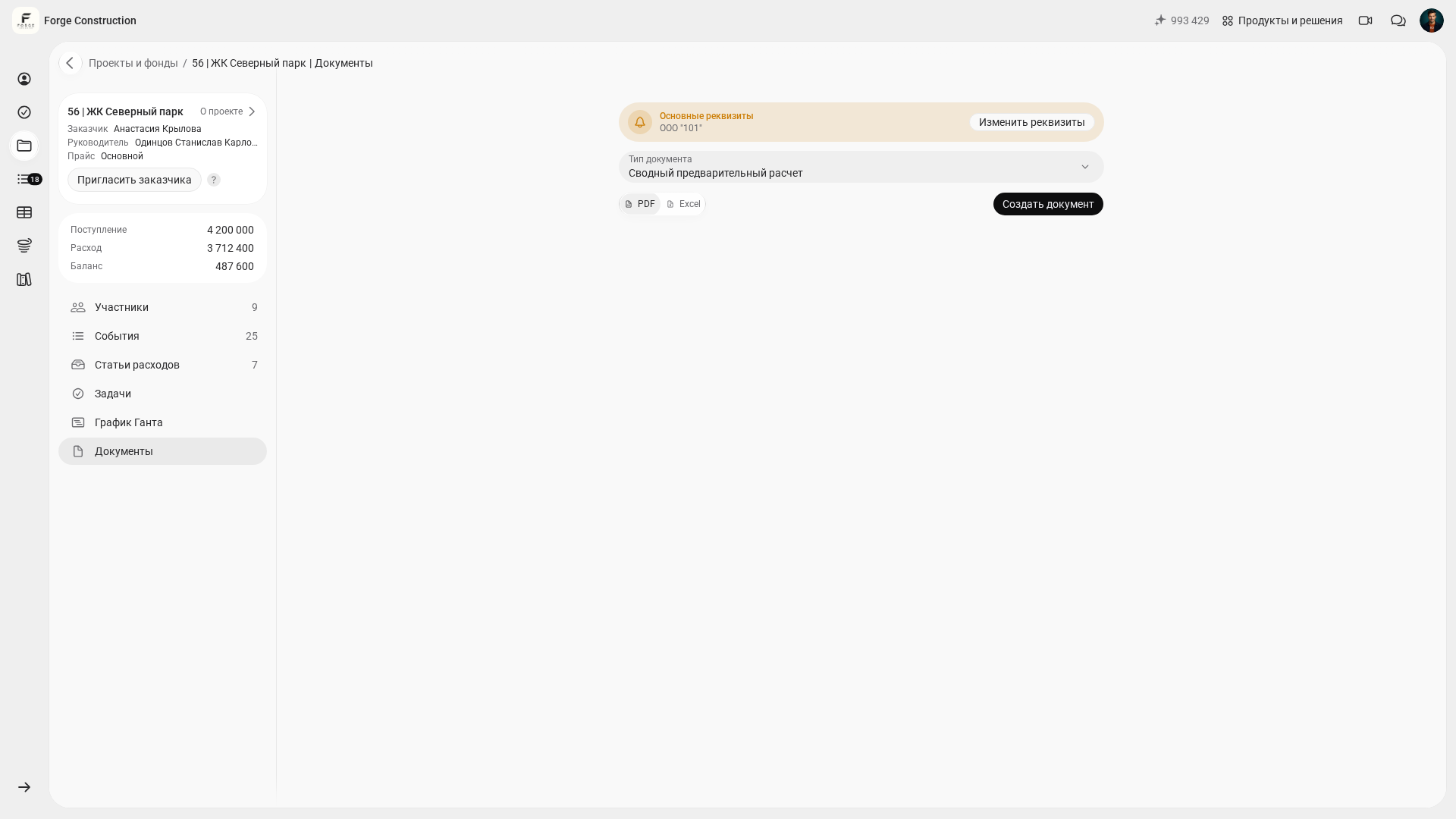
On a computer. In the web app, select the consolidated preliminary estimate as the document type. Check the date range if that option is available for the document. Select PDF as the format and generate the document. See the guide to choosing a document format (in Russian).
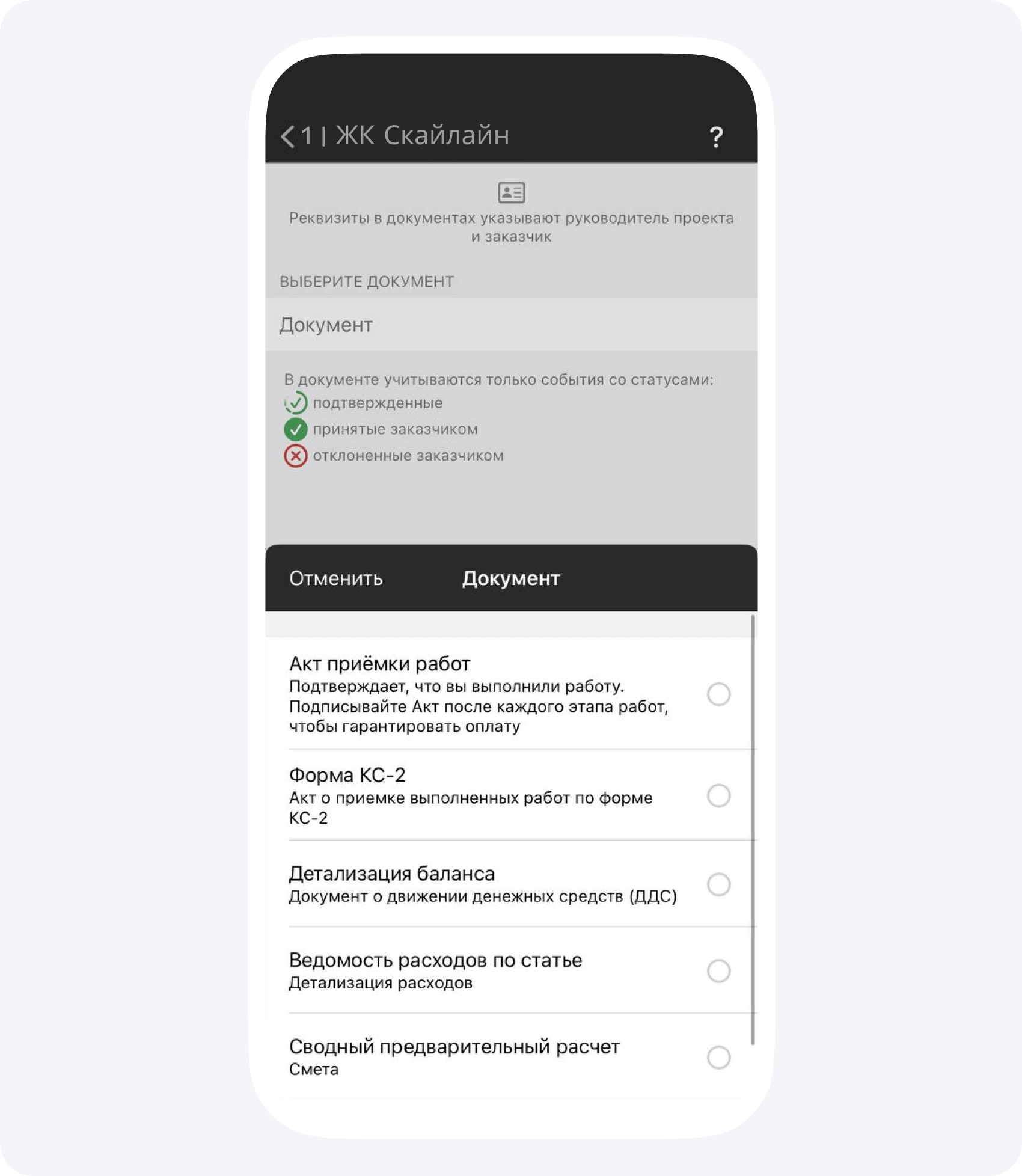
On a phone. Select the consolidated estimate as the document type and generate the document. See the guide to consolidated estimates (in Russian).
- Check and send the PDF. Verify the included estimates, sections, amounts and document details. Before sending the file to the client, check that it contains only the information intended for them. Save it in the web app or use the share option on your phone.
If you need help setting up estimates or documents, book a free consultation about 101 (Telegram page in Russian).