People search for ‘online accounting software’ for different reasons. For some, the cash records only reconcile at the end of the month. On other teams, the foreman keeps purchases in a chat, financial information in notes, and completion documents in folders marked ‘to sort’. Managing projects becomes difficult, even when work on site is moving forward.
The 101 App helps you maintain management accounts for each project: record incoming payments, reports on work and materials, and transfers separately, then check project balances and settlements with participants. Profit is checked separately from the balance; report results depend on the data entered and the scope selected.
This overview explains how online accounting works in 101, the day-to-day tasks it covers, who it suits, and how to introduce it to your team without unnecessary stress.
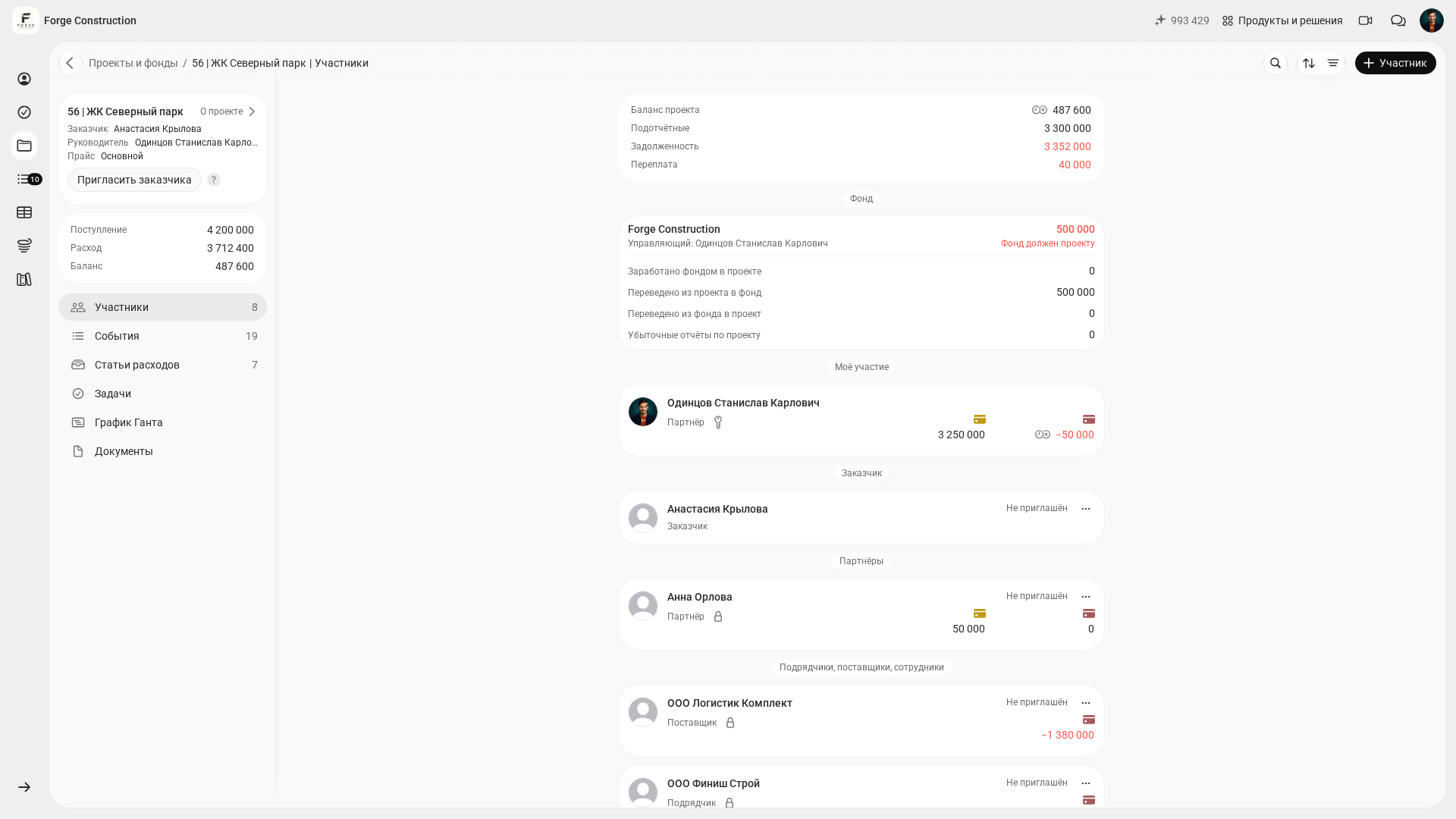
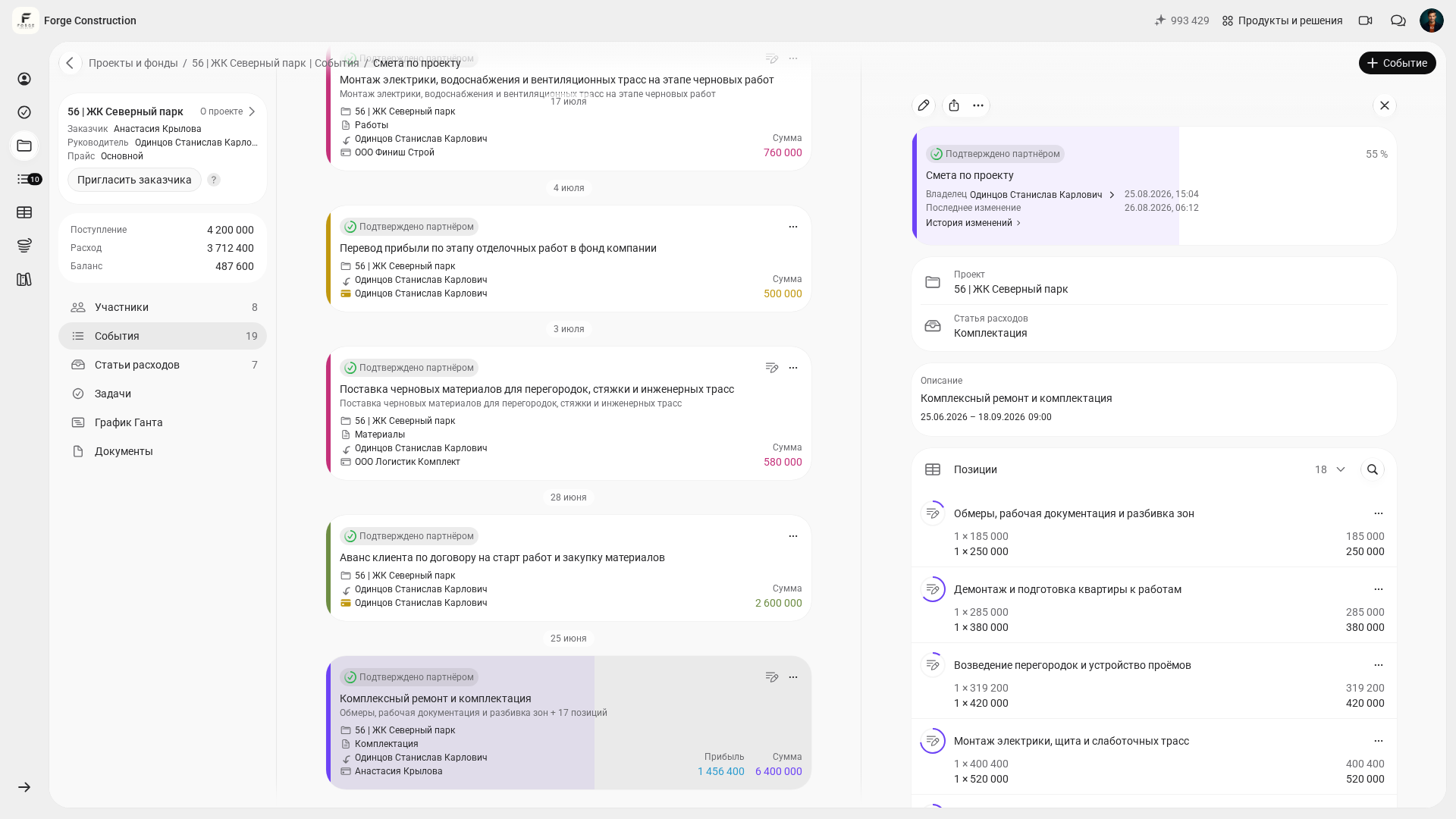
The screenshots show the Russian-language 101 web interface and fictional data for the demonstration company Forge Construction, viewed from the owner’s account. They show the state at the time of capture; figures from separate examples must not be combined into a single project calculation. Some column headings in the work completion certificate preview are in English.
Contents:
- What does online accounting mean in construction and renovation?
- How does the 101 App work?
- Day-to-day accounting: money, expense advances, plan versus actual, contractors
- On-site accounting on your phone
- PRO and PRO+: when are the essentials enough, and when do you need more?
- How do you introduce online accounting software to your team?
What does online accounting mean in construction and renovation?
For timely online accounting, agree to enter data on the day of each transaction: a customer payment, an advance to a tradesperson, a materials purchase, or completed work. The manager can then assess the project using up-to-date records. The speed and completeness of the accounts depend on how participants enter and check events.
In construction, a delay of 3–7 days creates a familiar fog. The contractor has already done the work, materials have arrived, and money has been spent, while the spreadsheet is still empty. Recording events and expenses on a phone narrows the gap between what happens on site and the management accounts.
How does the 101 App work?
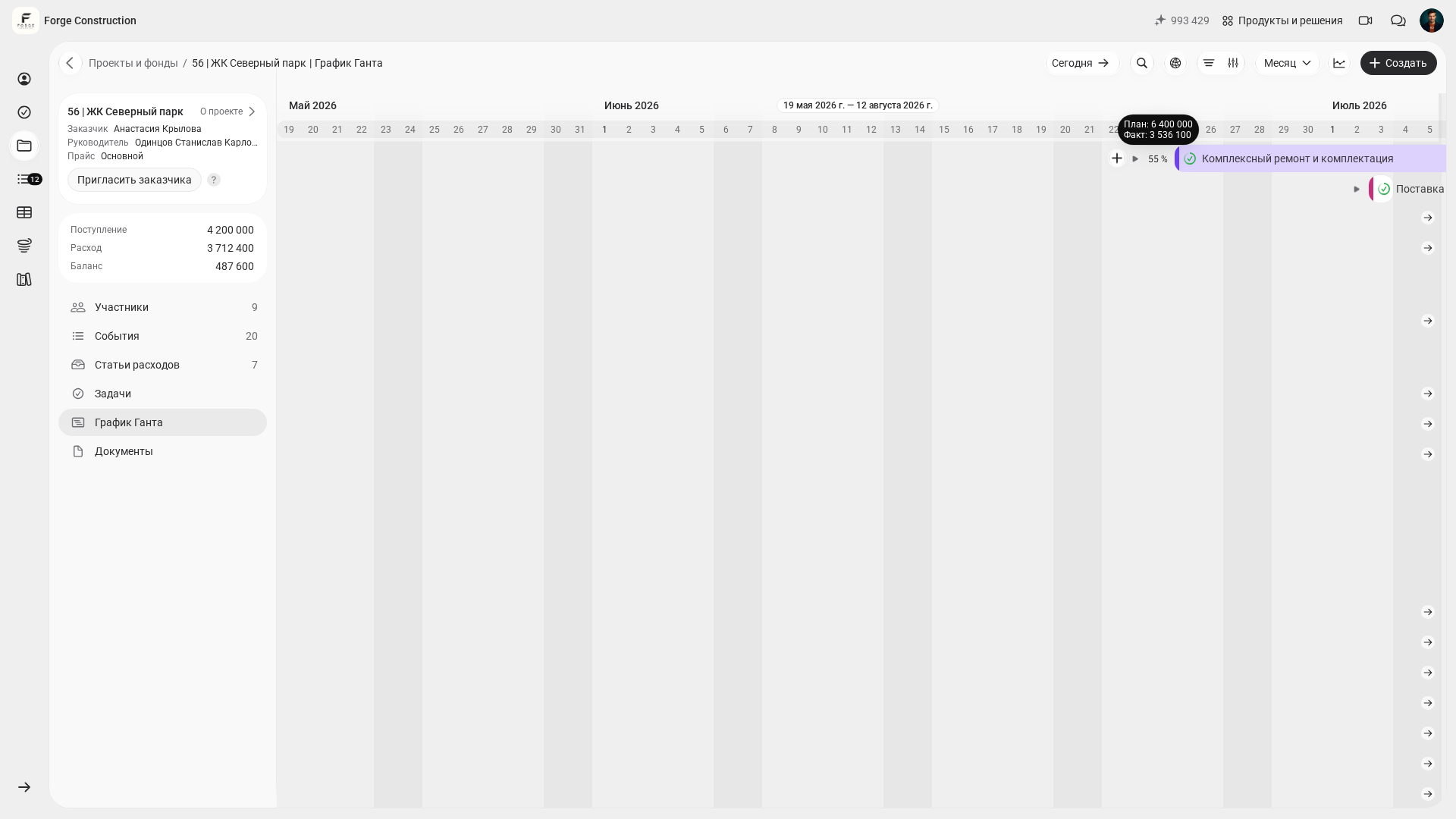
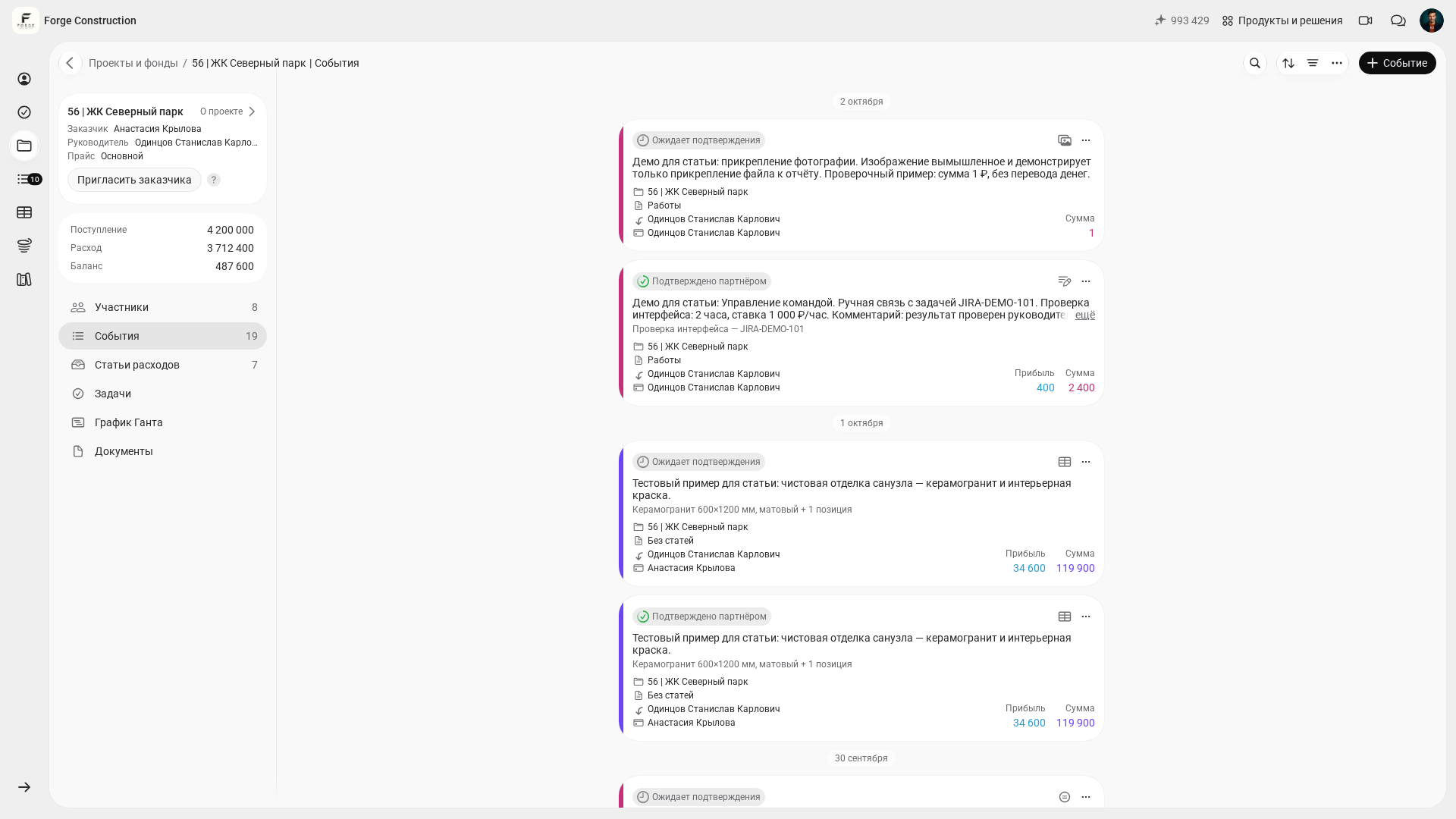
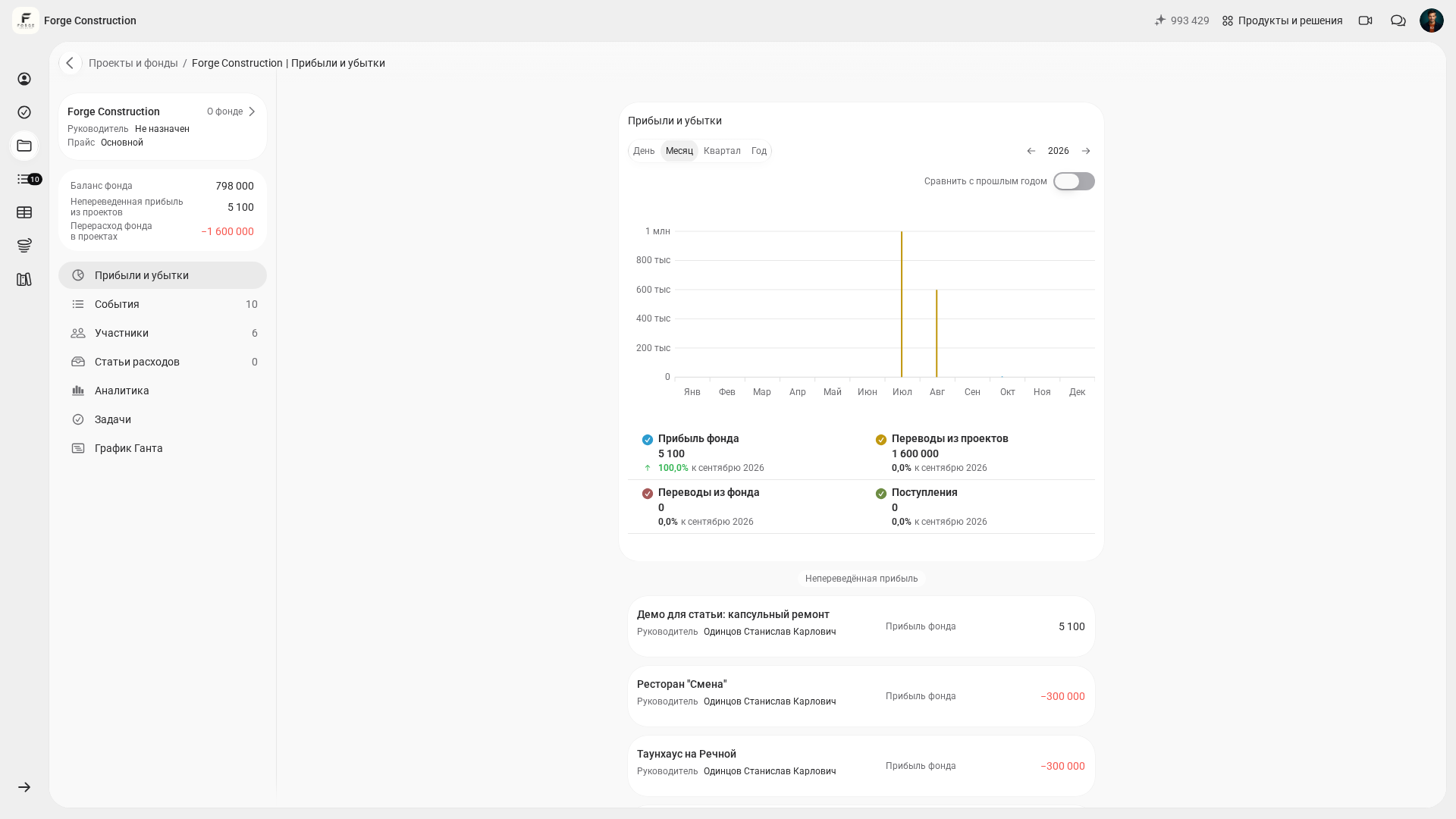
The central idea in 101 is simple: each project is a separate financial unit. The project balance shows the difference between incoming payments and recorded expenses; it does not represent the money held by an individual participant. Profit in an individual calculation is the difference between the customer price and cost; check it in estimates and reports separately from markup. Check amounts owed to participants and amounts owed by the customer using the selected counterparty’s balance for the relevant project. Before drawing conclusions, check that the necessary reports, incoming payments, and transfers have been entered, that events are confirmed, and that the data being compared covers the same scope.
This provides a basis for management control: expenses are linked to a project, an expense category, and a date; planned figures are compared with actuals; and reports are compiled from data already entered. The value of this control depends on the completeness and quality of the records. Check the underlying transactions and what the report includes before drawing conclusions.
To see how this approach applies to different roles, read the blog’s separate financial overview: ‘Software for Finance Professionals in a Construction Company: How the 101 App Organises Project Finances’ (in Russian).
Day-to-day accounting: money, expense advances, plan versus actual, contractors
The value of online accounting software often becomes clear in everyday details. When expenses are recorded systematically against the relevant project, it is easier to check where money went and discuss discrepancies using specific transactions.
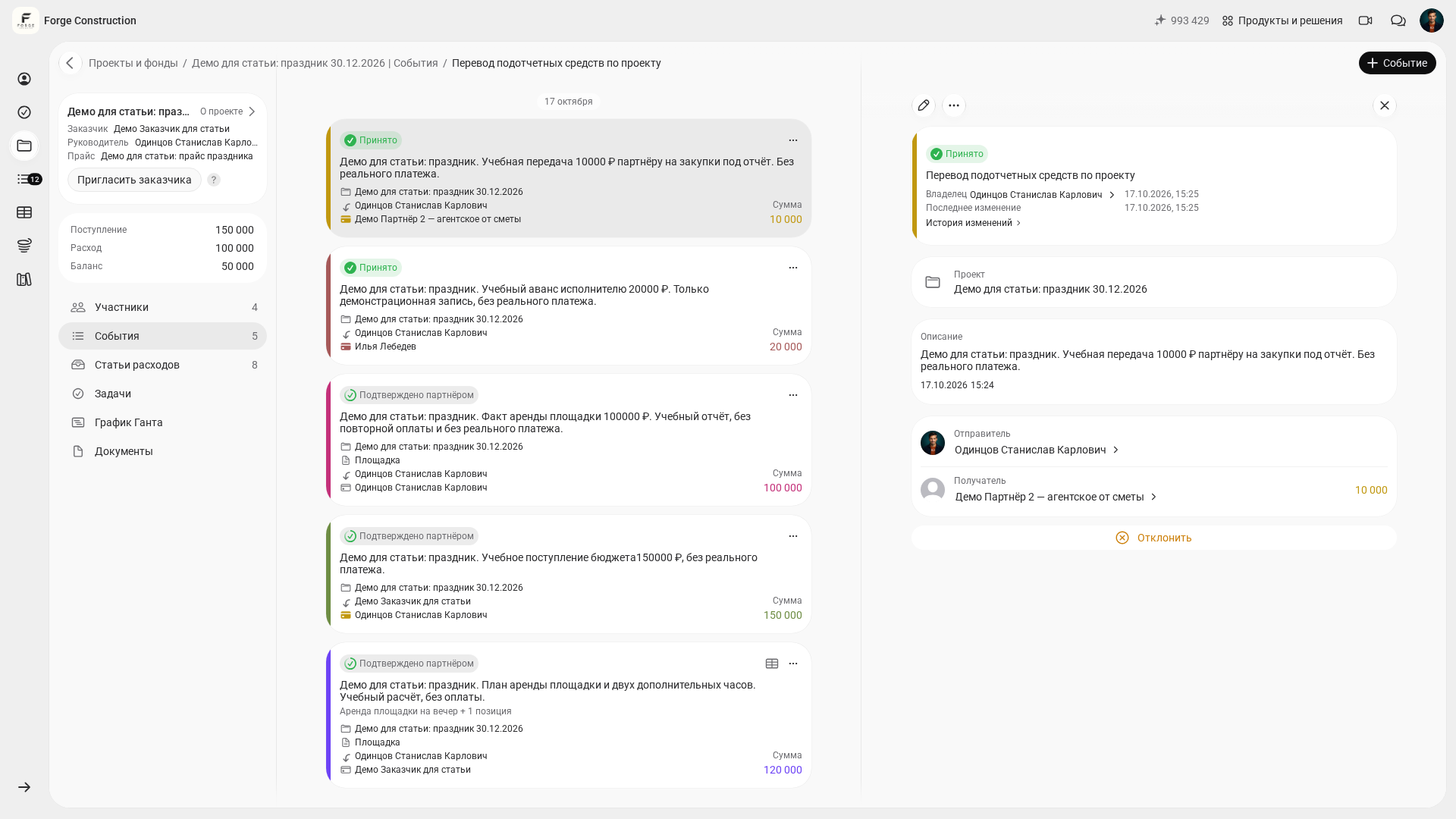
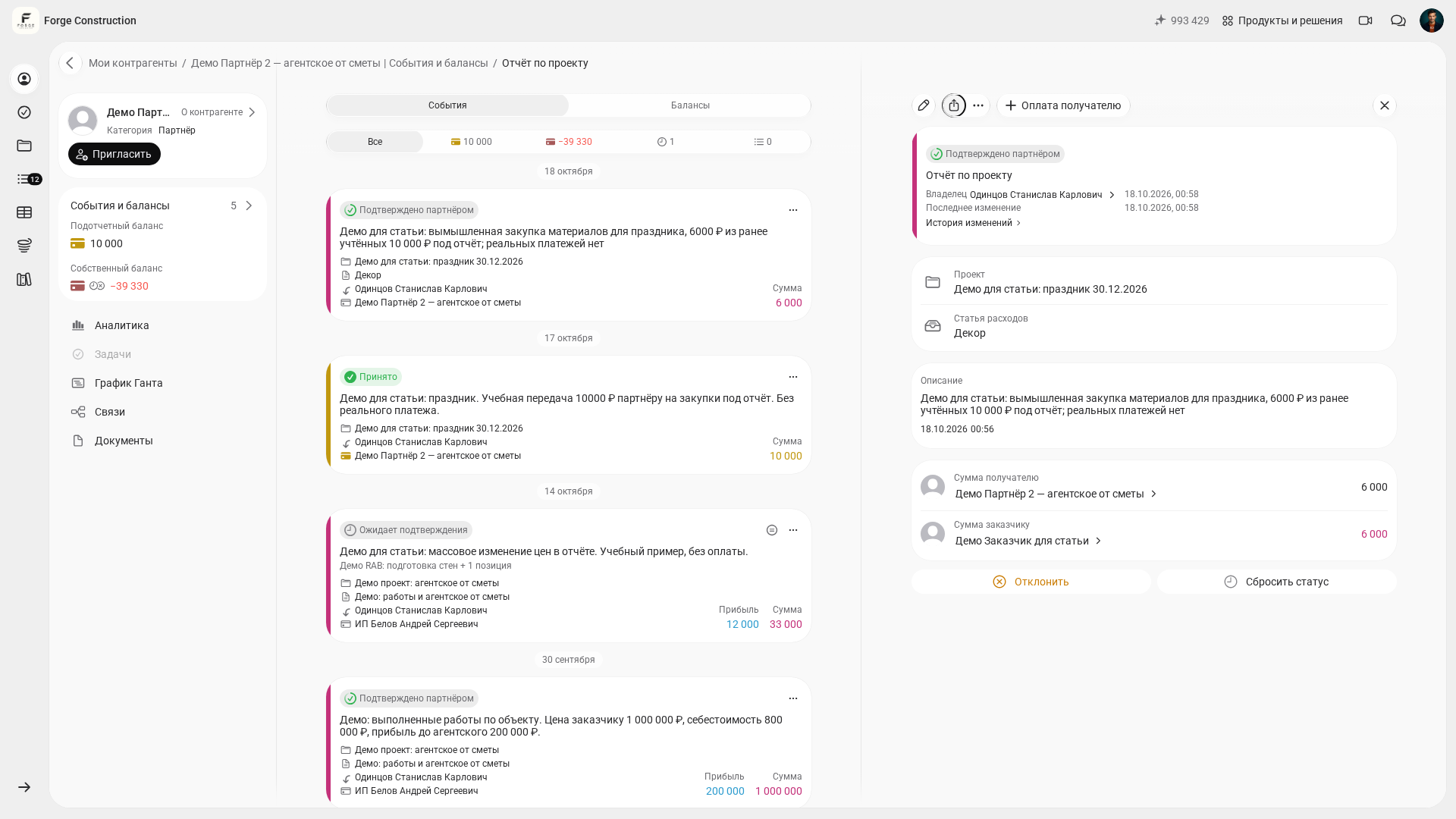
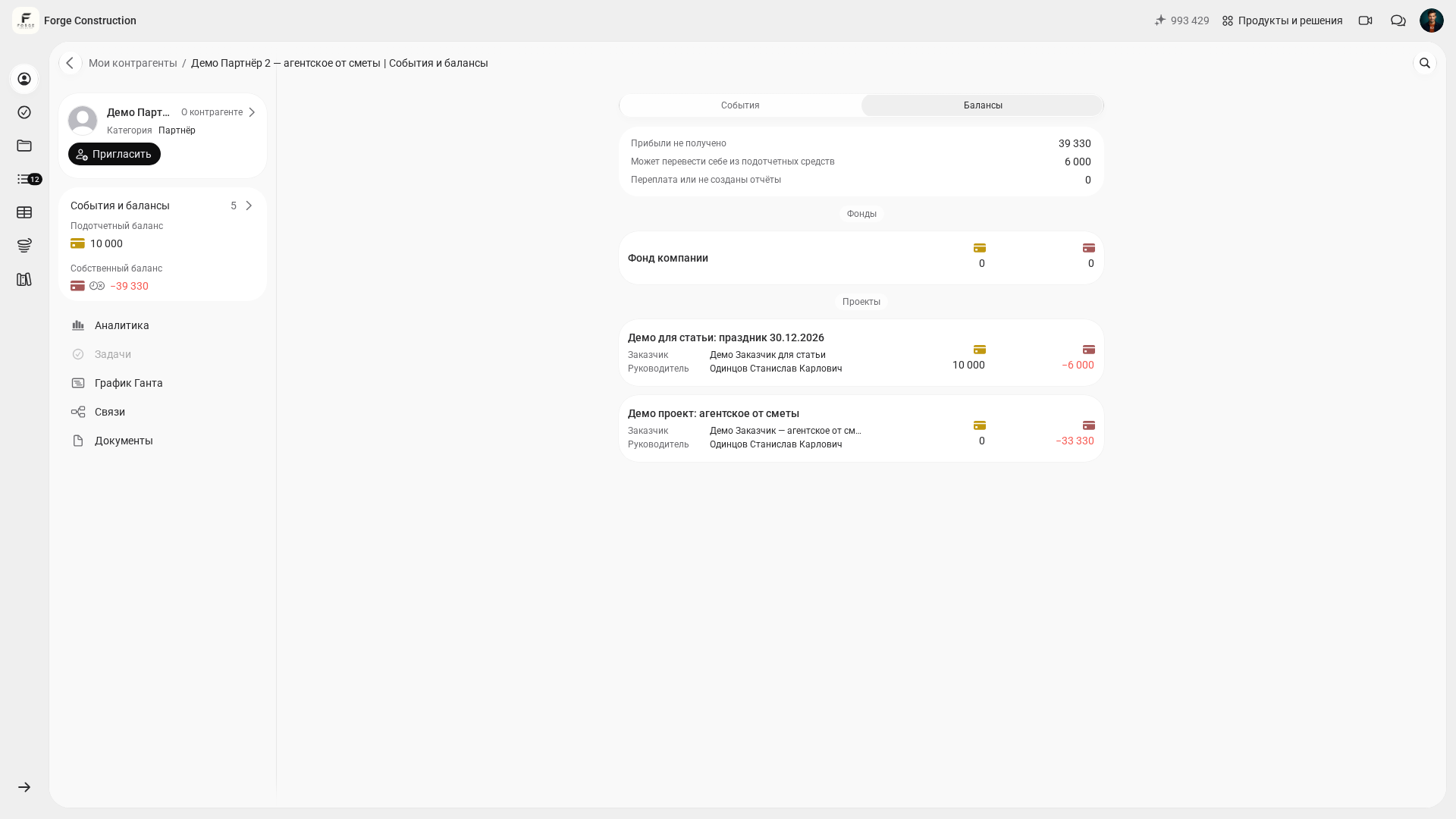
Expense advances are a particular risk area. In 101, funds entrusted to a participant for expenses are tracked separately from their earnings. Money handed over is recorded as a transfer, and a purchase as a report for the same project. Use the selected participant’s expense advance balance to check the recorded amount still to be accounted for. Recording a report does not in itself confirm that expense advances have been reduced: check the participant’s expense advance balance and personal balance separately. Before drawing conclusions, check the recorded events and their confirmation status.
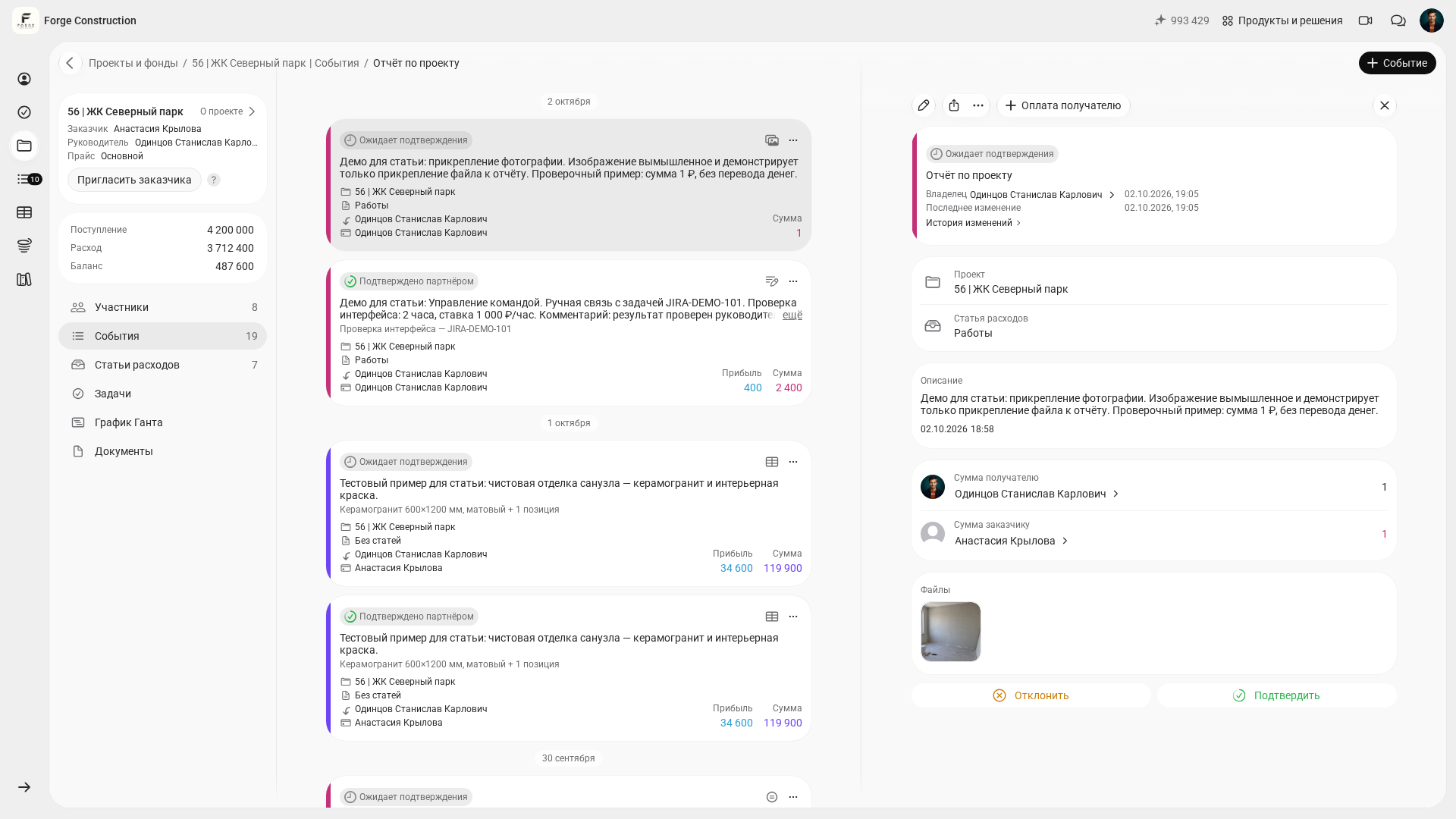
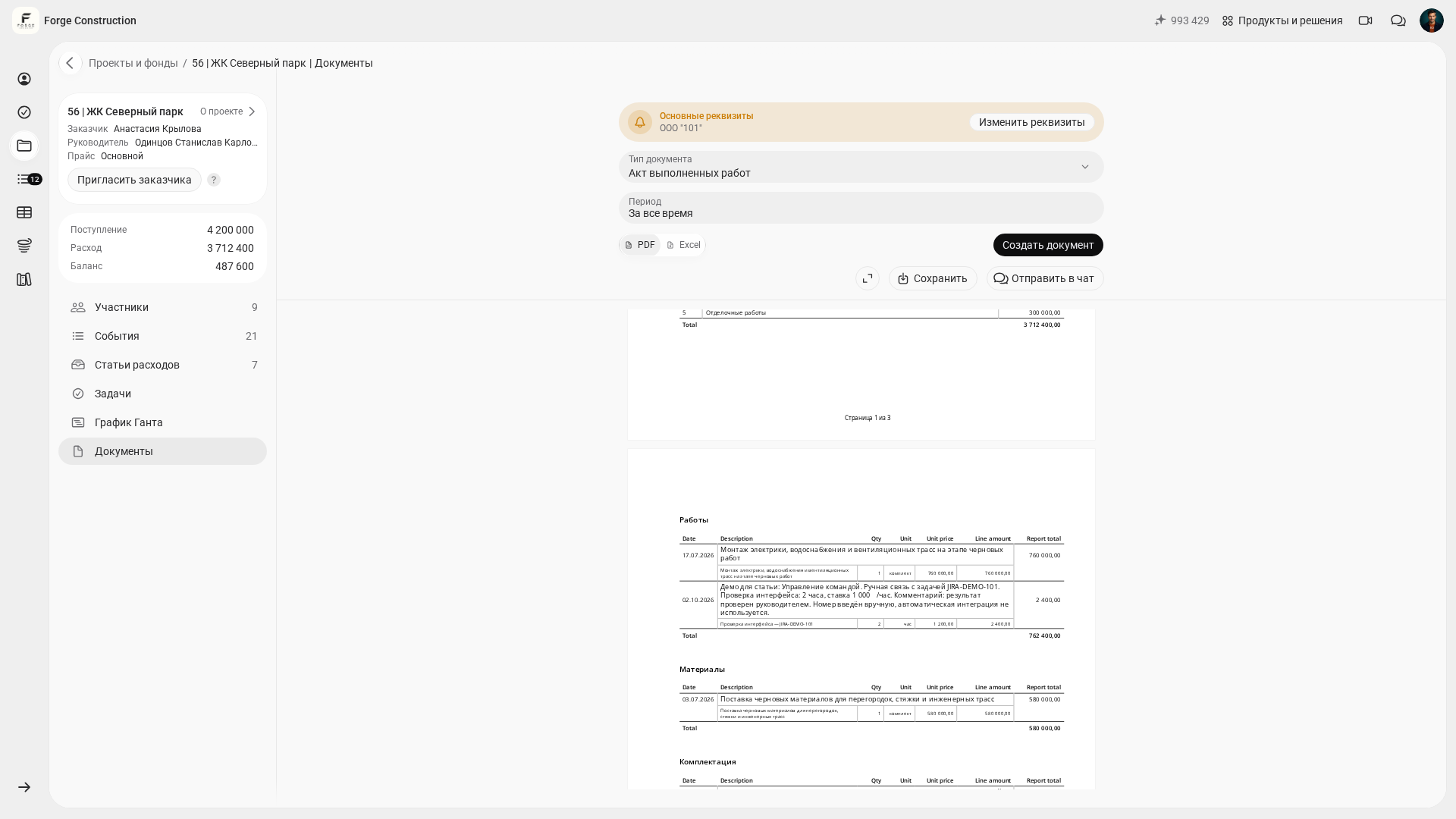
Another practical benefit is working with documents. You can attach supporting photographs to events, such as photos of receipts. Estimates are created as a separate event type, while work completion certificates and other documents are generated from the project data entered. Before sending them, check the contents, period, amounts, and identifying details.
If you need to check your figures, read ‘Management Accounting Audit: How to Check Your Figures’. It explains the checks as a repeatable process you can realistically fit into your calendar.
On-site accounting on your phone
101 supports accounting on your phone: in the installed app, you can create reports on completed work and purchases, add photographs, and scan receipt QR codes. The available fields and actions depend on settings and participant permissions. Item lists are retrieved from external data held by Russia’s Federal Tax Service (FNS), so check the recognition results; retrieval time is not guaranteed. A report and an actual payment are recorded as separate events.
This way of working helps get information from the site into the accounts sooner. If participants enter and check events on the day of the transaction, the manager receives more current information. The project, expense category, and supporting photographs or receipt help explain what a record relates to.
For more detail on working from a phone, read ‘Mobility for Builders: How a Phone Becomes a Key Tool’ (in Russian).
If you also need to prepare estimates and give customers clear calculations, see ‘Online Estimate Calculation in the 101 App’ and ‘Preparing an Online Estimate Yourself in the 101 App’ (in Russian).
PRO and PRO+: when are the essentials enough, and when do you need more?
PRO includes unlimited event creation in projects and the Company Fund. PRO+ adds features such as event approval in the Fund, advanced analytics, and documents with your company logo. Check the current plan comparison for the exact feature set; access to data and actions also depends on participant permissions.
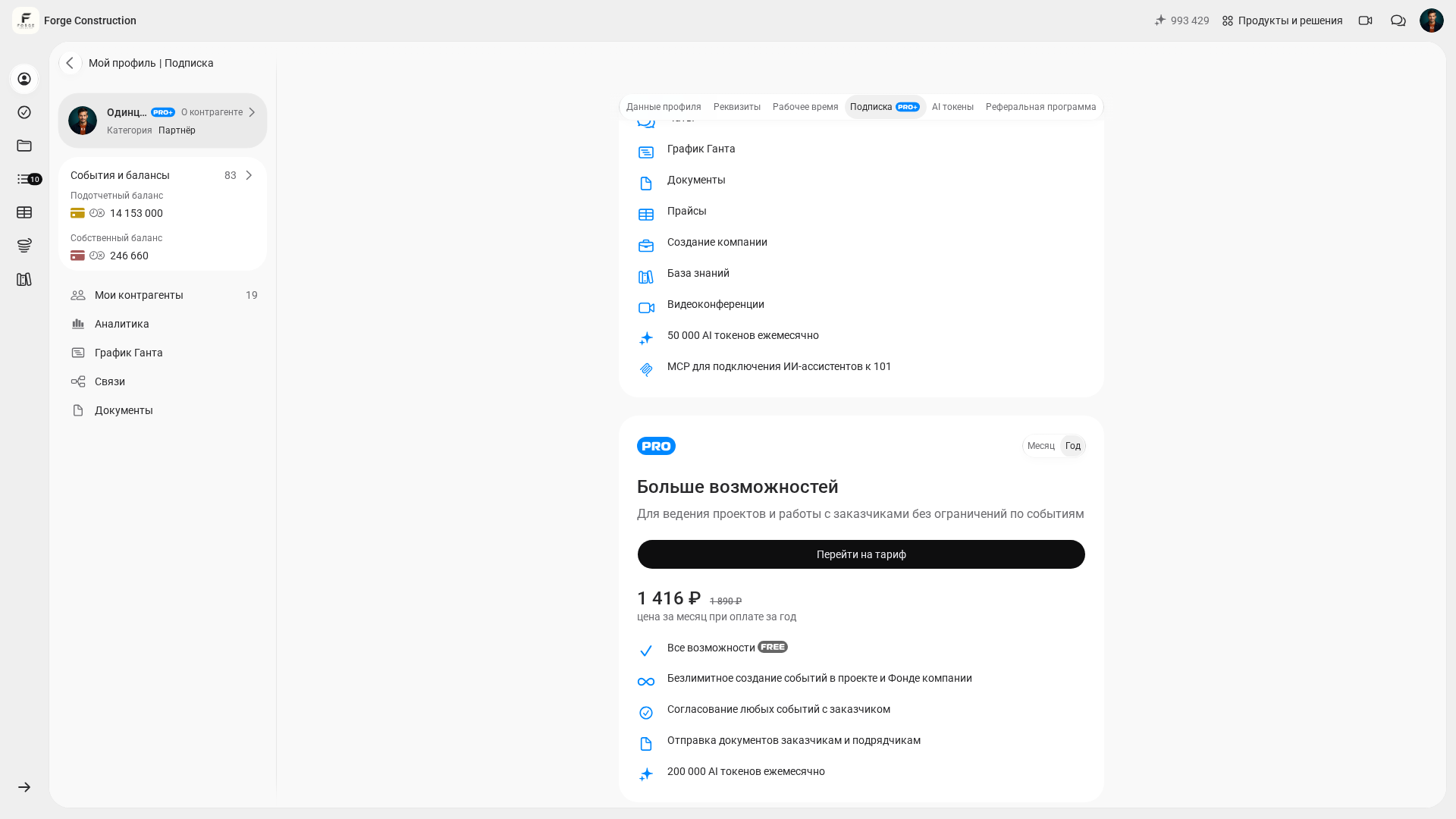
As of 18 October 2026, the 101 homepage lists PRO at 1,400 ₽ per month when paid annually. This is the monthly equivalent of an annual payment. In the screenshot of the demonstration account’s subscription screen on the same date, PRO is listed at 1,416 ₽ per month when paid annually. The public page and the subscription screen show different amounts. Before purchasing, check the final price, billing period, and terms in your own account. The homepage also lists free basic tools, including company creation, estimates, and documents.
For help choosing a system, see ‘Management Accounting Software: How to Choose a Solution for Your Business’ (in Russian). For a comparison with spreadsheets, see ‘Excel or the 101 App for Projects’ (in Russian).
How do you introduce online accounting software to your team?
A major implementation mistake is trying to move existing disorder into an app when it was previously held together by habit. Start by agreeing on simple rules: who records payments, who records purchases, who records completed work, and how often the manager reviews reports.
A practical rollout can follow these steps:
- Step 1. Choose one project for the pilot and identify the customer, stages, and main expense groups in advance.
- Step 2. Agree on expense groups that your team understands and that reflect its usual transactions.
- Step 3. Start with a small pilot team and assign responsibility for information about purchases, work, and supporting documents.
- Step 4. Agree on rules for recording advances, reporting deadlines, and returning unused funds.
- Step 5. Schedule a weekly comparison of expectations with the actual data entered for the pilot project.
- Step 6. After a month, assess the quality of the source data and how regularly calculations, outstanding amounts, expense advances, and supporting documents are checked.
You can book a free demonstration of 101 with an expert to discuss implementation and the system’s capabilities for your needs.
One final thought: online accounting software starts delivering value when accounting becomes a habit and reports answer questions without ‘let’s get together this evening and work it out’. Installing the software is only the starting point.